What temperature tells you
Temperature summarises how well the cooler removes heat that the card produces.
The heat budget
The RTX 5080 has a 360 W total graphics power rating. At full load, nearly all of that becomes heat. The core stabilises where heat removed equals heat produced. The cooler's thermal resistance, the temperature of the air entering it and the fan speed determine that point. A relationship worth remembering: die temperature equals intake air temperature plus power times thermal resistance.
Why it matters
Silicon leaks more current as it warms, and GPU Boost lowers the clock to stay within temperature targets. A cooler card sustains higher clocks and runs quieter. Extreme heat shortens component life, but a card within its design range is safe.
The sensors
The driver reports core temperature, hot spot and often memory temperature. Each shows a different part of the board, and the next sections explain how to read them. The sibling article on a smaller card, the RTX 5060 temperature guide, uses the same method with lower numbers.
Normal ranges
Treat these ranges as guides, not guarantees.
| State | Typical core temperature | Notes |
|---|---|---|
| Idle at the desktop | 30s to low 40s Celsius | Fans may stop |
| Video or light use | 40s to 50s | Fans low or off |
| 1440p gaming | Low to mid 60s | Varies by game |
| 4K heavy gaming | Mid 60s to mid 70s | Fans audible |
| Path tracing, long session | Low to high 70s | Check airflow if above |
| Sustained 80s | Investigate | Dust, airflow or fan issue |
Idle behaviour
Large partner coolers hold a lot of heat, so idle temperature often drifts into the 40s before fans start. Cycling is common with zero-RPM designs. See the fan curve guide for ways to smooth it.
Gaming temperatures
At 4K with ray tracing, the card runs near its power limit, and temperature climbs toward the 70s. Lower-resolution or capped games produce lower numbers.
Maximum rating
NVIDIA lists a maximum operating temperature for the GPU on the product specification. Normal gaming stays well under it, and the card slows down and eventually shuts down to protect itself if it approaches.
Core, hot spot and memory
Three numbers matter.
Core temperature
An aggregate reading across the die, and the one most overlays show first.
Hot spot
The hottest of many sensors. Under load, it commonly runs 10 to 20 degrees above the core reading on a card of this power. A gap of 25 or more degrees at stock may point to poor contact, though it can also reflect heavy local load.
Memory temperature
GDDR7 modules run warm. Many cards report values in the 70s to 90s under load. Because memory has a lower limit than the core in some designs, watch it as well.
| Sensor | Typical load reading | When to investigate |
|---|---|---|
| Core | Mid 60s to mid 70s | Sustained low 80s or more |
| Hot spot | 10 to 20 above core | Gap of 25 or more at stock |
| Memory | 70s to high 80s | Approaching 95 |
Sensor availability
Not all cards expose memory temperature. If yours does not, rely on core and hot spot and keep airflow healthy.
Factors that raise temperature
Case airflow
Intake and exhaust fans create the path. A closed-front case or cable clutter blocks it.
Dust
Dust acts as insulation on fins and clogs fans.
Room temperature
Each degree of ambient adds almost a degree to the core.
Overclocks and power limits
A raised power limit adds tens of watts of heat. An undervolt removes it. The RTX 5080 undervolt guide explains how.
Card position
Vertical mounting can improve or hurt airflow depending on the case. Check clearance from the side panel.
How the RTX 5080 responds to heat
The card has layered protections.
GPU Boost bins
The core clock steps in bins of about 15 MHz. As temperature rises through threshold values, the card reduces the clock bin by bin. A drop of two bins out of roughly 2,700 MHz is about one percent.
Thermal target
The thermal target is the temperature where reduction becomes firmer. Staying under it keeps the card at its full boost for its power limit.
Power versus thermal limits
At 4K, the card often hits its 360 W power limit before the thermal target. The overlay then shows a power cap reason, which is normal and does not indicate a cooling problem.
Emergency shutdown
At the critical limit, the card cuts power. This is protective and should not happen in normal use.
Reading the cap reason
If the clock falls while temperature rises and the cap reason is thermal, improve cooling. If the reason is power, the card is simply at its limit.
The cooler on a 360 W card
Vapour chamber and heat pipes
A vapour chamber spreads heat across the cold plate. Heat pipes carry it to the fin stack. A larger stack with more pipes lowers thermal resistance.
Fans
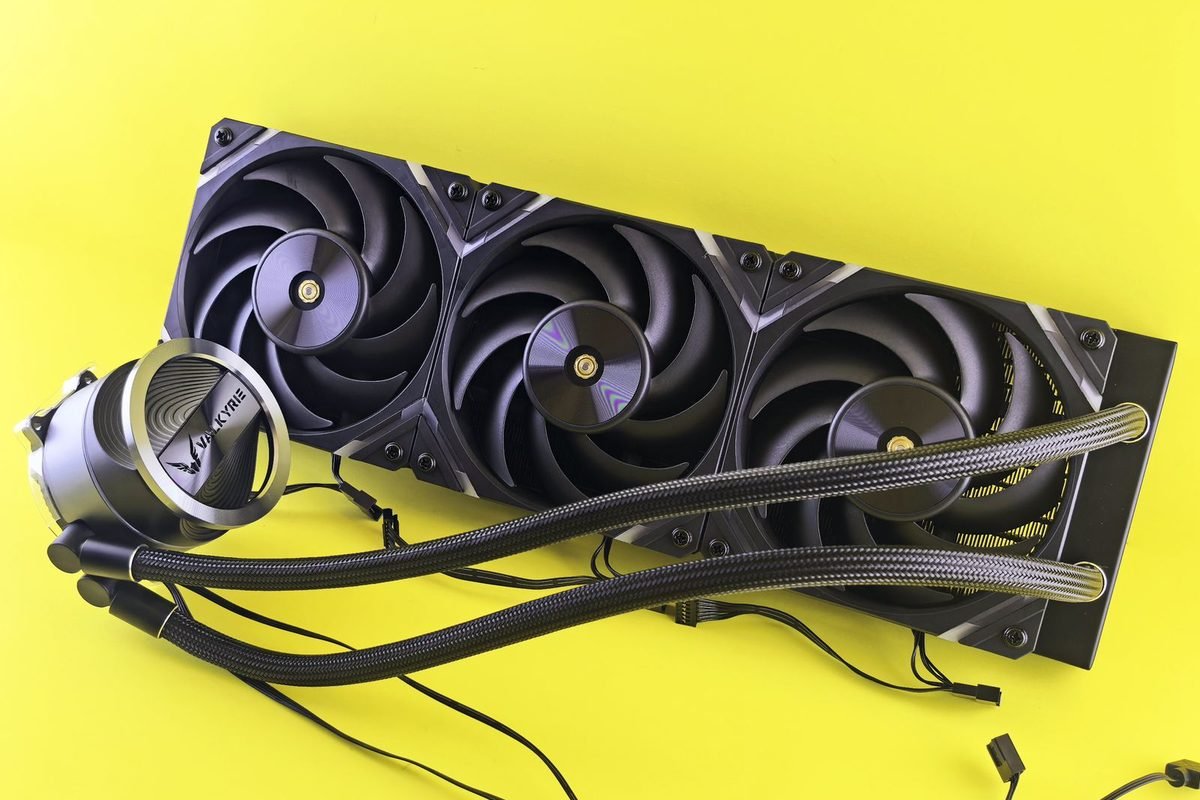
Three fans of 90 to 100 mm are common. Larger fans move more air at lower speed. Some designs use alternating rotation to reduce turbulence.
Memory and power stage cooling
Pads connect memory and power components to the heat sink. A backplate adds spreading. Good designs manage these without raising the core temperature.
Size and clearance
High-end cards are thick and long. Check the case for clearance and for the space needed by the power cable, which should not bend sharply near the connector. The GPU power cable guide explains safe routing.
Airflow design for a 360 W card
The path
Cool air should enter at the front, pass over the card and exit at the rear or top. A rear exhaust fan and a top exhaust fan help remove heat.
Pressure
Positive pressure keeps dust low, while negative pressure draws air through gaps. Aim for balance with slightly more intake.
Fan count and size
Three 120 mm front intake fans and one rear exhaust suit many mid-tower cases. Mesh fronts help.
Case choice
A case with a solid front panel and small vents suffocates a high-power card. Choose a mesh front or generous vents.
| Case feature | Effect on a 360 W GPU |
|---|---|
| Mesh front panel | Several degrees cooler |
| Solid front panel | Hotter, louder |
| Three front intake fans | Strong intake |
| Single rear exhaust | Adequate with intake |
| Tight cable bundles | Slight penalty |
Thermal troubleshooting
Step one: baseline
Record temperature, hot spot, fan speed, clock and power after 20 minutes in a heavy game.
Step two: airflow test
Remove the side panel. If temperatures drop by 8 or more degrees, case airflow is the issue.
Step three: clean
Clean filters and fans. Re-test.
Step four: reset software
Return to a stock profile and default fan curve.
Step five: undervolt
Apply an undervolt to cut heat. Often this alone fixes the problem.
Step six: contact support
If a stock card runs very hot in a good case, document your findings and contact support.
Seasonal and environmental changes
Summer
Ambient temperature climbs. A card at 70 degrees in winter may reach 76 in summer. Leave margin.
Cabinets and desks
Enclosed spaces trap heat. Provide clear space around vents.
Air conditioning
A cooler room lowers temperatures one for one and reduces the need for fan speed.
Humidity and dust
Humid, dusty rooms foul filters faster. Clean more often.
Memory temperature management
Why memory heats up
GDDR7 runs at high data rates, and its modules dissipate meaningful heat. They share a heat sink with the core on most designs.
Keeping memory cool
Maintain airflow across the card, avoid heavy memory overclocks in warm rooms and make sure thermal pads are seated.
Signs of memory overheating
Falling performance in long sessions, artefacts and error handling that reduces scores can all indicate heat. The tuning guides explain how GDDR7 error handling hides problems as slower scores.
Thermal physics for a high-power card
A little physics helps you plan improvements.
Thermal resistance in practice
If a cooler has a thermal resistance of 0.15 degrees per watt from die to air, a 360 W load raises the die 54 degrees above intake air. With 25 degree intake, the die sits near 79. A better cooler with 0.12 degrees per watt would sit near 68. These numbers are illustrative, but they show why cooler design can matter more than a few watts of power.
Heat soak
The heat sink and case take time to reach a steady state. After 30 minutes of load, the case air warms several degrees, raising intake temperature. This is why long sessions run hotter than short ones.
Fan power law
Airflow scales roughly with fan speed, while noise scales much faster. Doubling airflow by speed alone can raise noise by a large margin. More fans at lower speed are quieter.
Why undervolting is powerful
Cutting 20 percent of power cuts the temperature rise above ambient by the same fraction. In the example above, a 20 percent drop in power reduces the rise from 54 to about 43 degrees, an 11 degree improvement.
Load-specific temperatures
Different workloads heat the card differently.
Ray tracing and path tracing
These use RT cores and Tensor cores intensively, and board power stays close to 360 W. Temperatures run highest here.
Rasterised games
Heavy raster loads draw less than path tracing in some cases, but still push power high at 4K.
Esports and capped games
Frame caps cut load. Temperature may sit in the 50s or low 60s.
Compute, rendering and AI
Sustained compute loads hold the card at the limit for hours. Temperature reaches steady state at the upper end of its range.
| Workload | Typical board power | Temperature tendency |
|---|---|---|
| Desktop idle | Low | 30s to 40s |
| Capped esports | Moderate | 50s to low 60s |
| 4K raster gaming | Near limit | Mid 60s to 70s |
| Path tracing | At limit | Upper 60s to mid 70s |
| Rendering or AI | At limit for hours | Steady, mid 70s |
Hot spot gap and what it means
Why the gap exists
The core reading averages sensors across the die. The hot spot picks the maximum. Heat concentrates near the busiest SMs and the cache hot zones, so the maximum exceeds the average.
Normal gap
A gap of 10 to 20 degrees under load is common on high-power cards.
Large gap
A gap that stays above 25 degrees at stock settings, especially when combined with high core temperature, may reflect uneven mounting pressure or poor paste spread. Contact the vendor.
Small gap
A very small gap at high load is unusual but not worrying. Different sensors report differently on different board revisions.
Tracking the gap
Log the gap over time. A rising gap suggests paste pump-out or cooler degradation after many months.
Vertical mounting and special layouts
Vertical mounts
A vertical mount can show off the card, but the fans may sit close to the side panel, restricting airflow. Leave at least a couple of centimetres or more of gap, and consider a case designed for it.
Cables and risers
A riser cable adds cost and can restrict signal quality. Use certified PCIe 5.0 risers if you need one. The PCIe 5.0 guide explains the link.
Small-form-factor cases
Compact cases struggle with 360 W. Choose a slim model, undervolt and keep filters clean.
Liquid cooling and water blocks
Hybrid and custom loops
Water blocks reduce core temperatures substantially, often to the 40s or 50s. They add cost, complexity and risk of leaks. Warranty may be affected.
What changes
Radiator size and flow determine results. Memory and VRM temperatures may rise if not cooled.
Is it worth it?
For most players, a good air-cooled model, an undervolt and good airflow are sufficient.
Maintenance routine
Monthly
Check filters and fans. Remove visible dust.
Every six months
Power down and clean with short bursts of compressed air, holding fans still.
Yearly
Inspect cables and connectors for discolouration or looseness. Replace damaged cables.
Never skip connector care
High-power connectors need a full, straight insertion. Inspect and reseat gently if you suspect an issue, with the system powered off and unplugged.
Reading temperature history for diagnosis
Patterns in logs identify causes quickly.
Slow upward drift
A rise of a few degrees across weeks suggests dust accumulation. Clean the filters and fins.
Sudden step change
A sudden jump of 10 degrees points to a failed fan, a shifted cable blocking airflow or a changed profile.
Spikes during specific games
Some games push the card harder. This is normal. Compare the same game over time.
Oscillation
Regular oscillation indicates fan hunting. Smooth the curve and add hysteresis, as the fan curve guide explains.
Idle spikes
Short idle spikes come from background tasks, and they are harmless unless frequent. Identify the process with Task Manager.
Understanding thermal pads and paste
What they do
Paste fills microscopic gaps between the die and cold plate. Pads bridge larger gaps between memory, power parts and the heat sink.
Ageing
Paste can dry or pump out after years of heating cycles. Pads can harden. Symptoms are a rising hot spot gap and memory temperature creeping up.
Repasting caution
Repasting needs skill and may void the warranty. Only attempt it out of warranty, with the correct pad thickness and quality paste, and after researching your exact model.
When it makes sense
A card several years old with high hot spot gaps, clean fans and good airflow may benefit. For a new card, contact support instead.
Power limit, voltage and temperature together
Power limit effect
Reducing the limit from 100 to 85 percent lowers heat by roughly the same proportion at full load.
Voltage effect
A lower voltage at the same clock reduces heat more efficiently than a power limit alone.
Combined approach
Use an undervolt for efficiency, and a modest limit as a safety net.
| Method | Heat reduction | Performance cost |
|---|---|---|
| Power limit 85 percent | Large | Small to moderate |
| Undervolt at stock clock | Large | Near zero |
| Frame cap | Variable | None if above target |
| DLSS Balanced at 4K | Large | Slight image change |
Practical examples
Example one: loud and hot in a small case
An owner in a compact case sees 79 degrees and 75 percent fans. They add an intake fan, clean filters and undervolt. Temperature drops to 70 and fans to 55 percent.
Example two: dust build-up
After a year, a card that ran at 68 now reaches 76. A cleaning returns it to 69.
Example three: failed fan
One fan stops. Temperature jumps by 10 degrees, and noise changes character. The owner contacts support.
Lessons
Diagnose by comparing with a baseline log. Without a baseline, you have no way to judge change.
Setting alerts and safe limits
Overlay alerts
Set your monitoring tool to highlight temperatures above a chosen value, such as 80 degrees core or 90 degrees hot spot. A visual cue helps you notice problems early.
Choosing thresholds
Pick values slightly above your normal readings. If your card normally peaks at 72, an alert at 80 flags real change without constant false alarms.
Responding to alerts
When an alert fires, check fan speed first, then airflow, then recent changes. A fan that has stopped or a blocked vent is the most common cause.
Automatic protection
The card protects itself, yet alerts give you time to act before throttling harms your game.
Gaming tactics that lower heat
Frame caps
A cap just below refresh rate prevents wasted load. It is the easiest lever.
DLSS
Rendering fewer pixels at 4K lowers power. The RTX 5080 4K settings guide shows sensible DLSS choices.
Reducing heavy effects
Path tracing, extreme shadows and volumetrics draw power. Lowering one notch often saves 20 to 40 W with little visible change.
Frame generation
Frame generation raises displayed frames without proportionally raising power, so it can improve efficiency per displayed frame.
Resolution scaling
A 4K display with DLSS Performance runs the card much cooler than native 4K.
Common mistakes
Judging by idle temperature
Idle readings tell you little about cooling. Look at loaded behaviour after 20 minutes.
Ignoring ambient
A hot room explains many high readings.
Disabling thermal protections
Tools that remove limits risk damage. Avoid them.
Running without a baseline
Without a log, you cannot tell what changed.
Cable, supply and connector temperatures
Heat is not limited to the card itself.
Connector warmth
A power connector that feels warm can indicate poor contact. After shutting the system down and unplugging it, check that the plug is fully seated and that wires are not bent sharply near the socket. The GPU power cable guide describes safe routing and what to avoid.
Supply behaviour
A supply running near its limit generates more heat and noise. Choose a unit with margin for a 360 W card. Retailers commonly list 850 W as a suggestion, but check the product page for your exact model.
Adapter cables
Use the cable supplied with the supply, or the adapter supplied with the card, and avoid chaining extensions.
Visual inspection
Look for discolouration, melted plastic or loose pins. Stop use and contact the manufacturer if you see any.
Quick diagnostic table
| Symptom | Likely cause | First action |
|---|---|---|
| Idle above 55 with fans off | Zero-RPM threshold or background load | Check Task Manager, raise minimum fan speed |
| Load above 82 in a normal case | Airflow or dust | Clean filters, add intake |
| Hot spot gap above 25 | Contact or paste | Contact support if at stock |
| Memory above 95 | Poor memory cooling or heavy offset | Remove offset, improve airflow |
| Loud fans, normal temperature | Aggressive curve | Smooth curve, undervolt |
| Sudden rise by 10 | Failed fan or blocked vent | Inspect fans and case |
Using the table
Match the closest row, apply the first action, retest and move to the next cause if it persists. This approach saves time and stops you from changing many things at once.
When to upgrade the cooling hardware
Case fans
If your case has only one or two fans, adding two intake fans is the cheapest improvement, often worth several degrees.
Case replacement
A cramped or solid-front case may never cool a 360 W card well. Moving to a mesh-front case is a larger step with a bigger effect.
Card replacement
If the card itself has a weak cooler, a model with a bigger heat sink is a more drastic solution. Consider this only after trying the above.
Cost versus benefit
Fans cost little and help immediately. A case costs more and helps the whole system. A card swap is the last resort.
Reference checklist for new owners
On the first day with a new RTX 5080, check these items in order. Seat the power connector fully and route the cable without sharp bends. Confirm that the fans spin at idle if the zero-RPM mode is off, or that they start when load rises. Install the driver and an overlay, then run a 20-minute game session and record core, hot spot and memory temperatures, fan speed, clock and power. Compare against the ranges in this guide. Save the log as your baseline. Clean the filters after a month, and repeat the test at the change of each season. If any value falls outside the typical range, work through the diagnostic table before taking more drastic action.
A note on interpreting forum posts and reviews
Temperatures quoted online come from different cases, rooms, driver versions and test scenes. A reviewer with an open test bench will report lower numbers than you will see in a closed case. A forum poster who plays in winter will report lower numbers than one in July. Compare like with like: same game, same duration, similar ambient and similar case type. Use other people's numbers to learn the range, and use your own baseline to judge your card.
Long-term outlook
With reasonable care, an RTX 5080 will run cool and quiet for years. Dust management, a calm fan curve, a sensible undervolt and attention to airflow provide the bulk of the benefit. Keep a baseline log, repeat it each season and respond to changes quickly. That habit turns temperature from a worry into a routine check.
Comparing the RTX 5080 with its siblings
| Card | Power rating | Typical gaming core temperature | Notes |
|---|---|---|---|
| RTX 5060 | 145 W | 60s to low 70s | Compact coolers |
| RTX 5070 | 250 W | 60s to mid 70s | Mid-size coolers |
| RTX 5070 Ti | 300 W | Mid 60s to mid 70s | Large coolers |
| RTX 5080 | 360 W | Mid 60s to mid 70s | Large coolers |
| RTX 5090 | 575 W | High 60s to high 70s | Very large coolers |
Cooler size scales with power, so temperatures overlap across the range. The lesson is that cooler quality counts as much as power rating. See the RTX 5070 Ti versus RTX 5080 comparison for the specification gap.
Logging a session
What to capture
Record core, hot spot, memory temperature, fan speed, clock, power, usage and room temperature. A log tells you more than a single glance.
How to read it
Look for plateaus. A healthy card reaches a steady temperature after 15 minutes. A temperature that keeps rising suggests insufficient cooling.
Compare over time
Repeat the test each season. A rise of 5 degrees over months suggests dust.
Further reading
For deeper cooling reading, see the comparison of liquid cooling versus air cooling and the analysis of thermal and power limits on the flagship. They add context on how cooler design and power targets set the temperatures you see, and they reinforce the habit of logging a baseline before you change anything. Use them alongside this guide when you plan a case upgrade or a seasonal maintenance routine.
Summary
A healthy RTX 5080 idles in the 30s to 40s and runs in the mid 60s to mid 70s under heavy gaming, with hot spot 10 to 20 degrees higher and memory warm but within limits. Higher readings usually trace to airflow, dust, ambient temperature or tuning. Improve the case, clean regularly, set a smooth fan curve and consider an undervolt. Contact support if a stock card in a good case still runs unusually hot or shows other faults.
Frequently asked questions about RTX 5080 temperatures
What is a normal temperature for the RTX 5080 while gaming?
Most cards run between the mid 60s and mid 70s Celsius in heavy gaming with good airflow, with the hot spot 10 to 20 degrees higher. Lighter games and capped frame rates run cooler. Sustained temperatures in the 80s deserve attention.
Is 80 degrees too hot for the RTX 5080?
It is within the operating limits but higher than typical. Check airflow, dust and fan speeds. If it persists in ordinary games, improve cooling or apply an undervolt before the card begins to throttle. Aim to bring typical readings down well before summer arrives.
Why is my hot spot 20 degrees higher than the core?
The hot spot reads the hottest point on the die, so it exceeds the core. A gap of 10 to 20 degrees under heavy load is normal for a 360 W card. A larger gap at stock settings is worth discussing with support.
Does the RTX 5080 throttle when hot?
Yes. GPU Boost lowers the clock in small steps as temperature rises, and it reduces it more aggressively near the thermal target. The first steps cost around a percent, so throttling is gradual unless cooling is poor. Good cooling and an undervolt avoid most of it.
Can an undervolt lower temperatures?
Yes, often by several degrees. Cutting 40 to 80 W reduces heat and allows lower fan speeds, which improves noise as well. The effect depends on your sample and case. Fans can then run slower, which reduces noise too, so many owners tune for acoustics as well as heat.
When should I contact support?
Contact support if fans fail, if the card runs hot at stock settings in a good case with a very large hot spot gap, or if artefacts appear at normal temperatures. Gather logs and photographs first. Keep receipts, logs and the serial number handy.