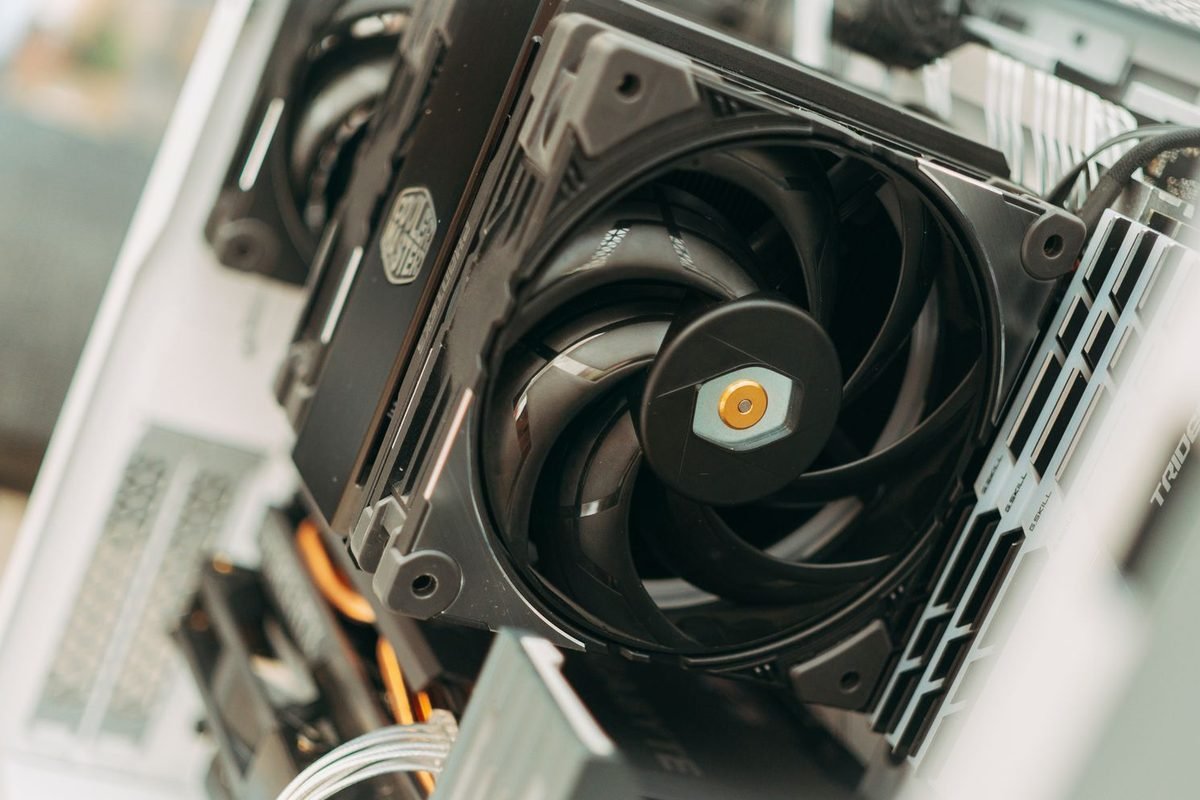
What a fan curve does
The fan curve is the card's response to heat. Setting it well is the simplest way to improve acoustics.
The control loop
The card measures core temperature and looks up a fan speed on the curve. Fans change the airflow, airflow changes the temperature and the loop settles where heat in equals heat out. A curve that responds too slowly lets the card run hot before the fans react. A curve that responds too aggressively causes noise swings.
Factory curves
Partner brands choose default curves to balance temperature, noise and warranty risk. They often favour low temperature at the cost of noise, or silence at the cost of temperature. Your priorities may differ.
What you can change
You can change the speed at each temperature point, the minimum speed, the zero-RPM threshold and the response speed. Tools such as MSI Afterburner expose all of them. The Afterburner overview explains the interface.
The heat you are dealing with
The RTX 5080 has a 360 W total graphics power rating. Under full load, most of that becomes heat.
Heat flux and cooler design
The die is small, so heat flux is high. Large partner coolers use vapour chambers and many heat pipes to spread heat across big fin stacks. Three-fan designs move more air at lower speeds. The RTX 5080 temperature guide lists typical readings for a healthy card.
Fan speed and noise
Fan noise rises roughly with the fifth power of speed in simple models, so a 20 percent speed increase can add several decibels. This is why slowing fans slightly yields a large acoustic gain for a small temperature cost.
| Fan speed | Typical noise impression | Typical use |
|---|---|---|
| 0 percent | Silent | Idle with zero-RPM |
| 30 to 40 percent | Faint | Light load |
| 50 to 60 percent | Audible | Gaming |
| 70 to 80 percent | Loud | Heavy sustained load |
| 100 percent | Very loud | Emergency or benchmark |
Designing the curve
Build it in stages.
Stage one: the quiet zone
From idle up to about 50 degrees Celsius, keep fans very low or off. The heat sink absorbs short bursts, and a quiet zone makes the desktop silent.
Stage two: the working zone
Between 50 and 70 degrees, ramp gradually from around 30 percent to around 60 percent. This is where the card spends most gaming time. A gentle slope keeps speed changes small.
Stage three: the protection zone
Above 70 degrees, steepen the curve. At 75, aim for about 75 percent, and at 80 aim for 90 to 100 percent. These speeds protect against heat soak in rare heavy scenes.
Example points
Illustrative points: 40 degrees at 0 or 30 percent, 50 degrees at 35 percent, 60 degrees at 45 percent, 70 degrees at 60 percent, 75 degrees at 75 percent, 80 degrees at 100 percent. Adjust to your cooler and tolerance.
Applying the curve in MSI Afterburner
Open the fan settings
Open Settings, then the Fan tab, and enable user-defined software automatic fan control.
Edit points
Drag points on the graph or use the grid. Keep the curve monotonic, so that speed never decreases as temperature rises.
Apply and save
Press Apply, then save to a profile. Enable start-up application once you are happy.
Update interval
Set the fan update period to about 1000 ms. Shorter intervals react faster, and longer ones smooth changes.
Hysteresis, smoothing and avoiding hunting
A curve that is right on paper can still sound bad.
What hunting is
Hunting is the fan speed rising and falling repeatedly around a threshold. It happens when temperature oscillates across a steep part of the curve. The ear notices changes more than steady noise, so a constant moderate speed sounds better than one that wanders.
Hysteresis
Hysteresis means the fan speeds up at one temperature but slows down only after the temperature falls a few degrees lower. A band of 3 to 5 degrees prevents rapid toggling. Some tools expose this as a setting. Others offer a smoothing option.
Response delay
An update interval of one second, combined with smoothing, lets short spikes pass without a speed change. The heat sink's thermal mass absorbs brief peaks.
Reducing load swings
Caps and consistent settings produce steadier load. A frame cap near the monitor's refresh rate keeps power and temperature stable.
Choosing temperature targets
Targets depend on your priorities.
The quiet target
Accept 70 to 75 degrees Celsius at moderate fan speeds. Clocks drop slightly, but noise is low. This suits living rooms and night gaming.
The balanced target
Hold the core in the high 60s to low 70s at 55 to 65 percent fan speed. This is a good default for most cases.
The cool target
Keep the core below about 65 degrees by using higher fan speeds. The cost is noise. This suits competitive players who value consistency.
| Target | Core temperature | Fan speed under load | Noise |
|---|---|---|---|
| Quiet | 70 to 75 | 40 to 50 percent | Low |
| Balanced | 66 to 72 | 55 to 65 percent | Moderate |
| Cool | Below 65 | 70 percent or more | High |
Hot spot and memory
Watch the hot spot and memory temperatures as well. The core is not the only limit, and a curve based on the core reading may leave memory warm. Memory temperatures in the 80s are common under load, but sustained readings near the limit call for more airflow.
Pairing the curve with case airflow
A fan curve only controls the card's fans.
Case fans
Case fans determine how quickly hot air leaves the case. Link case fan speed to GPU or CPU temperature in your motherboard software, or set a steady moderate speed.
Airflow direction
Front intake and rear or top exhaust form a path. A slight positive pressure keeps dust low.
Obstructions
Cables, drive cages and tight mesh panels restrict airflow. Remove or tidy them.
Filters and dust
Clean filters monthly. A clogged filter forces higher fan speeds for the same temperature.
Undervolting and the fan curve
A lower power draw lets fans stay slower.
Combined effect
The RTX 5080 undervolt guide shows how to cut tens of watts. With less heat, the same temperature needs less airflow, so the curve can sit lower. This is the most effective way to get a quiet RTX 5080.
Power limit
A lower power limit acts as a simple version of the same idea. It reduces heat in all workloads.
Frame caps
A cap at your refresh rate prevents wasted work, which also lowers heat.
Measuring noise and temperature
Evidence beats guesses.
Setup
Place a phone microphone at a fixed distance from the case, in the position you sit. Use the same room and time of day for comparisons.
Procedure
Run a heavy game for 20 minutes with each curve. Record core, hot spot and memory temperatures, fan speed, clock, power and the noise reading. Compare the curves in a table.
Interpretation
A 3 decibel reduction is audible. A 6 to 10 decibel drop is a major change. If a curve gives a 5 decibel reduction at a 3 degree cost, that is a good deal.
| Curve | Core | Fan speed | Clock | Noise change |
|---|---|---|---|---|
| Factory | 68 | 62 percent | Baseline | Baseline |
| Quiet custom | 72 | 48 percent | Slightly lower | Large reduction |
| Cool custom | 64 | 75 percent | Baseline | Increase |
The table shows an illustrative pattern, not measurements.
Acoustics in more depth
Understanding noise helps you tune by ear.
Sources of fan noise
Fan noise has several parts: blade pass tone, turbulent airflow, bearing noise and structural resonance. Blade pass frequency equals the number of blades times revolutions per second, so a fan with nine blades at 1,500 rpm produces a tone at 225 Hz. Tones are more annoying than broadband noise, so avoid speeds that excite resonances in your case.
Perception and distance
Sound pressure falls with distance. Moving the case from the desk to the floor or to a side shelf lowers perceived noise by several decibels. Case panels with sound-damping foam help with higher-pitched noise.
Three fans versus two
Larger or more numerous fans move the same airflow at lower speed. A three-fan RTX 5080 can be quieter than a two-fan design at the same temperature, provided the heat sink is well made.
Fan bearings
Sleeve, ball and fluid-dynamic bearings differ in noise and lifespan. Fluid-dynamic bearings are quiet and long-lived. You cannot change them easily, so choose a model with good reviews.
How the curve interacts with GPU Boost
Temperature and clock are linked.
Boost bins
GPU Boost steps down clock in roughly 15 MHz bins as temperature climbs through certain thresholds. A cooler card holds a higher bin. A curve that lets temperature rise 5 degrees may cost one or two bins, around one percent of clock speed.
The quiet-versus-fast trade
If one extra bin costs 0.5 percent of performance and saves 5 decibels, most owners choose quiet. If you play competitively, you may take the other side.
Thermal target
The card has a thermal target where it begins to reduce clock more aggressively. Keep your quiet curve safely below it. If the temperature sits at the target, speed is reduced, so lower the curve.
Observing the effect
Log clock and temperature while you try two curves. Compare the average clock, the 1% low and the noise.
Fan curves for different environments
A small case
Heat builds quickly. Use a steeper curve and consider an undervolt. Add a case fan if possible.
A large airy case
The card cools easily. Use a gentle curve with low fan speeds.
A warm room
Raise the curve slightly, and set safe minimums. Consider air conditioning or opening a window during summer.
A silent build
Pair a large heat sink, a low power limit and a curve that tops out at moderate speed. Accept slightly higher temperatures.
Sample curves to adapt
These templates show the shape, and you should adjust them to your hardware.
| Temperature (Celsius) | Quiet | Balanced | Cool |
|---|---|---|---|
| 40 | 0 percent | 30 percent | 35 percent |
| 50 | 30 percent | 35 percent | 45 percent |
| 60 | 40 percent | 48 percent | 60 percent |
| 70 | 50 percent | 62 percent | 78 percent |
| 75 | 65 percent | 78 percent | 90 percent |
| 80 | 90 percent | 100 percent | 100 percent |
How to use the templates
Choose the column closest to your goal, enter the points, test for 20 minutes and adjust each by 5 percent steps.
Memory and hot spot considerations
Memory temperature
GDDR7 modules run warm. A quiet curve may let memory temperatures reach the upper 80s. If your overlay shows readings above 90 degrees under load, raise the curve.
Hot spot gap
A hot spot gap above 25 degrees at stock suggests poor contact. Check airflow first, then contact support.
VRM cooling
The power stage depends on airflow too. Keep the case ventilated, because VRM temperatures rarely appear in overlays.
Zero-RPM mode in depth
Many RTX 5080 cards stop fans at low temperature.
How it works
Below a threshold, often around 50 to 60 degrees Celsius, the fans stop. The large heat sink absorbs idle heat passively. When the temperature crosses the threshold, fans start at a minimum speed, and they stop again when the temperature falls below a lower threshold.
Pros and cons
Zero-RPM gives silence at the desktop and during light tasks. The drawback is cycling, where fans start and stop every few minutes as the heat sink warms and cools. Some owners find the sudden start more intrusive than steady low noise.
Alternatives
Raise the minimum fan speed to 25 or 30 percent, which many fans can run almost silently. Alternatively, increase the zero-RPM threshold so that fans start later and run longer.
Checking fan stall speed
Fans have a minimum speed below which they stall. If you set a very low speed, the fan may stall, then spin up. Test low speeds and avoid those that cause stuttering rotation.
Monitoring tools and overlays
What to display
Show core temperature, hot spot, memory temperature, fan speed, clock, board power and GPU usage. These seven fields reveal how the card behaves.
Logging
Log data during gaming, and graph temperature against fan speed. A good curve shows smooth lines with few oscillations.
Avoid tool clutter
Running several monitoring tools adds polling and may cause conflicts. Use one for the overlay and one for control, or combine them in a single tool.
Fan curves and the rest of the system
The processor cooler
Processor heat enters the case too. A tower cooler or liquid cooler with good airflow reduces case temperature.
Radiators and top fans
Top-mounted radiators exhaust hot air, but they can also warm the card below. Check airflow paths when you plan the build.
Storage and memory
NVMe drives and memory modules produce modest heat. They matter little compared with the GPU and processor.
Cable management
Tidy cables free the airflow path. Zip ties and routing channels help.
The role of undervolting and capping
You can cut noise without touching the curve at all.
Frame cap
In games that exceed your monitor's refresh rate, capping the frame rate reduces load and heat. A cap near the refresh rate removes wasted work.
DLSS
Rendering at a lower internal resolution reduces power. DLSS Quality or Balanced at 4K can drop the draw by many watts.
Power limit
A power limit of 85 to 90 percent trims the highest-power moments.
| Technique | Effect on heat | Effect on image |
|---|---|---|
| Frame cap | Lower in light games | None |
| DLSS Quality | Lower | Slight change |
| Power limit | Lower | Very slight performance loss |
| Undervolt | Lower | Usually none |
Testing a curve properly
Warm-up
Run the game for 10 minutes before you record. The heat sink needs time to soak.
Duration
Record 20 minutes after warm-up. Short tests understate steady-state temperature.
Repeat
Repeat each curve at least twice, and use the same scene.
Ambient
Note the room temperature. A 3 degree difference changes results.
Record keeping
Keep a table of curve name, temperatures, fan speed and noise. Share it with support if you need help.
Choosing between curve tuning and a new cooler
When the curve is enough
If temperatures are reasonable and the issue is noise, a curve is the right tool.
When airflow is the problem
If temperatures are high even at full fan speed, the case is limiting. Add fans or choose a better case.
When the card is the problem
If the card runs hot at stock with unusual hot spot gaps, contact the retailer.
Frequently overlooked settings
The idle refresh rate
A high refresh rate across several monitors can keep the card out of its lowest power state. Lower the secondary monitors' refresh rates if idle heat annoys you.
Background GPU use
Browsers and video players use the GPU. Close them if the card stays warm at idle.
Driver features
Some driver features run background work. Review the NVIDIA App options and disable what you do not need.
Worked example with illustrative numbers
The figures below illustrate the method and do not describe a specific card.
The starting point
A three-fan RTX 5080 with the factory curve reaches 70 degrees Celsius at 65 percent fan speed in a long 4K session, with a noise reading of 42 decibels at 50 cm.
The change
The owner builds the balanced curve from the sample table, with hysteresis of 4 degrees and an update interval of one second. In the same session, the card reaches 72 degrees at 55 percent, and noise reads 38 decibels.
The trade
Two degrees of temperature cost about one boost bin, around 0.5 percent of clock, and bought 4 decibels of noise reduction. The owner then applies a modest undervolt. Temperature returns to 67 degrees at 50 percent fan speed and noise reads 36 decibels.
Lesson
Curve tuning, undervolting and frame caps stack. Together they turn a loud card into a quiet one without giving up frames that you can notice.
Fan curve myths
Myth: higher fan speed always extends life
Heat matters, but fans have limited lifespans too. Running them at full speed constantly wears bearings. A balanced curve is gentler on both.
Myth: the card will cook itself with a custom curve
The card throttles and shuts down to protect itself. The firmware does not rely on your curve for safety.
Myth: a lower temperature always means better performance
Past a certain point, extra cooling yields no measurable gains. The boost algorithm has a ceiling set by power and voltage.
Myth: zero-RPM damages fans
Stopping fans at low temperature reduces wear. The cycling is a nuisance but not harmful.
Planning for summer
Warmer ambient
Each degree of room temperature adds nearly a degree to the card. A 10 degree summer rise can push a quiet curve into the throttling range.
Seasonal profiles
Keep a summer profile with a slightly steeper curve. Switch with a hotkey or on a calendar reminder.
Cooling the room
Good ventilation or air conditioning helps both you and the computer. Avoid placing the case near radiators or in direct sunlight.
When to consider repairs or replacement fans
Signs of a failing fan
Grinding, rattling, wobble, a fan that stops under load or fan speed readings that disagree with the sound all indicate wear.
Warranty first
Contact the retailer or brand. Most schemes cover fan failure within the warranty period.
Aftermarket fans
Replacing fans voids many warranties and needs care. Check terms before you proceed.
Gaming sessions by type
Short sessions
Under 30 minutes, heat soak is incomplete. A quiet curve works well, and the card seldom reaches high temperatures.
Long sessions
After two hours, the case and heat sink are saturated. Temperatures climb several degrees compared with the first half hour. Test your curve in a long session and add margin.
Streaming and recording
Encoding adds modest load. Leave extra margin, because microphones pick up fan noise.
Benchmarks
For benchmark runs, switch to the cool profile. Noise does not matter for ten minutes, and the extra headroom can raise scores slightly.
Coordinating with processor cooling
Shared airflow
A hot processor warms the case air that the card inhales. Improving processor cooling lowers GPU intake temperature, and the benefit flows both ways.
Control strategy
Many motherboards let you link case fans to the hottest component. This is usually better than a single fixed speed.
Pump and radiator noise
If you use liquid cooling, pump noise can dominate. Set the pump at a constant moderate speed.
Fan control on different operating conditions
Boot and BIOS
Before Windows loads, the card uses its firmware curve. This is usually safe and moderately noisy. Your software curve takes over after start-up.
Sleep and resume
After resume, some systems revert to the firmware curve until the tool reloads. A short delay in noise is normal.
Multi-GPU and capture cards
Extra cards add heat and block airflow. Leave a slot of space between cards if possible.
Laptops and small devices
Laptop cooling is managed by firmware and often cannot be changed. Follow the manufacturer's tools.
A reasoned approach to buying a quieter card
Read measured noise
Reviews that measure noise under load are more valuable than adjectives. Look for decibel readings at a stated distance.
Check heat sink size
A heat sink with a large fin area and several heat pipes supports lower fan speeds. Heavier cards often have better coolers.
Consider the case
A quiet card in a cramped case can be loud. Match the cooler to your case airflow.
Used and open-box cards
Check the fans for bearing wear before you buy a used card, and request evidence of good operation.
Final tips for a calm, quiet card
Keep the curve simple and the slope gentle. Resist the urge to tune every degree, because two or three well-chosen points do most of the work. Review the curve each season, clean filters regularly, and let your ears be the judge, since the best fan curve is the one you stop noticing. If the card sounds fine and temperatures look healthy, leave it alone and enjoy the game.
Summary of the process
- Record stock behaviour. 2. Design a three-zone curve. 3. Add hysteresis. 4. Test for 20 minutes. 5. Adjust by small steps. 6. Combine with an undervolt and frame cap. 7. Save profiles, including a summer variant and a stock fallback.
Troubleshooting
Fans do not respond
Check that software control is enabled and no other tool is overriding it. Reboot after changes.
Fans spin at 100 percent at boot
The software may not have loaded yet. Use the BIOS-level default curve as a fallback, and enable the tool at start-up.
Rattling or ticking at low speeds
This can be a bearing or blade noise at particular speeds. Avoid that speed by adjusting the curve, and contact support if it is loud.
Curve resets after sleep
Reapply the profile. Some drivers reset settings on resume.
Conflicts
Run only one fan control tool. Others, such as vendor utilities, may fight for control.
Safety margins
Never set fans off at high temperature
Keep a minimum speed above a safe threshold, such as 40 percent at 65 degrees.
Test in summer conditions
A curve that works in winter may be too quiet in a warm room. Test or leave a margin.
Watch for failures
If a fan stops, the card throttles and may shut down. Check fans periodically, and stop use if one fails.
Further reading
For wider cooling strategy, read the comparison of liquid cooling versus air cooling and the guide to thermal and power limits. Both explain how cooling choices change noise and sustained clocks.
Summary
A good RTX 5080 fan curve keeps fans low or off at idle, ramps smoothly through the working range, steepens above the mid 70s and uses hysteresis to avoid hunting. Combine it with an undervolt and good case airflow for the best acoustics. Test every change after 20 minutes of load in a warm room, record temperature and noise, and keep a safe fallback profile. For related reading, see the RTX 5080 temperature guide and the RTX 5070 Ti versus RTX 5080 comparison.
Frequently asked questions about the RTX 5080 fan curve
What is a good fan curve for the RTX 5080?
Keep fans low below about 50 degrees Celsius, ramp smoothly to around 60 percent at 70 degrees, and add a steeper section above 75. Adjust for your case and noise tolerance, and test after 20 minutes of load before settling.
Should I use zero-RPM mode?
It makes the desktop silent, but fans may start and stop repeatedly as temperature crosses the threshold. If that annoys you, raise the threshold, use hysteresis or set a low minimum speed such as 25 to 30 percent. Test the result over a full session.
Will a custom curve damage my card?
Not if it responds to heat sensibly. The card still throttles to protect itself. Avoid curves that keep fans very low at high temperatures, and test in a warm room to ensure safety. Keep a safe minimum fan speed and check temperatures after a long session.
Why do my fans keep ramping up and down?
Rapid temperature changes make the curve react. Add hysteresis, smooth the slope, lengthen the update interval or raise the minimum speed. A steadier load, such as a frame cap, also helps. Frame caps also help, because steady load produces steady temperature and fewer speed changes.
Is a quieter curve worse for performance?
A little, if it allows higher temperatures. The boost algorithm reduces the clock slightly as temperature rises, typically by a percent or two. Most players accept that for lower noise. Test a long session to see the clock difference, and keep temperatures below the thermal target for safety.
Can I set separate curves for different games?
Yes, with profiles in a tool like Afterburner. Many players create a quiet profile for everyday games and a performance profile for heavy ones. Create a profile for each use case, such as quiet gaming and benchmarks, and bind hotkeys so that you can switch quickly without reopening the tool.