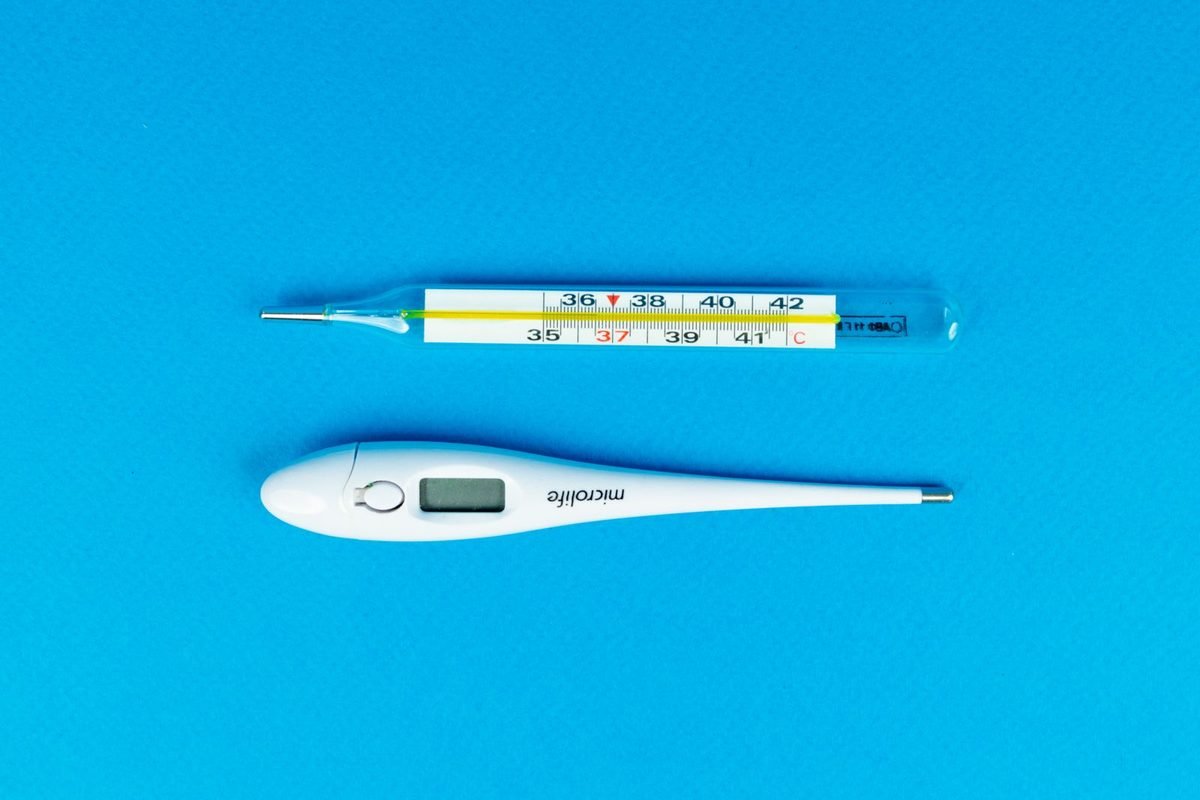
What temperature means for a GPU
A temperature reading is a measurement of how hard the cooler works against the heat the chip produces.
Heat in, heat out
Every watt the card draws becomes heat. The RTX 5060 has a 145 W total graphics power rating, so under full load it releases about 145 W into the case. The cooler moves that heat from the die through a heat sink to fan-driven air. The core settles where heat removed equals heat produced, and that temperature depends on ambient air, airflow and the cooler's thermal resistance.
Why temperature matters
Silicon becomes less efficient as it heats up, because leakage current rises. Boost algorithms reduce the clock as temperature climbs, so a hot card runs slower. Extreme heat also shortens component life. A card within its design range is safe and runs at full speed.
The relevant sensors
The driver exposes several sensors: core temperature, hot spot (the hottest point across the die), and often memory temperature. Each tells a different part of the story.
Normal ranges for the RTX 5060
Ranges depend on workload and environment, so treat these as guides, not guarantees.
| State | Typical core temperature | Notes |
|---|---|---|
| Idle at the desktop | 30s to low 40s Celsius | Fans may stop on many models |
| Light load, video playback | 40s to 50s | Fans low or off |
| Gaming at 1080p | 60s to low 70s | Varies by game |
| Heavy ray tracing, long session | Low to mid 70s | Fans audible |
| Sustained mid-to-high 80s | Investigate | Check airflow and dust |
Idle behaviour
Many partner cards stop their fans at low temperature, so the heat sink warms until a threshold turns the fans on. A cycle of fans starting and stopping at idle is normal on such designs. If it annoys you, set a minimum fan speed in software.
Gaming temperatures
At 145 W, the card sits comfortably in the 60s to low 70s in a well-ventilated case. The RTX 5080 temperature guide covers a card with more than twice the power, so the numbers there are higher.
Where the manufacturer draws the line
NVIDIA specifies a maximum GPU temperature, and the card throttles and finally shuts down near that limit. The exact figure is on the product specification, and normal gaming stays well below it.
Core, hot spot and memory readings
Understanding the three sensors prevents false alarms.
Core temperature
The core reading is an average or representative value across the die. It is the most commonly displayed number.
Hot spot
The hot spot is the hottest sensor among many. It is higher than the core reading, often by 10 to 15 degrees Celsius under load. A larger gap, such as 25 degrees or more, can indicate uneven contact between the cooler and the die.
Memory temperature
GDDR7 modules run warm and have their own limit. Memory temperature is often reported in the 70s to 90s under load on cards that expose the sensor. Rear modules on clamshell designs run hotter, though the RTX 5060 uses a standard layout.
| Sensor | Typical behaviour | When to worry |
|---|---|---|
| Core | 60s to low 70s in games | Sustained high 80s |
| Hot spot | 10 to 15 degrees above core | Gap of 25 or more |
| Memory | Warm, can reach the 80s | Approaching the module limit |
Why a card runs hotter than expected
Most heat problems come from the system, not the card.
Poor case airflow
A case without intake and exhaust traps hot air. Front intake fans and rear or top exhaust fans create a path. Cable clutter and blocked filters restrict it.
Dust
Dust forms an insulating layer on heat sink fins and fills fan blades. Temperatures rise slowly over months.
Room temperature
Ambient air sets the baseline. A room at 28 degrees Celsius produces core temperatures several degrees higher than a room at 20.
Fan curve and settings
An overly quiet fan curve lets temperatures rise before fans respond. A tune with raised power limits adds heat.
Position in the case
Cards stacked tightly above a hot processor cooler or beneath other cards receive warm air. Space helps.
How the card responds to heat
Modern GPUs manage temperature automatically in several stages.
GPU Boost and thermal bins
GPU Boost selects a clock based on power, voltage, reliability and temperature headroom. As temperature rises, the card steps down in bins of about 15 MHz. A drop of 15 MHz out of roughly 2,500 MHz is less than one percent, so mild throttling costs little performance. Large drops occur only when temperature approaches the thermal target.
The thermal target
The driver sets a thermal target where the card begins to reduce its clock more aggressively. Cards tuned for quiet operation may hit it more quickly because the fans respond later. The target is not a failure point, and it is far from the shutdown limit.
Emergency protection
If a fault, such as a failed fan, pushes the temperature to the critical limit, the card cuts power and shuts down. This is a protective measure and should never occur in normal use.
How to see throttling
An overlay shows the clock speed and a performance cap reason. If the cap reason is thermal and the clock is falling, the card is throttling. If the reason is power, the card is simply at its 145 W target, which is normal.
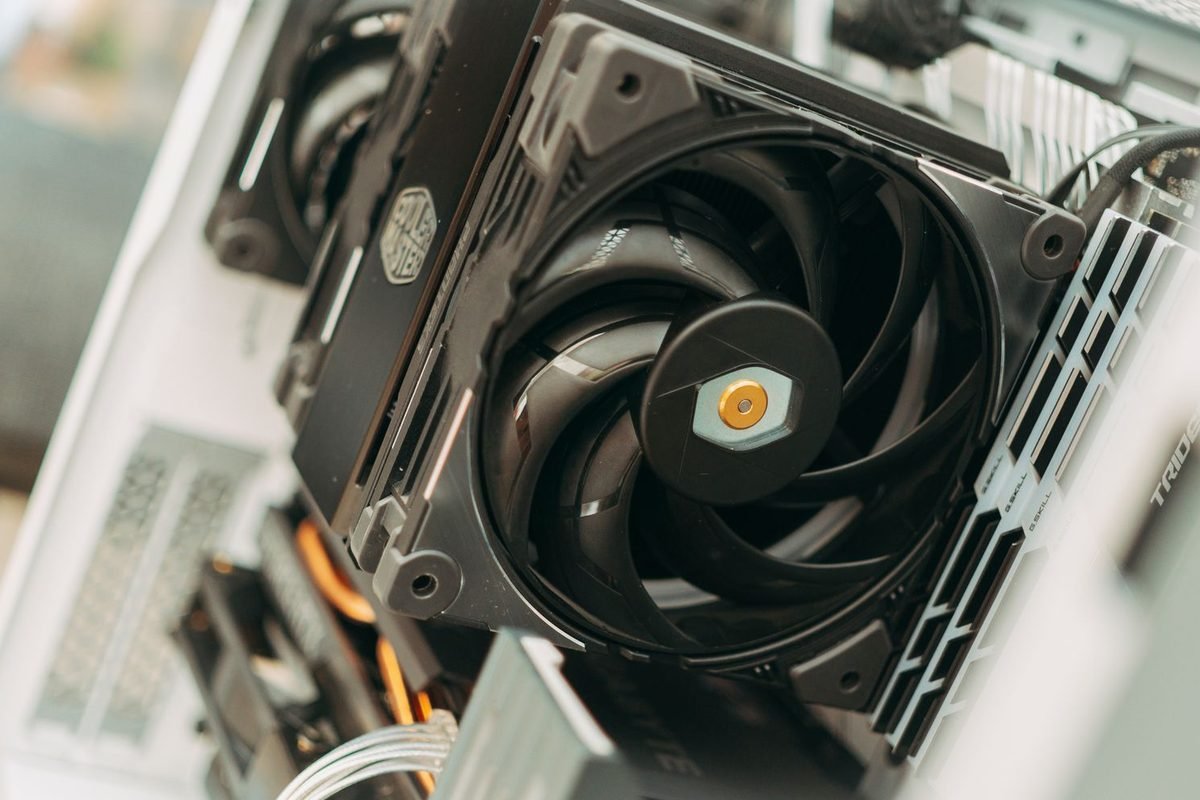
The cooler on a 145 W card
Partner designs vary, yet the principle is shared.
Heat pipes and the vapour chamber
A cold plate touches the die and memory. Copper heat pipes or a vapour chamber spread heat across an aluminium fin stack. Fans push air through the fins. A larger fin area and more heat pipes lower the thermal resistance.
Fan count and size
Two fans of 80 to 90 mm are common on this class of card. Larger fans move more air at lower speed, which reduces noise. Single-fan designs suit very compact cases but run hotter or louder.
Thermal pads
Pads transfer heat from memory and power components to the cooler. Their thickness and quality matter, and poorly placed pads cause memory temperatures to rise.
Backplates
A metal backplate helps spread heat and protects the board. Some designs add pads behind the die for extra cooling.
Building good airflow
A case is a duct for air.
Intake and exhaust balance
Front intake fans bring cool air in. Rear and top fans exhaust hot air. A slightly positive pressure, with more intake than exhaust, reduces dust entering through gaps.
Cable management
Tidy cables keep air paths open. They also reduce dust traps.
Filters
Clean dust filters every month or two. A clogged filter starves the fans.
Component spacing
Leave a gap beneath the card in cases with a bottom intake. Do not block the fans with cables or drives.
| Change | Typical effect on GPU temperature |
|---|---|
| Add a front intake fan | Several degrees lower |
| Clean dust filters | A few degrees lower |
| Remove a blocked side panel | Several degrees lower, noise higher |
| Improve fan curve | A few degrees lower, noise higher |
| Lower the room temperature | Direct reduction |
These effects vary with the case, so treat them as guides.
Setting a fan curve
The fan curve links temperature to fan speed.
A balanced curve
Keep fans at a low speed up to around 50 degrees Celsius. Ramp gently through the 60s, reaching a moderate speed near 70. Add a steeper section above 75 to protect against heat. A smooth curve avoids audible swings.
Hysteresis
Some tools offer hysteresis, which delays fan speed reductions after a drop in temperature. It prevents constant changes.
Testing the curve
Run a demanding game for 20 minutes and watch the temperature and fan speed. Adjust until you find a balance between noise and temperature. The RTX 5080 fan curve guide explains the steps in detail.
Zero-RPM mode
Zero-RPM mode stops fans at low load. If you hear clicking at idle or see temperature cycles, set a low minimum speed instead.
Undervolting to reduce heat
Lower power means lower temperature.
How an undervolt helps
Reducing voltage at the same clock cuts power and heat. On a 145 W card, savings of 15 to 25 W are plausible, which can lower temperatures by several degrees and noise by a clear margin. Results vary by sample.
Method
Use the voltage-frequency curve editor in a tool such as MSI Afterburner. Lock a lower voltage at a stable clock, flatten the rest of the curve, test, and save. The RTX 5070 overclock and undervolt guide explains the process for a similar card.
Power limit as a simple alternative
Lowering the power limit by 10 percent reduces heat quickly and safely, with a modest loss in performance.
Diagnosing a hot card step by step
Follow this order.
Step one: record the situation
Note the temperature, fan speed, clock, power, room temperature and the game. Take readings after 15 minutes of load.
Step two: check the obvious
Make sure fans spin, filters are clean and the case is open to airflow. Check that cables are not blocking the fans.
Step three: test with the side panel off
If temperatures fall by many degrees, the case airflow is the limit. Add or reposition fans.
Step four: reset software
Return to a stock profile and default fan curve. If temperatures improve, the tune was the cause.
Step five: contact support
If a card runs hot at stock settings in a good case, with a large hot spot gap, contact the retailer or manufacturer.
What not to do
Do not run without protection
Operating the card with failed fans is unsafe. Stop and fix it.
Do not disable thermal protection
Avoid tools that remove thermal limits. The protections exist to prevent damage.
Do not repaste in haste
Repasting needs skill. Replacing thermal paste on a new card may void the warranty.
Thermal physics in plain terms
A little theory makes the numbers easier to interpret.
Thermal resistance
Thermal resistance describes how many degrees the chip rises above the surrounding air for each watt of heat. If a cooler has a resistance of 0.25 degrees per watt, a 145 W load raises the die temperature about 36 degrees above the air entering the cooler. With a 25 degree intake, the die sits near 61 degrees. These figures are illustrative, but the relationship holds: temperature equals intake air plus power times resistance.
What each lever changes
Lowering power reduces the product. Lowering intake temperature shifts the baseline. Improving the cooler reduces the resistance. This is why an undervolt, a cooler room and a better cooler each help, and why they stack.
Why fans matter nonlinearly
Doubling fan speed does not halve resistance. Returns diminish, and noise rises quickly with speed. This is why moderate speed with a large heat sink is the efficient choice.
Transient behaviour
When a game starts, temperature rises over a minute or two as heat soaks into the heat sink. Short tests can understate the steady state. Always measure after 15 to 20 minutes.
Idle and light-load temperatures in detail
The desktop is where most players look first.
Why idle can look high
Multiple monitors, high refresh rates and video playback keep the card out of its lowest power state. Idle power may be 15 to 30 W instead of under 10, and temperature rises accordingly. Fans may cycle on and off.
Reducing idle heat
Set the desktop refresh rate to a sensible value, close hardware-accelerated applications you do not need, and check for background processes using the GPU. Many people find a browser tab with video or an overlay is responsible.
Fan stop mode
On zero-RPM designs, temperature may drift into the 50s before the fans start. This is expected, and the cooler's mass absorbs the heat. Fans start, cool the card by a few degrees, then stop again.
When idle is unusually high
Idle above 60 degrees with fans off suggests a software issue, a stuck power state or a misconfigured fan curve. Restart the driver or the computer, and check for conflicting tuning software.
Environment and seasonality
Where the computer lives matters.
Room and desk placement
A computer in an enclosed cabinet or under a desk against a wall breathes warm air. Give it space, and keep intake vents free.
Summer versus winter
Ambient temperature may differ by 10 degrees or more between seasons, and the GPU follows. A tune that is stable in winter may crash in summer. Leave a margin.
Altitude and air density
Thin air carries less heat. This is a minor effect for most UK players.
Pets, carpets and dust
Pet hair and carpet fibres clog filters quickly. Raise the case on a hard surface and clean more often.
Cleaning and maintenance routine
Maintenance restores performance.
Monthly checks
Look at filters and fans. Remove visible dust with a soft brush.
Every six months
Power down, unplug and open the case. Use short bursts of compressed air, holding the fans still so they do not overspin. Clean heat sink fins gently.
Yearly
Check cables, fan operation and any odd sounds. Replace a failing fan or contact support.
Safety
Never use a vacuum cleaner directly on components, because static can damage them. Use air or a soft brush, and keep fans from spinning freely.
Comparing the RTX 5060 with other RTX 50 cards
Context helps set expectations.
| Card | Power rating | Typical load temperature | Notes |
|---|---|---|---|
| RTX 5050 | 130 W | 60s | Small coolers |
| RTX 5060 | 145 W | 60s to low 70s | Compact, easy to cool |
| RTX 5060 Ti | 180 W | 60s to low 70s | Slightly more heat |
| RTX 5070 | 250 W | 60s to mid 70s | Larger cooler |
| RTX 5080 | 360 W | 70s | Big cooler, hot spot higher |
Ranges overlap because cooler size scales with power. A well-designed larger cooler can keep a higher-power card as cool as a smaller card.
Why smaller is not always hotter
A compact 145 W card with a modest cooler can run warmer than a larger 250 W card with an excellent cooler. Judge by the design and measured results, not the power rating alone.
Thermal throttling versus power throttling
The two are often confused.
Thermal throttling
Occurs when temperature reaches the card's thermal target. The clock drops gradually, and the cap reason shows temperature.
Power throttling
Occurs when board power hits its limit. The clock settles at a level that keeps power at 145 W. This is the normal state under heavy load and not a fault.
Voltage and reliability limits
At the top of the curve, the card may be limited by the maximum voltage point. This too is normal.
How to read the overlay
If the clock is steady, the temperature is stable and the cap reason is power, the card is working as designed. If the clock keeps falling as temperature rises, address cooling.
Frame rate effect of heat
Temperature has a measurable but modest effect.
Estimating the loss
If a card loses two bins of 15 MHz because of temperature, it loses about 30 MHz out of 2,500, around 1.2 percent. In frame rate terms, that is about one frame at 80 frames per second. Heat rarely costs more than a few percent unless the card throttles heavily.
Why quiet and cool still matters
Although the performance loss is small, the combination of heat and noise affects comfort. Many players tune for acoustics more than for frames.
Special situations
Small-form-factor cases
Compact cases restrict airflow. Use a low-profile or single-fan card with caution, choose an undervolt and keep the case free of dust.
Laptops and external enclosures
Desktop-class numbers do not apply to laptops. Follow the manufacturer's guidance for those devices.
Long compute sessions
Rendering or AI inference holds the card at high load for hours. Temperatures reach steady state, so plan cooling for that, and consider a lower power limit.
Reading monitoring software correctly
Tools show many numbers, and some mislead.
Choosing a tool
The NVIDIA App overlay is simple and reliable. MSI Afterburner with RivaTuner offers detailed graphs and logs. Use one tool at a time, because running several can cause conflicts and extra polling load.
Which fields to show
Display core temperature, hot spot, memory temperature if available, core clock, board power, fan speed and GPU utilisation. These seven fields explain nearly every thermal situation.
Averages versus peaks
Peaks occur briefly when load changes. Use average readings over a minute for judgement, and use peaks to catch spikes.
Logging
Log to a file during a gaming session and graph it afterward. A slow upward drift reveals dust or airflow issues, and a sudden jump suggests a fan or contact fault.
A sample session diary
A diary turns vague worries into evidence.
What to record
Write the date, room temperature, game, settings, session length, peak and average core temperature, hot spot, fan speed and noise rating. Ten sessions reveal a pattern.
How to use it
If averages creep up by 5 degrees over a few months, clean the system. If a single session is unusually hot, look for a cause such as a closed window or blocked vent.
Share it with support
A diary helps support staff confirm that you followed sensible steps. It speeds up warranty cases.
Temperature targets by use
Set expectations that fit how you play.
Casual gaming
Short sessions seldom reach steady state. Any reading under the low 70s is comfortable.
Marathon sessions
Long sessions reach steady state. Aim to hold the core below about 75 degrees by improving airflow.
Silent builds
If you prioritise silence, accept slightly higher temperatures in the low to mid 70s with low fan speeds.
Case studies in diagnosis
These short scenarios use reasoning to show how to read the numbers.
Case one: a compact case with one rear fan
A player reports 82 degrees Celsius and loud fans in a small case with a single rear exhaust fan. The fix is to add an intake fan or open the front panel, because the card is recirculating its own heat. Temperatures fall by several degrees, and fan speed drops.
Case two: sudden rise after months
A card that ran in the high 60s now reaches the low 80s. The likely cause is dust, so cleaning filters, fins and fans restores it. If not, check that a fan is still spinning.
Case three: large hot spot gap
A new card shows a core temperature of 66 and a hot spot of 95 under load. A gap of nearly 30 degrees is large. Check the mounting pressure with the manufacturer, since a poor cold plate contact is a warranty matter.
Case four: temperature fine, performance low
Clocks sag with temperatures in the 60s. The cap reason is power, so the card is at its 145 W limit. This is normal, and raising the limit slightly may help if the card permits.
Lessons
Match the symptom to the cause before acting, and change one thing at a time.
Warranty, support and when to replace
Some situations call for professional help.
Signs of a genuine fault
Fans that do not spin, rattling or grinding noises, artefacts on screen at normal temperatures, repeated driver resets and a hot spot gap far beyond the usual range all point to a hardware fault rather than a settings issue.
Gathering evidence
Record temperatures at stock settings, take a short video of the fault, note the driver version and describe the cleaning and airflow steps you tried. Clear evidence shortens the process.
Contacting the right party
Contact the retailer within the return window, and the partner brand afterward. Keep the receipt and the serial number.
Do not modify before contact
Avoid removing the cooler or applying new paste before you have asked about warranty terms. Many schemes treat modification as a reason to refuse repairs.
Power delivery and its heat
The card's power stage also warms the board.
VRM temperature
Voltage regulator modules convert the supply's 12 V into the low voltage the die needs. They run warm, and a backplate or heat sink helps. Most monitoring tools do not show VRM temperature, so cases with poor airflow can harm them without an obvious reading.
Connector heat
Power connectors can warm if a cable is loose or damaged. Seat connectors fully, avoid sharp bends and inspect them when you clean the system. The GPU power cable guide explains safe connections.
Supply quality
A good supply delivers steady voltage, and a poor one can cause instability that looks like a thermal fault. Check supply capacity against your total system power.
A short maintenance calendar
Putting upkeep on a schedule keeps temperatures steady. Check filters monthly, give the case a thorough clean every six months, review temperatures after major driver or game updates and look at your diary each quarter. Small, regular actions prevent the slow creep that turns a quiet card into a loud one.
Temperature and noise together
Many players care about noise as much as temperature.
Trade-offs
Lower temperatures require higher fan speeds, which are louder. An undervolt or power limit helps both. A larger case with big, slow fans helps most.
Choosing a quiet model
Compare measured noise for the model you plan to buy. The same GPU can sound very different across partner designs.
Further reading
To see how heat and tuning interact on a neighbouring card, read the RTX 5060 safe overclocking guide and the RTX 5060 versus RTX 4060 efficiency comparison. They give real-world temperature and efficiency context.
Summary
A healthy RTX 5060 idles in the 30s to low 40s Celsius and runs in the 60s to low 70s in games, with the hot spot 10 to 15 degrees higher and memory warm but within limits. Higher readings usually trace back to airflow, dust, room temperature or an aggressive tune. Clean the system, improve case airflow, set a smooth fan curve and consider a modest undervolt. Contact support only if a stock card in a good case still runs unusually hot. For related reading, see the RTX 5080 temperature guide and the RTX 5070 complete guide.
Frequently asked questions about RTX 5060 temperatures
What is a normal temperature for the RTX 5060 while gaming?
Most RTX 5060 cards run between the 60s and low 70s Celsius under gaming load in a well-ventilated case. Higher readings in warm rooms or small cases are common, and sustained temperatures in the high 80s suggest an airflow or dust problem.
Is 80 degrees Celsius too hot for the RTX 5060?
It is within the card's operating limits, but it is higher than normal for a 145 W card. Check airflow, clean dust and review your fan curve. If the temperature stays at 80 or above in ordinary games, investigate the case before blaming the card.
Why is my hot spot so much higher than my core temperature?
The hot spot reports the hottest point on the die, so it is naturally higher. A gap of 10 to 15 degrees is typical. A much larger gap can indicate poor contact between the cooler and the die, which a technician can check.
Does temperature affect performance?
Yes. GPU Boost lowers the clock in small steps as temperature rises, so a hot card runs slower. The effect is gradual, and it means thermal throttling often appears as lower clocks before it becomes dramatic. Mild throttling costs little, but cooling still matters for noise.
Should I repaste the RTX 5060?
Usually not. Most high temperatures come from airflow, dust or fan settings. Repasting can void the warranty and carries risk. Try the simple fixes first, and contact the manufacturer if a new card shows unusually high hot spot gaps. Contact support if the hot spot gap stays large.
How do I check my GPU temperature?
Use the performance overlay in the NVIDIA App, or a monitoring tool such as MSI Afterburner. Record the core, hot spot and memory temperatures while gaming, and compare against the ranges above. Note the room temperature as well. Log a full gaming session for best results.