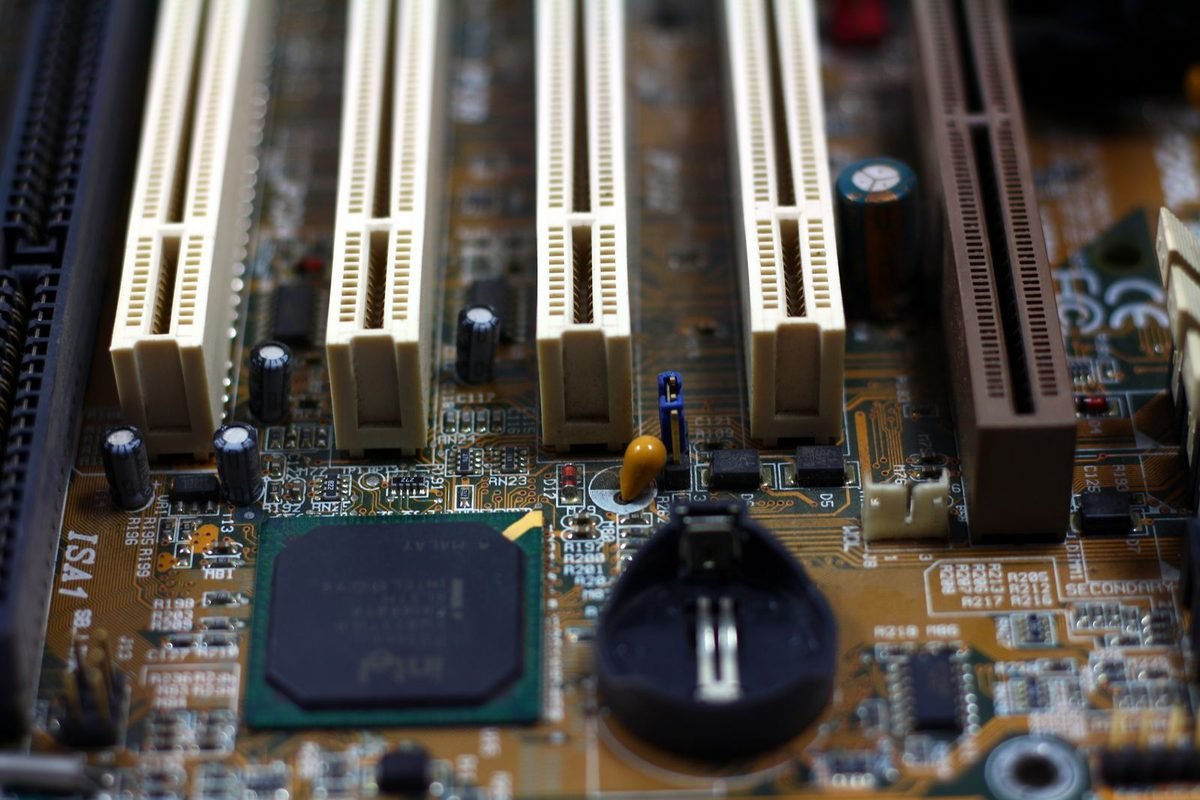
What is PCIe and why does it matter for graphics cards?
PCIe stands for Peripheral Component Interconnect Express. It is the connection between your graphics card and the rest of your computer. This section explains it in plain terms before the guide looks at the new standard.
The road between the card and the computer
Imagine the graphics card as a workshop and the processor and main memory as the warehouse that supplies it. The PCIe slot is the road between them. A wider, faster road lets more goods move in less time. Games send data across this road all the time: models, textures that were not already stored on the card, instructions and results.
Lanes and links
A PCIe connection is made of lanes. Each lane is a pair of wires carrying data both ways. Slots come in widths: x1, x4, x8 and x16, where the number is how many lanes are available. Graphics cards usually use the x16 slot, the longest on the board, but some cards use only eight lanes.
Generations
Each PCIe generation doubles the speed per lane. Generation 3.0 runs at 8 gigatransfers per second per lane, generation 4.0 at 16, and generation 5.0 at 32. A newer generation means more speed on the same number of lanes.
Why the slot is rarely the main limit
Most of a game's heavy work happens inside the card, using its own fast memory. The slot carries a smaller share of traffic. That is why a card can run well even on an older generation, but not always, as the sections below show.
PCIe 3.0, 4.0 and 5.0 speeds in numbers
The figures below are approximate maximum throughput in one direction, which is how bandwidth is usually quoted.
| Generation | Per lane | x8 link | x16 link |
|---|---|---|---|
| PCIe 3.0 | about 1 GB/s | about 8 GB/s | about 16 GB/s |
| PCIe 4.0 | about 2 GB/s | about 16 GB/s | about 32 GB/s |
| PCIe 5.0 | about 4 GB/s | about 32 GB/s | about 63 GB/s |
How to read the table
Doubling the generation doubles the speed on a given width. A PCIe 5.0 x8 link therefore matches the bandwidth of a PCIe 4.0 x16 link, and a PCIe 4.0 x8 link matches a PCIe 3.0 x16 link. This relationship explains most real-world results.
The numbers are ceilings, not typical use
Games rarely use the full capacity of the slot. These are the maximum speeds, and games usually use much less, which is why even a PCIe 3.0 x16 slot is enough for many cards.
Compare with the card's own memory
The RTX 5090's memory moves about 1,792 GB/s, far above even the PCIe 5.0 x16 figure. This gap shows why games try to keep data on the card and avoid sending it over the slot.
Which RTX 50 cards use which link?
RTX 50 desktop cards are built for PCIe 5.0, but the number of lanes differs by model.
Full x16 cards
The RTX 5090, RTX 5080, RTX 5070 Ti and RTX 5070 use a full x16 connection. On a PCIe 4.0 board this gives about 32 GB/s, which is more than enough for them in nearly all games.
Narrower x8 cards
Several lower-cost cards in the family use an x8 connection to reduce cost and board complexity. This includes the RTX 5060 Ti, RTX 5060 and RTX 5050 according to published specifications. Confirm the exact link width for any specific model, because partner designs and revisions can differ.
Why this is fine on a modern board
On a PCIe 5.0 or 4.0 motherboard, an x8 link still offers plenty of bandwidth for these cards. The trade-off appears mainly on older boards.
Where the trade-off bites
On a PCIe 3.0 board, an x8 link provides about 8 GB/s, which is much lower than the 32 GB/s a PCIe 4.0 x16 slot offers. For a card with limited memory, this matters when data has to cross the slot.
Do you need a PCIe 5.0 motherboard?
For nearly everyone the answer is no. A PCIe 5.0 motherboard is a nice-to-have, not a requirement.
The card works without it
NVIDIA designed the cards to negotiate the best speed the slot supports. Put an RTX 50 card in a PCIe 4.0 slot and it runs at PCIe 4.0 speeds. Put it in a PCIe 3.0 slot and it runs at PCIe 3.0 speeds. Nothing needs to be configured.
Performance impact on x16 cards
For x16 cards, reviews of this kind of change have generally found small differences in games. The slot rarely limits them. Do not replace a motherboard just to get PCIe 5.0 for graphics.
Performance impact on x8 cards
For x8 cards on PCIe 3.0, the loss can be larger in some games, especially at high settings. The impact depends on how often the game needs data across the slot, which is higher when video memory runs out.
When a new motherboard makes sense
A new motherboard can make sense when you are upgrading the processor and memory as well, when you want faster storage with PCIe 5.0 drives, or when your old board lacks features such as Resizable BAR. In those cases, graphics support is a bonus rather than the main reason.
Why memory capacity and PCIe speed are linked
The slot matters most when the card has to borrow from system memory. That makes video memory capacity and PCIe speed two sides of the same problem.
When the game fits in VRAM
If the game's data fits in the card's own memory, the slot sees light traffic and its speed hardly matters. Most of the time, this describes your gaming.
When the game does not fit
When VRAM is full, the game or driver moves data to system memory and fetches it back across the slot. A narrow or slow slot makes this swapping hurt more. This is why a card with 8 GB on an old PCIe 3.0 board can lose more than a card with 16 GB on the same board.
What this means for the RTX 5060 Ti
The 8 GB RTX 5060 Ti paired with a PCIe 3.0 board is the combination most exposed. The 16 GB version is much less exposed because data rarely needs to cross the slot. Our guide to how much VRAM you need helps decide which version suits you.
Practical advice
If you have an old PCIe 3.0 board and want a budget card, favour the version with more memory, or lower texture quality to keep data on the card.
How to check which speed your card is using
Do not guess. A free tool shows the real link in minutes.
Using GPU-Z
Download GPU-Z from its official site and open it. Find the Bus Interface line. It shows the slot's capability and the current link, for example PCIe 5.0 x16 at 5.0 x16. At idle, the card often lowers its link speed to save power, so the line may show a lower value. Click the small question mark next to Bus Interface to run the built-in render test, then check the line while the test runs. This shows the speed under load.
What the readings mean
If the current link under load is lower than the card's maximum, either the motherboard slot supports a lower generation or the connection is limited by something else, such as a shared lane or a setting.
Checking in the BIOS
The motherboard's setup screen lists the PCIe generation for each slot. Some boards let you choose Auto, Gen 3, Gen 4 or Gen 5. Auto is the right choice for nearly everyone. Our article on BIOS and Windows tweaks for the RTX 5090 explains safe changes.
Why your card might run slower than expected
If GPU-Z shows a lower link than expected, there are a few common explanations.
The slot is not the main x16 slot
Some boards have more than one long slot. Only the top one is usually wired for full speed and full generation. A second long slot may be x4 or x8. Make sure the card sits in the correct one.
Lane sharing with storage
On some boards, filling certain M.2 drive slots reduces the lanes available to the graphics slot, dropping it from x16 to x8. The motherboard manual explains which slots share lanes.
How to avoid it
Use the M.2 slots that do not share lanes with the graphics slot, or check the manual before adding a second drive.
Risers and extension cables
A vertical mounting kit or a riser cable can reduce reliability at higher PCIe generations. If a system shows glitches with a riser, setting the slot to a lower generation in the BIOS can help. Quality risers rated for the generation you use are best.
The card is not seated properly
A card that is not fully pushed into the slot, or a dirty or damaged slot, can cause the link to fall to a lower speed or fail. Reseat the card carefully with the computer off. The site's article on the physical connection between an RTX 5090 and the motherboard covers this in detail.
PCIe 5.0 and your processor
The graphics slot gets its lanes from the processor, so the processor sets the maximum generation as well as the board.
Check both the board and the processor
A board might support PCIe 5.0 for the graphics slot, but an older processor may only offer PCIe 4.0 lanes. The manual for each lists the supported generation for the primary slot.
Do not forget the BIOS version
Some boards need a BIOS update to run a new card at its best. Check the manufacturer's support page for notes about new graphics cards, and update following their instructions.
Processor limits matter more than the slot
Even with a perfect slot, a slow processor can limit a fast card. The article on CPU and system bottlenecks with an RTX 5090 explains how to spot that.
Resizable BAR and why it is mentioned alongside PCIe
Resizable BAR, sometimes written ReBAR, is a feature that lets the processor access the graphics card's whole memory at once instead of in small chunks. It is a separate setting from the PCIe generation, but guides often mention both because both are found in the motherboard's setup screen and both affect how the card talks to the computer.
What it does in plain terms
Without it, the processor reads and writes the card's memory through a small window, a bit like reading a book through a keyhole. With it enabled, the window opens fully. In some games this gives a small speed increase. In others it makes no visible difference.
How to check it
The NVIDIA App or the NVIDIA Control Panel system information shows whether Resizable BAR is on. GPU-Z also reports it. If it is off, the motherboard setup screen usually has options called Above 4G Decoding and Resizable BAR.
Is it safe to enable?
It is a standard feature on modern boards and processors. Enable it according to your motherboard's manual. If you notice instability afterwards, turn it off again and update the BIOS.
Three real-world setups and what to expect
These examples are illustrations designed to show how the factors combine. They are not benchmark results.
Setup one: a new build with PCIe 5.0 and an RTX 5070 Ti
Everything matches. The card has a full x16 link on a PCIe 5.0 slot. There is nothing to optimise, and no reason to worry about the slot.
Setup two: an older PCIe 3.0 board with an RTX 5070
The card has an x16 link, so even on PCIe 3.0 the bandwidth is about 16 GB/s. For most games the difference is small. The card will run happily, and the better use of money is the card itself rather than a new motherboard.
Setup three: an older PCIe 3.0 board with an 8 GB RTX 5060 Ti
The card uses an x8 link, so the bandwidth on PCIe 3.0 is about 8 GB/s. Combined with 8 GB of memory, games that overflow VRAM may stutter more than on a newer board. Options include choosing the 16 GB version, lowering texture quality, or upgrading the platform alongside the card.
What the three have in common
In each case, the right decision came from three facts: the card's link width, the slot's generation and the card's memory amount. Check all three before buying.
Troubleshooting PCIe link problems step by step
If your card seems slower than it should be, work through this list in order.
- Open GPU-Z and run the render test to see the current link under load.
- If the link is lower than expected, power the computer off and reseat the card firmly in the main x16 slot.
- Check that the PCIe power cables are fully inserted at both ends.
- Read the motherboard manual for lane sharing between the graphics slot and M.2 drives.
- Update the motherboard BIOS following the manufacturer's instructions.
- If you use a riser cable, remove it temporarily and test the card directly in the slot.
- In the BIOS, set the slot's generation to Auto, or try one generation lower to test stability.
What each result tells you
If the link returns to normal after reseating, the card was not fully seated. If it returns after removing a riser, the riser was limiting the connection. If it stays low, the slot or the processor may support only a lower generation, which is normal for older platforms.
When to ask for help
If a card shows errors, random black screens or the system fails to start, test the card in another computer if possible, and contact the retailer or manufacturer. Do not keep using hardware that crashes repeatedly.
The simple stability trick
Some users with riser cables or very high-speed slots find that choosing a lower PCIe generation in the BIOS removes crashes with almost no change in game speed. This is a diagnostic step, not a permanent fix for a damaged part, but it can keep a system usable while you investigate.
PCIe myths worth ignoring
A few ideas about PCIe spread widely and mislead buyers.
Myth: PCIe 5.0 makes games run much faster
Graphics cards today rarely saturate PCIe 4.0 in games, let alone PCIe 5.0. Faster slots help in specific situations, not across the board.
Myth: you must match the card's generation to the board
The card and the slot negotiate their own speed. They do not need to match.
Myth: x8 means half the performance
An x8 link halves the slot bandwidth, but games use only part of it. Performance loss, if any, depends on the game and the memory amount, and is usually small on modern boards.
PCIe beyond graphics: storage and add-in cards
Graphics cards are only one use of PCIe. Fast SSDs, capture cards and network cards also use lanes from the same processor.
Sharing lanes
A processor has a fixed number of lanes. Using a lane for storage can mean fewer lanes for another device. Modern boards allocate lanes so that the main graphics slot keeps its x16 link in most cases, but specific combinations can change that.
Buying with a plan
If you plan to add a fast SSD, a capture card and a graphics card, read the motherboard manual to see how lanes are shared. A short check at purchase time can prevent a slow link later.
Slot power and cables: the other half of the connection
The PCIe slot carries data, and it also supplies a small amount of power. Understanding both halves avoids a common misunderstanding.
What the slot provides
A standard PCIe x16 slot can deliver up to 75 watts to a card. Modern graphics cards need far more than that, so they take the rest through separate power cables from the power supply. For high-end RTX 50 cards, that is usually a single 16-pin connector, called 12V-2x6, or an adapter that gathers several standard cables.
Why the slot does not limit power
Because the heavy power comes through the cable, the slot's 75 watt limit does not cap performance. The slot's job is mainly data.
Why both connections must be solid
A loose power cable can cause black screens or crashes that look like PCIe problems. Check both the slot seating and the power cable whenever you troubleshoot. The site's article on proper dedicated GPU cables for the RTX 5090 explains safe cabling in detail.
Why a power supply check belongs here
If you are upgrading a graphics card, confirm that the power supply has the right connectors and enough capacity. A card that is physically compatible with the slot may still not run correctly if the power supply is too small or lacks the needed cables.
How to read a motherboard manual's PCIe table
Motherboard manuals contain a table or diagram showing what each slot can do. Reading it takes a few minutes and answers most questions.
Find the specification page
Look for a page titled Specifications, Expansion Slots or PCIe Slots. It lists the number of long slots and, for each, the generation and the number of lanes. The first slot, nearest the processor, is usually the main graphics slot with full lanes.
What the notes say
Small footnotes often explain lane sharing, such as "when M.2 slot 2 is populated, slot 1 runs at x8". These notes are easy to miss and important.
Match it with the processor page
Processor manufacturers list the number and generation of PCIe lanes each processor provides. The board cannot exceed what the processor offers. Check both pages and use the lower value.
Questions to ask when buying a motherboard for an RTX 50 card
If you are buying or building, a short list of questions keeps you out of trouble.
- Does the main graphics slot run at x16 with the processor I plan to use?
- Which generation does it support, and does that matter for my card?
- Do my storage drives share lanes with the graphics slot?
- Does the board need a BIOS update for my processor, and does it ship with it?
- Is there room for a thick graphics card between the slot and other components?
- Does the case have enough space and airflow?
Why the answers matter more than the generation
The answers decide whether the card runs at full width and stable speed. A board with a higher generation but a shared, narrower graphics slot would be a worse choice than a plainer board with a full x16 slot.
Keeping a record of your configuration
Write down the main facts about your platform in one place: motherboard model, BIOS version, processor, the PCIe generation of the main slot, the card's model and link width, and the date you last updated the BIOS and the driver. This short note helps whenever you troubleshoot, ask for help in a forum, or plan an upgrade. When someone asks why a card runs slowly, the first questions are always about the board, the slot and the BIOS, and having the answers ready saves time. It also protects you when you sell the computer, because a buyer can see exactly what the machine contains. Update the note every time you change a component, so it never goes stale, and store a copy somewhere you can reach it even if the computer will not start.
A simple cost-benefit way to decide
Treat the choice as a budget question rather than a technical one.
Count the full cost
A new motherboard can require a new processor and new memory, because platforms change. The total can exceed the cost of the graphics card. Compare that to the likely gain.
Estimate the gain honestly
For x16 cards on PCIe 3.0, the gain from a new platform in games is usually small. For x8 cards with 8 GB, the gain can be larger in memory-heavy games. For other reasons, such as a slow processor, a new platform may deliver much more.
A rule of thumb
If your current processor and board feel fast enough in the games you play, put the money into the graphics card first. If the processor holds you back, upgrading the platform may give more than the card does.
Short glossary for this article
- PCIe: the connection standard linking the graphics card and the computer.
- Lane: one pair of wires carrying data both ways.
- x8 and x16: the number of lanes in a link.
- Generation: the version of the standard, which sets speed per lane.
- Bandwidth: how much data moves per second.
- Resizable BAR: a setting that gives the processor wider access to the card's memory.
Related reading
To decide which card suits your platform, the guide on how much VRAM you need explains why memory capacity changes how much the slot matters, and the spec sheet guide shows how to find the link width of any card. The plain-English RTX 50 series guide gives the wider context.
Should you upgrade your motherboard for an RTX 50 card?
Use these steps to decide.
- Identify your motherboard and processor and look up the PCIe generation of the main slot.
- Identify the card's link width, x16 or x8.
- Check the card's memory amount and the games you play.
- If you have PCIe 4.0 or 5.0, you can stop here: you are fine.
- If you have PCIe 3.0 and an x16 card, you will lose little; upgrade only if other parts also need replacing.
- If you have PCIe 3.0 and an x8 card, favour the larger memory version or a different card.
Total cost of the upgrade
A new motherboard can mean a new processor and memory too, which adds up. Compare that cost with the small performance gain in your games before deciding.
Frequently asked questions about PCIe 5.0 and RTX 50 cards
Can I use an RTX 50 card on a PCIe 4.0 motherboard?
Yes. RTX 50 cards are backwards compatible, so they run in PCIe 4.0 slots at PCIe 4.0 speed with no setup needed. For cards with a full x16 connection, performance differences from PCIe 5.0 are usually small in games. Budget x8 cards can see slightly larger effects.
Will an RTX 50 card work in a PCIe 3.0 slot?
Yes, it will work. The card negotiates the highest speed the slot supports. Performance loss is usually small for x16 cards but can be bigger for x8 cards, especially when video memory fills. If you have a PCIe 3.0 board and a budget card, favour the version with more memory.
Do I need PCIe 5.0 to use Multi Frame Generation?
No. Multi Frame Generation depends on the RTX 50 series GPU and game support, not on the PCIe generation of the slot. The card handles frame generation internally, so any slot that runs the card correctly can use the feature.
What does x8 mean on a graphics card?
It means the card connects to the motherboard using eight PCIe lanes instead of sixteen. This reduces cost and board complexity. On a PCIe 4.0 or 5.0 slot, the bandwidth is still large. On PCIe 3.0, the x8 link has noticeably less bandwidth, which can matter when memory fills.
How can I check my PCIe speed?
Install GPU-Z from its official site and open the Bus Interface line. Run the built-in render test using the question mark button, and read the current link while it runs. The idle value is lower because the card reduces speed to save power.
Is PCIe 5.0 worth paying extra for on a motherboard?
For graphics alone, usually not. The benefit is small for most games. It can be worthwhile if you also want PCIe 5.0 storage, or if you are building a new computer where the cost difference is small. Match the purchase to what you will actually use.