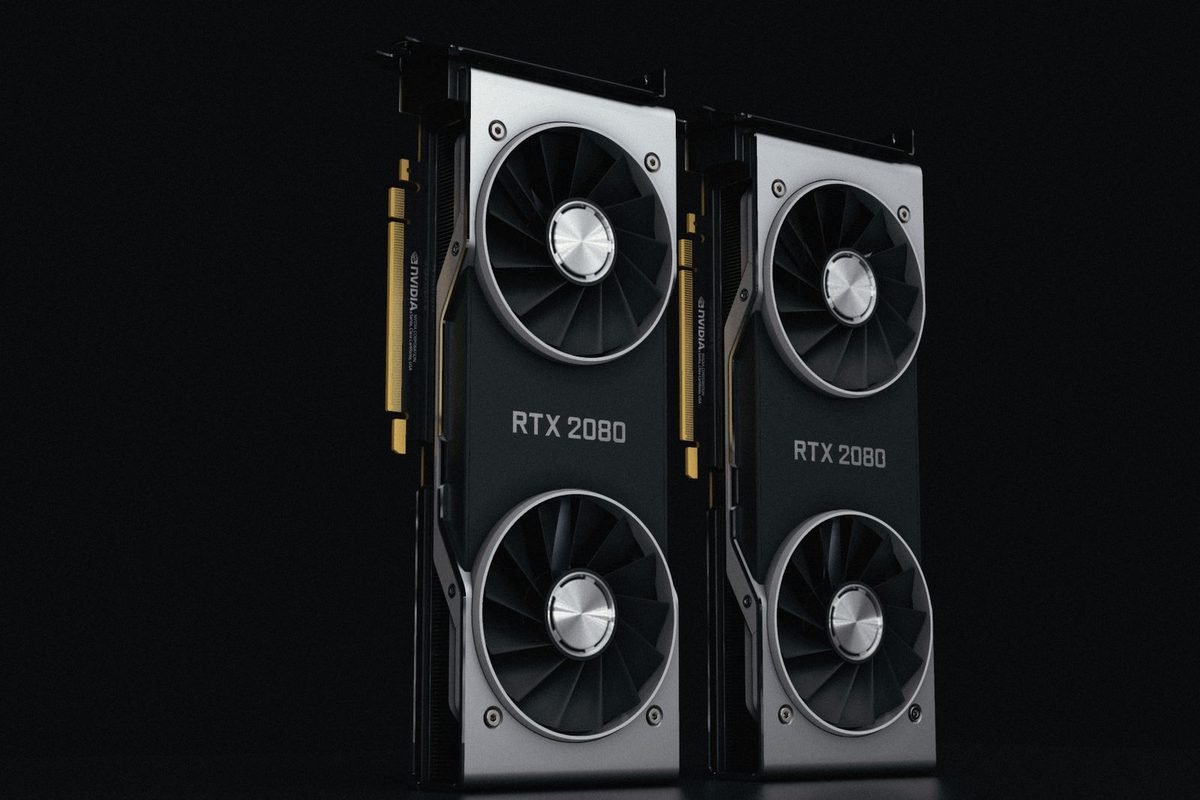
Why spec sheets look so intimidating
A graphics card specification table can run to forty lines of numbers and abbreviations. The aim of this guide is to make that table readable in a few minutes, by explaining each line in plain English and showing which lines matter for gaming.
Why manufacturers publish so many numbers
Specifications serve several audiences at once. Engineers want technical details. Reviewers want figures to compare. Marketing teams want impressive numbers. A spec sheet therefore mixes essential facts with decorative ones. Learning to tell them apart is the skill this guide teaches.
Reference specs versus partner specs
NVIDIA publishes reference specifications for each GPU. Partner brands such as ASUS, MSI and Gigabyte publish their own sheets for each card, which often match the reference but may differ in clock speed, size and weight. When you read a retailer page, you are usually reading the partner's version.
Specs versus real performance
A specification describes what hardware exists, not what it achieves in a game. Two cards with similar specs can differ in game speed because of drivers, cooling and memory design. Use specs to shortlist, then use tested results to choose.
A reading order that works
Read the sheet in this order: the chip and its core counts, the clock speeds, the memory system, the power requirements, the physical dimensions, and finally the ports and extra features. This order mirrors how a card works and how a buyer decides.
Step one: the chip and the core counts
The first block of a sheet names the GPU chip and lists how many processing units it contains.
CUDA cores or shading units
CUDA cores, sometimes called shading units or stream processors, do the main arithmetic for graphics. A higher count means more parallel calculation. The RTX 5090 lists 21,760. The site's RTX 5090 specifications page shows the whole sheet for the flagship.
Comparing counts across generations
Core counts compare well within one generation. Across generations, a core in a newer design may do more work per clock, so a straight comparison can mislead. Use tested results to judge cross-generation differences.
Streaming multiprocessors
Cores are grouped into blocks called streaming multiprocessors (SMs). The RTX 5090 has 170 of them. SM count is a tidy way to compare chips in the same family.
RT cores and Tensor cores
RT cores accelerate ray tracing, and Tensor cores run AI work such as DLSS. Both counts usually scale with the SM count: the RTX 5090 lists 170 RT cores and 680 Tensor cores. The generation of these cores matters as well. RTX 50 cards use fourth-generation RT cores and fifth-generation Tensor cores.
TMUs and ROPs
Texture mapping units (TMUs) apply textures to surfaces, and render output units (ROPs) write finished pixels to memory. The RTX 5090 lists 680 TMUs and 176 ROPs. These counts feed into the pixel rate and texture rate figures described below.
Why ROP counts deserve a check
Because ROPs are a defined part of the chip, a card should report the number NVIDIA lists. If a monitoring tool such as GPU-Z shows a different count from the official specification, contact the seller and the manufacturer, because it suggests a fault or a mislabelled product.

Step two: clock speeds
Clock speed is how many cycles the chip performs each second. It is measured in megahertz (MHz) or gigahertz (GHz).
Base clock and boost clock
The base clock is a guaranteed minimum under typical workloads. The boost clock is the speed the chip can reach when power and temperature allow. The RTX 5090's reference sheet lists 2,017 MHz base and 2,407 MHz boost. In games, real clocks vary from moment to moment.
Why partner boost clocks differ
Factory-overclocked cards advertise a higher boost clock. The extra speed is usually modest, and real clocks depend on cooling. Treat the boost clock as a minor factor when comparing otherwise identical models.
The game clock and "typical" clocks
Some sheets also list a game clock or typical clock, an average under gaming load. It is closer to real use than the boost figure. Not every sheet includes it.
Memory clock
The memory clock describes how fast the memory runs. Sheets may list the actual clock, such as 1,750 MHz, or the effective data rate, such as 28 Gbps. They describe the same memory in different units, and our article on GDDR7 memory explains the conversion.
Step three: the memory system
For most gamers, memory is the second most important block after the core counts.
Size, type and bus width
Memory size is the capacity in gigabytes. Memory type, such as GDDR7, tells you the technology. Bus width, such as 256-bit, tells you how wide the path to memory is. Together with the data rate, these determine bandwidth. If you need to estimate how much capacity you want, the guide on how much VRAM you need is a good companion.
Calculating bandwidth
Multiply the memory data rate in gigabits per second by the bus width in bits, then divide by eight. The RTX 5090's 28 Gbps on a 512-bit bus gives 1,792 GB/s. You can do this for any card to confirm the quoted bandwidth.
Cache
Modern GPUs include a large on-chip cache, a small store of very fast memory close to the cores. The RTX 5090 lists 96 MB of L2 cache. A larger cache reduces trips to main video memory, which is particularly helpful for cards with narrower buses.
Why cache is easy to overlook
Cache is a line that appears near the bottom of many sheets. It does not appear on the box, but it explains how some cards perform better than their bandwidth suggests.
Step four: the theoretical performance numbers
Sheets often list pixel rate, texture rate and teraflops. They sound impressive, but they are straightforward to calculate.
The formulas
- Pixel rate equals the number of ROPs multiplied by the clock speed.
- Texture rate equals the number of TMUs multiplied by the clock speed.
- FP32 teraflops equals the number of CUDA cores multiplied by two, multiplied by the clock speed.
Worked example with the RTX 5090
At the 2.407 GHz boost clock, 176 ROPs give 176 × 2.407 = about 423.6 gigapixels per second. 680 TMUs give 680 × 2.407 = about 1,636.8 gigatexels per second. 21,760 cores × 2 × 2.407 = about 104.8 teraflops. These match the figures on the site's RTX 5090 page, so you can see that the numbers are derived from the counts and the clock, not independent measurements.
What these numbers are good for
They are useful for comparing cards from the same architecture, because they scale with the hardware. They are less useful across brands or generations, where architectural differences change what a teraflop achieves.
What they are not
They are theoretical maxima, not game results. A game uses many parts of a card in unpredictable proportions, so real frame rates rarely track one number exactly.
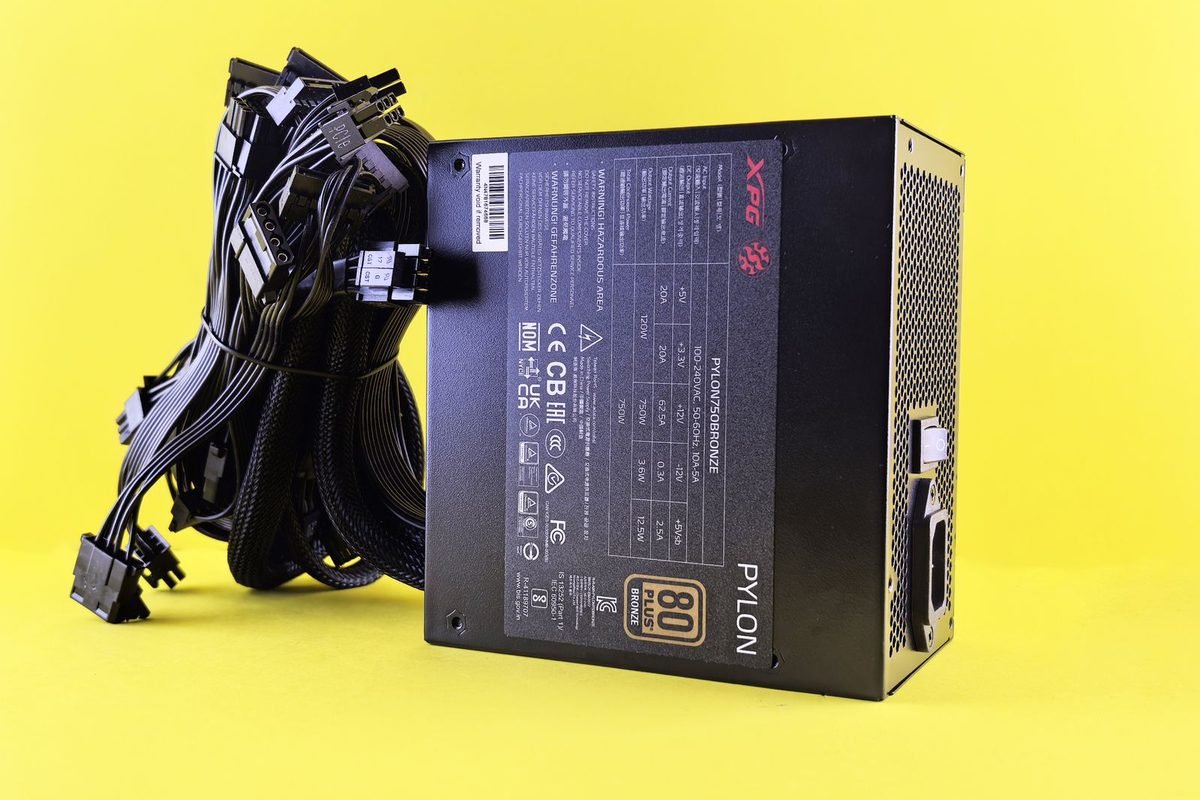
Step five: power and connectors
Power figures tell you what the rest of your computer must provide.
TGP or TDP
TGP (total graphics power) or TDP (thermal design power) is the card's rated power in watts. The RTX 5090 is rated at 575 W. Higher power means a stronger power supply and better cooling are needed. The article on thermal and power limits for the RTX 5090 explains what happens when a card reaches its limits.
The recommended power supply
NVIDIA and partners suggest a minimum power supply wattage, such as 950 W for the RTX 5090 on the site's specification page. This accounts for the rest of the computer. Treat it as a minimum and consider more if you have a power-hungry processor or many drives.
Power connectors
The sheet lists the connectors, such as one 16-pin 12V-2x6 connector. Check that your power supply has a matching cable, or that the card ships with a suitable adapter.
Step six: physical size and cooling
Size is a practical constraint that many buyers discover too late.
Length, height and thickness
Dimensions in millimetres appear on most sheets. The reference RTX 5090 on the site's page measures 304 mm long, 137 mm high and 40 mm thick, while partner models can be larger. Measure your case before you buy.
Slot width
Thickness is also stated as slot width: dual-slot, triple-slot or quad-slot. A thicker card may block adjacent slots on your motherboard.
Weight
Heavier cards stress the motherboard slot and may need a support bracket. Weight appears on more detailed sheets.
Step seven: ports and extras
The last block covers the connections and extra features.
Display outputs
RTX 50 cards typically offer DisplayPort 2.1b and HDMI 2.1b outputs. The flagship lists three DisplayPort and one HDMI output. Check that the ports match your monitor, especially if you use several screens.
Cable quality
High refresh rates and resolutions need the right cable. A cheap or old cable can cause flickering or limit the refresh rate.
Bus interface
The bus interface, such as PCIe 5.0 x16, tells you the slot type and lane count. The guide on whether you need a PCIe 5.0 motherboard explains what this means for older boards.
Video engines and software features
Lines for NVENC, NVDEC, DirectX, Vulkan and CUDA versions describe supported features. They matter more to streamers and creators than to players.
Specs that are mostly marketing
Some figures look important and are not very useful for buying decisions.
AI performance totals
Large AI performance numbers, quoted in TOPS, measure low-precision AI maths. They do not predict gaming frame rates. Use them to compare AI capability among cards, not to rank game speed.
"Up to" claims
Phrases like "up to 2x faster" depend on the comparison, the game and the features used, including frame generation. Always ask what the comparison is against.
Lighting and cosmetic features
RGB lighting, metal backplates and special shrouds affect looks, not speed.
Spec sheet cheat sheet
Keep this table nearby when you shop. It translates each common line into plain English and says who should care.
| Spec line | Plain meaning | Who should care |
|---|---|---|
| CUDA cores | Parallel calculators for graphics maths | Everyone, within one generation |
| SM count | Number of core blocks | People comparing chips |
| RT cores | Ray tracing accelerators | Players using ray tracing |
| Tensor cores | AI accelerators | DLSS users, creators |
| Boost clock | Peak speed under good conditions | Minor factor |
| Memory size | How much fits on the card | Everyone, especially at high resolution |
| Bus width | Size of the memory path | People comparing bandwidth |
| Bandwidth | Data moved per second | High-resolution players |
| Cache | Fast on-chip store | Narrow-bus card buyers |
| TGP | Rated power in watts | Anyone choosing a power supply |
| Dimensions | Length, height, thickness | Everyone before buying |
| Outputs | Monitor connections | Multi-monitor users |
How to use the cheat sheet
Go down the list in order and note the answer for each card on your shortlist. Differences in the top rows tell you about capability, and differences in the bottom rows tell you about fit. A card that wins on capability but fails on fit is the wrong card for your computer.
Common mistakes when reading spec sheets
Even experienced buyers slip on a few points.
Comparing core counts across generations
A newer architecture often does more per core. Judging an old high-core card against a new lower-core card on the number alone can mislead. Compare tests instead.
Ignoring memory bandwidth
Two cards with the same memory size can differ widely in bandwidth. A narrow bus with fast memory is not the same as a wide bus with similar memory.
Forgetting the power supply
A card's power rating affects more than the electricity bill. A supply that is too small can cause shutdowns under load.
Trusting a single boost clock claim
A higher boost clock can come with a hotter, louder card. Compare temperatures and noise.
Mistaking marketing for specification
Phrases such as "next-gen speed" are not specifications. Look for numbers with units.
How to verify specifications after you buy
Check that the card in your computer matches what you paid for. It takes about ten minutes.
Step one: identify the card in Windows
Open Task Manager, choose Performance and click the GPU. The model name and dedicated memory are listed. Compare them with the order.
Step two: read the details with GPU-Z
Download GPU-Z from its official site. The main tab lists the GPU name, die size, ROP and shader counts, memory type, size and bus width, and clock speeds. Compare these with the manufacturer's sheet.
What small differences mean
Clock readings vary with power state, so a small difference is normal. Differences in ROP count, shader count, memory size or bus width are not normal and deserve a query to the seller.
Step three: check the link and the sensors
GPU-Z shows the bus interface, and the Sensors tab shows temperature, clock speed, power and fan speed. Run a game for a few minutes and watch these values to confirm the card behaves normally under load.
Step four: save a record
Save a screenshot of the GPU-Z tabs. If a problem appears later, you will have evidence of the card's original configuration.
Reading laptop graphics specifications
Laptop sheets contain the same lines with a few differences.
Look for the power rating
The graphics power setting, often written as TGP, can differ between laptops with the same GPU name. A higher value usually means better performance and more heat. Laptop makers do not always put it on the first page of the listing, so look in the detailed specification or in reviews.
Memory amounts
Laptop GPUs often have less memory than the desktop card with the same name. Check the gigabytes.
Check the cooling and the screen
Cooling design, screen resolution and refresh rate affect how a laptop performs and feels. A powerful GPU in a thin body may throttle, so look for tests of the exact model.
Whether the GPU is switchable
Some laptops let you connect the display directly to the graphics chip, which improves speed. Others route output through a weaker integrated chip. This detail is rarely on the first page of a listing.
Red flags in graphics card listings
A careful reader can spot trouble from the specification block.
- The memory amount or type is missing.
- The model name is vague or lists several models.
- The dimensions are absent.
- The power connector is not mentioned.
- The numbers on the sheet do not match the manufacturer's site.
- The price is far below that of identical cards at established retailers.
What to do when you see one
Ask the seller to confirm the exact model, memory and warranty in writing. If the answer is unclear, buy elsewhere. Our graphics cards comparison can help you check what a normal specification looks like for each tier.
A worked comparison of two cards
The table uses NVIDIA reference figures to show how to compare. Confirm figures on the product page before you buy.
| Detail | RTX 5070 Ti | RTX 5080 |
|---|---|---|
| CUDA cores | 8,960 | 10,752 |
| Memory | 16 GB GDDR7 | 16 GB GDDR7 |
| Bus width | 256-bit | 256-bit |
| Bandwidth | about 896 GB/s | about 960 GB/s |
| Total graphics power | 300 W | 360 W |
What to conclude
Both cards have the same memory amount and bus. The RTX 5080 has more cores and a slightly faster memory speed, which raises bandwidth, and draws more power. For the same resolution target, the gap will be visible in demanding games but small in lighter ones. Your price difference and power supply should decide.
What to check next
After the spec comparison, look for tests of both cards in the games you play at your resolution, and check noise and temperature for the specific models you are considering.
Why specs and tested performance sometimes disagree
You will meet cases where a card with better specifications loses to a card with weaker ones in a particular game. This is normal and has clear causes.
Drivers and software
Game performance depends on the driver and on how well the game engine uses the hardware. A new card may improve with driver updates, and a game patch can change results in either direction.
Cooling and power limits
A card that cannot keep itself cool slows down to protect itself, which lowers its real clock speed below the advertised boost. A card with a stronger cooler holds its clocks longer, which is why identical GPUs can perform differently in different models.
Memory design
Cache size, memory timing and the way a game uses memory can swing results. A narrow bus with a big cache can match a wider bus in some games and not in others.
The rest of the computer
The processor, the system memory and the storage all influence frame rates. A card tested on a top processor may behave differently on yours. Our article on CPU and system bottlenecks explains how to spot a limit outside the card.
Using specifications to set expectations by resolution
Specifications cannot tell you frames per second, but they help you judge what class of experience to expect.
1080p
At 1080p, even modest cards have spare capacity in many games, and the processor often matters as much as the card. Core counts matter less than having enough memory for your texture settings.
1440p
At 1440p, core count and memory both matter. Look for at least 12 GB for comfortable high settings and enough bandwidth to keep the cores fed.
4K
At 4K, every line matters. Wide buses, high bandwidth, large memory and strong cooling make the difference. Features such as DLSS become part of the plan rather than an extra.
How to apply this
Decide your resolution first. Then read the sheet with that resolution in mind, and discard cards that fall short on memory or bandwidth for it.
Where to find trustworthy specifications
Not every website that lists specifications is accurate. Some copy figures from each other, and errors spread. For the most reliable information, start with the manufacturer. NVIDIA publishes reference specifications for each GPU on its official site, and partner brands publish a sheet for each card they sell. For deeper details, independent review sites measure real clock speeds, temperatures, noise and power draw, which a sheet cannot show. Databases that compile specifications are handy for quick lookups, but cross-check any figure that will drive a purchase, especially power rating, memory amount and dimensions. If two sources disagree, trust the manufacturer's current page and ask the retailer to confirm. Keep a note of the source and the date, because specifications for a product line can change between revisions.
Build a one-page comparison of your own
Create a simple note or spreadsheet with one column per card on your shortlist and one row per line from the cheat sheet. Fill it from the manufacturer's pages, not from listings. Add rows for your own needs, such as maximum length for your case, the power connector your supply provides and the ports your monitor uses. Colour the cells that fail a requirement. Within minutes, the cards that do not fit your computer or your budget drop out, and the remaining choice is easier to judge on price and tested performance. Keep the file, because it also becomes a useful record when you replace parts later.
Spotting an outdated sheet
If a listing mentions an older driver, an old operating system or a product revision that is no longer sold, the sheet may be stale. Look for a recent date.
Short glossary for this article
- CUDA core: a small calculator for graphics maths.
- SM: a block of cores plus helper units.
- TMU: a unit that applies textures.
- ROP: a unit that writes finished pixels.
- Boost clock: the peak speed under good conditions.
- Bandwidth: data moved per second.
- Bus width: the size of the memory path.
- Cache: a small, very fast store on the chip.
- TGP: the card's rated power.
- NVENC: the hardware video encoder.
Practice exercise: decode a made-up spec sheet
Practise on a hypothetical card. The figures below are invented for teaching and do not describe a real product.
| Line | Hypothetical "Card X" |
|---|---|
| CUDA cores | 6,000 |
| Boost clock | 2.5 GHz |
| ROPs | 80 |
| Memory | 12 GB GDDR7 at 28 Gbps |
| Bus width | 192-bit |
| Total graphics power | 250 W |
| Length and thickness | 300 mm, triple-slot |
Question one: what is its bandwidth?
Multiply 28 by 192 to get 5,376, then divide by 8. The answer is 672 GB/s.
Question two: what is its theoretical teraflop figure?
Multiply 6,000 cores by 2 and by 2.5 GHz. The answer is 30 teraflops.
Question three: what is its pixel rate?
Multiply 80 ROPs by 2.5 GHz. The answer is 200 gigapixels per second.
Question four: what power supply would you pair with it?
The card is rated at 250 W, so look at the manufacturer's recommended supply and add margin for your processor. Never choose a supply on the card alone.
Question five: will it fit in a small case?
At 300 mm long and three slots thick, it needs a spacious case. Measure the clearance before ordering.
Question six: is 12 GB enough?
For 1440p gaming it is generally comfortable. For heavy 4K ray tracing, it could be tight. The answer depends on the games you play, which is why you should connect each spec back to your own use.
What the exercise shows
Every line produced a practical decision. That is the real aim of reading a spec sheet: to turn numbers into decisions about performance, power, size and price.
A simple method for reading any sheet
- Identify the GPU chip and the tier.
- Compare core counts only within the same generation.
- Note the boost clock but treat it as a minor factor.
- Check memory size, type, bus width and calculated bandwidth.
- Check the power rating, recommended supply and connectors.
- Measure the card against your case.
- Check the ports against your monitor.
- Look for tested results for your games.
Frequently asked questions about graphics card specifications
What is the most important graphics card spec?
There is no single most important line, but for gamers the six that matter most are core count, boost clock, memory size, memory bandwidth, power rating and physical size. Core count and memory set the capability, and the others decide whether the card fits and runs in your computer.
What do CUDA cores do?
CUDA cores are small calculation units inside an NVIDIA graphics chip that handle ordinary graphics arithmetic, such as working out colours and shapes. Thousands of them run in parallel on each frame. More cores generally mean more capacity, though clock speed, memory and architecture also affect real speed.
What does bus width mean on a graphics card?
Bus width is the size of the data path between the graphics chip and its memory, measured in bits. A wider bus moves more data per clock tick. Together with the memory speed, it determines bandwidth, which is why high-end cards use wide buses and budget cards use narrower ones.
Are teraflops a good way to compare graphics cards?
They are useful for comparing cards with the same architecture because teraflops scale with cores and clock speed. Across brands or generations they can mislead, since a teraflop does not always achieve the same real work. Tested frame rates in your games remain the better guide.
What is the difference between base clock and boost clock?
The base clock is the guaranteed minimum speed under normal loads, while the boost clock is the higher speed the chip can reach when power and temperature allow. In games, the real speed moves between them. Partner cards may advertise higher boost clocks, but the difference is usually small.
Where can I find the real specifications of my card?
Check the manufacturer's product page and NVIDIA's official page for the GPU. After installing the card, use a free tool such as GPU-Z to read the chip, core counts, memory size, bus width and clocks directly from the hardware, and compare them with the published sheet.