What is graphics memory and why does it matter?
Before comparing memory types, it helps to understand what the memory on a graphics card does all day. This section gives the basic picture in everyday terms, with no prior knowledge needed.
The card's own workspace
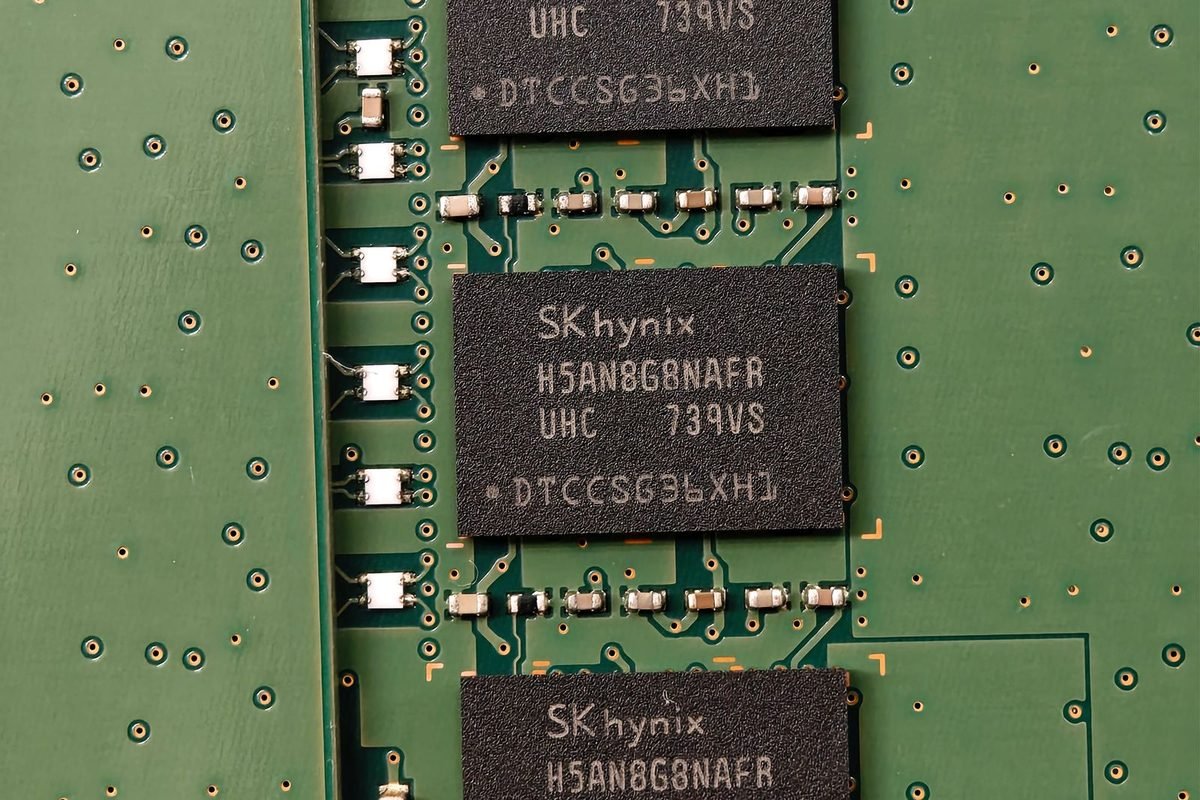
A graphics card carries its own memory, separate from the main memory in your computer. This is called video memory or VRAM. Think of the GPU chip as a chef and the VRAM as the kitchen counter beside them. Everything the chef needs for the current dish sits on the counter: textures (the surface images on objects), models, lighting data and the finished pictures waiting to be sent to your screen. If the counter is too small, the chef has to keep running to the pantry, which is the slower main memory, and the meal slows down.
Why it must be fast
Games ask for huge amounts of data every second. The chip reads textures, writes finished frames and reads them back again. If memory cannot supply data quickly enough, the chip waits. Faster memory reduces that waiting.
Why it must be close
Graphics memory chips sit right next to the GPU on the circuit board, connected by many short, wide connections. Keeping them close lets them communicate at very high speed, which main system memory cannot match.
Capacity versus speed
Two properties describe memory. Capacity is how much it can hold, measured in gigabytes. Speed, or bandwidth, is how much data it can move per second, measured in gigabytes per second. Both matter, but in different ways. Capacity decides whether a game's data fits on the counter at all. Bandwidth decides how quickly the chef can grab things from it. GDDR7 mostly improves the second property. For a full discussion of capacity, read our guide on how much VRAM you need in 2026.
What is GDDR7?
GDDR stands for Graphics Double Data Rate. The number is the generation. GDDR7 is the seventh generation of this family of memory built for graphics cards. It was standardised by the industry body JEDEC, and NVIDIA was among the first to put it into consumer graphics cards with the RTX 50 series.
How it differs from the memory before it
Earlier generations in recent years were GDDR6 and a faster variant called GDDR6X. GDDR7 raises the data rate again. It also changes how signals are sent along each wire. Where older types sent simpler signals, GDDR7 uses a three-level signalling method, which lets more information travel per tick of the clock. The details are technical, and the effect is simple: more data per second through the same number of connections.
GDDR6 versus GDDR6X versus GDDR7
GDDR6 is the long-running mainstream standard. GDDR6X was a faster variant used on higher-end RTX 30 and RTX 40 cards. GDDR7 is the next step. The table later in this article lists which RTX 50 models use which type.
Efficiency claims
The memory industry describes GDDR7 as improving efficiency, meaning more data moved for each unit of energy. Real-world power use depends on the whole card, so treat this as a design goal rather than a measured promise for any specific model.
Which RTX 50 cards use GDDR7?
Most of the desktop family does. The RTX 5090, 5080, 5070 Ti, 5070, 5060 Ti and 5060 use GDDR7. The RTX 5050 is the exception and uses GDDR6, which keeps its cost down. Laptop versions also vary, so always confirm the memory type in a laptop's specification.
How to work out memory bandwidth yourself
Bandwidth sounds technical, but one formula makes it easy. Once you can use it, a spec sheet stops being a puzzle.
The formula in plain steps
Bandwidth in gigabytes per second equals the memory speed per pin, in gigabits per second, multiplied by the bus width in bits, divided by eight. The division by eight converts bits to bytes.
Worked example: the RTX 5090
The RTX 5090 runs its memory at 28 gigabits per second per pin on a 512-bit bus. Multiply 28 by 512 to get 14,336, then divide by 8 to get 1,792. That is 1,792 gigabytes per second, or about 1.79 terabytes per second, which matches the figure on our RTX 5090 specifications page.
Worked example: a mid-range card
The RTX 5070 pairs 28 gigabits per second memory with a 192-bit bus. Multiply 28 by 192 to get 5,376, then divide by 8 to get 672 gigabytes per second. The calculation shows at once why a wide bus matters: the same memory speed on a narrower bus gives far less bandwidth.
Why the bus width matters as much as the memory type
You might expect the fastest memory to give the highest bandwidth, but the bus width multiplies the effect. A card with slower memory on a very wide bus can out-run a card with faster memory on a narrow bus. This is why high-end cards get wide buses and why budget cards, with narrow buses, depend on fast memory and large caches to compensate.
What is a memory bus?
The bus is the set of electrical connections between the GPU and its memory chips. A 256-bit bus has 256 data lines. Each memory chip uses a slice of the bus, so a wider bus needs more chips and a larger, more expensive board.
What the cache does
Modern GPUs include a large on-chip cache, a small but extremely fast store that keeps frequently used data close. A big cache reduces how often the chip must reach out to main video memory, which helps narrow-bus cards. Cache size is another number to look for on a spec sheet.
GDDR7 in the RTX 50 family: a comparison table
The following table shows NVIDIA reference figures for desktop cards, with bandwidth calculated using the formula above. Partner cards may differ slightly, so confirm details on the product page.
| Card | Memory | Bus width | Bandwidth |
|---|---|---|---|
| RTX 5090 | 32 GB GDDR7 | 512-bit | about 1,792 GB/s |
| RTX 5080 | 16 GB GDDR7 | 256-bit | about 960 GB/s |
| RTX 5070 Ti | 16 GB GDDR7 | 256-bit | about 896 GB/s |
| RTX 5070 | 12 GB GDDR7 | 192-bit | about 672 GB/s |
| RTX 5060 Ti | 8 GB or 16 GB GDDR7 | 128-bit | about 448 GB/s |
| RTX 5060 | 8 GB GDDR7 | 128-bit | about 448 GB/s |
| RTX 5050 | 8 GB GDDR6 | 128-bit | about 320 GB/s |
What the table tells you
Bandwidth falls steadily as you move down the range, mainly because the bus narrows. Notice that the RTX 5060 Ti and RTX 5060 share the same bandwidth even though the Ti has a stronger GPU. Notice also that the RTX 5050 sits lower because it uses older memory.
Capacity is a separate column
The RTX 5070 Ti and RTX 5080 both have 16 GB, but the RTX 5080 has more bandwidth. The RTX 5060 Ti with 16 GB has the same bandwidth as the 8 GB version, so the extra capacity helps with fitting data, not with speed.
How this compares with the RTX 40 series
Earlier RTX 40 cards used GDDR6 or GDDR6X. For example, the RTX 4090 combined GDDR6X with a 384-bit bus. The RTX 5090 widens the bus to 512-bit and uses faster memory, so its bandwidth is considerably higher. Our RTX 5060 versus RTX 4060 comparison shows how a narrower-bus card behaves in practice.
When does faster memory help in games?
Higher bandwidth is useful, but it does not raise frame rates everywhere. Knowing where it helps stops you paying for something you will not feel.
Where it helps most
Some situations lean heavily on memory speed.
High resolutions
At 4K, every frame contains many more pixels and needs more texture and frame data to move. Bandwidth becomes a larger share of the workload, so cards with wide, fast memory pull ahead.
Texture-heavy and open-world games
Games that stream large worlds and detailed textures push a lot of data through memory. Faster memory reduces waiting.
Ray tracing and path tracing
Ray tracing reads scene data many times as rays bounce. This access pattern benefits from bandwidth and cache, which is part of why demanding ray-traced games favour high-end cards.
Where it matters less
Not every game cares about memory speed.
Light esports games
Games such as fast competitive shooters at 1080p often run limited by the processor or by the card's calculation power, not memory. A faster memory type adds little.
Games that already fit and run well
If a game runs at your target frame rate with your current card, extra bandwidth will not change your experience.
When capacity is the real limit
Sometimes people blame slow memory when the problem is that the game needs more VRAM than the card has. When that happens, data spills into slower system memory, and the game stutters. Faster memory cannot fix that, only more capacity or lower texture settings can. The site's article on why the RTX 5090 has enough VRAM and horsepower at 4K discusses the difference between running out of memory and other causes of stutter.
What GDDR7 means for your buying decision
Memory type should be one input to your decision, not the whole decision. Use these steps to apply what you have learned.
Check capacity first
Decide how much VRAM your games and resolution need. This usually eliminates some cards at once. Capacity is the hard limit.
Then compare bandwidth
Among cards with enough capacity, bandwidth helps you compare quality. Use the formula, or read the bandwidth line on the spec sheet. A card with much higher bandwidth at the same capacity is likely to hold up better at high resolutions.
Treat the memory type as a tiebreaker
If two cards are otherwise equal, GDDR7 is a reasonable tiebreaker over GDDR6. But a card with GDDR6 and a well-chosen balance of chip, cache and capacity can be perfectly good value. The RTX 5050 is designed for 1080p play where its memory is sufficient.
Questions to ask a seller
If you buy from a small retailer or a marketplace, ask for the exact memory amount and type, because listings sometimes leave this out. Confirm it when the card arrives.
What to avoid
Do not pay extra for a memory speed claim printed in marketing material alone. Partner cards from different brands normally use the same memory speed on the same model. If a listing implies a large memory advantage, check the manufacturer's figure.
Overclocking and memory speed
Many people raise memory speed with software to gain a little extra performance. This is called memory overclocking.
How it works
Tools such as MSI Afterburner let you add a memory offset, which raises the memory clock. Small increases often work, and the card can tolerate them within safe limits, but results vary from one card to another.
The risks
Pushing too far can cause visual glitches, crashes or errors that do not show up immediately. GDDR7 includes error handling, which can mask instability by silently retrying, so a high offset may reduce performance without crashing. Raise it in small steps and test against real games.
Where to learn the safe method
The site's RTX 50 series overclocking guide explains a careful approach, including stability testing and how to undo changes.
How memory chips are arranged on the card
Understanding the physical layout explains why cards have the memory sizes and bus widths they do. It also explains why a card can be sold in two memory versions.
One chip, one 32-bit slice
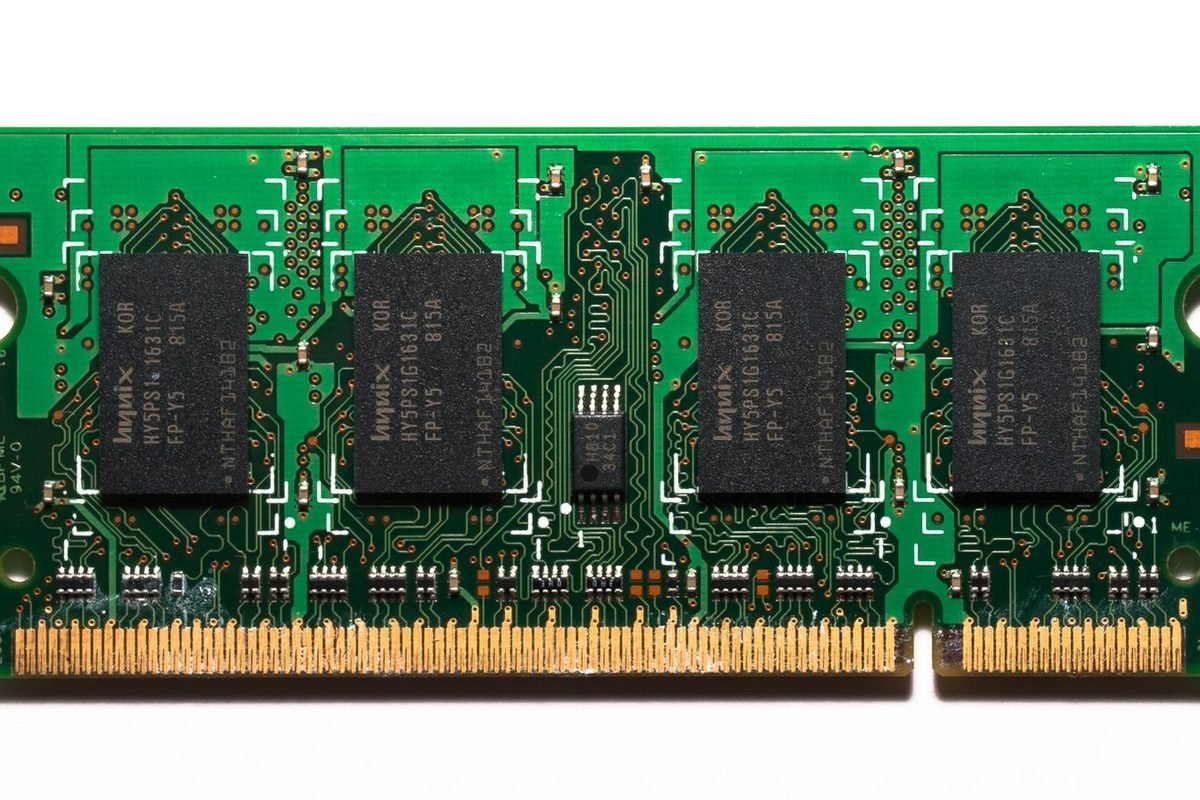
Each graphics memory chip connects to the GPU through a 32-bit slice of the bus. To build a 256-bit bus, a card therefore uses eight memory chips. A 512-bit bus uses sixteen. A 128-bit bus uses four. The bus width is simply the number of chips multiplied by 32.
Capacity follows from chip size
Total capacity equals the number of chips multiplied by the size of each chip. GDDR7 chips commonly come in 2 GB modules. Sixteen of them give the 32 GB on an RTX 5090. Eight give 16 GB, as on the RTX 5080 and RTX 5070 Ti. Six give 12 GB on the RTX 5070. Four give 8 GB.
Why the numbers come in steps
Because chips are added in fixed steps, capacities such as 8, 12, 16 and 32 GB appear again and again. A card cannot have an odd amount like 10 GB unless NVIDIA chooses an unusual configuration.
How the RTX 5060 Ti offers 16 GB on a narrow bus
The RTX 5060 Ti has a 128-bit bus, which normally means four chips and 8 GB. To make a 16 GB version, the board can use a method called clamshell mode, where two chips share each 32-bit slice, one on each side of the board. This doubles capacity without widening the bus. That is why the 16 GB model has the same bandwidth as the 8 GB model, and why the extra memory helps games that run short of space but not games limited by speed.
What clamshell means for buyers
The 16 GB card needs a slightly more complex board, which partly explains its higher price. For games that exceed 8 GB at your settings, the difference can be dramatic.
What it does not change
Bandwidth stays the same, so do not expect extra frame rate in games that already fit comfortably in 8 GB.
A short history of graphics memory
Seeing where GDDR7 sits in a longer story helps explain why each step is modest but meaningful.
From GDDR5 to GDDR6
Earlier graphics cards used GDDR5 and then GDDR5X. GDDR6 became mainstream with the RTX 20 series and remained the default for many years. Each generation increased the data rate and improved efficiency, but the basic approach stayed similar.
GDDR6X and a different signalling idea
GDDR6X, used by NVIDIA on higher-end RTX 30 and RTX 40 cards, changed how bits are encoded on each wire, sending more information per tick. This was the first major shift in signalling in a while, and it raised bandwidth substantially for the cards that used it.
GDDR7 and the next step
GDDR7 uses another signalling method, with three voltage levels per signal. Combined with higher clock speeds, it delivers a new jump. The industry expects further GDDR versions in future, so the pattern is gradual improvement rather than one dramatic change.
Why not use HBM everywhere?
You may hear about High Bandwidth Memory, which stacks chips closely for even more bandwidth. It is used in professional and data centre products, but it is expensive, so consumer graphics cards continue to use GDDR.
Checking your own card's memory at home
If you want to verify that your card matches its specification, free tools make it easy and safe.
Reading the memory clock
Monitoring software such as GPU-Z or HWiNFO shows the memory clock. Monitoring tools often display a number that differs from the marketing speed, because they report the actual clock, while manufacturers quote the effective data rate, which is a multiple of it. For example, the RTX 5090 page on this site lists a 1,750 MHz memory clock and a 28 Gbps effective speed. Both are correct, and they describe the same memory.
Matching tool readings to the spec sheet
Compare the memory size, type and bus width first. Those three facts tell you whether the card is what the listing promised. Clock readings can vary with the card's power state.
Watching memory use during a game
Overlays can show how much VRAM a game is using. If usage sits close to your card's capacity and the game stutters, lowering texture quality is the quickest fix.
Spotting a problem early
Visual glitches, flashing colours or crashes soon after raising the memory clock point to instability. Return the setting to default and test again. If problems appear at default settings, contact the seller or manufacturer.
Troubleshooting memory-related symptoms
Some gaming problems are caused by memory. The following checks help you decide whether memory is the likely culprit.
Stutter when moving into a new area
If frames drop sharply when a game loads new scenes, it may be running short of VRAM. Lower texture quality by one step and see whether it improves. Reduce ray tracing too, because it uses extra memory.
Confirm with an overlay
Check that memory use is close to the card's limit while the stutter happens. If it is not, the cause is probably somewhere else, such as the processor or storage.
Flickering or colourful artifacts
Artifacts can come from an unstable memory overclock, a faulty cable or an overheating card. Reset overclocks first, then check temperatures and cables. Our guide on fixing broken RTX 5090 drivers covers driver causes, which can look similar.
Crashes after a driver update
Occasionally a driver update causes new instability. Reinstalling the driver cleanly, or rolling back to the previous version, is a normal first step.
Where memory fits in the bigger picture
Memory is one line on a long specification sheet, and the guide to reading a graphics card spec sheet shows how it connects to core counts, clock speeds and power. The memory bus is also set by the chip: the GB202, GB203, GB205, GB206 and GB207 chip guide explains why each chip has the bus width it does. Reading the two together makes it clear why memory configurations come in fixed steps.
Game settings that raise or lower memory use
Even the best memory cannot help if a game asks for more than the card holds. Fortunately, a small number of settings control most memory use, so you can manage it without losing much quality.
Settings that use the most memory
Texture quality is the main one. Higher texture presets load larger images, and each one needs more VRAM. Ray tracing and path tracing also add memory use because the card stores extra scene data. High resolution multiplies everything, since each frame buffer is larger.
Frame generation has a memory cost
Generating extra frames needs extra buffers, so turning on frame generation can raise VRAM use slightly. On a card with limited memory, this can be the difference between a smooth game and a stuttering one.
Upscaling can save memory
DLSS renders at a lower internal resolution, which reduces some memory needs even though it keeps a high output resolution. This is one reason upscaling helps cards with smaller memory.
Settings that cost little memory
Shadow quality, post-processing effects and anti-aliasing mostly cost processing time, not memory. If you need to cut memory use, adjust textures first, then ray tracing, and only then think about the others.
A sensible order to try
- Lower texture quality by one step.
- Reduce ray tracing quality or turn off path tracing.
- Lower the output resolution or use a stronger DLSS mode.
- Close other programs that use the graphics card, such as browsers with hardware acceleration.
Memory on laptops
Laptop RTX 50 cards often carry less memory than their desktop namesakes, and some use different memory configurations. A laptop with 8 GB of VRAM can run many games well at 1080p, but struggles sooner at higher settings. Check the exact amount before you buy, and compare it with the games you play.
Four buyers and how memory affects each
General advice becomes clearer with examples. These four imaginary buyers show how memory capacity and speed interact with real choices. They are illustrations, not test results.
The competitive 1080p player
This buyer plays fast shooters at 1080p on a high-refresh monitor and cares about frame rate and low delay. Games like these use modest amounts of VRAM, and the processor often limits the frame rate. Memory speed barely matters here, and an RTX 5050 or RTX 5060 is a reasonable fit. The money is better spent on a fast processor and a good monitor.
The 1440p single-player gamer
This buyer enjoys detailed story games at 1440p with high texture settings. Capacity starts to matter, because modern games can use a lot of VRAM at these settings. Cards with 12 GB or 16 GB are safer than 8 GB models, and the extra bandwidth of GDDR7 on a wider bus helps. The RTX 5070 and RTX 5070 Ti fit this profile.
The 4K enthusiast with ray tracing
This buyer wants 4K with ray tracing or path tracing. Both capacity and bandwidth matter, because the card moves a great deal of data per frame. High-end cards with wide buses and 16 GB or more are the sensible choice. Without enough memory, the game may stutter even when the GPU itself could keep up.
The creator who uses AI tools
This buyer edits video and runs image-generation tools. For AI work, capacity often decides which models can run at all, so a large pool of VRAM can matter more than a small gain in game speed. Cards with more memory let you load bigger models and handle larger projects.
One rule that works for all four
Write down the resolution you play at, the games you play most and the settings you like. Then check each shortlisted card's capacity against those games. This ten-minute exercise gives you a firmer answer than any single headline about memory speed, and it protects you from paying for performance that your own setup would never use.
What the four have in common
None of them should choose a card by memory type alone. Each should start from the job, check capacity, compare bandwidth, and then look at price. That order keeps spending under control and avoids buying a specification that the work never uses.
Common questions about GDDR7 answered briefly
A few extra points come up often and deserve a short answer.
Does GDDR7 run hotter?
Memory chips make heat, and faster chips can make more. Card makers design the cooler to handle it. Reviews that report memory temperatures are the best source for a specific model.
Can I upgrade the memory on a graphics card?
No. The memory chips are soldered to the board. You choose capacity when you buy the card.
Does system RAM speed matter for graphics?
System memory serves the processor and the rest of the computer, and it affects some games. It is a separate system from the card's VRAM, so upgrading one does not change the other.
Frequently asked questions about GDDR7
What is GDDR7 memory?
GDDR7 is the seventh generation of graphics double data rate memory, built to feed GPUs with data very quickly. It sends more data per second than GDDR6 and GDDR6X, using a newer signalling method. Most RTX 50 series cards use it, which raises memory bandwidth compared with earlier generations.
Is GDDR7 better than GDDR6X?
On raw data rate, yes. GDDR7 moves more data per second per connection, so a card using it can reach higher bandwidth for the same bus width. Real game results still depend on the whole card, including GPU power, cache and capacity, so compare complete products rather than memory types alone.
Does the RTX 5050 use GDDR7?
No. The RTX 5050 uses GDDR6, while most of the other desktop RTX 50 cards use GDDR7. This keeps the entry-level card more affordable. It is designed for 1080p gaming, where its memory bandwidth is usually adequate, so the older type is a deliberate trade-off.
How do I calculate memory bandwidth?
Multiply the memory speed in gigabits per second by the bus width in bits, then divide by eight. For example, 28 Gbps on a 192-bit bus gives 672 gigabytes per second. This simple formula lets you check a spec sheet and compare cards from different brands.
Does more VRAM or faster VRAM matter more?
It depends on the problem. If a game needs more memory than your card has, capacity matters most and faster memory cannot help. If the game fits but the card waits for data, bandwidth matters more. Check capacity first, then use bandwidth to compare cards that have enough.
Will GDDR7 make my games run much faster?
Not by itself. GDDR7 raises bandwidth, which helps most at high resolutions and in demanding ray-traced or texture-heavy games. In many esports titles, other limits come first. Expect modest benefits unless memory speed was the bottleneck on your old card.