What VRAM does
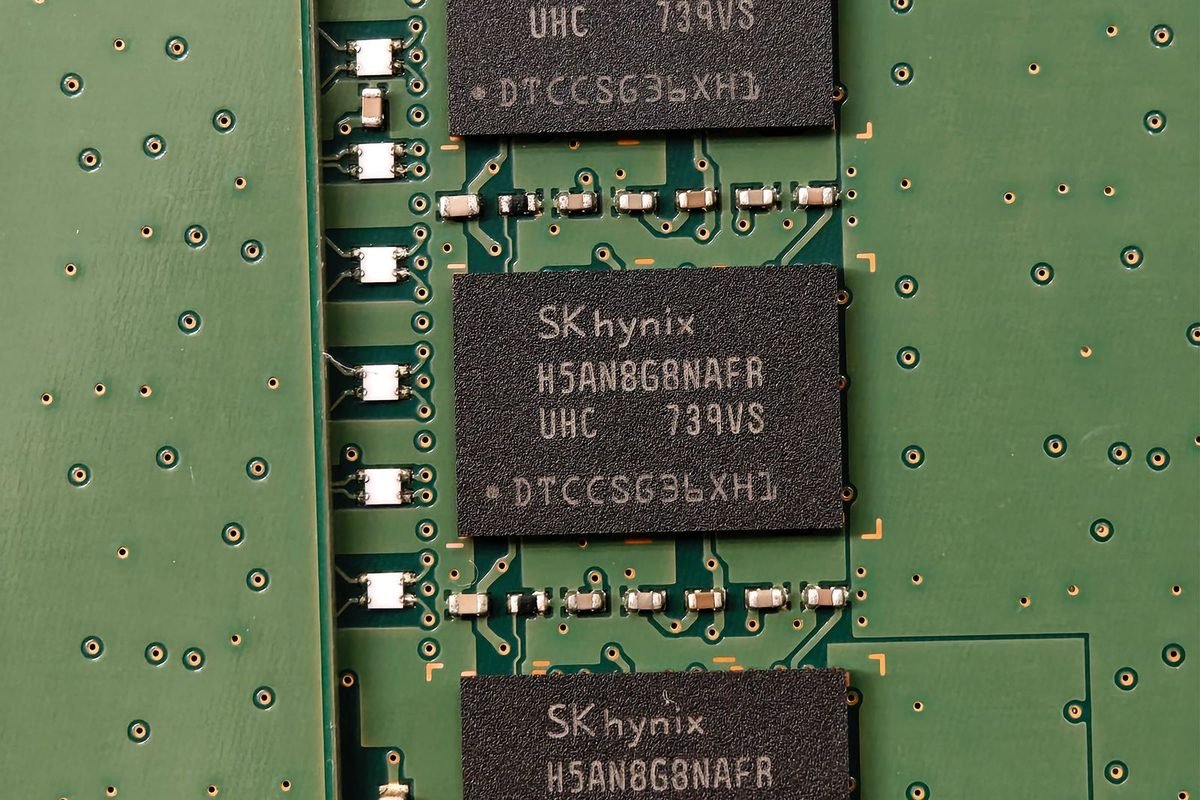
Video memory holds the data the GPU needs right now. It is fast, close to the cores and limited in size.
The contents of VRAM
A game fills VRAM with textures, vertex and index buffers, render targets, shadow maps, ray tracing acceleration structures, shader data and upscaling buffers. Textures dominate. A single 4K texture with mipmaps and compression occupies roughly 10 to 20 MB depending on format, and a scene may use thousands.
Capacity versus bandwidth
The RTX 5070 offers 12 GB of GDDR7 with 672 GB/s of bandwidth, as the RTX 5070 complete guide details. Capacity decides whether assets fit. Bandwidth decides how fast they are read. A card that runs out of capacity must fetch assets from system memory across PCIe, which is far slower than on-board GDDR7, and the result is stutter.
What happens when memory fills
Engines first evict less-used textures and stream lower-resolution mipmaps, so images look blurry for a moment. If that fails, they page data over PCIe, which causes frame-time spikes. In extreme cases, the driver or game may crash.
Allocation versus need
The most common mistake is reading the wrong number.
Why overlays overstate
Most overlays report the memory the process has allocated, not the memory it actively uses per frame. Engines reserve a large pool and fill it opportunistically with cached textures. A game that shows 11 GB allocated might use 7 GB actively.
How to tell if memory is a problem
Look for the symptoms: frame-time spikes when turning quickly or entering new areas, textures that stay blurry for seconds, and stutter that disappears when you lower texture quality. If none of these appear, memory is not your bottleneck, regardless of the number on the overlay.
| Symptom | Likely cause | Fix |
|---|---|---|
| Blurry textures that sharpen slowly | Texture pool too small | Lower texture quality one step |
| Frame-time spikes in new areas | Streaming from system memory | Lower textures or close background apps |
| Steady low frame rate | Compute limit, not VRAM | Lower resolution or ray tracing |
| Crash when loading | Memory exhaustion or driver issue | Lower settings and update driver |
Resolution, settings and memory
Memory use grows with several factors.
1080p and 1440p
At 1440p, most games with high textures use between 7 and 11 GB. The 12 GB pool leaves a margin. At 1080p, the usage is similar for textures, because texture size is mostly independent of screen resolution, though render targets are smaller.
4K
At 4K, render targets grow, and upscaler buffers are larger. Four bytes per pixel at 3840 by 2160 is about 33 MB per target, and high dynamic range targets are twice that. A deferred renderer holds several of them. Textures also tend to be set higher at 4K. Combined, a heavy game can approach or exceed 12 GB.
Ray tracing and path tracing
Ray tracing builds acceleration structures that occupy memory, and path tracing adds more. Frame generation and Ray Reconstruction add buffers. Together they can push usage by one to two gigabytes.
DLSS reduces memory pressure
Upscaling lowers render target sizes because the game renders at a smaller internal resolution. At 4K with DLSS Performance, the internal resolution is 1080p, so render targets resemble those of a 1080p game, though DLSS adds its own buffers.
Which games push 12 GB
Games that stress memory share traits.
Open-world titles with high texture packs
Large streaming worlds with optional ultra texture packs use the most memory. The packs are intended for 16 GB and larger cards.
Games with path tracing
Path tracing showcases combine heavy ray tracing with high textures. At 4K, they commonly exceed 12 GB without upscaling.
Modded games
Texture mods replace standard textures with higher-resolution versions, which can double memory use.
Fixes when VRAM fills
Work from least to most visible.
Lower texture quality by one step
This frees memory fast and is often barely visible, especially in motion. Test it first.
Reduce shadow and volumetric quality
Shadow maps and volumetric buffers use memory, and lowering them by a notch helps.
Close background applications
Browsers with hardware acceleration, video players and overlays use VRAM. Close them while gaming.
Use DLSS
Lowering the internal resolution reduces render target memory. The DLSS quality modes guide lists the resolutions.
Update the driver and game
Memory management improves with updates. Install the latest versions.

A memory budget worked through
Numbers make the discussion concrete. These figures are illustrative estimates, not measurements of one game.
Render targets at 1440p and 4K
At 2560 by 1440, there are 3.69 million pixels. A target with four bytes per pixel occupies about 14.7 MB, and one with eight bytes per pixel about 29.5 MB. At 3840 by 2160, those become 33 MB and 66 MB. A deferred renderer might keep six to ten targets of various formats, along with depth buffers, so working buffers reach 200 to 600 MB at 4K.
| Item | Typical share of VRAM at 1440p |
|---|---|
| Texture pool | 50 to 65 percent |
| Geometry and buffers | 10 to 15 percent |
| Render targets and post-processing | 5 to 10 percent |
| Ray tracing structures | 5 to 15 percent when enabled |
| Upscaler and frame generation | 3 to 6 percent |
These shares vary by engine and game, so use them as a mental model, not a specification.
The texture pool
Engines treat textures as a streaming pool with a fixed budget set by the quality preset. When you choose a higher preset, the pool grows. If the pool exceeds what the card can hold, the engine streams lower mipmaps, so high textures at 12 GB may look the same as medium textures at 8 GB in some games.
Mipmaps and distance
Mipmaps hold lower-resolution copies of each texture for distant objects. Most of what you see on screen at 1440p uses mid-level mipmaps, which is why the highest texture setting often shows a visible benefit only in close-ups.
Compression and the future of memory use
Several technologies reduce the memory a game needs.
Texture compression
Block compression formats shrink textures by factors of four to eight with small quality loss. Almost every game uses them. Blackwell also supports newer neural compression methods in developer toolkits, which could cut texture memory considerably when games adopt them.
Streaming and DirectStorage
Fast NVMe storage and DirectStorage let games load assets quickly, so less data must sit in VRAM at once. A fast drive helps most when memory is tight, and the guide to NVMe storage explains drive choices.
Neural rendering
Neural shaders and neural texture compression remain a developer-side feature. They are a reason to expect gentler memory growth in some future games, though not a reason to buy today.
Diagnosing memory pressure step by step
Use a repeatable method.
Step one: establish a baseline
Run a demanding scene with your normal settings and record the frame-time graph, 1% lows and VRAM figure.
Step two: change only textures
Lower the texture setting by one step and rerun the scene. If spikes vanish and 1% lows improve, memory was limiting.
Step three: compare images
Take screenshots at both settings and compare them in a close-up area. If you cannot see a difference, keep the lower setting.
Step four: test with other changes
Only then change shadows, ray tracing or resolution. This keeps the diagnosis clean.
Step five: record the result
Write down the game, the settings and the outcome. It saves time when you reinstall or change hardware.

Comparing 8 GB, 12 GB, 16 GB and 32 GB cards
Capacity differences within the family are meaningful.
| Card | VRAM | Typical suitability |
|---|---|---|
| RTX 5060 | 8 GB | 1080p, medium to high textures |
| RTX 5060 Ti 8 GB | 8 GB | 1080p, some 1440p with lowered textures |
| RTX 5070 | 12 GB | 1440p with high textures |
| RTX 5060 Ti 16 GB | 16 GB | 1440p with more headroom |
| RTX 5070 Ti and RTX 5080 | 16 GB | 4K with DLSS, heavy ray tracing |
| RTX 5090 | 32 GB | 4K native, AI and creative work |
Where the RTX 5070 sits
The RTX 5070 has more memory than the 8 GB cards and less than the 16 GB cards, while its compute is lower than the RTX 5070 Ti. An RTX 5060 Ti with 16 GB offers more memory but less compute, which is an interesting trade, discussed in the guide to 8 GB versus 16 GB RTX 5060 Ti.
Compute versus capacity
A card needs both. An RTX 5060 Ti 16 GB can hold large textures but may lack the compute to render them at high frame rates. The RTX 5070 offers a middle path with more compute and 12 GB of memory.
Creative and AI workloads with 12 GB
Games are not the only demand.
Video editing
Editing in high resolution with effects and many layers can use several gigabytes. 12 GB handles 4K timelines in most editors, with heavy effects approaching the limit.
3D rendering
Scenes with large textures or geometry can exceed 12 GB. Render engines can spill to system memory, but speed falls. Complex scenes suit 16 GB or more.
Local AI models
Model size in memory equals parameter count times bytes per parameter. A 7-billion-parameter model at 4-bit precision needs about 3.5 GB plus working memory, which fits easily. A 13-billion model at 4-bit needs about 6.5 GB. A 30-billion model at 4-bit needs about 15 GB, which does not fit in 12 GB. These figures ignore key-value cache, which grows with context length.
Practical limits
For local AI, 12 GB suits models up to roughly 13 billion parameters at 4-bit precision, with room for context. Larger models need more memory or offloading.
How engines manage memory
Understanding the engine side explains why symptoms look the way they do.
Residency and eviction
A modern graphics API lets the engine decide which resources reside in VRAM. When the budget is nearly full, the engine marks the least recently used resources for eviction and loads new ones. The operating system also reports a memory budget, which changes if other applications compete for VRAM. Games that read this budget adapt their texture pool, which is why closing a browser can change behaviour.
Texture streaming
Streaming systems load mipmap levels on demand. When the camera moves quickly, the system must load higher-resolution mipmaps before they are visible. If the load is slow or the pool is full, you see low-resolution textures for a moment. This is the visible signature of memory pressure, long before the frame rate falls.
Shared GPU memory
Windows reports shared GPU memory, which is a portion of system RAM that the GPU can use. It is far slower than VRAM. If a game uses large amounts of shared memory, stutter follows. Fast system memory in dual-channel mode softens the effect slightly, and the PCIe link carries the traffic.
PCIe link and spillover
The RTX 5070 uses a PCIe 5.0 x16 interface. Spillover traffic travels across it, and a link running at a lower generation has less bandwidth. The PCIe 5.0 motherboard guide explains the numbers, though avoiding spillover matters more than raising link speed.
Reading frame-time graphs for memory problems
Graphs reveal what averages hide.
The pattern of a memory stall
A memory stall appears as isolated tall spikes in the frame-time graph, often 30 to 100 ms or more, repeated at moments when new assets load. Between spikes the frame time is flat. A compute limit shows a smoothly elevated graph with few spikes.
Confirming with a controlled test
Fly or walk through the same route twice, once with textures at high and once at medium. If spikes disappear, memory is the cause. If they remain, suspect shader compilation, storage or the processor.
Shader compilation stutter
Games compile shaders on first use, causing spikes that do not depend on VRAM. They decrease on a second pass through the same area. If the second pass is smooth, you were seeing compilation, not memory.
Logging tools
Use an overlay that logs frame times to a file, then plot the data. Look at the 0.1% lows too, since memory stalls affect the very worst frames.
Settings that matter most for memory
Rank the options by their effect.
Texture quality
It is the largest lever. Each step down frees hundreds of megabytes to a few gigabytes, depending on the game.
Texture filtering and resolution packs
Anisotropic filtering costs very little memory. High-resolution packs, by contrast, can add several gigabytes. Install them only if you have the capacity.
Shadow quality and resolution
Shadow maps are stored in memory. Higher resolutions and more cascades raise usage.
Ray tracing quality
Higher ray tracing settings increase acceleration structure sizes. Reducing the object detail used for ray tracing saves memory.
Resolution scale
Reducing internal resolution through DLSS cuts render target memory directly.
| Setting | Memory effect | Visual cost of lowering |
|---|---|---|
| Texture quality | Large | Low to moderate |
| Texture packs | Very large | Moderate |
| Shadow resolution | Moderate | Low |
| Ray tracing detail | Moderate | Moderate |
| Resolution scale or DLSS mode | Moderate | Low to moderate |
Case studies in reasoning
These scenarios use plausible reasoning, not specific game data.
Case one: 1440p high settings
A player runs a recent open-world game at 1440p with high textures and DLSS Quality. The overlay shows 10.5 GB allocated. Frame times are smooth, and textures load quickly. No change is needed. The allocation looks high, but there are no symptoms.
Case two: 4K path tracing
A player enables path tracing at 4K with DLSS Balanced and Multi Frame Generation. The overlay shows 12 GB, and frame times show spikes. Lowering textures one step and enabling DLSS Performance removes the spikes. The player accepts a small loss in texture sharpness.
Case three: texture mod
A player installs a 4K texture pack in a game that already uses 9 GB. The total rises to above 12 GB, and stutter follows. Choosing the medium variant of the pack solves it.
Lesson
In each case, the solution is to find the cheapest visual compromise, which is usually texture quality or a mod variant.
Monitoring memory over a session
Memory behaviour changes over time.
Leaks and long sessions
Some games leak memory over long sessions. If performance drops after hours, restart the game. Reporting the issue to the developer helps.
Alt-tabbing
Switching away from a game and back may reload assets and cause brief stutter. Avoid switching with VRAM almost full.
Background overlays
Screen recorders, chat overlays and capture tools hold VRAM. Disable the ones you do not need.
What to expect from future games
Trends suggest growth in memory use.
Console baselines
Games are built around the memory of current consoles, which offer a unified pool of about 16 GB shared between the processor and graphics. Ports tend to target 8 to 12 GB of VRAM at high settings on the PC, with ultra settings set higher.
Higher-resolution assets
Developers ship higher-quality assets over time, particularly through optional packs. These raise the ceiling for ultra settings.
Neural compression
If neural texture compression becomes common, memory demands may stop rising so quickly. It depends on developer adoption.
Comparing the RTX 5070 with neighbours on memory terms
Context shows what each step in memory buys.
Versus the RTX 5070 Ti
The RTX 5070 Ti adds 4 GB, a 33 percent increase, plus a wider 256-bit bus. For a player who often hits memory limits at 4K, this is the main reason to step up. For a 1440p player who rarely does, it is mostly extra margin.
Versus the RTX 5060 Ti 16 GB
The RTX 5060 Ti 16 GB has more VRAM than the RTX 5070 but a narrower 128-bit bus and 448 GB/s of bandwidth. It suits texture-heavy games that do not need maximum compute, though it generally renders fewer frames per second.
Versus the previous generation
The RTX 4070 and 4070 Super also carry 12 GB. Memory capacity in this tier has not grown, but GDDR7 raises bandwidth, and DLSS 4 features improve how efficiently the memory is used.
Bandwidth per gigabyte
Dividing bandwidth by capacity, the RTX 5070 offers 56 GB/s per gigabyte, whereas the RTX 5070 Ti offers 56 GB/s per gigabyte too, since 896 divided by 16 is 56. The ratio is equal, so the cards stream their pools at equivalent rates, and capacity alone separates them.
Practical checklist for 12 GB owners
Keep these habits.
Before a play session
Close browsers and capture software, make sure the driver is current and check your frame cap.
While playing
Watch for blurry textures and spikes. If you see them, lower textures a notch.
After updates
Retest memory behaviour after major game patches. Developers often change streaming systems, for better or worse.
Keep a note
Record the texture setting that works for each demanding game. This saves time later.
When to upgrade because of memory
There are clear signals.
Signals that point to an upgrade
You lower textures below the level you accept in several new games, you cannot run mods you want, or your creative or AI work exceeds 12 GB regularly.
Signals that do not
A single poorly optimised game, a high overlay figure with no symptoms or a processor bottleneck are not reasons to buy a new card.
Timing the purchase
Hold off if your current setup meets your targets. If it does not, choose by price per performance point and the capacity you need, as the RTX 5070 Ti versus RTX 5080 article demonstrates with the cost-per-point method.
Buying advice by scenario
Match capacity to your situation.
You play at 1440p and upgrade every few years
12 GB is appropriate. Lower textures when needed.
You play at 4K with heavy ray tracing
Choose a 16 GB card or higher. The RTX 5070 Ti guide explains what 16 GB offers.
You mod games heavily
Texture mods and high-resolution packs can multiply memory use. Choose 16 GB or more.
You use local AI models
Check the model size you want to run, apply the arithmetic above, and add margin for context.
You are on a budget
If the price difference to a 16 GB card is large, the RTX 5070 remains a sound 1440p card. Manage texture settings and enjoy it.
Testing your own card for memory limits
You can check a game in ten minutes.
Equipment and tools
You need an overlay with frame-time graphs and a log, a route you can repeat, and the ability to change one setting at a time. Free tools provide all three.
The procedure
Pick a busy area, such as a city hub. Walk the same route three times at each texture setting. Record the 1% lows and 0.1% lows, plus any visible texture pop-in. Compare the medians.
Reading the results
If 0.1% lows improve by more than about 20 percent when you lower textures, memory was limiting. If they barely change, the cause is elsewhere. Remember that results may differ between areas, so test the worst scene.
Sharing your results
Posting results with the card, driver and settings helps others, and comparing with similar systems helps you judge your own numbers.
Setting a rule for yourself
Decide on a rule, such as lowering textures one step in any game where 0.1% lows drop below half of the average. A rule keeps you from over-tuning and spoiling your play time.
Memory and system RAM together
The graphics card never works alone.
How much system RAM to pair
Sixteen gigabytes of system RAM is the practical minimum for modern gaming, and 32 GB gives comfortable headroom when background applications run. Low system RAM worsens stutter when VRAM spills over, because the operating system may swap data to disk.
Dual-channel and speed
Dual-channel memory doubles the width of the processor's memory interface, which helps both frame rates and spillover performance. Use two sticks, enable the rated profile in the BIOS and check that the speed applies.
Page file
Keep the Windows page file enabled on a fast drive. Disabling it can cause crashes when memory demand peaks.
Resizable BAR
Resizable BAR lets the processor address the whole VRAM at once, which can improve performance in some games. Enable it in the BIOS if your platform supports it.
Myths about VRAM
Myth: more VRAM always means more speed
Capacity does not raise speed unless you run out. A card with spare memory gains nothing from more.
Myth: a full overlay means a problem
Allocation is not need. Judge by symptoms.
Myth: 12 GB is already obsolete
It handles the majority of games at 1440p. Some titles exceed it at ultra settings, but lowering one setting resolves most cases.
Quick reference table
| Situation | Recommended action |
|---|---|
| 1440p, high textures, smooth frame times | Change nothing |
| 1440p, spikes in new areas | Lower textures one step |
| 4K with DLSS Performance | Keep textures high, watch spikes |
| 4K path tracing | Lower textures, use frame generation carefully |
| Large texture mods | Choose medium pack or 16 GB card |
| Local AI above 13 billion parameters | Use a larger card or quantise more |
A final word on perspective
Memory capacity is one factor among several. A balanced system, a sensible monitor, tuned settings and realistic expectations matter more than chasing the largest number on a specification sheet. Many players enjoy the RTX 5070 for years by lowering a single setting in the few games that demand it. If you prefer to leave every slider at maximum and never think about memory, buy more capacity. If you enjoy balancing settings, 12 GB is a capable and economical choice, and the techniques in this guide let you check your own games with confidence.
Further reading
For deeper reading on memory, see the guide to using high-resolution textures without hitting VRAM limits and the analysis of whether the RTX 5090 has enough VRAM and horsepower for 4K. Both show how texture pools and render targets consume memory at the top of the range.
Summary
Twelve gigabytes of GDDR7 is enough for the RTX 5070 in most 1440p gaming, particularly with DLSS. Memory use is dominated by textures, with ray tracing, frame generation and render targets adding more at 4K. Read overlays with care, because allocation is not need, and lower texture quality one step when stutter and blurry textures appear. If you play at 4K with heavy ray tracing, mod heavily or run larger AI models, a 16 GB card gives more margin.
Frequently asked questions about 12 GB VRAM on the RTX 5070
Is 12 GB VRAM enough for the RTX 5070 in 2026?
For most games at 1440p, yes. High textures usually fit with room to spare. Some games with ultra texture packs, path tracing or 4K settings can exceed it, in which case you lower textures one step or use DLSS Performance.
Should I buy a 16 GB card instead?
If you play at 4K with heavy ray tracing, use texture mods or keep the card for many years, a 16 GB card such as the RTX 5070 Ti is safer. For 1440p gaming on a budget, 12 GB is a reasonable choice.
Why does my overlay show nearly full VRAM?
Engines allocate large pools and fill them with cached data. The number does not mean the game needs all of it. Judge by stutter and texture quality instead. If frame times stay flat and textures look sharp, there is no problem, whatever the figure says, so avoid lowering settings needlessly.
Does DLSS use more VRAM?
DLSS adds its own buffers, but it lowers the internal render resolution, which usually reduces net memory use compared with native rendering at the same output resolution. Test your own game by comparing memory use with and without upscaling, and lower textures one step if stutter appears after you enable it.
Does frame generation use VRAM?
Yes. Frame generation and Multi Frame Generation add buffers for motion vectors and generated frames. The cost is typically a few hundred megabytes, so lower textures if stutter appears after enabling them. Close background applications that hold video memory, and check the frame-time graph.
Will 12 GB become a problem soon?
Game requirements rise over time, and 12 GB will limit the highest settings in some future titles. For many players, lowering textures one step will be enough for years. If you want maximum settings later, a 16 GB card gives more margin.