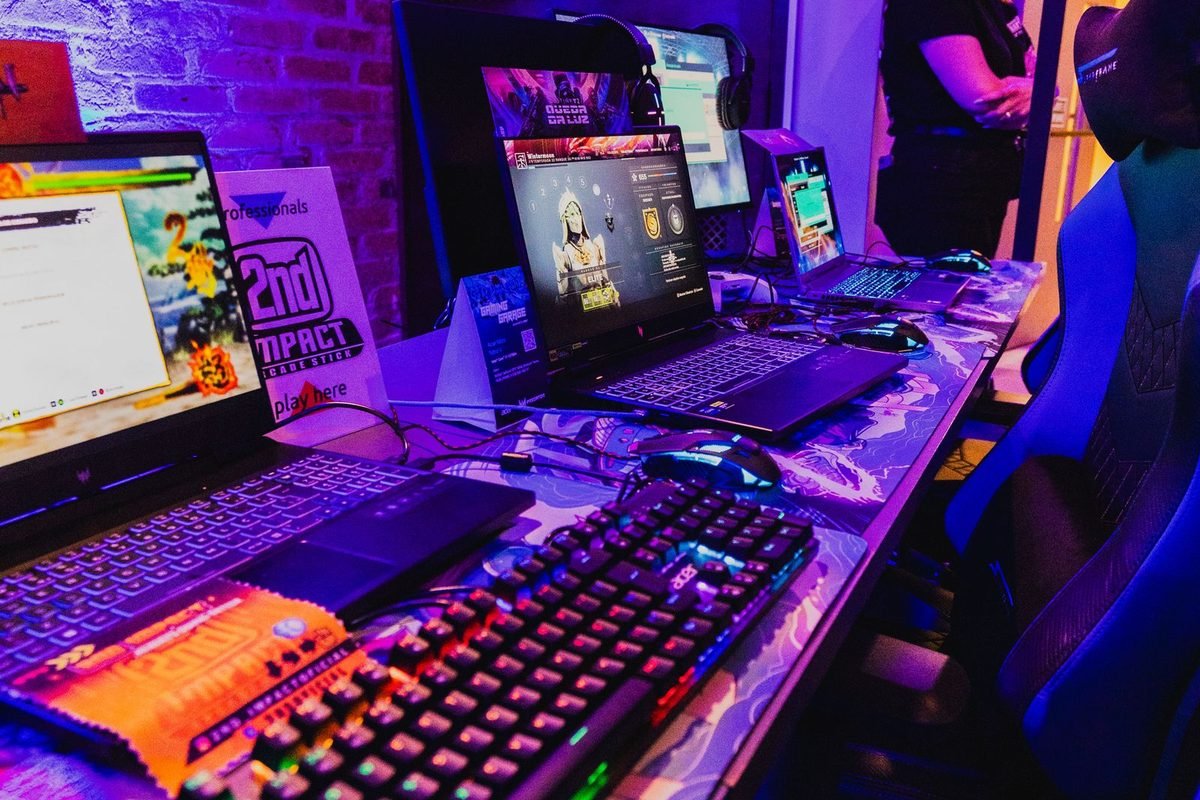
Is it worth it
Honest expectations come first.
The limits of laptop overclocking
A laptop GPU runs inside a power limit set by the maker and a temperature limit set by its cooler. In heavy games, the GPU often sits at one of those limits already. Raising the clock offset asks for more power, and the limit stops it. As a result, overclock gains are commonly a few percent and sometimes zero.
Where gains do appear
If the laptop has spare power and thermal headroom, for example in a lighter game, the GPU can use the higher offset. A memory overclock raises bandwidth, which helps at 1440p. Combining a core undervolt with a core offset frees power for higher clocks.
The alternative
Frame generation and DLSS deliver far larger gains than any overclock. Use them first. The article on Multi Frame Generation explains the biggest lever you have.
Link to desktop theory
The desktop principles in the RTX 50 series overclocking guide and the RTX 5060 safe overclocking guide apply, with tighter limits.
Know your limits
Before you change anything, learn the boundaries.
Power limit
Many laptops cap board power at the TGP. You may be unable to raise it. Check whether your maker's software or Afterburner exposes a power slider.
Temperature limit
The GPU lowers its clock when it reaches its thermal target, often in the 80s Celsius. If your laptop already hits that in games, an overclock cannot help until cooling improves.
Memory temperature
GDDR7 modules run warm and have their own limits. Laptop memory cooling is modest.
Warranty
Some makers allow software overclocking within limits, while others discourage it. Read the terms.
| Limit | Effect on overclocking | What to do |
|---|---|---|
| Power limit | Caps clocks | Undervolt to free power |
| Temperature limit | Reduces clocks | Improve cooling first |
| Memory temperature | Caps memory offset | Keep offsets modest |
| Maker locks | Prevent changes | Use maker tools or skip |
Do not exceed safe temperatures
If the core exceeds the low 80s for long periods, back off. Laptop components age faster at high temperatures.

Cooling first
Cooling decides how much headroom you have.
Clean the vents
Dust blocks airflow. Clean the vents and fans.
Use a stand or pad
A stand lifts the base and improves intake. A cooling pad with fans may help a few degrees. The laptop cooling guide covers the options.
Set a performance fan profile
Use the maker's performance mode or a manual fan curve.
Watch ambient temperature
A warm room reduces headroom.
Test the baseline
Run a game for 20 minutes and record the temperature and clock. If the GPU is already hot, solve that first.
Step by step: core and memory offsets
Take it slowly.
Step one: baseline and stock profile
Plug in, use performance mode and run a repeatable benchmark twice. Record score, clock, power and temperature. Save a stock profile.
Step two: undervolt first if possible
If your laptop allows it, apply a modest undervolt as described in the laptop undervolting guide. It creates headroom.
Step three: core offset
Add 30 MHz, run the benchmark and compare. Continue in 15 MHz steps. Stop when the score stops rising, the picture shows artefacts or the system crashes. Back off two steps.
Step four: memory offset
Raise the offset by 100 MHz, run the benchmark and watch the score. Because of error handling, the score may fall before a crash. Choose the offset with the best score.
Step five: validate
Play two or three demanding games for an hour in total, and check the Windows event log for WHEA and nvlddmkm entries.
Step six: save and note
Save the profile with a clear name and record the settings.
How GPU Boost decides the clock
To tune well, you need to know what you adjust.
The limiters
The GPU raises its clock in steps of about 15 MHz while four limiters allow it: power, temperature, voltage and reliability. When one blocks further boost, the clock settles. Overlays often show the limiter as a cap reason.
| Limiter | Meaning | What helps |
|---|---|---|
| Power | Board power reached TGP | Undervolt, or raise limit if allowed |
| Thermal | Temperature reached target | Improve cooling |
| Voltage | Top of curve reached | Shift or edit the curve |
| Reliability | Curve exhausted | Lower the clock |
Why laptops hit limiters sooner
Laptops have small power budgets and compact coolers. The first two limiters dominate. An overclock that ignores them gains nothing.
Overclock and undervolt together
An undervolt lowers power at a given clock, so the GPU can reach a higher clock under the same limit. This is the main route to a real gain on a laptop.
The efficiency knee
Performance rises slowly at the top of the curve while power rises steeply. Tuning near the knee gives the most useful result.
The voltage-frequency curve and offsets
Two methods exist.
Offset
An offset shifts the whole curve by a fixed number of megahertz. It is quick and simple, though it raises the clock at the top voltage points too.
Curve editing
Editing the curve lets you choose a particular voltage and clock pair, then flatten the rest. It is precise and takes longer.
Which to use
Use a modest offset for a quick, safe gain. Use curve editing when you want to combine an undervolt with a higher clock.
Safety margin
Leave 15 to 30 MHz below the highest clock that passes tests. Weather, age and games change stability.
Memory overclocking in detail
GDDR7 behaves differently from older memory.
PAM3 signalling
GDDR7 uses three voltage levels to carry more data per clock. Higher data rates increase the chance of transmission errors, so the memory includes error detection and retry. As you raise the offset, errors increase and effective bandwidth can drop.
Finding the best offset
Run the same benchmark at offsets of 0, 100, 200, 300 MHz and so on. Plot the scores. The curve rises, plateaus and then falls. Choose the plateau, then back off a step.
Laptop constraints
Laptop memory shares cooling with the core. High offsets raise temperature, which raises error rates. A tune that works in a cool room may regress in a warm one.
Bandwidth arithmetic
A 10 percent memory offset raises bandwidth by about 10 percent if errors stay low. Games that depend on bandwidth might gain 2 to 4 percent.
Stability testing
A tune is only as good as its tests.
Stress benchmark
Run at least 20 loops. A pass rate above about 97 percent suggests stability.
Real games
Play a ray-traced game, a raster-heavy game and a lighter game. Different engines expose different faults.
The event log
Check Event Viewer for WHEA-Logger events and driver resets. Hardware errors without visible crashes mean the tune is marginal.
Temperature checks
Record core, hot spot and memory temperatures where available. Check that the laptop does not reach the thermal target.
Long sessions
Play for several hours across days. Heat soak reveals weaknesses.
Reading symptoms
Failures look different depending on the part.
Core too high
A driver reset, black screen or crash to desktop within minutes.
Memory too high
Falling scores, flicker, texture corruption or crashes later.
Thermal problems
Clocks drop as temperature rises, and fans run at maximum.
Power problems
Sudden shutdowns may indicate that the adapter or battery cannot deliver the power.
A rule
If a problem appears, return to stock and reintroduce changes one at a time.
Laptop power delivery and why it limits overclocks
The power system inside a laptop is a chain, and the weakest link sets the ceiling.
The adapter
A laptop adapter provides a fixed wattage, such as 180 W, 230 W or 330 W. The system must fit processor, GPU, screen, fans and charging inside that figure. When the GPU asks for more, the firmware lowers the processor or GPU power to stay within the adapter's capacity. A small adapter makes overclocking pointless, because the extra watts are not available.
The battery as a buffer
During short peaks, some laptops draw from the battery to supplement the adapter. This helps with spikes but ages the battery faster. If the battery is worn, peak performance may drop.
The voltage regulators
Voltage regulator modules convert the supply to the voltage the GPU needs. They have current limits. A heavy overclock raises current, and the regulators can become a hidden limit, with temperatures that overlays do not show.
Firmware limits
The embedded controller enforces power and temperature limits regardless of your software. Even if Afterburner raises the power slider, the controller may hold the GPU to the TGP.
What this means
Treat the laptop as a system. The GPU is only one part. If you push beyond what the supply, regulators and cooler can sustain, the system protects itself by lowering speed or shutting down.
| Link in the chain | Typical limit | Symptom when exceeded |
|---|---|---|
| Adapter | Fixed wattage | Lower clocks, battery drain |
| Battery | Peak current | Sudden throttling when unplugged |
| Regulators | Current and heat | Unexplained clock drops |
| Cooler | Heat removal | Thermal throttling |
| Firmware | Hard-coded limits | Locked power slider |
Safe targets by tier
Expect different results depending on the chip.
RTX 5050 and 5060 laptops
These run at up to about 100 W. Core offsets of 30 to 75 MHz and memory offsets of 200 to 500 MHz are plausible on a well-cooled model. Gains are small, perhaps 2 to 5 percent.
RTX 5070 and 5070 Ti laptops
Offsets of 45 to 100 MHz on the core and 200 to 500 MHz on memory are plausible. Gains of 3 to 6 percent appear when paired with an undervolt.
RTX 5080 and 5090 laptops
Higher-power machines have bigger coolers, and their gains are limited by power. Offsets of 45 to 90 MHz on the core are common, with memory offsets that depend on temperature.
Treat the numbers as examples
Every sample differs. These ranges describe what some owners report, not guarantees. Your tests decide.
Thermal management during overclocking
Heat is the enemy of laptop overclocks.
Temperature goals
Aim to keep the core below about 80 degrees Celsius and the hot spot below about 95 in long sessions. Memory temperatures depend on the model.
Cooling pads and stands
A stand raises the rear, increasing airflow under the laptop. A cooling pad with fans can reduce the base temperature by a few degrees, though results vary. The pad must not block the intake.
Fan profiles
Use the performance profile. If your laptop allows manual fan curves, set a steeper curve for the overclock.
Thermal compound
Liquid metal and good paste help, but you should not repaste a laptop under warranty. If the laptop is old and temperatures are high, a professional repaste may help.
The room
Overclock in a cool room. A 5 degree rise in ambient temperature can erase a small overclock gain.
Monitoring
Keep an overlay on during tests and for the first days of use.
Real-world scenarios
Scenario one: a thin laptop at 60 W
The GPU already hits its power limit in most games. An overclock does nothing. An undervolt raises sustained speed, and a frame cap reduces heat. The owner skips the overclock.
Scenario two: a thick laptop at 115 W with good cooling
There is some headroom. A combined undervolt and offset delivers a few percent more speed at lower temperature. The owner keeps the profile for demanding games.
Scenario three: a laptop with a worn cooler
Temperatures hit 87 degrees and the clock falls. The owner cleans the vents and the fans, restoring some headroom, and skips the overclock.
Scenario four: a benchmark enthusiast
The enthusiast pushes offsets for a score, using a cooling pad and an ice-cold room. The profile is not stable for daily use, so they save it for benchmarks.
Lesson
Different goals lead to different choices. Match the method to your reason.
Settings that give bigger wins
Overclocking is rarely the largest lever.
DLSS
DLSS Quality at 1440p renders at about 960p and cuts the load dramatically. See the DLSS quality modes guide.
Frame generation
Multi Frame Generation can multiply displayed frames. Use it with a healthy base. The frame generation latency guide explains the trade-off.
Lower settings that cost a lot
Shadows, volumetrics and ray tracing detail cost more than they add. A notch down gives frames for free.
MUX switch
A MUX switch in discrete mode can add several percent and lower latency. See the MUX switch article.
Power mode
Use performance mode when plugged in.
Worked example with illustrative numbers
The numbers illustrate the method.
Baseline
An RTX 5070 laptop at 100 W averages 2,350 MHz at 100 W and 83 degrees, scoring 100 units. It is power and temperature limited.
Offset alone
Adding a 60 MHz core offset gives 2,360 MHz at the same 100 W and 84 degrees, scoring 100.5. The limit absorbs the gain.
Undervolt plus offset
Locking 2,400 MHz at 850 mV gives 2,400 MHz at 92 W and 79 degrees, scoring 103. The score rises 3 percent, while power and heat fall.
Memory
Adding a 200 MHz memory offset raises the score to 105 with a small rise in memory temperature.
Lesson
Pair the offset with an undervolt, and treat the memory offset as a bonus.
Software tools and what each does
Several tools exist, and each has a role.
MSI Afterburner
It offers the curve editor, offsets, a power limit slider where the laptop allows it, fan control in some cases and a rich overlay. It is the most flexible tool and the one used in this guide.
Maker control centres
These applications set performance modes, fan profiles and sometimes GPU offsets. Their overclock options are usually simple and conservative, and they are the safest route if they exist.
The NVIDIA App
It provides driver updates, per-game settings and an overlay. Some versions offer automatic GPU tuning. Features vary by version.
Benchmark and stress tools
Use a graphics benchmark that reports a stability percentage. Pair it with games.
Logging tools
Use tools that log clock, power, temperature and fan speed to a file.
Avoid tool conflicts
Run only one tuning tool at a time. Two tools can apply conflicting settings.
Understanding performance gains in numbers
A little arithmetic sets expectations.
Clock to frame rate
A 2 percent clock increase yields at most a 2 percent frame rate increase in a GPU-bound scene. In a scene limited by the processor or memory, it yields less.
Bandwidth to frame rate
A 10 percent memory bandwidth increase lifts frame rate by 2 to 4 percent in bandwidth-bound scenes.
Combined
A 3 percent core gain and a 3 percent memory gain may add up to about 4 to 5 percent in a heavy 1440p game. That equals 4 or 5 frames at 100 frames per second, which is hard to notice by eye.
Frame-time view
At 100 frames per second, the frame time is 10 ms. A 5 percent gain cuts it to 9.5 ms. The difference is 0.5 ms. At 60 frames per second, 16.67 ms becomes 15.87 ms. These are small steps.
The perceptual view
Most people notice changes of 10 percent or more in frame rate. A tune that gives 4 percent is invisible, though it may lower temperature and noise if combined with an undervolt.
| Frame rate | Gain | New frame rate |
|---|---|---|
| 60 | 5 percent | 63 |
| 100 | 5 percent | 105 |
| 144 | 5 percent | 151 |
Overclocking and game types
Different workloads respond differently to an overclock.
Esports and light games
These games rarely load the GPU fully, so power and thermal limits are not reached. The clock is already at maximum, and an offset adds a little. The processor and screen limit more.
Open-world and ray-traced games
These push the GPU to its limits. An overclock helps only if you have created headroom through cooling or an undervolt.
Creative and compute workloads
Rendering and AI workloads hold the GPU at high load for long periods. Heat soak reduces sustained clocks, and an overclock may give no sustained gain. An undervolt gives more.
Streaming while gaming
Encoding adds load. Leave margin, because instability during a stream is costly.
Per-game profiles
Create separate profiles for heavy games, light games and benchmarks. Switch with a hotkey if your tool supports it.
Understanding thermal throttling during tests
Throttling can fool you into thinking a tune works.
Short tests hide throttling
A one-minute benchmark runs before the heat sink saturates. The score looks good, then the sustained speed falls. Always test for 20 minutes.
How to spot throttling
If the clock falls steadily while temperature climbs and the cap reason says thermal, the GPU is throttling. If the clock falls while power sits at the limit, it is power throttling.
What to do
Improve cooling, reduce the offset or add an undervolt. Do not push beyond what the cooler supports.
Ambient effects
A test in a cold morning may pass and fail in a warm evening. Retest in realistic conditions.
Choosing between overclocking, undervolting and neither
A simple decision helps.
If your laptop runs hot and loud
Undervolt. It lowers heat and noise and may raise sustained clocks.
If your laptop runs cool and has spare power
A modest overclock may give a few percent.
If your laptop is locked
Use power modes, DLSS and frame caps.
If you value silence
Undervolt and use a quiet profile.
If you just want to play
Leave the settings alone and enjoy the games. Tuning is optional.
| Situation | Best choice |
|---|---|
| Hot, loud laptop | Undervolt |
| Cool laptop with spare power | Mild overclock plus undervolt |
| Locked controls | Power modes and DLSS |
| Silence priority | Undervolt and quiet profile |
| No interest in tuning | Leave stock |
Common mistakes
Overclocking before fixing cooling
A hot laptop gains nothing. Clean and cool first.
Ignoring the adapter
A small or worn adapter limits power.
Raising the memory too far
Scores fall because of error correction. Back off.
Skipping the stock profile
Always keep a reset path.
Testing only one game
Test several engines.
Forgetting about battery
Overclocks are for plugged-in use.
Documenting your tune
Good notes make tuning repeatable and help if you need support.
What to record
Write the date, the driver version, the power mode, the offsets, the memory offset, the benchmark score, the average clock, the power and the temperatures. Add notes on any crashes and what you changed afterward.
A simple template
Keep a text file with a heading for each profile. Under each, list settings and results. Add a line for stability outcomes after a week.
Sharing results
Forums and support teams appreciate clear logs. Include the exact laptop model, the wattage and the cooling setup.
Back up the profile files
Copy the profile files to cloud storage so that a reinstall does not erase your work.
Frame-time and refresh-rate context
Match gains to your screen.
The arithmetic
A 144 Hz panel gives 6.94 ms per frame, a 165 Hz panel 6.06 ms and a 240 Hz panel 4.17 ms. A 5 percent speed gain changes a frame time by a fraction of a millisecond. If your laptop already holds the refresh rate, extra speed is invisible. If it sits just below, a small gain may lift 1% lows over a threshold.
Use variable refresh rate
Variable refresh rate smooths frames across the range, so small speed changes matter less. Keep it on, and cap the frame rate a few frames below the maximum, as the guide to VRR and V-Sync explains.
Use Reflex
Reflex reduces latency more than any overclock. Enable it in supported games.
When to stop
Diminishing returns
After the first few percent, each step costs time and risk.
Comfort
If the fans become unpleasant or the keyboard gets too hot, back off.
Longevity
Moderation keeps your laptop healthy for years.
Checklist
Before
Clean the laptop, update drivers, save a stock profile and record a baseline.
During
Change one thing at a time, test and record.
After
Run long sessions, check the log and save the profile.
Revert plan
Know how to reset the profile and boot into safe mode.
A closing note
Before you close this guide, remember the order that works: fix cooling, check the power limits, undervolt if the laptop allows it, add a modest core offset, test the memory offset by score, validate with games and the event log and save a stock profile. Follow that order and you will find the real limit of your laptop without gambling with its stability. Many owners discover that the best result is a quiet, cool, slightly faster laptop, not a record-breaking screenshot. If your laptop locks the controls, accept that and use DLSS, frame caps and sensible settings, which deliver larger gains than most overclocks. Keep the notes you made, because they will save time after a driver reinstall or a Windows update.
Related reading
The hub on RTX 50 series laptop GPUs explains the chips, and the guide to TGP and Max-Q explains the power limits. The RTX 5080 overclocking guide and the guide to best RTX 5090 overclock settings cover bigger desktop cards.
Summary
Overclocking an RTX 50 laptop GPU delivers small gains because power and temperature limits cap the result. Improve cooling first, pair a modest core offset with an undervolt, raise memory in steps while watching scores, validate with benchmarks, games and the event log and keep a reset plan. Use DLSS and frame generation for bigger wins, and stop when returns diminish.
Frequently asked questions about overclocking an RTX 50 laptop GPU
Is it safe to overclock a laptop GPU?
Software overclocking within the firmware's limits is generally safe, because the GPU protects itself with power and thermal limits. The main risks are crashes, instability and higher temperatures. Keep temperatures in check, change settings gradually and keep a reset profile. Check the specification of your exact model for confirmation.
How much faster will my laptop get?
Usually a few percent, sometimes less. Laptop power and temperature limits cap the gain. An undervolt combined with a modest offset often delivers more than an offset alone, because it creates power headroom for higher clocks. Independent reviews of the specific laptop give the best evidence.
Should I overclock the memory?
A modest memory offset can add bandwidth and help at 1440p. GDDR7 corrects errors by retrying, so scores can fall before crashes occur. Test in steps and choose the offset with the highest score, then back off a step. Your own tests in the games you play are the final judge.
Why does my laptop not allow overclocking?
The maker may have locked the controls in firmware or the driver. Check the maker's software for a performance or overclock option. If none exists, use power modes, frame caps and DLSS instead. Keep a stock profile or default setting saved as a fallback.
Will overclocking shorten my laptop's life?
Higher temperatures and power can accelerate wear on the GPU, fans and battery. Modest, well-cooled overclocks carry low risk. Aggressive ones on a hot laptop raise it, so prioritise cooling and moderate offsets. Results vary between models, so treat general figures as guidance.
How do I undo an overclock?
Open Afterburner, press Reset and apply. If the laptop crashes at start-up, boot into safe mode and remove the profile, or reinstall the driver. Keep a stock profile so you can recover quickly. Read the maker's current documentation, since details change with updates.