What do we mean by input lag?
The phrase is used loosely online, so a clear definition helps before we talk about frame generation.
Latency in plain words
Input lag, or system latency, is the time between your action, such as clicking the mouse, and the first visible result on screen. It is measured in milliseconds. The chain includes your mouse, the game's processing, the render queue, the graphics card and the monitor. The companion article on NVIDIA Reflex explains the chain in detail.
Smoothness is not responsiveness
A game can look very smooth and still feel slow to control. Smoothness is about how evenly pictures arrive. Responsiveness is about how quickly the game reacts to you. Frame generation helps the first much more than the second.
Why people mix them up
The frame counter shows one number, and players assume it measures both. It does not. A high displayed frame rate with generated frames can sit alongside a modest real frame rate, and the real frame rate drives responsiveness.
What counts as a lot
For most people, differences of a few milliseconds are invisible. Delays of 10 to 20 milliseconds begin to be noticeable to attentive players in fast games. Casual players using controllers rarely feel changes of this size. Your own sensitivity is what matters.
How frame generation works, and why it adds delay
To see where the delay comes from, you need a quick picture of the method.
Interpolation in one paragraph
Frame generation creates a new frame between two real frames. It needs both of them: the earlier one and the later one. That means the later real frame must be finished before the in-between frame can be shown. The system therefore holds back the newest real frame while it displays the generated one first.
The arithmetic of the delay
At a base frame rate of 60, each real frame takes about 16.7 milliseconds. Holding back the newest frame to show a generated one in between delays the real frame by a fraction of that time, which can amount to roughly one real frame interval in total, depending on the implementation. At a base of 120, a real frame interval is only about 8.3 milliseconds, so the added delay is half as large. The higher your base frame rate, the smaller the penalty.
What the other multipliers do
With multi-frame modes on RTX 50 cards, more generated frames sit between the same pair of real frames. The hold-back is still tied to one real frame interval, though overhead and pacing add small amounts. Read our guide to Multi Frame Generation for the multipliers.
What Reflex contributes
Games that offer frame generation integrate Reflex, which shortens the render queue and the work waiting on the graphics card. The saving offsets part of the hold-back delay. In many tests, the combined result is a modest net increase compared with the game without frame generation but with Reflex, and sometimes a reduction compared with the game with neither.

What testers and NVIDIA say
The picture is consistent across sources, with some nuance.
NVIDIA's position
NVIDIA states that Reflex is required with frame generation and that the combination keeps latency competitive. The company also positions its newer Reflex 2 Frame Warp feature as a way to cut latency further in supported games.
Independent testing
Independent testers who measure latency generally find that frame generation adds some delay compared with the same settings without it, and that the effect is smaller at higher base frame rates. Results vary by game, and some titles handle it better than others.
Why you should not trust a single number
A figure measured in one game on one computer may not apply to yours. Use published numbers to understand the pattern, and measure your own computer for the decision.
Does it matter for the way you play?
The answer depends on what you play and how you play it.
Competitive shooters with a mouse
This is where the delay is most noticeable. Aim feels slightly heavier, and flick shots can feel off. Most competitive players leave frame generation off, and use upscaling and a frame cap to get a high, steady frame rate.
Single-player action games with a mouse
Many players do not notice, especially at a base frame rate of 60 or more. Others feel a slight lag when aiming. Test and decide.
Controller games
Thumbstick aiming has coarser precision, so the same delay is far less noticeable. Frame generation is a good fit for controller players on large displays.
Strategy, role-playing and slower games
Delay hardly matters, and the smoother picture is a clear gain.
Sensitivity differs between people
Some people feel five milliseconds, and others do not feel thirty. There is no shame in either. Your preference is the right answer for you.
How to test it yourself
You can measure the effect in about twenty minutes.
Step one: enable a latency overlay
Open the NVIDIA overlay, which the NVIDIA App provides, and turn on the performance overlay that includes latency statistics. Games with Reflex can report PC latency, and some tools such as PresentMon can measure it as well. The NVIDIA App guide shows where the overlay lives.
Step two: test without frame generation
Play the same scene for two minutes with Reflex on and frame generation off. Note the average latency and your impression of the feel.
Step three: test with frame generation
Repeat with frame generation on, using the multiplier you plan to use. Keep every other setting the same.
Step four: compare numbers and feel
Compare the average latency figures and the feel of the controls. A difference of a few milliseconds that you cannot feel is not worth worrying about. A larger difference that you can feel may justify turning the feature off.
A worked example with real arithmetic
Numbers make the idea concrete. These figures are simple calculations, not measurements, and real results include overhead.
| Base frame rate | Real frame interval | Rough extra delay from one hold-back |
|---|---|---|
| 30 | 33.3 ms | Up to about 33 ms |
| 60 | 16.7 ms | Up to about 17 ms |
| 90 | 11.1 ms | Up to about 11 ms |
| 120 | 8.3 ms | Up to about 8 ms |
What the table teaches
The penalty falls steadily as the base frame rate rises. This is why advice about a healthy base frame rate appears everywhere. At a base of 30, the delay is large enough to feel heavy. At 90 or 120, it shrinks to a level that most players do not notice.
Reflex shifts the baseline
The table shows only the added hold-back. Reflex reduces other parts of the chain, so the total latency with frame generation and Reflex can still be close to, or lower than, the latency without either. The comparison that matters is with and without frame generation, both with Reflex on.
Tools for measuring latency
Several free tools can help you move beyond guesses.
The NVIDIA overlay
The overlay can show PC latency in games that support Reflex. It is the simplest option, and it works inside the game. Use it to compare settings in the same scene.
PresentMon and similar tools
PresentMon records frame timing and can report latency-related measurements. Tools built on it show graphs and tables. They take a little more effort, but they give detailed results that help when you want to compare settings carefully. The site's guide to benchmarking tools and methods explains the options.
What to record
Record the average and the worst one percent of latency. The worst values show the spikes that you feel as hitches.
Hardware analysers
Some gaming monitors and mice include latency analysers. They measure the real time from a click to a screen change. They cost extra, so use one only if you own it already.
Settings that can hide a little of the lag
If you want to keep frame generation on, other settings can reduce the delay a little.
Mouse sensitivity and acceleration
A slightly higher sensitivity needs smaller hand movements, which can make small delays feel less obvious. Turn off mouse acceleration so that movement stays predictable.
Field of view and camera smoothing
Some games add camera smoothing, which feels like delay. Turn it off in the options if it is available.
Raw input and polling rate
Enable raw mouse input if the game offers it, and use a polling rate of 1000 Hz or higher if your mouse supports it. These settings reduce the delay at the start of the chain.
Wired versus wireless
Modern wireless mice are very quick, but a wired mouse remains the simple choice when you want to rule out variables.
Frame generation for controller players
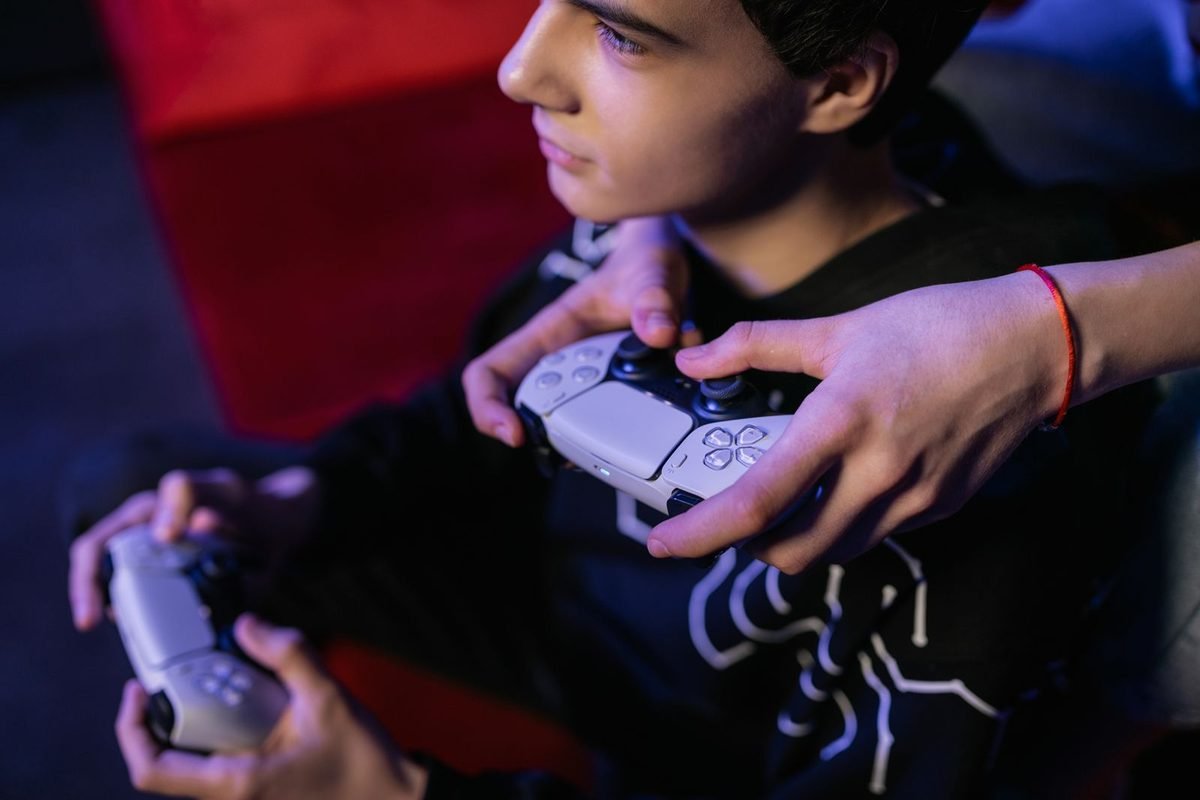
Controller players are the group that benefits most from frame generation.
Why controllers forgive delay
Thumbstick aiming is less precise than a mouse and is usually assisted by the game. A small delay is hard to perceive when you are steering a camera gently.
What to check
Look at fast turns and quick-time sequences for any sense of drag. If you do not feel it, enjoy the smoother picture.
Large screens and couch distance
On a television viewed from a distance, smooth motion is very noticeable, while small artefacts are hard to see. This combination suits frame generation well.
Four example players
These illustrations show how people reach different conclusions.
The mouse player in a shooter
This player tests frame generation in a ranked shooter, feels the aim drag at a base of 70 and turns it off. They use upscaling to reach 200 frames and are happy.
The mouse player in a slow adventure
This player enables frame generation at a base of 75 in a story game. They feel no problem and appreciate the smoother camera.
The controller player on the sofa
This player uses frame generation at a base of 60 on a 120 Hz television. They notice nothing wrong, and the picture looks wonderful.
The sensitive player
This player feels any delay immediately and prefers native frame rates in every game. They use Reflex and a high frame rate instead. Their choice is entirely valid.
What the four show
Responses differ, and each player followed their own tests. That is the right approach.
Different kinds of frame generation, different kinds of lag
Not all frame generation works the same way, and the delay differs.
Game-integrated frame generation
DLSS Frame Generation and Multi Frame Generation are built into supported games. The game supplies motion data, and Reflex is integrated, so the results are usually the best available.
Driver-level frame generation
NVIDIA Smooth Motion works at the driver level in games that do not support DLSS frame generation. It lacks the game's own motion data, so quality and latency can differ. The article on NVIDIA Smooth Motion explains the limits, and its latency behaviour is a reason many players use it for slower games only.
Third-party tools
Other tools exist that add frame generation to any game. Their quality and delay vary widely, and they are outside the scope of this guide. If you try one, measure the latency in the same way.
Which to choose
Use game-integrated frame generation when it is available, because it has the most information and the best Reflex support.
What to do if you cannot tell the difference
Many players run the test and feel nothing. That is a perfectly good result.
Trust your experience
If you cannot feel any difference in the games you play, you do not need to worry about the numbers. Enjoy the smoother picture, and revisit the decision only if a particular game feels off.
Check again in a demanding scene
Sometimes the difference only appears when the base frame rate dips. Test in the heaviest scene you play, because that is where the added delay is largest.
Ask a friend to help
Have someone switch the setting without telling you which is which. If you cannot tell, the feature is invisible to you in that game.
Revisit after updates
New drivers, game patches and DLSS versions can change the delay. A quick retest every few months keeps your conclusions fresh.
A checklist before you enable frame generation
Run through these questions in order.
- Is my base frame rate at least comfortable, ideally 60 or more, without frame generation?
- Is Reflex switched on?
- Does my monitor have a high enough refresh rate to show the extra frames?
- Do I play mostly with a controller or in slower games?
- Do I have enough video memory for the extra buffers?
How to read your answers
If you answered yes to most, frame generation is likely to suit you. If you answered no to the first or second, fix that before you judge the feature. If you answered no to the fourth, test the feel carefully.
Revisit when your hardware changes
A new monitor, a new card or a new game can change the answers. Treat the checklist as something you return to, not a decision made once.
How developers and NVIDIA are tackling the problem
Latency is a well-known concern, and the industry has responded.
Reflex as the foundation
NVIDIA built Reflex to shorten the chain, and made it a requirement for frame generation games. Many developers also tune their own pipelines to cut delay.
Frame Warp and similar ideas
Reflex 2's Frame Warp shifts a finished frame to match your latest mouse input. NVIDIA announced it for supported games on RTX 50 series cards first, and it points to a future where delay and smoothness are both addressed. Our guide to Reflex and Reflex 2 covers the idea.
Better models
Newer frame generation models, such as the one in DLSS 4.5, aim to improve the quality of generated frames, and faster pacing hardware aims to keep them even. These improvements target the look of generated frames more than the delay, but they make the feature easier to accept.
What to expect
Expect gradual improvement, not a sudden end to the trade-off. Frame generation will probably always involve some delay, and the work is to keep it small.
Fast answers to common worries
"Will frame generation ruin my aim?"
Not necessarily. At a healthy base frame rate, many players cannot tell. In fast competitive games, you may feel it, so test.
"Is it cheating?"
No. It is a graphics setting available to everyone with a supported card, and it does not change the game's rules. Competitive leagues sometimes set their own rules, so check if you play in an organised event.
"Should I buy a card just for it?"
No. Choose a card for its raw performance and memory. Frame generation is a bonus. See the RTX 50 series guide for help choosing.
"Will it get better?"
Probably, as models and hardware improve. Keep your drivers and apps current, and revisit your settings now and then.
Comfort and eye strain
Some players report that smooth motion with delayed controls feels uncomfortable, a bit like a mismatch between what their eyes see and what their hands do.
If you feel uncomfortable
Raise the base frame rate, lower the multiplier or switch frame generation off. Take breaks, and make sure your room lighting and monitor brightness are comfortable.
If you play for long sessions
A steady, responsive game is easier on the body than a flashy but disconnected one. Choose settings that you can enjoy for hours.
One more way to think about it
Think of frame generation as a trade with three possible outcomes. If your base frame rate is high, you gain smoothness and pay a small price in delay, which is an excellent trade. If your base frame rate is moderate, you gain smoothness and pay a noticeable price, which is a matter of taste. If your base frame rate is low, you gain a fast-looking picture that feels slow, which is a poor trade. Knowing which situation you are in tells you most of what you need. Raise the base with upscaling, test the feel, and let your own hands be the judge. Players who follow that routine rarely regret the choice, whichever way it falls.
Related reading on smoothness
If your frame rate looks high but the game still feels rough, the site's article on high FPS that is not smooth explains frame pacing, and the guide to reducing input lag in fast combat covers the settings that help most in quick games.
Keep the conversation going
Frame generation is a topic where opinions differ, and it is fine to disagree with a friend or a reviewer. If someone says they cannot stand it, and you love it, you are both right about your own experience. Share your settings, compare notes and test each other's suggestions, because that is how players learn what suits different games and different hands.
Summary
Frame generation usually adds a small amount of input lag, because the system needs the next real frame before it can show the frames in between. Reflex offsets part of that delay, and a healthy base frame rate keeps the rest small. For controller players and slow games, the trade is often excellent. For fast competitive mouse games, many players prefer to leave the feature off. The best way to decide is to measure with a latency overlay, then trust the feel of the game on your own hardware. Raise the base frame rate with upscaling, use the lowest multiplier that fills your screen and keep Reflex on. If you would like to learn more, start with the DLSS 4 overview and the guide to Multi Frame Generation.
Ways to reduce the lag
If you want frame generation but dislike the delay, you have several options.
Raise the base frame rate
Use DLSS Super Resolution at a lighter mode, lower heavy effects and make sure the card has headroom. The guide to DLSS quality modes explains the choices.
Use the lowest multiplier you need
A lower multiplier generates fewer guessed frames, and it usually adds less overhead. Choose the lowest that fills your monitor.
Cap the frame rate sensibly
A frame cap slightly below your monitor's refresh rate, with variable refresh rate on, keeps frame times even and avoids queueing.
Keep Reflex on
Never switch Reflex off while using frame generation, because it provides much of the offset. Try the Boost option if you want every advantage.
Review your peripherals
A fast mouse and monitor reduce delay at both ends of the chain, so they make frame generation easier to live with.
Does frame generation make the game feel laggy or only look different?
Players describe two separate sensations.
The "floaty" feeling
A slightly delayed response can make the camera feel floaty. Mouse movement seems to lag behind your hand, especially in fast turns. This comes from latency.
The "smooth but disconnected" feeling
Some players describe a picture that looks very smooth while the controls feel as if they belong to a slower game. That mismatch is what frame generation produces when the base frame rate is low.
Why a good base removes the mismatch
At a high base frame rate, the real frames are close enough in time that the controls feel connected to the picture.
Common situations and what to do
| Situation | What is likely happening | Suggested fix |
|---|---|---|
| Aim feels heavy with frame generation | Added delay at a low base | Raise the base, or turn the feature off |
| Smooth picture but sluggish controls | Base frame rate too low | Use stronger upscaling first |
| Stutter plus delay | Video memory full | Lower textures, then retest |
| No difference noticed | Controller play, or high base | Keep it on and enjoy |
| Delay worse in one game only | Game integration | Check the game's updates, or turn it off there |
How to use the table
Match your situation to the closest row, try the fix and retest. Keep notes, because one change at a time makes the cause easy to see.
What this means for your buying decision
If you are choosing a graphics card partly for frame generation, remember the lessons here. Frame generation is a smoothness tool, and it works best when your card can already reach a good base frame rate. A card with more raw performance gives you both a better base and a better experience with the feature. The site's guide to the RTX 50 series can help you choose, and the glossary explains any term you meet along the way.
A realistic mindset
Frame generation is neither a trick nor a miracle. It is a useful option that trades a little delay for a lot of smoothness, and the trade is good in many games and poor in others. Test, decide and keep your settings flexible.
Myths about frame generation and lag
Myth: frame generation always makes games unplayable
It does not. Many players enjoy it with no complaints, particularly at a healthy base frame rate.
Myth: frame generation has no latency cost
It does add some. Pretending otherwise leads to disappointment in fast games.
Myth: Reflex cancels all the lag
It offsets part of it. The net effect depends on the game.
Myth: only professionals can feel latency
Many ordinary players notice heavy aiming in fast games. You do not need to be a professional to have a preference.
Short glossary for this article
- Latency: the delay from an input to its result on screen.
- Base frame rate: the real frames the game draws each second.
- Hold-back: the brief wait for the next real frame before generated ones are shown.
- Reflex: NVIDIA's technology for shortening the render queue.
- Interpolation: creating a frame between two known frames.
- Frame interval: the time between real frames.
Frequently asked questions about frame generation and input lag
Does frame generation add input lag?
Usually a little. The system must wait for the next real frame before it can show the generated one, which delays real frames by a fraction of a frame interval. NVIDIA Reflex offsets part of this. The size of the penalty depends on the game and shrinks as your base frame rate rises.
Is the lag from frame generation noticeable?
For many players, it is not, especially with a controller or a base frame rate of 60 or more. Competitive mouse players often notice a slightly heavier feel. Test in your own game with a latency overlay and a feel test, and keep the feature only if you are happy.
Does Reflex remove the lag from frame generation?
It reduces it, but does not usually remove it completely. Reflex shortens the render queue, which offsets part of the delay that frame generation adds. Frame generation games require Reflex for this reason. The net result is often a small increase compared with Reflex alone.
Should I use frame generation in competitive games?
Most competitive players leave it off, because every millisecond counts and the benefit is smoothness, not speed. If you need a higher frame rate, upscaling is a better tool, because it raises the real frame rate, which improves both smoothness and responsiveness.
Does a higher base frame rate reduce the lag?
Yes. The added delay is tied to the interval between real frames. At a base of 120 frames per second, that interval is about half as long as at 60, so the penalty is smaller. Raising the base with upscaling therefore makes frame generation feel better.
Is frame generation worth it despite the lag?
For many players and many games, yes. The smoother picture is a big gain on high refresh rate monitors, and the delay is small at a healthy base frame rate. If your games are fast and competitive, or you are sensitive to delay, leaving it off is a reasonable choice.