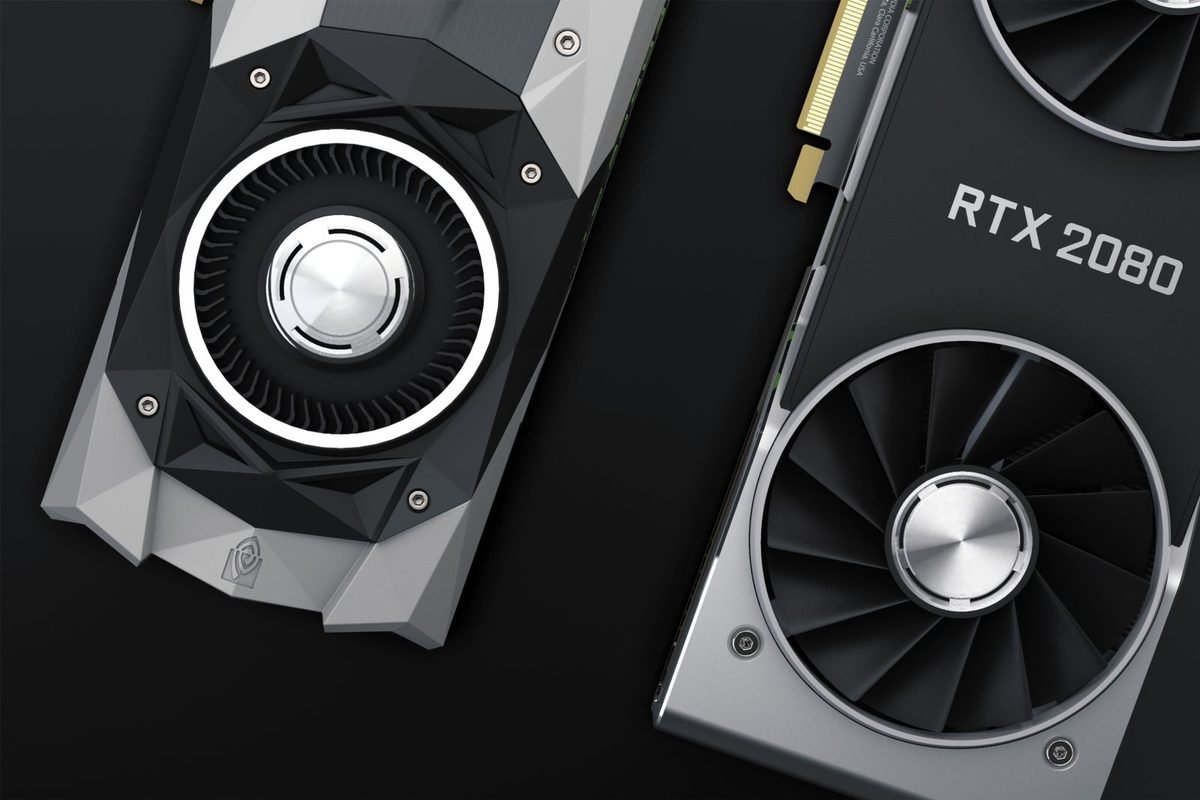
What do upscalers do?
All three technologies solve the same problem in a similar way. This section explains the shared idea before the differences.
The shared idea
Drawing every pixel of a modern game at high resolution is expensive. An upscaler lets the game draw fewer pixels, then enlarges the image and adds back detail. The result is a higher frame rate with a picture that looks close to the full-resolution one. The details differ between technologies, but the principle is the same. Our DLSS 4 overview explains the NVIDIA version in depth.
Spatial and temporal upscaling
Early upscalers worked on a single image. This is called spatial upscaling, and it can look soft. Modern upscalers also use information from earlier frames and motion data. This is called temporal upscaling, and it recovers much more detail. DLSS, FSR 2 and later, and XeSS all use temporal methods.
AI and non-AI methods
DLSS uses a trained AI model running on special hardware. FSR originally used hand-written algorithms that work on any hardware, and later versions have added AI options on supported AMD hardware. XeSS uses an AI model, with different paths for Intel's hardware and for others. The method affects both quality and compatibility.
Why there are three
Each company built an upscaler for its own cards and ecosystem. NVIDIA moved first with DLSS, AMD followed with an open approach, and Intel introduced XeSS with its Arc cards. Games often offer several, so players with different hardware can choose.
DLSS: NVIDIA's AI upscaler
DLSS is the best known of the three, and it has the longest development history.
How it works
DLSS uses a trained neural network that runs on the Tensor cores in RTX cards. It takes the game's low-resolution frame, motion vectors, depth and earlier frames, and produces a high-resolution result. Recent versions use a transformer model, as the guide to transformer and CNN models explains.
What it supports
DLSS offers Super Resolution on all RTX cards, Ray Reconstruction on all RTX cards, frame generation on RTX 40 and 50 series cards and Multi Frame Generation on RTX 50 series cards. Reflex pairs with it for lower delay.
Strengths and limits
Its strengths are image quality, stability and the broadest feature set. Its limits are hardware: it works only on RTX cards, and it needs game support.
Where it stands in 2026
NVIDIA announced DLSS 4.5 at CES 2026 with a second-generation transformer model, newer frame generation models and higher frame generation options on RTX 50 cards. The newest options are rolled out through driver and NVIDIA App updates.
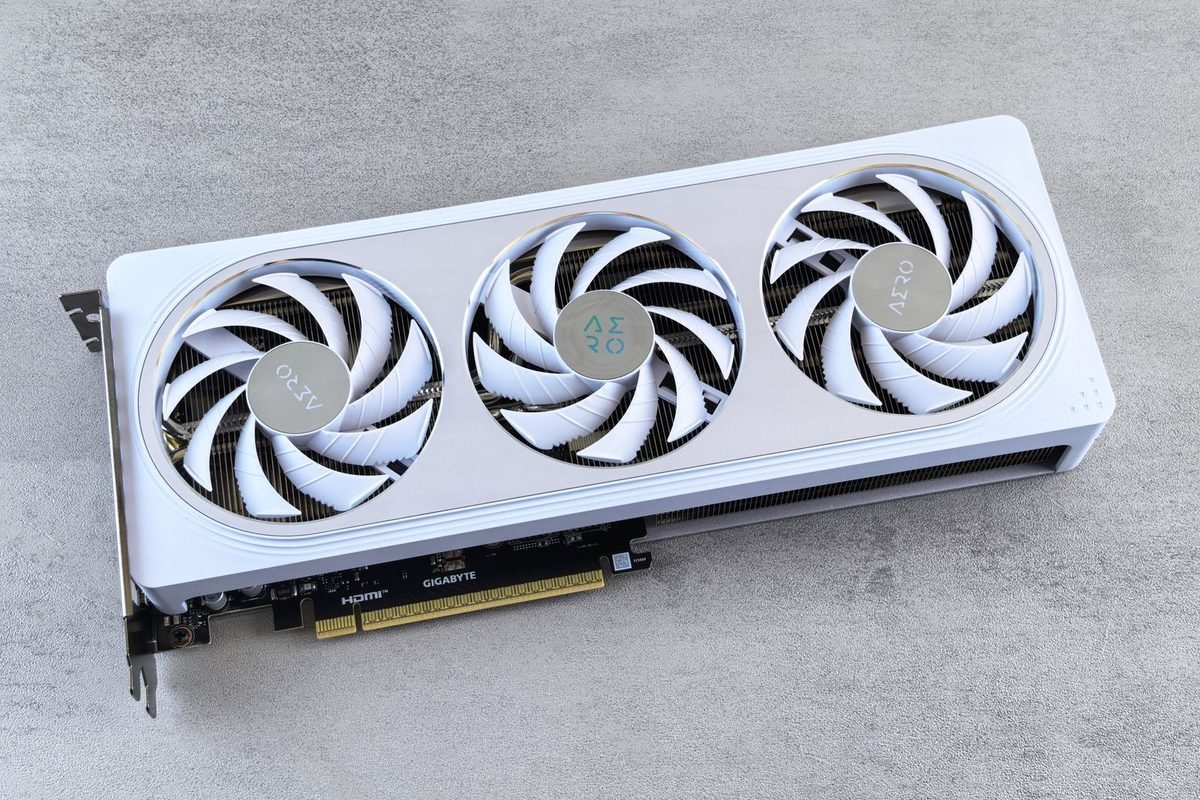
FSR: AMD's upscaler
FSR stands for FidelityFX Super Resolution.
How it works
Earlier versions used algorithms that run on ordinary graphics hardware, which is why FSR works on a wide range of cards, including NVIDIA and Intel ones. Newer versions have introduced AI-based paths for supported AMD cards, while keeping a path for others. FSR also includes a frame generation feature that AMD designed to run on a broad range of hardware.
Strengths and limits
Its biggest strength is compatibility. It can help older cards and cards without AI hardware, including NVIDIA GTX cards, as the article on GTX versus RTX mentions. Its limit is image quality in some games, where the non-AI path can show more shimmering and softness than DLSS, though newer versions have narrowed the gap on supported hardware.
Where you meet it
Many games include FSR as an alternative to DLSS, and games on consoles and handheld PCs often use it. Check the game's menu for the version.
XeSS: Intel's upscaler
XeSS stands for Xe Super Sampling.
How it works
XeSS uses an AI model. On Intel Arc cards, it runs on dedicated AI hardware. On other brands, it runs in a general mode that uses a different, lighter path, which usually gives lower quality and less speed gain.
Strengths and limits
Its strength is quality on Intel hardware, and a presence in a growing number of games. Its limit is that other cards get a reduced version, and fewer games support it than DLSS or FSR.
Who should care
Owners of Intel Arc cards benefit most. Others may try it when a game offers it and DLSS is not an option.
Side-by-side comparison
The table summarises the main differences. Details change as the technologies update, so check each company's current pages.
| Question | DLSS | FSR | XeSS |
|---|---|---|---|
| Company | NVIDIA | AMD | Intel |
| Works on NVIDIA RTX | Yes | Yes | Yes, general mode |
| Works on NVIDIA GTX | No | Generally yes | Generally yes, general mode |
| Works on AMD cards | No | Yes | Yes, general mode |
| Works on Intel Arc | No | Yes | Yes, best mode |
| Uses AI | Yes | Newer versions on supported hardware | Yes |
| Frame generation | Yes, RTX 40 and 50 | Yes, broad hardware | Not in the same form |
| Typical quality on its best hardware | Highest | Good | Good |
How to read the table
Compatibility favours FSR and XeSS, and image quality and features favour DLSS on RTX cards. For most NVIDIA owners, the right choice is simple: use DLSS when the game offers it.
What the table leaves out
Individual games differ. Developers integrate each technology with varying care, and a poor integration can make a good upscaler look worse. Judge in the games you play.
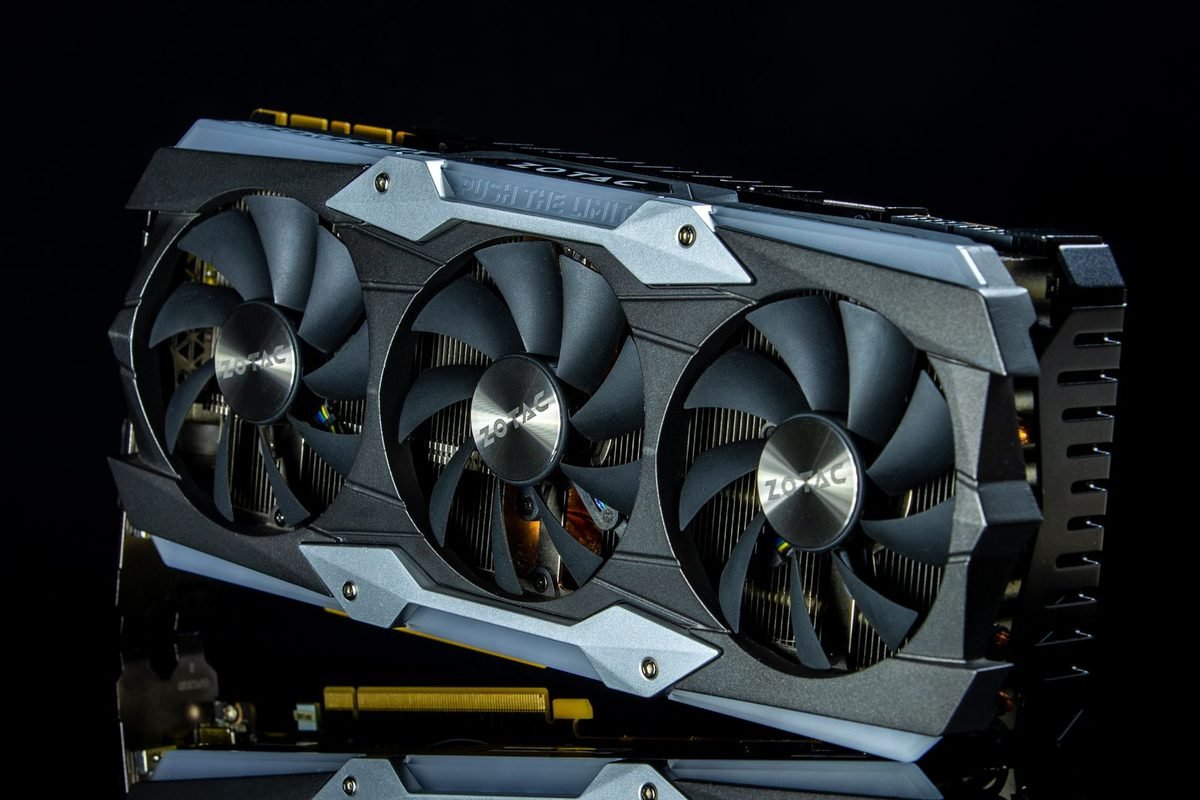
Which should you use?
The answer depends on your hardware.
On an NVIDIA RTX card
Choose DLSS when available. It generally gives the best image quality and unlocks features such as Ray Reconstruction and frame generation. Use FSR or XeSS only if a game lacks DLSS or you want to compare.
On an NVIDIA GTX card
You cannot use DLSS. FSR is often the best option, and XeSS may work in some games. Our guide to the difference between GTX and RTX explains your alternatives.
On an AMD card
Use FSR, particularly the newest version your card supports. XeSS may be an option in some games. The site's Fortnite comparison of DLSS and FSR shows how the options look in a real game.
On an Intel Arc card
Use XeSS first, and FSR as an alternative.
How to compare upscalers fairly yourself
Reviews and videos help, but your own screen decides. A fair test takes about twenty minutes in a game that offers several upscalers.
Set up the test
Pick a scene with detail and movement, such as a street with fences and signs. Use the same internal resolution for each upscaler, which usually means the same mode name, such as Quality. Turn off extra sharpening, motion blur and film grain, so the upscaler is the only difference.
Record what you see
Take screenshots, and record a short clip while you turn the camera. Compare edges, text, foliage and moving objects. Write down your impressions and the frame rate for each.
Judge in motion
A still image can hide ghosting and shimmering. Watch the clip at normal speed and in slow motion. Pay attention to thin lines, hair and distant detail.
Repeat in a second game
Different games integrate upscalers differently. A result in one game may not hold in another, so test the games you play most.
Image quality in more detail
The three technologies tend to behave in recognisable ways, though results vary by game and version.
Edge stability
DLSS and XeSS on supported hardware generally keep thin lines steadier. FSR versions without AI can show more shimmer, especially in low-resolution modes.
Motion clarity
Ghosting behind moving objects is the classic weakness. Newer DLSS models have reduced it a good deal, and recent FSR and XeSS versions have improved as well.
Fine detail
At Quality mode, all three can look close to native in many games. At Performance and below, differences grow, and the AI-based methods tend to hold detail better.
Interface and text
Whether text stays crisp depends on how a game separates the interface from the scene, not on the upscaler. A good integration keeps text sharp with any of the three.
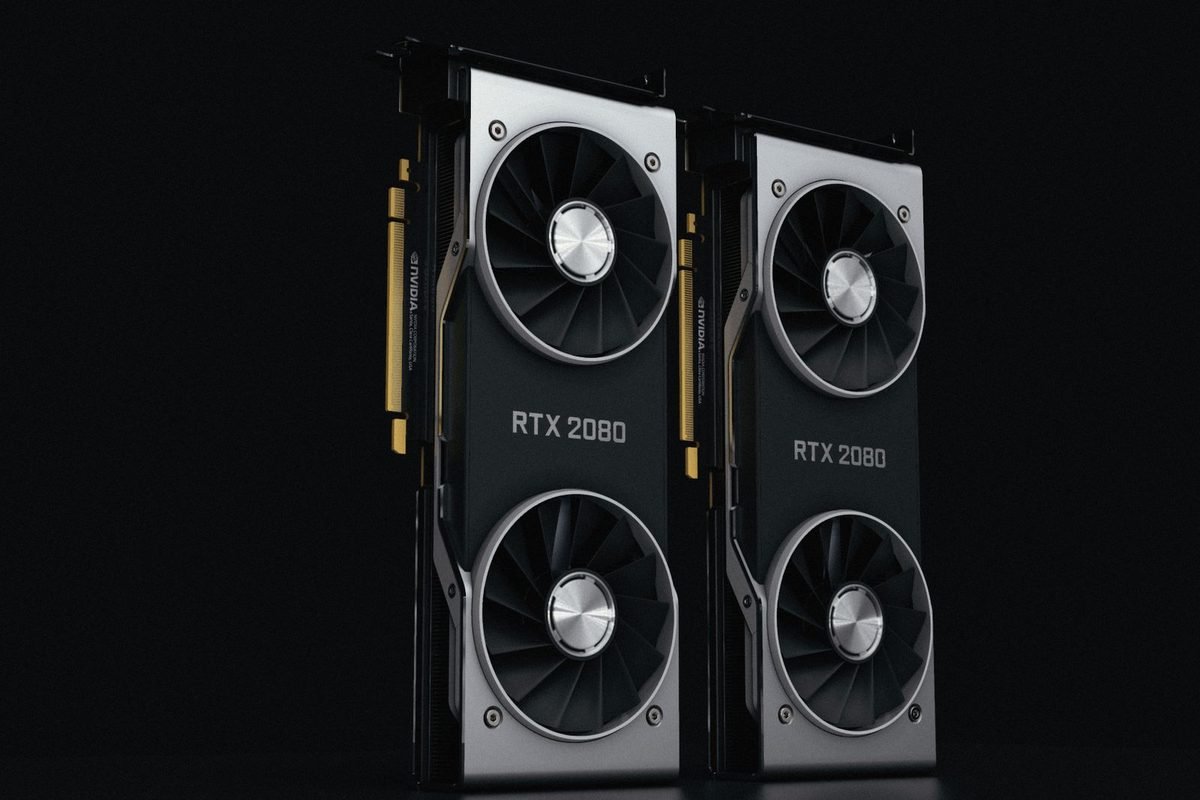
Performance in more detail
The speed boost is similar for the same internal resolution, but small differences exist.
The cost of the upscaler itself
Each upscaler needs some processing. AI-based methods need Tensor or similar hardware to run quickly. On supported hardware the cost is small, while on unsupported hardware it can be larger.
Frame generation differences
DLSS frame generation is built into games and uses Reflex. FSR's frame generation is designed for broad hardware and has its own latency behaviour. The guide to frame generation and input lag explains the delay in general terms.
Older cards
Older RTX cards run DLSS Super Resolution well. Older non-RTX cards rely on FSR, and gain a useful boost with modest quality.
Power and heat
Upscaling lowers the work of drawing pixels, so cards often run cooler and quieter. This applies to all three.
What this means for different buyers
Your hardware choice affects which tools you get.
If you are buying an NVIDIA card
You gain DLSS, Reflex, Ray Reconstruction and, on RTX 40 and 50 cards, frame generation. The RTX 50 series beginner guide helps you pick a card.
If you are buying an AMD card
You gain FSR and AMD's own features. Check which FSR version your card supports, and which games use it. The site's comparisons of AMD RDNA 4 and NVIDIA RTX 50 show head-to-head results in one game.
If you are buying an Intel card
You gain XeSS at its best. Intel's cards are budget-friendly, and XeSS support is growing.
Think about the games you play
Check that your favourite games support the upscaler you rely on. A feature that your games do not use is of no benefit.
Four example owners
These imaginary owners show how the choice plays out.
The RTX owner
This player uses DLSS in every game that offers it, and turns to FSR only when a game lacks DLSS. They enjoy the best picture and the extra features.
The GTX owner
This player cannot use DLSS and relies on FSR in games that offer it. They accept slightly lower quality and plan an upgrade.
The AMD owner
This player uses FSR and notes improvements as new versions arrive. They check which version each game uses.
The Intel owner
This player uses XeSS and enjoys its quality on their hardware, switching to FSR in games where it works better.
The shared lesson
Each owner used the best tool for their hardware and tested in their own games.
Understanding version numbers
Each technology has versions, and the numbers can confuse.
DLSS versions
DLSS has moved from version 1 through 2, 3, 3.5, 4 and 4.5. Each step added something: better quality, frame generation, Ray Reconstruction, transformer models and so on. A game may use an older version, and the NVIDIA App can sometimes apply a newer one.
FSR versions
FSR has also had several major versions, with the later ones adding temporal upscaling, frame generation and AI-based paths on supported hardware. The version a game uses matters, because older FSR versions look noticeably different from newer ones. Check the game's settings or release notes for the version.
XeSS versions
XeSS has likewise gained versions and modes. A game may ship with an older XeSS, and updates arrive through game patches.
How to find out what a game uses
Look in the game's graphics menu, its patch notes or community guides. For DLSS, the NVIDIA overlay indicator shows the version in use.
Upscalers and ray tracing
Ray-traced games benefit from upscalers more than any other type.
Why the gains are bigger
Ray tracing makes each pixel more expensive, so drawing fewer pixels saves more time. All three upscalers help.
Denoising and Ray Reconstruction
DLSS offers Ray Reconstruction, which cleans noisy ray-traced lighting with AI. FSR and XeSS do not offer the same feature in the same form, so ray-traced games on those technologies depend on the game's own denoisers. The guide to Ray Reconstruction explains this.
Path tracing
Path-traced games are the most demanding, and they lean most on DLSS features. Owners of other brands may find such games harder to run well.
Upscalers on consoles and handheld PCs
Upscaling is not limited to desktop graphics cards.
Consoles
Consoles use their own upscaling methods, and some of them use FSR-style techniques. The result is a better picture on modest hardware.
Handheld PCs
Handheld gaming PCs often rely on FSR, because they have small, low-power graphics chips. A mode that looks fine on a small screen may look soft on a monitor.
What this tells us
Upscaling is now a standard part of gaming across all platforms. Learning how it works helps whichever device you use.
NVIDIA laptops
Laptops with RTX chips benefit from DLSS, and the lower power of laptop chips makes upscaling especially useful. See the RTX 50 series beginner guide for laptop notes.
A buyer's checklist
If upscaling matters to your purchase, use this list.
- Check which upscalers your favourite games support.
- Check which of those your card can run, and at what quality.
- Check whether the games offer frame generation, and whether your card supports it.
- Consider Ray Reconstruction if you play ray-traced games.
- Consider the card's raw performance, because upscaling stretches performance but cannot replace it.
- Compare prices in the UK, and keep your receipt.
Reading your results
If your games support DLSS and you are choosing between cards, an RTX card gives you the broadest feature set. If your games mostly support FSR, any modern card helps. If you play a lot of ray-traced games, favour RTX.
What the future may hold for upscalers
Upscaling is advancing quickly, and it is worth knowing the direction without taking promises as certain.
More AI everywhere
All three companies are moving towards AI-based methods, because they give better quality at low internal resolutions. AMD's newer FSR versions use AI on supported hardware, and Intel's XeSS is AI-based from the start.
Better frame generation
Frame generation is improving across the board, with better models and better latency handling. NVIDIA's DLSS 4.5 update added newer frame generation models and higher options on RTX 50 cards.
Wider developer support
As engines add support for several upscalers at once, games increasingly offer all of them. That means more choice for players, and less need for workarounds.
How to prepare
Keep your drivers current, read update notes and avoid buying hardware for promised features. Buy for what a card does well now, and enjoy improvements as they arrive.
Troubleshooting upscaler problems
| Symptom | Likely cause | What to try |
|---|---|---|
| Only FSR appears in the menu | Game lacks DLSS | Check the game's supported features |
| Picture looks soft | Mode too low for your resolution | Move to a higher mode |
| Shimmering on thin lines | Non-AI path or low internal resolution | Try a higher mode, or a newer version |
| Frame rate unchanged | Processor limit | Check graphics card usage |
| Ghosting behind objects | Integration or older version | Try a newer version through an override if available |
How to use the table
Work through the rows in order, and change one setting at a time. If a problem remains, search for the game's name and the upscaler, because other players often share fixes.
Settings that pair well with each upscaler
The upscaler is not the only setting that shapes your picture.
Sharpening
Some upscalers apply their own sharpening, and some games add more. Too much sharpening creates bright halos around edges. Start with the default, and adjust in small steps.
Anti-aliasing
Temporal upscalers handle edge smoothing themselves. Turn off other anti-aliasing options that the game offers, unless the game tells you otherwise, because stacking them can blur the picture.
Motion blur and depth of field
These effects hide artefacts for some players and cause confusion for others. Test with them off first, and add them back if you like the look.
Texture quality
Keep textures high if your video memory allows, because the upscaler works best with detailed sources. See how much VRAM you need.
Quick comparison scenarios
These examples illustrate how a decision might go, and they are not test results.
Scenario one: a ray-traced adventure on an RTX card
The player enables DLSS with Ray Reconstruction, picks Balanced mode and enjoys clean lighting. FSR would run, but without the AI denoiser the lighting would look noisier.
Scenario two: a competitive shooter on an older GTX card
The player uses FSR Quality, accepts slightly softer detail and enjoys a higher frame rate. DLSS is not available.
Scenario three: a strategy game on an AMD card
The player uses FSR, because the game offers it and the interface stays crisp.
Scenario four: an indie game with only XeSS
The player on an RTX card tries XeSS, finds the picture acceptable and switches to native resolution because the game is light.
The pattern
Each choice followed the available options and the player's hardware. That is the sensible approach.
How to keep your upscaler knowledge current
Upscalers change quickly, and a short routine helps you keep up without effort.
Follow official sources
NVIDIA, AMD and Intel each publish news about their technologies, along with lists of supported games. These pages are the most reliable place to check which features exist and which games use them.
Read patch notes
Game developers often mention upscaler updates in patch notes. A line about a new FSR or DLSS version can explain why a game looks different after an update.
Re-test occasionally
Every few months, spend ten minutes comparing the upscalers in a favourite game. Improvements may let you switch to a faster mode, and regressions may tell you to switch back.
Avoid hype
Marketing and social media exaggerate differences in both directions. Rely on your own tests and on sources that explain their methods.
One more thing: keep it fun
Tuning upscalers can become a hobby of its own, and some players enjoy it for its own sake. If that is you, enjoy the experiments. If it is not, pick sensible defaults and spend your time playing. Either approach is fine. The most important point is that modern upscalers, whichever brand makes them, make good-looking games possible on a wider range of hardware than ever before, and that is good news for everyone who loves games.
Remember that games differ more than brands
A well-integrated game with a modest upscaler often looks better than a poorly integrated game with a famous one. When you judge image quality, look at the whole picture: the art, the lighting, the interface and the way the game handles motion. The upscaler is one ingredient, and developers decide how it is cooked. That is why testing in your own games, instead of trusting a universal ranking, is the most reliable way to choose.
Share what you learn
If you find a combination that works well, tell friends and write a short note for yourself. Gaming communities thrive on shared experience, and a well-described setup, with the card, the game, the upscaler and the mode, helps other players more than any chart. It also helps you remember what worked when you return to a game after months away.
A final note on choosing
Upscalers are tools that serve your goals. The best one is the one that gives you the picture and the frame rate you like on your own hardware. For NVIDIA RTX owners that is usually DLSS, and for others it is the best option your card and game allow. You do not need to follow every news story or chart. Test in the games you play, trust your eyes and revisit your settings after big updates. If you want to learn more about the NVIDIA side, begin with the DLSS 4 overview and the guide to using the NVIDIA App.
Common mistakes
Judging by one game
Integration quality varies. Test several games before drawing conclusions.
Comparing different modes
Quality in one technology and Balanced in another are not a fair match. Compare the same internal resolution.
Forgetting about updates
Each technology improves over time. A comparison from last year may not hold today.
Assuming the newest version is always used
Games ship with specific versions. Check which version your game uses, and update if the developer or the NVIDIA App allows.
Myths
Myth: FSR is just a worse DLSS
It is a different approach with its own strengths, notably compatibility. Newer versions have closed the gap on supported hardware.
Myth: XeSS only works on Intel
It works on other brands in a general mode, though with reduced quality and benefit.
Myth: DLSS is always better
On RTX cards it usually is, but individual games vary, and a poor integration can undo its advantages.
Summary
DLSS, FSR and XeSS all render fewer pixels and rebuild a sharper picture. DLSS needs an NVIDIA RTX card and generally offers the best quality and the richest features. FSR works on almost any card and is the choice for GTX and many AMD owners. XeSS works best on Intel Arc cards and is available in a reduced mode elsewhere. On an RTX card, use DLSS when the game offers it, and keep FSR or XeSS as backups. Test in your own games with the same internal resolution, judge in motion and keep notes. Technologies and versions change, so revisit your choice after major updates. If you want to go deeper, read the guides to DLSS presets and quality modes.
Short glossary for this article
- Upscaler: software that enlarges a smaller image and adds detail.
- Temporal upscaling: using earlier frames to improve the result.
- Tensor core: hardware that accelerates AI calculations on RTX cards.
- FSR: AMD's FidelityFX Super Resolution.
- XeSS: Intel's Xe Super Sampling.
- Integration: how a game developer connects an upscaler to the game.
Frequently asked questions about DLSS, FSR and XeSS
Is DLSS better than FSR?
On RTX cards, DLSS generally gives better image quality and stability, and it offers more features, such as Ray Reconstruction and frame generation. FSR works on a much wider range of hardware, and newer versions have improved quality on supported cards. Game integration matters, so compare in the games you play.
Can I use FSR on an NVIDIA card?
Yes. FSR runs on a wide range of graphics cards, including NVIDIA ones, as long as the game supports it. NVIDIA RTX owners usually prefer DLSS for quality, but FSR is a useful option for GTX cards or for games without DLSS.
Can I use DLSS on an AMD or Intel card?
No. DLSS needs the Tensor cores in NVIDIA RTX cards, so it does not run on AMD or Intel hardware. Those owners can use FSR or XeSS, depending on the game and card, and each company is developing its own AI-based features.
Does XeSS work on NVIDIA cards?
Yes, in a general mode that does not use Intel's dedicated hardware. Quality and speed gains are usually lower than on Intel Arc cards, and fewer games support it than DLSS or FSR. On an RTX card, DLSS is usually the better choice when available.
Which upscaler gives the best frame rate boost?
It depends on the game and mode. All three offer similar quality modes that set the internal resolution, so the raw boost is similar for a given mode. The difference is mainly in how good the picture looks at that mode, which is where DLSS tends to lead on RTX hardware.
Should I use native resolution instead of an upscaler?
If your card can hold your target frame rate at native resolution, you can. Upscalers help when you need more frames, and DLAA offers a native-resolution option with DLSS-quality processing. The choice depends on your hardware, your screen and your taste.