Can my PC run it?
Enter your exact parts and settings in this game
Upload Labs is a Simulation game by EnigmaDev Studios, out for roughly 13 months. This guide covers the official PC requirements, modelled frame rates on 28 GPUs, VRAM needs, processor and memory advice, the best settings and laptop performance.

Where it lands among 937 modelled titles, and what that means for different classes of GPU.
We rate the graphics demand of Upload Labs at 4. That puts it above 0% of the 937 modelled games and firmly in the undemanding band.
Behind the number is the publisher minimum card, Intel HD Graphics 600 series, converted to an equivalent 1080p High workload. That makes the score comparable between games, though not exact for any single one.
Processor demand is rated separately: Upload Labs scores 18 on our CPU scale, higher than 0% of the games we model.
Official minimum and recommended specs for Upload Labs, translated into frame rates.
Published by the developer on Steam and subject to change with patches.
At the bottom end, Steam names Intel HD Graphics 600 series. That card manages roughly 147 FPS at 1080p on Low according to our estimates, falling to roughly 81 FPS on High.
The publisher gives a minimum specification and nothing higher, so we model Upload Labs from the minimum card. That makes the estimates more approximate than usual.
For the processor, Steam lists Intel Core i5-2500K (or AMD FX-8350 equivalent) with SSE4.2 support. In our model a chip in that class can prepare roughly 63 FPS in this game, so it will not hold back most mid-range cards.
You will need 1 GB RAM of RAM at minimum or 1 GB RAM to match the recommended spec, plus 200 MB available space on your drive.
The lowest GPU we tested that delivers each target in Upload Labs, plus the first desktop RTX 50 card that does.
| Target | Lowest card tested | First RTX 50 card | Also reaches it |
|---|---|---|---|
| Playable, 30 FPS at 1080p Low | GTX 1060 6GB | RTX 5050 | GTX 1660 Super, RTX 2060, RX 6600 |
| 1080p 60 FPS, Medium | GTX 1060 6GB | RTX 5050 | GTX 1660 Super, RTX 2060, RX 6600 |
| 1080p 60 FPS, High | GTX 1060 6GB | RTX 5050 | GTX 1660 Super, RTX 2060, RX 6600 |
| 1440p 60 FPS, High | GTX 1060 6GB | RTX 5050 | GTX 1660 Super, RTX 2060, RX 6600 |
| 1440p 100 FPS, High | GTX 1060 6GB | RTX 5050 | GTX 1660 Super, RTX 2060, RX 6600 |
| 4K 60 FPS, High with upscaling | GTX 1060 6GB | RTX 5050 | GTX 1660 Super, RTX 2060, RX 6600 |
| 4K 60 FPS, Ultra with upscaling | GTX 1060 6GB | RTX 5050 | GTX 1660 Super, RTX 2060, RX 6600 |
The lowest card we tested that holds 60 FPS at 1080p on High is the GTX 1060 6GB, and the first desktop RTX 50 card to do it is the RTX 5050.
Moving up to 1440p, the GTX 1060 6GB is the lowest card that holds 60 FPS on High, and the RTX 5050 is the first RTX 50 option.
4K is the hard case. With Quality DLSS, FSR or XeSS-style upscaling enabled, the RTX 5050 is where the RTX 50 range first delivers 60 FPS on High.
Cards across NVIDIA, AMD and Intel are included. To test your own parts, open the can my PC run it checker and check for a processor limit in the bottleneck checker.
Projected frame rates for 28 GPUs from NVIDIA, AMD and Intel. Use the buttons to change resolution.
The fastest card here, the RTX 5090, returns around 360+ FPS at 1440p and 360+ FPS at 4K. The RTX 5050 sits at roughly 360+ FPS at 1440p, which shows how wide the range is in Upload Labs.
| Graphics card | 1080p | 1440p | 4K | 1440p upscaled | 4K upscaled |
|---|---|---|---|---|---|
| RTX 5090 32 GB | 360+ | 360+ | 360+ | 360+ | 360+ |
| RTX 4090 24 GB | 360+ | 360+ | 360+ | 360+ | 360+ |
| RTX 5080 16 GB | 360+ | 360+ | 360+ | 360+ | 360+ |
| RX 7900 XTX 24 GB | 360+ | 360+ | 360+ | 360+ | 360+ |
| RTX 4080 Super 16 GB | 360+ | 360+ | 360+ | 360+ | 360+ |
| RTX 5070 Ti 16 GB | 360+ | 360+ | 360+ | 360+ | 360+ |
| RX 9070 XT 16 GB | 360+ | 360+ | 360+ | 360+ | 360+ |
| RTX 4070 Ti Super 16 GB | 360+ | 360+ | 360+ | 360+ | 360+ |
| RX 9070 16 GB | 360+ | 360+ | 360+ | 360+ | 360+ |
| RTX 5070 12 GB | 360+ | 360+ | 360+ | 360+ | 360+ |
| RTX 4070 Super 12 GB | 360+ | 360+ | 360+ | 360+ | 360+ |
| RX 7800 XT 16 GB | 360+ | 360+ | 360+ | 360+ | 360+ |
| RTX 3080 10GB 10 GB | 360+ | 360+ | 360+ | 360+ | 360+ |
| RTX 4070 12 GB | 360+ | 360+ | 360+ | 360+ | 360+ |
| RX 7700 XT 12 GB | 360+ | 360+ | 360+ | 360+ | 360+ |
| RTX 5060 Ti 16GB 16 GB | 360+ | 360+ | 360+ | 360+ | 360+ |
| RTX 3070 8 GB | 360+ | 360+ | 360+ | 360+ | 360+ |
| RTX 4060 Ti 8GB 8 GB | 360+ | 360+ | 360+ | 360+ | 360+ |
| RTX 5060 8 GB | 360+ | 360+ | 350 | 360+ | 360+ |
| Arc B580 12 GB | 360+ | 360+ | 330 | 360+ | 360+ |
| RTX 4060 8 GB | 360+ | 360+ | 300 | 360+ | 360+ |
| RTX 5050 8 GB | 360+ | 360+ | 260 | 360+ | 360+ |
| RX 7600 8 GB | 360+ | 360+ | 260 | 360+ | 360+ |
| RTX 3060 12GB 12 GB | 360+ | 360+ | 240 | 360+ | 360+ |
| RX 6600 8 GB | 360+ | 360+ | 220 | 360+ | 330 |
| RTX 2060 6 GB | 360+ | 348 | 200 | 360+ | 300 |
| GTX 1660 Super 6 GB | 360+ | 296 | 170 | 360+ | 255 |
| GTX 1060 6GB 6 GB | 297 | 192 | 110 | 287 | 165 |
All numbers are for High settings paired with a quick CPU. The last two columns use Quality upscaling (DLSS, FSR or XeSS, if the game offers it). Results over 360 FPS appear as 360+. Compare two cards directly in the GPU comparison tool.
A verdict in plain English for twelve popular GPUs.
| Graphics card | 1080p | 1440p | 4K | Verdict |
|---|---|---|---|---|
| GTX 1060 6GB | 297 | 192 | 110 | The graphics card is not the limit here: 297 FPS at 1080p before the game or CPU takes over. |
| RTX 2060 | 360+ | 348 | 200 | Far more than this game needs, with 360+ FPS at 1080p in our model. |
| RTX 3060 12GB | 360+ | 360+ | 240 | Far more than this game needs, with 360+ FPS at 1080p in our model. |
| RTX 4060 | 360+ | 360+ | 300 | Comfortably above what the engine is likely to use (360+ FPS at 1080p). |
| RTX 5060 | 360+ | 360+ | 350 | Far more than this game needs, with 360+ FPS at 1080p in our model. |
| RTX 5060 Ti 16GB | 360+ | 360+ | 360+ | The graphics card is not the limit here: 360+ FPS at 1080p before the game or CPU takes over. |
| RTX 5070 | 360+ | 360+ | 360+ | Easy work for this card, which reaches 360+ FPS at 1080p. |
| RX 7800 XT | 360+ | 360+ | 360+ | Far more than this game needs, with 360+ FPS at 1080p in our model. |
| RTX 5070 Ti | 360+ | 360+ | 360+ | Far more than this game needs, with 360+ FPS at 1080p in our model. |
| RTX 5080 | 360+ | 360+ | 360+ | Comfortably above what the engine is likely to use (360+ FPS at 1080p). |
| RTX 4090 | 360+ | 360+ | 360+ | Easy work for this card, which reaches 360+ FPS at 1080p. |
| RTX 5090 | 360+ | 360+ | 360+ | The graphics card is not the limit here: 360+ FPS at 1080p before the game or CPU takes over. |
Verdicts below use High settings throughout. For older cards a weak result mostly means lowering the preset, since Low and Medium settings recover a lot of speed according to our model.
The step from an RTX 5060 (360+ FPS at 1440p) to an RTX 5070 (360+ FPS) is roughly 0% according to our model, a useful yardstick when choosing between the two.
Settings that hold 60 FPS at 1080p, 1440p and 4K, worked out for this game.
At 1080p, GTX 1660 Super, RTX 3060 12GB, RTX 4060 hold 60 FPS natively on High according to our model, so you can leave DLSS, FSR or XeSS-style upscaling off and spend the headroom on settings.
Use the table as a starting point: it shows the highest preset that still delivers 60 FPS for each card at 1080p.
| Card | Best preset | Upscaling | Est. FPS |
|---|---|---|---|
| GTX 1660 Super | Ultra | Native | 353 |
| RTX 3060 12GB | Ultra | Native | 360+ |
| RTX 4060 | Ultra | Native | 360+ |
| RTX 5060 | Ultra | Native | 360+ |
At 1440p, RTX 4060, RTX 5060, RTX 5070 hold 60 FPS natively on High according to our model, so you can leave DLSS, FSR or XeSS-style upscaling off and spend the headroom on settings.
Pick your card in the table for the preset and upscaling mode that keep 1440p above 60 FPS.
| Card | Best preset | Upscaling | Est. FPS |
|---|---|---|---|
| RTX 4060 | Ultra | Native | 360+ |
| RTX 5060 | Ultra | Native | 360+ |
| RTX 5070 | Ultra | Native | 360+ |
| RTX 5070 Ti | Ultra | Native | 360+ |
At 4K, RTX 5070 Ti, RTX 4080 Super, RTX 5080 hold 60 FPS natively on High according to our model, so you can leave DLSS, FSR or XeSS-style upscaling off and spend the headroom on settings.
Pick your card in the table for the preset and upscaling mode that keep 4K above 60 FPS.
| Card | Best preset | Upscaling | Est. FPS |
|---|---|---|---|
| RTX 5070 Ti | Ultra | Native | 360+ |
| RTX 4080 Super | Ultra | Native | 360+ |
| RTX 5080 | Ultra | Native | 360+ |
| RTX 5090 | Ultra | Native | 360+ |
How much faster each next RTX 50 card is at 1440p with High settings.
| Step | Before (1440p FPS) | After (1440p FPS) | Gain |
|---|---|---|---|
| RTX 5050 to RTX 5060 | 360+ | 360+ | +0% |
| RTX 5060 to RTX 5060 Ti 16GB | 360+ | 360+ | +0% |
| RTX 5060 Ti 16GB to RTX 5070 | 360+ | 360+ | +0% |
| RTX 5070 to RTX 5070 Ti | 360+ | 360+ | +0% |
| RTX 5070 Ti to RTX 5080 | 360+ | 360+ | +0% |
| RTX 5080 to RTX 5090 | 360+ | 360+ | +0% |
The biggest single step in Upload Labs is RTX 5050 to RTX 5060, worth roughly 0% at 1440p according to our model. The smallest is RTX 5050 to RTX 5060 at roughly 0%.
Because Upload Labs is light on graphics hardware, upgrades beyond the middle of the range mostly raise a number the game or CPU already limits, so a dearer card buys little.
Compare options directly in the upgrade value calculator or the GPU price to performance calculator.
Estimated graphics memory use with High settings. Too little VRAM hurts smoothness whatever the GPU speed.
| Your VRAM | 1080p Low | 1080p High | 1440p High | 4K High |
|---|---|---|---|---|
| 6 GB | Fine | Fine | Fine | Fine |
| 8 GB | Fine | Fine | Fine | Fine |
| 12 GB | Fine | Fine | Fine | Fine |
| 16 GB | Fine | Fine | Fine | Fine |
| 24 GB | Fine | Fine | Fine | Fine |
Expect roughly 2 GB of VRAM at 1080p, 2.6 GB at 1440p and 3.6 GB at 4K on High. Remember that this is an estimate derived from the recommended GPU.
If memory is tight, lower textures first: Medium brings the 1440p figure down to roughly 2.2 GB.
Run your own numbers in the VRAM calculator and see how much VRAM you need for gaming.
What a range of popular CPUs can feed a GPU here.
| Processor | Max FPS it can feed | Good for 100+ FPS? |
|---|---|---|
| Ryzen 7 9800X3D | 360+ | Yes |
| Ryzen 7 7800X3D | 360+ | Yes |
| Core i7-14700K | 360+ | Yes |
| Core i5-14600K | 351 | Yes |
| Ryzen 5 7600 | 333 | Yes |
| Ryzen 5 5600 | 261 | Yes |
| Core i5-12400F | 248 | Yes |
| Ryzen 5 3600 | 189 | Yes |
| Core i3-12100F | 189 | Yes |
Steam lists Intel Core i5-2500K (or AMD FX-8350 equivalent) with SSE4.2 support as the minimum processor and Intel Core i5-2500K (or AMD FX-8350 equivalent) with SSE4.2 support as the recommended one. The table shows the most frames each chip can prepare according to our model, regardless of graphics settings.
With a low CPU score, Upload Labs should run well on older or cheaper processors, leaving the GPU to set the pace.
Use the Core i5-12400F as a yardstick: it feeds roughly 248 FPS here, so any card faster than that will be waiting on the processor.
Test your own pairing in the bottleneck checker and our system bottlenecks guide.
Does the CPU or the GPU set the pace? Seven example builds.
| Build | 1080p | 1440p | Limited by (1440p) |
|---|---|---|---|
| RTX 4060 with Core i3-12100F | 189 | 189 | Processor |
| RTX 5060 with Ryzen 5 5600 | 261 | 261 | Processor |
| RTX 5060 Ti 16GB with Core i5-12400F | 248 | 248 | Processor |
| RTX 5070 with Ryzen 5 7600 | 333 | 333 | Processor |
| RTX 5070 Ti with Core i5-14600K | 351 | 351 | Processor |
| RTX 5080 with Ryzen 7 7800X3D | 360+ | 360+ | Processor |
| RTX 5090 with Ryzen 7 9800X3D | 360+ | 360+ | Processor |
Upload Labs leaves the processor as the limit in 7 of the seven pairings below. Take the RTX 4060 and Core i3-12100F: the CPU tops out around 189 FPS, below the roughly 360+ FPS the card could deliver at 1440p.
For balance, look at RTX 5090 with Ryzen 7 9800X3D. The CPU can prepare around 360+ FPS and the card can draw roughly 360+ FPS at 1440p, which is a close match.
None of these is a shopping list. They show how the balance shifts as you move up the range, and the bottleneck checker lets you try your own pair.
RAM and disk space from the Steam page, with a practical view.
1 GB RAM is the minimum and 1 GB RAM the recommended memory. Once Windows and your usual apps are counted, 16 GB covers it.
On disk, plan for roughly 0 GB free. At 100 Mbps with typical overhead that is roughly 0 min to download, or roughly 0 min at 500 Mbps.
On drives: Steam does not insist on an SSD, though one will shorten loads.
Size your memory with the RAM calculator, which adds your usual background apps to what the game asks for. Check how long the install takes with the download time calculator.
A starting point for several popular cards. Every cell shows the best preset that still holds 60 FPS.
| Graphics card | 1080p at 60 FPS | 1440p at 60 FPS | 4K at 60 FPS |
|---|---|---|---|
| RTX 3060 12GB | Ultranative, ~360+ FPS | Ultranative, ~322 FPS | Ultranative, ~185 FPS |
| RTX 4060 | Ultranative, ~360+ FPS | Ultranative, ~360+ FPS | Ultranative, ~231 FPS |
| RTX 5060 | Ultranative, ~360+ FPS | Ultranative, ~360+ FPS | Ultranative, ~269 FPS |
| RTX 5070 | Ultranative, ~360+ FPS | Ultranative, ~360+ FPS | Ultranative, ~360+ FPS |
| RTX 5070 Ti | Ultranative, ~360+ FPS | Ultranative, ~360+ FPS | Ultranative, ~360+ FPS |
| RX 7800 XT | Ultranative, ~360+ FPS | Ultranative, ~360+ FPS | Ultranative, ~360+ FPS |
The table gives the best-looking setup that still holds 60 FPS in Upload Labs for each card and resolution.
Settings assume the game offers an upscaler; check the graphics menu. Want a tailored answer? Open the best settings generator, or compare modes in the DLSS and frame generation estimator.
What RTX 50 laptop GPUs manage at common wattages.
| Laptop GPU | Typical power | 1080p High | 1440p High |
|---|---|---|---|
| RTX 5050 Laptop 8 GB | 70 W | 360+ | 312 |
| RTX 5060 Laptop 8 GB | 80 W | 360+ | 360+ |
| RTX 5070 Laptop 8 GB | 85 W | 360+ | 360+ |
| RTX 5070 Ti Laptop 12 GB | 100 W | 360+ | 360+ |
| RTX 5080 Laptop 16 GB | 115 W | 360+ | 360+ |
| RTX 5090 Laptop 24 GB | 125 W | 360+ | 360+ |
At typical power limits, RTX 5050 Laptop, RTX 5060 Laptop, RTX 5070 Laptop, RTX 5070 Ti Laptop, RTX 5080 Laptop, RTX 5090 Laptop reach 60 FPS at 1080p on High according to our model, and RTX 5050 Laptop, RTX 5060 Laptop, RTX 5070 Laptop, RTX 5070 Ti Laptop, RTX 5080 Laptop, RTX 5090 Laptop also manage 1440p.
Laptop GPUs lose performance at lower power limits (TGP), and thin designs often cannot sustain them. Check the exact wattage of the model you are buying.
Try different wattages in the laptop TGP estimator.
General guidance for this kind of game, chosen from the Steam genres and features.
These are general tips for undemanding games of this type, not claims about how Upload Labs itself is built. Use them as a prompt for what to test.
Official screenshots of Upload Labs follow. They are promotional images, so your own settings and resolution will look different, but they show the art style.
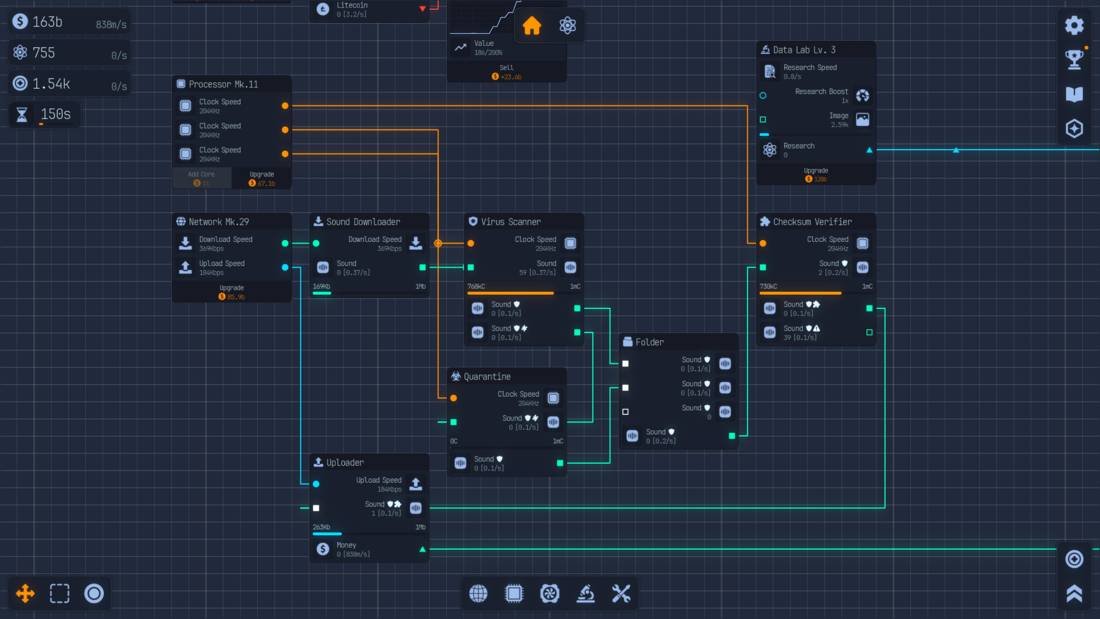
Screenshots and artwork are promotional images from the Upload Labs Steam store page and belong to EnigmaDev Studios.
More PC game guides to compare with.
Games with a similar profile to Upload Labs are listed below, chosen by shared genre and closeness of graphics demand. Open one to see how its requirements and FPS compare.
Steam players rate Upload Labs as Very Positive, with 89% of 5,060 reviews positive when we checked on 2026-11-02. Review scores say little about performance, but a large, positive audience means plenty of community advice on settings.
It was out for roughly 13 months when we wrote this guide, so expect patches and driver updates to move the numbers a little over time.
The facts above are from the public Steam store page. We have not benchmarked every card, so treat the frame rates on this page as modelled estimates.
A short, honest note on how the numbers are produced.
For Upload Labs the demand score of 4 comes from the minimum GPU, the CPU score of 18 from the listed processor line, and the VRAM figure of 2 GB at 1080p High is estimated from the demand score.
In short: card performance divided by game demand, adjusted for resolution, preset and upscaling, reduced when VRAM is short and capped by processor speed.
These are modelled estimates, not benchmarks. Real results change with drivers, patches, cooling, the scene you play and your processor. Use the numbers to compare cards and settings, then check them in the game.
Short answers to the most common questions about running Upload Labs on PC.
Steam gives Intel HD Graphics 600 series, NVIDIA GeForce GTX 600 series, AMD Radeon HD 7000 series or newer as the minimum GPU and Intel HD Graphics 600 series, NVIDIA GeForce GTX 600 series, AMD Radeon HD 7000 series or newer as the recommended one. The recommended processor is Intel Core i5-2500K (or AMD FX-8350 equivalent) with SSE4.2 support, with memory at 1 GB RAM minimum and 1 GB RAM recommended. Storage needed is 200 MB available space.
The quickest route is the can my PC run it checker. As a rule of thumb, the GTX 1060 6GB is the first card we tested that holds 60 FPS at 1080p on High.
By our estimates the GTX 1060 6GB is the lowest card we tested that holds 60 FPS at 1080p on High, and the RTX 5050 is the first desktop RTX 50 card to do so.
For a smooth 1440p you want the GTX 1060 6GB at minimum, and among RTX 50 cards the RTX 5050 is the first that gets there.
Our estimate is roughly 360+ FPS at 1080p and 360+ FPS at 1440p with High settings. It has 8 GB of VRAM, which is comfortable for this game at 1440p, so you can usually raise the settings.
The model shows 360+ FPS at 1440p on High and 360+ FPS once Quality upscaling is on. Treat both as estimates.
The RTX 5050 is the entry point for 4K here, and only with Quality upscaling switched on.
Expect 2 GB at 1080p, 2.6 GB at 1440p and 3.6 GB at 4K. That leaves 8GB fine for 1080p and fine for 1440p, so keep a margin.
Our estimate is 2 GB at 1080p, 2.6 GB at 1440p and 3.6 GB at 4K with High settings. That is derived from the publisher recommended specs, so it is a guide rather than a measurement.
Steam points to Intel Core i5-2500K (or AMD FX-8350 equivalent) with SSE4.2 support and lists Intel Core i5-2500K (or AMD FX-8350 equivalent) with SSE4.2 support as the minimum. Our CPU table shows Core i3-12100F, Ryzen 5 3600, Core i5-12400F, Ryzen 5 5600 and faster holding a card above 60 FPS.
Memory runs from 1 GB RAM to 1 GB RAM. Allowing for Windows and everyday apps, 16 GB is a sensible target.
No SSD requirement is listed, though faster storage still helps loading. Plan for 200 MB available space of free space.
By our estimates these laptop GPUs reach 60 FPS at 1080p on High at typical power limits: RTX 5050 Laptop, RTX 5060 Laptop, RTX 5070 Laptop, RTX 5070 Ti Laptop, RTX 5080 Laptop, RTX 5090 Laptop. Results depend on the power limit (TGP) and cooling.
Try High with the best upscaler in the menu, then reduce shadows and volumetrics if you need more frames. Use the settings table as a first guess for your card.
It lands on 4 in our graphics demand scale (ahead of 0% of 937 games), a undemanding result. The CPU score of 18 beats 0% of the set.
Because it is free to play, yes: install it and check the frame rate on your own PC before spending anything, then compare with the estimates on this page.
Enter your exact parts and settings in this game
Work out settings for the FPS you want
See the memory it needs on your card
Compare every upscaling mode
Compare up to three GPUs
Find out if your CPU holds you back
Independent site. Not affiliated with or endorsed by EnigmaDev Studios, EnigmaDev Studios, Valve, NVIDIA, AMD or Intel. Game names, images and trademarks belong to their owners. Frame rates, VRAM and CPU figures are modelled estimates, not benchmarks.