
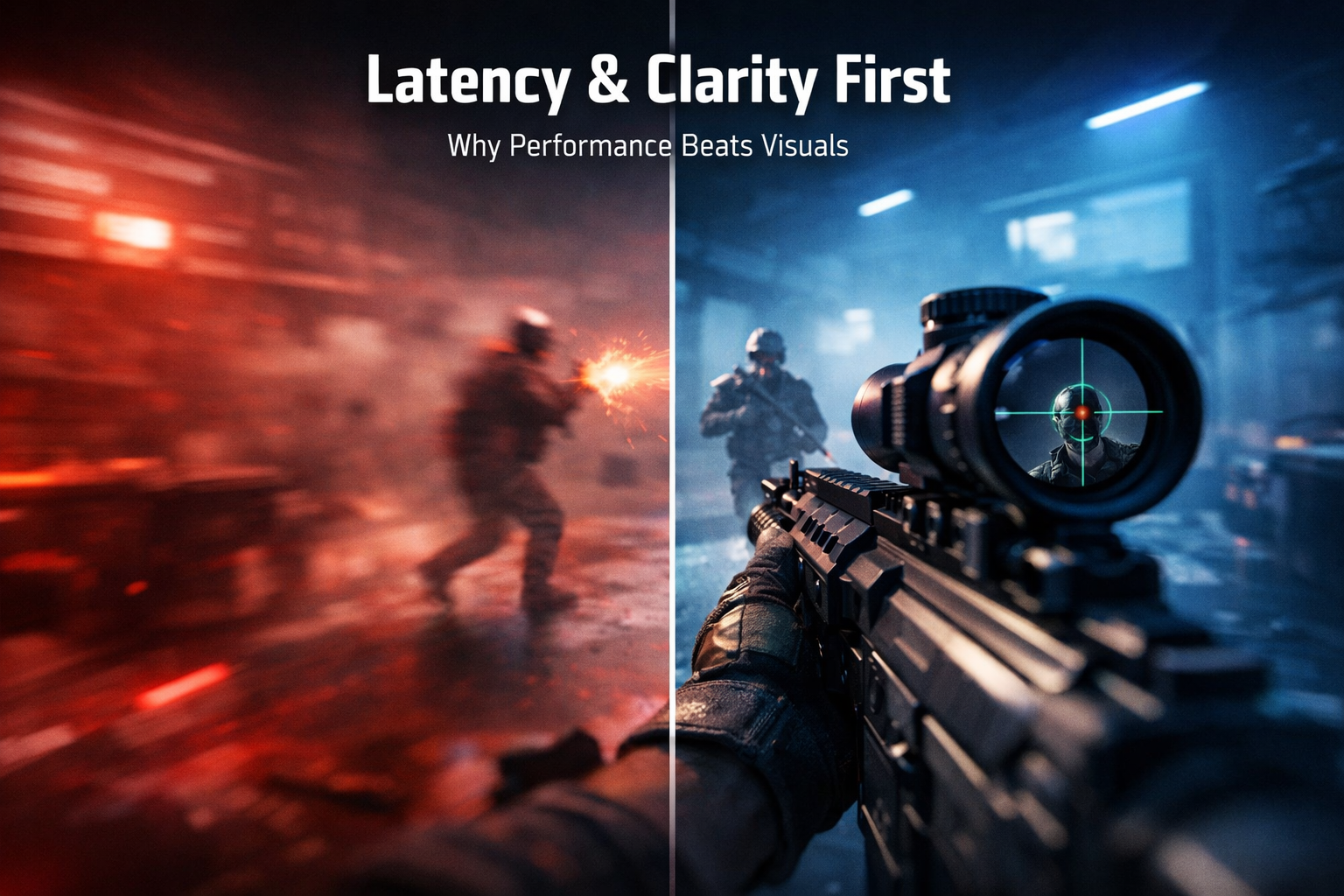
For competitive play, your priorities flip compared with cinematic single-player:
- Latency – how quickly the game reacts to your input
- Clarity – how cleanly you can see enemies, projectiles and key information
- Consistency – stable frametimes and 1% lows, not just a big average FPS
- Comfort – no visual clutter or post-processing hiding information
Only after those are nailed do you spend any remaining GPU headroom on “nice to have” visuals.
So in practical terms:
- You’d rather have 120–144 fps with rock-solid frametimes and clean visibility
- Than 160–200 fps with screen shake, volumetric fog, heavy motion blur and noisy post-processing that hides enemies and tanks your 1% lows
2. Why a 4K RTX 5090 Still Needs Competitive Tuning
It’s tempting to think “I’ve got an RTX 5090, I’ll just max everything forever”.
At 4K, that’s a trap:
- Ultra shadows, max RT, ultra volumetrics, crowd density and full cinematic post-processing can hammer CPU and GPU at the same time.
- Even a 5090 can end up with spiky frametimes in chaos-heavy situations – the exact moments where you need consistency most.
- Competitive games are often CPU-limited at high refresh; stacking heavy graphics on top just makes the bottleneck more obvious.
Your card absolutely can run esports titles at silly FPS, but in ranked matches the question isn’t “how much can I brute-force?” – it’s:
What’s the minimum visual cost I can pay for the maximum advantage in responsiveness and readability?
That’s the mindset this guide is built around.
3. The Competitive Pipeline: From Mouse to Pixel
If you want to make good decisions, you need to know where latency and clarity are lost.
3.1 Latency path
A simplified chain:
- Input device – mouse / keyboard / controller
- CPU – game logic, physics, hit detection, netcode
- GPU – rendering, upscaling, post-processing
- Display – VRR / scanout / processing (or TV “enhancements”)
Latency piles up when:
- The CPU queues too many frames ahead
- The GPU is overloaded with expensive effects
- V-Sync or TV processing add another buffer of delay
- You’re using intense reconstruction / frame generation without anything to claw back the lag
Your job is to keep that pipeline short and steady, not bursting at the seams.
3.2 Clarity path
Clarity is mostly about what lands on your eyes:
- Resolution / render scale
- Anti-aliasing and sharpening
- FOV and view distance
- Post-processing: motion blur, DOF, film grain, bloom, fog
Competitive clarity means:
- Enemy outlines and heads are crisp, not smeared by blur or bloom
- Backgrounds aren’t so noisy that silhouettes vanish
- You don’t have to fight lens flares and overdone lighting to see what matters
Again: latency and clarity first – everything else second.
4. Core Principles for Competitive Settings on RTX 5090
Think of these as your non-negotiables.
4.1 Resolution and render scale
- If you’re on a 4K monitor, there are two honest options:
- Native 4K with some settings trimmed, or
- 4K output with DLSS / FSR / XeSS in Quality mode
Both give you a crisp image, but reconstruction in Quality mode buys extra overhead for framerate and frametime stability.
If you’re on a high-refresh 1440p panel:
- Native 1440p + modest upscaling is often ideal for pure responsiveness
- Don’t be afraid to drop internal resolution slightly if it stabilises 1% lows
4.2 FOV (Field of View)
- Wider FOV = more awareness but more pixels and objects per frame
- At 4K on a 5090 you can afford a slightly wider FOV than console defaults
- Just don’t max it blindly – super-wide FOV warps perspective and increases load
Use the lowest FOV that:
- Lets you track threats comfortably
- Still feels natural for your game and sensitivity
- Doesn’t drag in huge extra scene clutter you don’t actually react to
4.3 Motion and post-processing
For competitive play, this is the big one:
- Motion blur: Off
- Film grain: Off
- Chromatic aberration: Off
- Depth of field: Off or Low in gameplay
- Strong vignette & lens dirt: Off where possible
These add “style” but kill clarity and make micro-stutter harder to see. On an RTX 5090, they’re simply not needed.
5. Sync, VRR and FPS Caps for Competitive Smoothness
Even with an RTX 5090, bad sync can ruin your feel.
5.1 Use VRR correctly
On a 4K G-Sync / FreeSync display:
- Enable G-Sync / G-Sync Compatible / FreeSync
- Let VRR smooth out normal FPS fluctuations
VRR makes small dips from, say, 144 → 120 or 120 → 100 far less jarring, which is essential when you’re cutting heavier graphics but still asking a lot of the card.
5.2 Decide your V-Sync philosophy
For competitive:
- Many players prefer V-Sync Off and rely on VRR + an FPS cap
- This prioritises the lowest possible latency, at the cost of occasional tearing in edge cases
If you’re very sensitive to tearing, you can:
- Turn V-Sync On in the driver, Off in-game and cap FPS slightly below your refresh rate
- This still works well with VRR and keeps latency controlled if you also use a good FPS cap and Reflex
5.3 Cap FPS intelligently
Uncapped FPS sounds appealing, but:
- The GPU thrashes, driving power, temps and fan noise up
- You can bounce in and out of the VRR sweet spot
- Frametime consistency suffers
For competitive play on a 120/144 Hz display:
- Cap FPS just below the refresh rate:
- 120 Hz → cap at 117–118
- 144 Hz → cap at 140–141
Use the in-game limiter where possible – most modern engines have a decent frame cap implementation. If you must, use NVIDIA’s per-game Max Frame Rate instead, but avoid stacking both.
6. Latency Tools: Reflex and Driver Low Latency Modes
6.1 NVIDIA Reflex in supported games
If the game supports NVIDIA Reflex:
- Set Reflex: On or On + Boost in the game options
- Reflex tightens the CPU-GPU pipeline and cuts queueing, especially useful if you’re running V-Sync or using upscaling / frame generation
- On + Boost keeps GPU clocks aggressive and is perfect for ranked or esports modes
On an RTX 5090 build, default to:
- On for general competitive play
- On + Boost when you really care about every millisecond
6.2 Driver Low Latency Mode for older titles
In NVIDIA Control Panel:
- Global: Low Latency Mode = On is a safe baseline
- For older or non-Reflex games where you’re clearly GPU-bound:
- Per-game: you can try Low Latency Mode = Ultra
Reflex (where available) is the primary tool; driver low-latency is the fallback for legacy titles.
7. Graphics Settings: What to Cut, What to Keep
For a 5090-class competitive setup, you’re not trying to make the game ugly – you’re cutting expensive fluff that doesn’t make you play better.
7.1 Keep High
- Textures: High / Ultra
- Models / character detail: High
- Effects: Medium–High (you still need to see abilities and grenades clearly)
- Anisotropic filtering: 8x–16x
Sharp textures and models are important for recognising silhouettes quickly, especially at range on a 4K panel.
7.2 Turn Down or Off
- Shadows: Medium (High at most)
- Reflections: Low–Medium
- Ambient occlusion: Medium
- Volumetrics / fog: Medium or Low
- Crowd density / extra clutter: Low
These are:
- Expensive to render
- Often updated every frame
- Frequently responsible for big frametime spikes when the scene gets busy
You’ll be surprised how little you miss Ultra shadows or dense fog when you’re tracking enemies in a fast firefight.
7.3 Ray tracing in competitive games
Most competitive titles either:
- Don’t use RT at all, or
- Offer minimal RT options
If your favourite shooter has RT options:
- For ranked / competitive, turn RT Off
- The latency and consistency benefits are almost always worth it
- Save RT for casual / cinematic profiles, not scrims and ranked
8. Example Competitive Profiles for RTX 5090
8.1 4K Competitive Hybrid (High Refresh, High Clarity)
Use this if you’re on a 4K 120–144 Hz monitor and want both resolution and responsiveness.
Display & driver
- Resolution: 3840×2160
- Refresh: 120 or 144 Hz
- VRR: On
- V-Sync: Off (for pure competitive feel)
- FPS cap:
- 120 Hz → 117–118
- 144 Hz → 140–141
- Power management: Prefer maximum performance
- Low Latency Mode: On
In-game
- Textures: High/Ultra
- Models/characters: High
- Effects: High (for visibility)
- Shadows: Medium
- Reflections: Low–Medium
- Ambient occlusion: Medium
- Volumetrics/fog: Low–Medium
- Crowd density / clutter: Low
- DLSS / FSR / XeSS: Quality
- Motion blur, film grain, DOF, chromatic aberration: Off
Latency
- NVIDIA Reflex (if available): On + Boost
This gives you a clean, high-resolution image with minimal clutter, clear enemy silhouettes and very low input lag.
8.2 1440p “Sweaty Ranked” Mode
If you’re on a 1440p high-refresh monitor or you don’t mind sacrificing some resolution for the most responsive possible feel, this is the “full sweat” preset.
Display & driver
- Resolution: 2560×1440 on a 1440p panel
- Refresh: 240 Hz (if supported) or 144 Hz
- VRR: On
- V-Sync: Off
- FPS cap: just below refresh (e.g. 235–238 on 240 Hz, 140–141 on 144 Hz)
- Power management: Prefer maximum performance
- Low Latency Mode: On (Ultra per-game if needed for older titles)
In-game
- Textures: High
- Models: High
- Effects: Medium–High
- Shadows: Low–Medium
- Reflections: Low
- Volumetrics/fog: Low
- Post-processing extras: Off
Latency
- Reflex: On + Boost
- No Frame Generation – you want real frames only here
On an RTX 5090, this kind of setup will feel absurdly quick and consistent, even in the most chaotic situations.
9. Avoiding Common Competitive Mistakes on a 5090
Even with good intentions, it’s easy to sabotage yourself.
- Mistake 1 – Stacking V-Sync everywhere
- Driver V-Sync + in-game V-Sync + TV motion smoothing = massive delay.
- Decide where V-Sync lives (driver or game) and disable TV “enhancements” by using Game Mode on a 4K TV.
- Mistake 2 – No FPS cap
- Uncapped FPS can increase input latency when the GPU is overworked and can make frametimes unpredictable.
- Use a deliberate cap just under refresh.
- Mistake 3 – Leaving background junk running
- Overlays, browsers with video tabs, RGB suites, cloud sync can all cause random frametime spikes.
- For ranked: close everything that isn’t essential.
- Mistake 4 – Obsessing over average FPS
- Averages don’t win fights; frametime consistency and 1% lows do.
- Judge a config by how it feels in the most demanding scenarios, not just in empty training rooms.
