
Understanding RTX 5050 Performance Potential
The RTX 5050 is NVIDIA’s latest midrange GPU, designed to deliver solid 1080p and 1440p gaming performance while supporting the newest technologies like DLSS 4 and ray tracing. With 8 GB of VRAM and efficient power consumption, it strikes a balance between affordability and modern gaming features, making it a strong choice for UK gamers looking for smooth gameplay without overspending.
Why Default Settings Leave FPS on the Table
Out of the box, most RTX 5050 systems run games at default driver and in-game settings. While this ensures stability, it often leaves significant FPS potential untapped. Default power management, texture filtering, and ray tracing settings can cause unnecessary frame drops, especially in demanding AAA titles. By adjusting drivers, power limits, and in-game options, gamers can unlock higher and more consistent FPS.
The Benefits of Optimisation
Optimising your RTX 5050 is not just about squeezing more frames. The advantages include:
- Smoother Gameplay: Reduced stutter and better frame pacing improves responsiveness in both esports and story-driven titles.
- Better Frame Stability: Tweaks like low-latency mode and FPS capping prevent sudden dips that disrupt immersion.
- Lower Power Draw & Thermals: Proper driver settings and power adjustments keep the GPU cooler and quieter, extending lifespan while maintaining performance.
Understanding these fundamentals prepares UK gamers to dive into driver adjustments, thermal tuning, and in-game tweaks, ensuring the RTX 5050 performs at its peak potential without additional cost.
Common FPS Bottlenecks
Even a capable GPU like the RTX 5050 can face performance limitations if certain system or game settings are not optimised. Understanding the most frequent FPS bottlenecks helps UK gamers target adjustments that yield noticeable improvements.
GPU-Bound Limitations
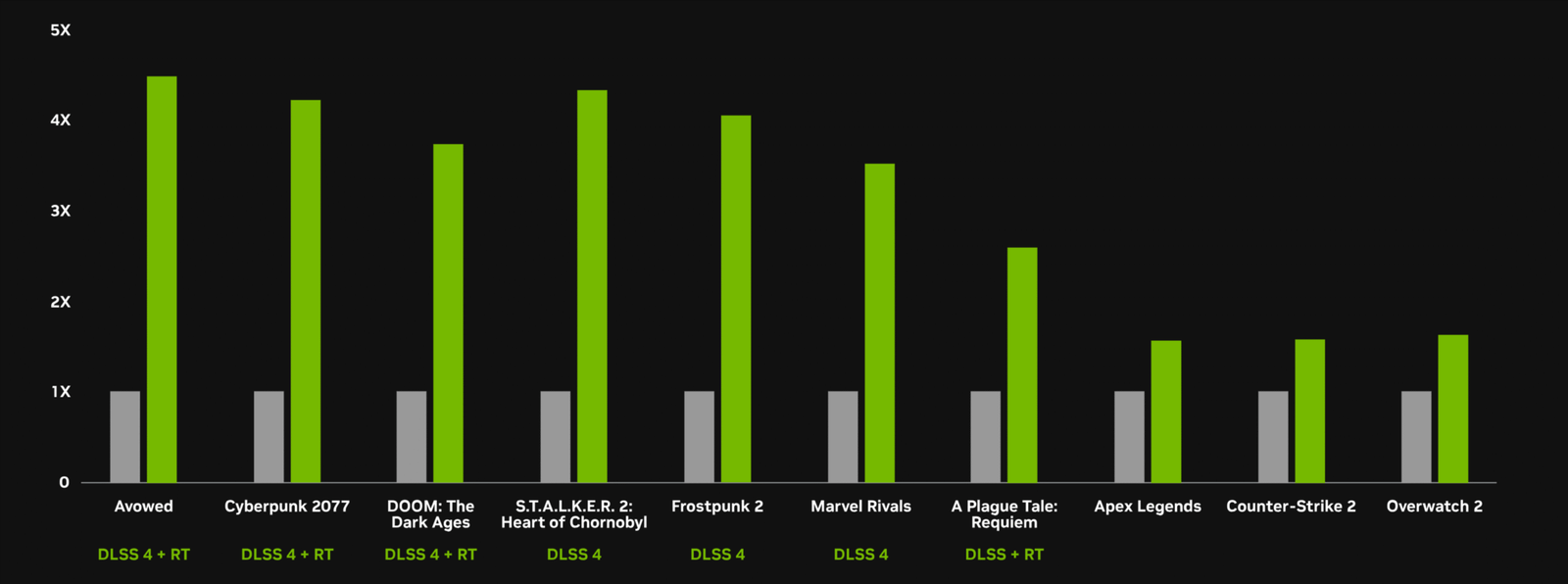
The RTX 5050 is well-suited for 1080p and 1440p gaming, but graphics-heavy settings can quickly saturate its power. Features such as ray tracing, ultra-texture packs, and high-resolution shadows put extra strain on the GPU. Enabling DLSS 4 helps mitigate this by using AI-based upscaling and frame generation, effectively increasing FPS without a noticeable drop in image quality. However, default driver settings may limit the GPU’s full potential unless performance and power options are optimised.
CPU-Bound Performance
Even the best GPU can be bottlenecked by a midrange or underpowered CPU. Games with large open worlds, high AI counts, or frequent physics calculations often require a 6–10 core processor to maintain high FPS. Pairing the RTX 5050 with CPUs like the Ryzen 5 7600 or Intel i5-13400F ensures the graphics card isn’t waiting on the processor, reducing stutter and improving frame stability.
Memory and VRAM Constraints
RTX 5050 comes with 8 GB VRAM, which is sufficient for most 1080p and 1440p workloads. However, ultra-texture mods or 4K assets can push memory limits, leading to frame drops or micro-stutters. Optimising in-game texture resolution and monitoring VRAM usage is essential to prevent sudden FPS dips.
Thermal Throttling
Overheating can silently reduce performance. If GPU temperatures exceed the target (typically 75–80°C for the RTX 5050), the card may throttle, lowering clock speeds to prevent damage. Proper airflow, case selection, and fan curve adjustments are key to maintaining consistent FPS in demanding titles.
Drivers & Software — Unlocking RTX 5050 Performance Potential
For UK gamers aiming to maximise FPS and smooth gameplay on the RTX 5050, the right drivers and software settings are the foundation of performance optimisation. Proper updates and tweaks ensure the GPU communicates efficiently with the system, reduces bottlenecks, and leverages DLSS 4 and other NVIDIA features to the fullest.
Why Drivers Matter (Awareness Stage)
Every RTX 5050 comes with factory drivers, but default installations don’t always deliver peak performance. NVIDIA regularly releases Game Ready and Studio drivers, optimised for new AAA titles, ensuring better frame stability, reduced stutter, and improved compatibility with DLSS 4 and ray-tracing.
UK gamers benefit from staying current because regional game patches and driver updates can affect performance slightly differently than in other regions. A 5–10 FPS boost or smoother frame pacing can be achieved simply by keeping the drivers updated.
GeForce Experience: Your Quick Optimiser (Consideration Stage)
For users new to GPU optimisation, GeForce Experience offers an automatic performance boost. The software detects installed games, applies recommended settings, and manages DLSS 4 toggles, ray tracing options, and resolution scaling.
- Ensures RTX 5050 is running balanced or performance modes depending on game demand.
- Provides easy one-click updates for drivers and game-ready optimisations.
- Allows NVIDIA Reflex and low-latency settings to be enabled per title, improving input responsiveness for esports or fast-paced games.
Using GeForce Experience simplifies decisions, letting users focus on gaming rather than trial-and-error configurations.
Control Panel Optimisations (Decision Stage)
For more granular control, the NVIDIA Control Panel lets advanced users tweak performance settings at the system level, directly affecting FPS and stability in all games.
Key adjustments for RTX 5050 users:
- Power Management Mode → Prefer Maximum Performance: Prevents GPU downclocking during high-demand scenes.
- Texture Filtering Quality → Performance: Reduces micro-lag from heavy texture processing.
- Low Latency Mode → Ultra / On: Improves responsiveness for competitive titles.
- Optional: NVIDIA Inspector can further refine clock offsets, shader cache, and advanced frame tweaks for power users.
These tweaks ensure that your RTX 5050 delivers stable and smooth FPS across AAA and esports titles, optimising DLSS 4 benefits while avoiding unnecessary performance drops.
Power & Thermal Tweaks — Maximising RTX 5050 Efficiency and FPS
Performance optimisation isn’t just about drivers — managing power delivery and thermals directly impacts frame rates, GPU longevity, and smooth gameplay. UK gamers often face smaller, warmer rooms or mid-tier cases, so thermal efficiency and power tweaks become critical for a stable RTX 5050 experience.
Understanding Power Limits (Awareness Stage)
The RTX 5050 is a midrange GPU with efficient power draw, but default settings can throttle performance during demanding AAA titles. Games using DLSS 4, ray tracing, or high-resolution textures can push the GPU close to its limits.
Adjusting the power limit allows the card to maintain higher clocks under load without overheating. Even a +5–10% power limit increase can produce noticeable FPS gains, especially in 1080p and 1440p gameplay where frame stability matters most.
Thermal Management Basics (Consideration Stage)
Maintaining low temperatures ensures the RTX 5050 doesn’t throttle mid-game. UK gamers should consider:
- Temperature Target: Keep GPU around 75–80°C under load.
- Fan Curves: Adjust via MSI Afterburner or in BIOS for quieter performance in ambient UK room temperatures.
- Undervolting: Reduces heat and noise without sacrificing FPS — ideal for small cases or compact setups.
Proper cooling also improves DLSS 4 frame generation consistency, reducing micro-stutters in titles like Cyberpunk 2077 or Starfield.
Advanced Power Tweaks (Decision Stage)
For users comfortable with monitoring software:
- Use MSI Afterburner to adjust power limit, temperature target, and fan curve.
- Track GPU load, clock speed, and VRAM usage to ensure stability under different games.
- Combine with driver and in-game tweaks for a holistic optimisation that balances FPS, thermals, and noise.
With these power and thermal adjustments, the RTX 5050 can consistently hit higher FPS while maintaining smooth visuals at 1080p/1440p, letting UK gamers enjoy AAA or esports titles without unexpected frame drops.
In-Game FPS Tweaks — Unlocking Smooth RTX 5050 Gameplay
Optimising the RTX 5050 isn’t just about drivers or thermals — in-game settings are crucial for stable performance, especially for AAA titles and esports. Understanding which tweaks yield the highest FPS without sacrificing visuals ensures your gameplay remains smooth and immersive.
DLSS 4 and FSR 3 Optimisation (Awareness Stage)
The RTX 5050 fully supports DLSS 4, which combines AI upscaling with frame generation. For budget or midrange setups:
- Performance Mode: Maximises FPS for demanding games like Cyberpunk 2077 or Alan Wake 2.
- Quality Mode: Preserves visuals for cinematic single-player experiences.
- Balanced Mode: Ideal for 1440p gaming — smooth FPS with minimal blur.
UK gamers aiming for competitive esports titles should prioritise Performance Mode, while casual players can enjoy Quality Mode for immersive AAA adventures.
Ray Tracing and Resolution Scaling (Consideration Stage)
Ray tracing delivers stunning lighting and reflections but is GPU-intensive. On RTX 5050:
- Reduce RT to Medium or High instead of Ultra to gain 30–50% more FPS.
- Use resolution scaling (90–100%) to maintain smooth gameplay without perceptible loss in detail.
- Disable V-Sync, or use G-Sync / FreeSync, to reduce input lag in fast-paced games.
These adjustments balance visual fidelity with consistent frame rates, crucial for both competitive UK esports players and story-driven gamers.
Shadows, Textures, and Additional Settings (Decision Stage)
Tweaking other in-game settings can further stabilise FPS:
- Texture Quality: Keep Ultra for VRAM-rich titles, reduce only if FPS dips below target.
- Shadows: Medium or High settings often maintain immersion while freeing GPU resources.
- Ambient Occlusion / Effects: Adjust selectively; high AO can reduce FPS significantly.
By combining DLSS 4 mode selection, ray tracing adjustments, resolution scaling, and targeted graphics tweaks, UK RTX 5050 owners can consistently hit 60–100 FPS at 1440p or 120–160 FPS at 1080p in most modern games.
Benchmark & Monitor Performance — Measure Your RTX 5050 Gains
After adjusting drivers, power, and in-game settings, it’s essential to track your performance. Benchmarking helps confirm that tweaks are effective and ensures stable FPS in demanding games. UK gamers can fine-tune their systems with confidence when they see tangible results.
Setting Up Benchmarks (Awareness Stage)
Begin by understanding baseline performance before optimisation:
- Use tools like MSI Afterburner, RivaTuner Statistics Server (RTSS), or FRAPS to log FPS, frame times, and GPU usage.
- Measure 1080p High and 1440p High performance in popular AAA titles like Cyberpunk 2077, Starfield, or Alan Wake 2.
- Record 1% lows to detect micro-stutter and check frame-time variance for smooth gameplay.
Tracking these metrics gives clear insight into whether RTX 5050 tweaks are achieving intended improvements.
Monitoring GPU, VRAM, and Thermals (Consideration Stage)
Optimisation is not only about FPS — GPU load and thermals matter for sustained performance:
- Keep GPU utilisation around 90–95%; constant 100% may indicate bottlenecks.
- VRAM usage should remain below 8 GB to prevent stutters in large textures or open-world games.
- Monitor temperatures: the RTX 5050 performs best around 75–80°C, with fan curves adjusted for quiet operation without throttling.
This monitoring ensures your budget GPU maintains stability over long gaming sessions, especially in heated UK summer rooms or small desk setups.
Recording and Comparing Performance (Decision Stage)
Once baseline and optimised settings are measured:
- Compare before and after FPS, 1% lows, and frame variance.
- Document the effect of DLSS 4 modes, ray tracing, and resolution scaling on performance.
- UK gamers can create personal optimisation profiles for esports, AAA gaming, or streaming scenarios.
By benchmarking and monitoring, players gain confidence that their RTX 5050 is running efficiently, giving the best smoothness per pound spent in 1080p and 1440p gaming.
Recommended Optimisation Profiles — Tailored for RTX 5050 Users
After benchmarking and monitoring your RTX 5050, it’s time to apply practical profiles for smooth gameplay. These recommendations help UK gamers match FPS targets with their gaming style and budget setup.
Profile 1: AAA Single-Player Cinematic
- DLSS 4 Mode: Quality
- Ray Tracing: Medium
- Power Limit: +5%
- Expected FPS: 60–100 @1440p
This profile prioritises visual fidelity and immersive atmosphere in story-driven AAA games like Starfield or Alan Wake 2. DLSS 4 ensures smooth frame pacing while ray tracing enhances shadows, reflections, and ambient lighting.
Profile 2: Esports / Fast FPS Gaming
- DLSS 4 Mode: Performance
- Ray Tracing: Off
- Power Limit: +10%
- Expected FPS: 150–200 @1080p
Ideal for competitive titles such as Fortnite, CS2, or Valorant. DLSS 4 Performance mode boosts FPS aggressively while keeping latency low. Turning off ray tracing maximises frame rates for ultra-smooth 144 Hz+ gaming.
Profile 3: Ray-Tracing Showcase / Visual Demos
- DLSS 4 Mode: Balanced
- Ray Tracing: High
- Power Limit: +5–10%
- Expected FPS: 60–90 @1440p
For players who want to experience ray-tracing highlights without sacrificing too much performance. This profile works well for tech demos or titles with heavy lighting effects, letting the RTX 5050 demonstrate its AI upscaling and Frame Generation capabilities.
Optimisation Tips Across Profiles
- Always monitor GPU temps and VRAM usage to avoid throttling.
- Adjust sharpness sliders or NVIDIA Reflex settings per game to fine-tune clarity and responsiveness.
- Save custom profiles in GeForce Experience or MSI Afterburner for quick switching between AAA, esports, and showcase setups.
By using these tailored profiles, UK gamers can maximise FPS and stability on the RTX 5050, balancing performance, visuals, and efficiency according to their gaming priorities.
UK Buying & Upgrade Considerations for RTX 5050 Builds
Optimising your RTX 5050 doesn’t stop at drivers and in-game settings — hardware pairing and component choices make a big difference for stable performance and longevity, especially for UK gamers building under budget constraints.
PSU & Power Headroom
A reliable power supply is essential for smooth RTX 5050 operation. Aim for:
- 650–750 PUND 80+ Gold PSU to support stable power delivery.
- Enough headroom for minor overclocking or future GPU upgrades.
- UK retailers like Scan, Overclockers UK, and Amazon UK often bundle PSU deals for cost efficiency.
CPU Pairing for Maximum FPS
Your GPU’s performance is directly influenced by your CPU choice:
- AMD Option: Ryzen 5 7600 – 6 cores, strong single-thread performance for esports and AAA titles.
- Intel Option: i5-13400F – 10 cores, excellent for multitasking and heavy games.
- Avoid pairing with lower-end CPUs to prevent bottlenecks at 1080p/1440p.
VRAM & Future-Proofing
RTX 5050 comes with 8 GB VRAM, sufficient for most 1080p/1440p gaming with DLSS 4 enabled:
- Consider texture-heavy AAA titles or mods: use DLSS 4 Performance or Balanced modes to stay within VRAM limits.
- For long-term proofing, ensure motherboard and PSU can handle future GPU upgrades like RTX 5060 or 5070.
Monitor & Display Recommendations
- 1080p 144 Hz / 165 Hz: Perfect for esports-focused builds.
- 1440p 144 Hz: Balanced AAA gaming with DLSS 4, provides visual clarity without overloading the GPU.
- G-Sync or FreeSync monitors** reduce screen tearing and improve perceived smoothness.
UK Retail & Warranty Considerations
- Always check local warranty and return policies, especially for GPUs and PSUs.
- Consider bundle deals (CPU + motherboard combos) for cost savings.
- Reuse cases, cooling solutions, and PSU from older builds when possible to stretch your budget.
By following these buying and upgrade considerations, UK gamers can ensure their RTX 5050 build delivers consistent performance, stays cool, and remains future-ready without unnecessary expenditure.
Troubleshooting Common RTX 5050 Performance Issues
Even with the right drivers, power settings, and in-game tweaks, you may encounter hiccups. Here’s a practical guide for UK gamers to diagnose and fix common RTX 5050 issues.
Stuttering or FPS Drops
- Background apps can consume CPU/GPU cycles — close unnecessary software, especially browsers or streaming apps.
- Reinstall or update NVIDIA Game Ready drivers to ensure full compatibility with latest AAA titles.
- Check for thermal throttling: if your GPU hits 80–85°C under load, adjust fan curves or improve airflow.
DLSS 4 Artifacts or Ghosting
- Switch DLSS 4 mode: Quality for cinematic single-player, Performance for fast-paced titles.
- Disable Frame Generation temporarily if ghosting occurs; sometimes older drivers struggle with new AI features.
- Verify in-game resolution scaling is compatible with DLSS 4 — 90–100% scaling often fixes subtle visual glitches.
Ray Tracing Performance Issues
- Heavy ray-traced shadows or reflections can drastically reduce FPS on RTX 5050.
- Reduce RT quality (High → Medium) or rely on DLSS 4 Performance mode to maintain smooth frame pacing.
- Consider toggling DLSS Ray Reconstruction if supported — enhances visual quality with lower performance cost.
Thermal or Power-Related Throttling
- Ensure PSU provides stable power; undervolting or a slight power limit increase (+5–10%) in MSI Afterburner can reduce heat.
- Keep your case airflow optimized — intake/exhaust fans, dust-free environment, and a mid-tower with adequate ventilation.
- GPU fans should ramp appropriately; custom curves in Afterburner help balance noise vs cooling.
Monitoring & Benchmarking
- Use MSI Afterburner + RivaTuner to track FPS, VRAM usage, and temps in real-time.
- Benchmark before and after tweaks to quantify gains.
- Compare performance against expected UK build averages: 1080p High 120–150 FPS, 1440p High 80–110 FPS in AAA titles with DLSS 4 enabled.
By systematically addressing these issues, RTX 5050 owners can maintain smooth gameplay, reduce latency, and enjoy stable FPS even in demanding games — all while keeping the system efficient and UK-ready.
Read More:
RTX 5050 Build Guide: Affordable Gaming PC Setup Under $1000
How to Use DLSS 4 on RTX 5050 to Play Demanding Games Smoothly
RTX 50 Series vs AMD RX 9000 Series: Which Should UK Gamers Buy?
Updating NVIDIA drivers, enabling DLSS 4 in Performance mode, reducing ray-tracing settings, and tweaking in-game resolution scaling significantly boosts FPS on RTX 5050.
Quality mode balances visuals and FPS for cinematic play, Performance mode maximises FPS for esports, and Balanced mode is ideal for midrange 1440p setups.
Pund RTX 5050 runs ray tracing smoothly at 1440p with DLSS 4 enabled, especially on medium RT settings without compromising frame stability.
Undervolting reduces heat and noise while keeping FPS stable, perfect for long AAA gaming sessions or quiet room setups.
Background apps, thermal throttling, outdated drivers, or ultra-heavy ray-tracing can cause stutter; optimising power, fan curves, and in-game settings usually fixes it.
DLSS 4 uses AI frame generation on NVIDIA tensor cores for sharper visuals and smoother motion, outperforming FSR 3 in both image quality and latency on RTX 5050.
Pund a 650–750 W 80+ Gold PSU is enough, providing stable power for safe undervolting, power tweaks, and consistent FPS.
MSI Afterburner and RivaTuner provide real-time FPS, VRAM usage, and temperature tracking to ensure optimisation works as expected.
Yes, DLSS 4 keeps RTX 5050 competitive for years, allowing smooth 1080p/1440p gameplay in modern AAA titles without immediate upgrades.
Pund start by updating drivers, enabling DLSS 4 in-game, and setting Power Management to “Prefer maximum performance” in the NVIDIA Control Panel.

Lovely site! I am loving it!! Will come back again. I am bookmarking your feeds also.