

Resident Evil Requiem (Resident Evil 9) is Capcom’s latest RE Engine showcase, launching 27 February 2026 on PC and it’s built to stress modern hardware once you switch on ray tracing and the PC-only path-traced effects. If you’re wondering “can my PC run it?”, or you’re planning a GPU upgrade specifically for Requiem, this hub is designed to give you clear answers without forcing you to decode a wall of charts.
This page pulls together everything that matters for real-world PC performance: the system requirements explained in plain English, how Requiem scales across RTX 50-series, RTX 40-series, and Radeon RX 8000 cards, and what changes when you move from raster to ray tracing to full path tracing. We’ll also cover the metrics that actually reflect how the game feels average FPS, 1% low FPS, and frame time consistency plus the usual culprits behind stutter (shader compilation, CPU spikes, background processes, and VRAM limits).
You’ll get actionable settings and hardware guidance: which presets to use for stable frame pacing, what VRAM tier makes sense at 1080p/1440p/4K, and where your build is likely to become CPU-bound vs GPU-bound. For high-end play, the “hero” setup is RTX 50-series + DLSS 4 Multi Frame Generation for 4K especially in ray traced and path traced modes while mid-range cards can still deliver great results with smart optimisation. If you want deeper breakdowns, this guide links out to dedicated posts on system requirements, VRAM usage analysis, and GPU head-to-head comparisons later on.
How Resident Evil Requiem Runs on PC (RE Engine Overview)
RE Engine Scalability, DirectX 12 & PC Feature Set
Resident Evil Requiem runs on Capcom’s RE Engine the same in-house tech used across recent mainline entries and remakes (including RE2/RE3/RE4 Remake and Village). On PC, it’s built around a DirectX 12 rendering pipeline and a feature set that’s clearly aimed at modern GPUs: high-quality lighting, dense scene detail, and heavy effects workloads that scale sharply with resolution and ray-traced settings.
From a player perspective, what matters most is scalability. RE Engine is designed to stretch from 1080p “Performance Mode” on mid-range hardware (lower shadow quality, reduced RT cost, lighter VRAM demand) all the way up to a 4K “cinematic” experience with ray tracing and, on PC, full path-traced effects that can turn Requiem into a best-case stress test for today’s high-end cards. Along the way you’ll see the usual PC quality-of-life options: HDR support, ultra-wide compatibility, adjustable frame caps, and the ability to tune costly settings like shadows quality, texture quality, ambient occlusion and reflections to control both FPS and VRAM usage.
GPU-Bound vs CPU-Bound Scenarios in Requiem
If you want to predict how your rig will behave, start with the basic question: are you CPU-bound or GPU-bound? In Requiem, the answer often changes based on resolution and settings.
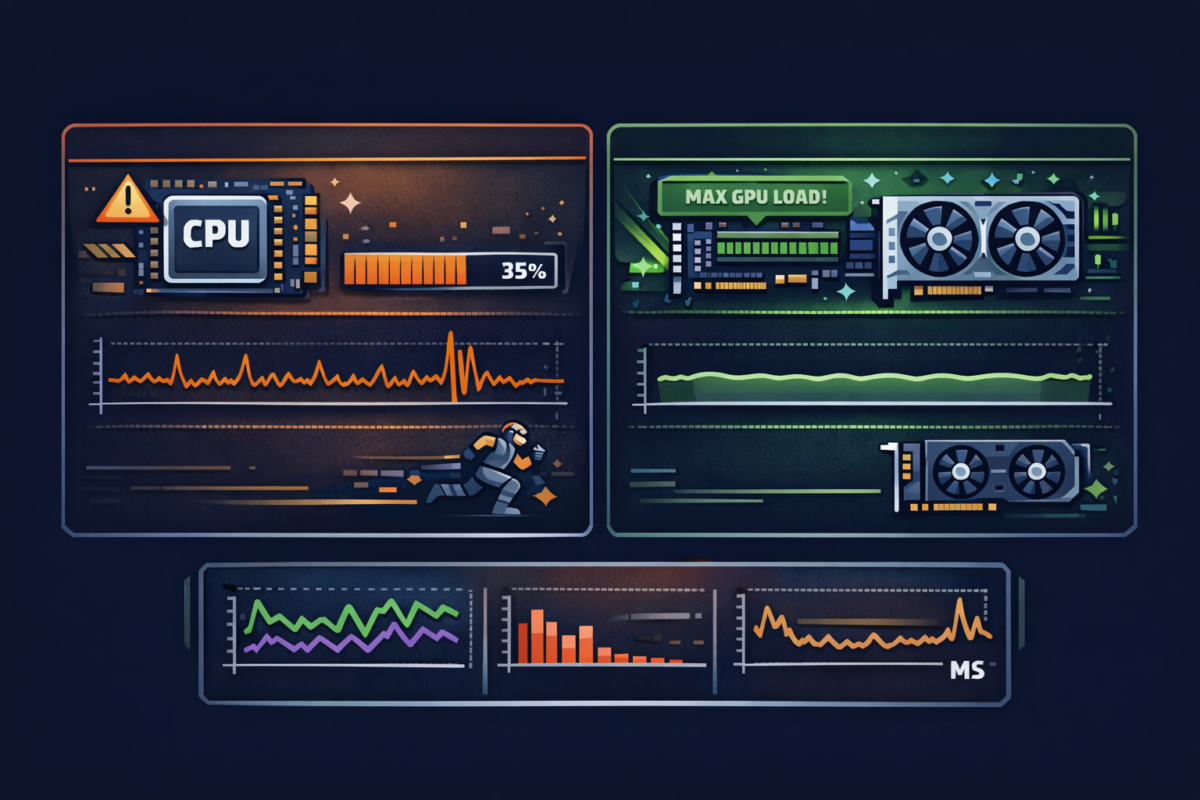
- 1080p on low/medium settings with a top-end GPU can become CPU-bound. In that scenario, your graphics card is waiting on the processor so throwing more GPU at the problem doesn’t always lift average FPS. You’ll often see GPU utilisation sitting lower than expected while CPU utilisation (or one or two busy threads) hits its limit. The giveaway is usually frame time spikes and weaker 1% low FPS, even when average FPS looks high.
- 1440p and 4K, especially with ray tracing or path tracing, are typically GPU-bound. Here the GPU is doing the heavy lifting: higher pixel counts, RT calculations, denser lighting, and extra effects raise the rendering workload each frame. You’ll usually see high GPU utilisation, and performance scales more predictably with GPU tier (RTX 50/40 and RX 8000 class cards). If you’re chasing smoothness at these settings, GPU headroom and VRAM capacity matter more than raw CPU peak clocks.
When you’re reading benchmarks, this is why we focus on more than just average FPS. Frame time graphs show consistency, and 1% low FPS reveals the dips that make a horror game feel “off” during camera turns, combat bursts, or traversal through complex areas.
Shader Compilation & Stuttering: What to Expect
RE Engine titles on PC have a generally strong track record, but one recurring theme across multiple launches is shader compilation behaviour and the stutter it can introduce if the process isn’t handled smoothly. In plain English: modern games compile or cache “shaders” (small GPU programs used for lighting, materials, effects) so they can render scenes correctly. If the game compiles shaders during gameplay especially when you enter a new area, trigger a new effect, or rotate the camera into unseen content you can get micro-stutters, sudden frame time spikes, and noticeable drops in 1% low FPS.
In Requiem, the launch build is broadly stable for many PC setups, but the usual early-life cycle still applies: day-one patches, driver optimisation, and updates to shader caching can tighten frame pacing over time. If you notice stuttering, it’s rarely “just FPS” it’s usually a combination of shader compilation, CPU spikes, VRAM pressure (textures/RT), and background tasks. Later in this guide we’ll cover the practical fixes: what settings to adjust first, what to look for in GPU/CPU utilisation, and how to improve frame time consistency without sacrificing the game’s best visuals.
System Requirements & Recommended PC Specs (Top-Level Summary)
Official Minimum & Recommended Specs
Capcom’s official PC requirements (as listed on Steam and repeated by multiple outlets) point to a surprisingly approachable baseline for Resident Evil Requiem with the big caveat that performance expectations change fast once you push higher resolutions and ray/path-traced effects.
In practical terms, the game targets:
- CPU: minimum-class “older” mainstream chips (think older 6-core / strong older quad-era tiers), while the recommended tier moves you toward a more modern 6–8 core CPU for smoother frame times and fewer traversal hitches.
- GPU: a minimum baseline in the GTX 16 / RX 5000 range, and a recommended tier around RTX 20 / RX 6000-class performance (enough for solid raster settings, with RT/PT being the real separator).
- Memory: 16GB RAM is the baseline. If you’re targeting higher settings, higher resolutions, or heavy RT/PT workloads, 32GB is a smart upgrade for stability and headroom.
- Storage: an SSD is strongly recommended, and an NVMe SSD is ideal because it reduces load times and improves asset streaming consistency (which shows up directly in smoother frame times).
If you want the full breakdown (including “can I run it?” examples by typical PC builds), see:
/resident-evil-requiem-system-requirements-explained/
CPU, RAM & Storage Recommendations for Smooth PC Performance
If your goal is “it feels smooth” rather than “it boots,” prioritise parts that protect 1% lows and frame time consistency:
- CPU: For high-FPS play at 1080p/1440p, a modern 6–8 core Intel/AMD CPU with strong single-core performance helps the most. This is where you’re most likely to become CPU-bound on powerful GPUs especially if you chase very high refresh rates or run lighter settings.
- RAM: 16GB can work, but it’s the “just enough” tier. 32GB is the practical sweet spot if you multitask (browser/Discord), want fewer background-process spikes, and want better long-session stability especially in RT/PT scenarios where streaming + caching pressure rises.
- SSD / NVMe: Requiem benefits from fast storage because modern RE Engine scenes stream a lot of assets. An NVMe SSD won’t magically raise average FPS, but it can reduce streaming hitches and help keep frame times steadier when moving between areas.
- BIOS basics: If your RAM supports it, enabling XMP/EXPO (so it runs at its rated speed) can improve memory bandwidth and help smooth frame time spikes most noticeably at 1080p/1440p where the CPU and memory subsystem matter more.
Benchmark Methodology & Test Settings (Raster, RT & Path Tracing)
Test Hardware: RTX 50, RTX 40 & Radeon RX 8000 Lineup
Our Resident Evil Requiem testing is built around the GPUs most players are actually comparing for this game’s heavy RT/PT workloads:
- NVIDIA RTX 50-series: RTX 5090, RTX 5080, RTX 5070 Ti / RTX 5070, RTX 5060 Ti
- NVIDIA RTX 40-series (key baselines): RTX 4090, RTX 4080 Super, RTX 4070 Ti Super (plus adjacent 40-series tiers where relevant)
- AMD competitors: Radeon RX 8000 series cards positioned against each performance tier
To keep results focused on GPU scaling (and avoid accidental CPU bottlenecks), we test with a high-end current-gen Intel or AMD gaming CPU, 32–48GB RAM, and a PCIe 4.0 NVMe SSD. That setup helps minimise background-limited results and reduces streaming-related hitches that can skew 1% lows.
Graphics Presets & Ray Tracing / Path Tracing Profiles
Requiem’s performance profile changes drastically depending on whether you’re testing raster, ray tracing, or full path tracing—so we standardise around three repeatable modes:
- Raster High / Ultra (RT off)
Best for showing baseline GPU scaling at 1080p / 1440p / 4K without RT cost. This is where you see the “pure” uplift from GPU tier, clocks, and VRAM bandwidth. - Ray Tracing On (non-path-traced)
Uses the game’s hybrid RT features (e.g., ray-traced lighting/shadows/reflections depending on the menu options). This is the most realistic “daily driver” RT profile for many builds. - Full Path Tracing (“cinematic” profile)
The most demanding mode and the one that turns Requiem into an RTX 50 showcase. This is where settings choices, VRAM headroom, and upscaling/Frame Generation decide whether 4K is practical.
For upscaling, we test the modes players actually use:
- DLSS 4 presets (Quality / Balanced / Performance) and Multi Frame Generation where supported
- DLSS (RTX 40-series) equivalents with Frame Generation where applicable
- FSR 3 presets (Quality / Balanced / Performance) on Radeon cards and as a fallback option
If you want a player-first settings recipe (without path tracing), we link the practical tuning guide later:
——————————————–
What Metrics We Focus On: Average FPS, 1% Lows & Frame Time
We report three metrics because they answer different “how does it feel?” questions:
- Average FPS: the overall throughput number useful for comparing GPUs and estimating whether you’ll hit 60/120/144Hz targets.
- 1% low FPS: the stability metric. It catches stutter, traversal dips, and camera-turn hitching that average FPS can hide.
- Frame time: the “truth” behind smoothness. A flat frame time line feels consistent; spikes are what you notice as judder especially in a horror game where abrupt camera movement and lighting transitions are common.
Where supported, we also factor in input latency considerations. Frame Generation can boost perceived FPS, but latency behaviour matters so we note when NVIDIA Reflex is available and recommended to keep controls feeling responsive while chasing high frame rates.
RTX 50 Series Performance Overview – 1080p, 1440p & 4K
1080p Performance – CPU Bound vs Max FPS Chasing
At 1080p High/Ultra, Resident Evil Requiem often stops being a “how fast is my GPU?” question and becomes a CPU + frame time question especially on the very top cards. In lighter scenes (or when you turn RT/PT off), RTX 5090 and RTX 5080 can spend a surprising amount of time CPU-bound: GPU utilisation drops, average FPS looks great, but the real story is in 1% lows and frame time spikes when the CPU hits busy moments (AI, physics, streaming, background tasks).
That doesn’t mean the flagship cards are “wasted” at 1080p. If you’re targeting a 240Hz monitor and you want headroom for ray tracing, higher-quality shadows, or simply the cleanest frametimes you can get, the 5090/5080 still make sense. But for most players, 1080p is where the RTX 5070 / RTX 5060 Ti class feels more naturally balanced: GPU utilisation stays higher, scaling is more predictable, and you’re less likely to pay for performance you can’t access due to CPU limits.
It’s also the resolution where shader compilation stutter and CPU spikes tend to show up most clearly. If your frametime graph has sharp bumps during camera turns or area transitions, 1080p testing is usually where those issues are easiest to spot and easiest to fix later via settings and patch/driver updates.
1440p Performance – The Sweet Spot for RTX 5080/5070
For many PC players, 1440p is the “sweet spot” for Requiem and it’s where the RTX 50 stack starts to look most logical. At this resolution, the workload shifts firmly toward the GPU, and you get better real-world scaling across cards without constantly running into CPU ceilings. With ray tracing on + DLSS 4, the RTX 5080 / 5070 Ti / 5070 tier is typically where the game starts to feel effortlessly smooth across most scenes, especially when you use sensible upscaling modes rather than insisting on native resolution.
The main thing to understand at 1440p is that Requiem’s RE Engine options don’t all “cost” the same:
- RT features can reduce FPS and pull down 1% lows if you push them too hard without DLSS.
- Ultra shadows and certain lighting options can be disproportionately expensive and can increase VRAM usage, which shows up as stutter or uneven pacing on tighter-memory cards.
- Textures are usually a good place to spend quality until VRAM becomes the limit.
If you’re tuning for 1440p, aim for consistent frame times first, then raise visual settings in this order: textures (within VRAM limits), lighting/RT quality, and finally shadows.
4K Performance – RTX 5090 vs 5080 & Path Tracing Viability
At 4K, Requiem becomes the game it was built to showcase: dense lighting, heavy RT workloads, and a real reason to care about DLSS 4 + Frame Generation. In this tier, the overall picture is simple:
- RTX 5090 is the “no compromises” option for 4K Ultra with ray tracing and the strongest route to making full path tracing feel viable. If you want the closest thing to a locked, high-refresh 4K experience with cinematic lighting, this is the card designed for it especially when you lean on DLSS 4 and Frame Generation to keep frame times consistent.
- RTX 5080 is the more realistic 4K target for most builds: excellent for 4K ray tracing with DLSS 4, and capable of path tracing with tuned presets (the right DLSS mode, selective setting reductions, and careful VRAM management). In other words: you can get the look, but you may need to be smarter about the settings mix than you would on a 5090.
For the deep-dive comparison focused specifically on 4K path tracing trade-offs, see:
/rtx-5080-vs-5090-resident-evil-requiem-4k/
And if you cover it on your site, this is also the section where an internal link to your RTX 5090 performance/overclocking piece fits naturally (especially if it includes power, thermals, and frame time stability under long sessions).
Ray Tracing vs Path Tracing in Resident Evil Requiem
Raster vs Ray Tracing vs Path Tracing – Visual & Performance Differences
Requiem gives you three distinct rendering “tiers,” and they don’t just change how the game looks they change what hardware limit you hit (GPU compute, RT cores, VRAM, and sometimes frame time stability).
- Rasterisation (traditional rendering) is the baseline mode: lighting, shadows and reflections are primarily built with conventional techniques, often including SSAO (ambient occlusion) for contact shading and SSR (screen space reflections) for reflective surfaces. Raster is typically the easiest way to get high FPS, and it’s where you’ll see the clearest scaling with raw GPU horsepower at 1080p/1440p.
- Ray tracing (hybrid RT) adds real-time RT features on top of raster. In Requiem, that usually means some combination of RT global illumination (RT GI), RT shadows, and/or higher-quality reflections. The upgrade you’ll notice most is lighting realism—bounce light behaving more naturally, darker areas gaining depth without “flat” lighting, and shadows looking less gamey at a distance. The trade-off is measurable: RT increases per-frame workload and can also increase VRAM usage, especially when paired with higher texture and shadow settings.
- Path tracing (full RT lighting solution) is the “cinematic” mode on PC. Instead of using a hybrid approach, path tracing aims to simulate lighting with far more complete ray-traced behaviour, which can radically improve indirect lighting, scene mood, and material response—particularly in dark interiors and high-contrast horror scenes. It’s also the most demanding mode by a large margin. Path tracing doesn’t just lower average FPS; it can stress frame time consistency and amplify VRAM pressure if you pair it with Ultra textures and shadows at 4K.
A simple rule of thumb: raster is for maximum FPS, hybrid RT is the “best compromise” mode, and path tracing is the premium visual target where upscaling and Frame Generation become the difference between “playable” and “showcase.”
Performance Cost of Ray Tracing & Path Tracing on RTX 50 vs RTX 40 vs RX 8000
RT and PT performance in Requiem is less about one magic setting and more about which ecosystem you’re on (and which upscaling/Frame Gen tools you can use).
- RTX 50-series is the strongest platform for Requiem’s RT/PT stack. You get the best headroom in ray/path-traced scenes, and DLSS 4 + Multi Frame Generation is the big lever for making 4K RT/PT feel smooth while keeping frame times in check. In other words: if you want the “cinematic” lighting without turning the game into a slideshow, RTX 50 is where that goal becomes realistic.
- RTX 40-series still delivers very strong results in ray-traced modes, and Frame Generation remains a major advantage especially at 1440p and 4K. The key limitation is that RTX 40 can’t fully match the RTX 50 experience in the most extreme RT/PT scenarios, because it lacks the newest DLSS 4 Multi Frame Gen uplift and overall architectural gains. Practically, that means 40-series owners can get great RT performance, but may need more selective settings for path tracing (or heavier reliance on upscaling).
- Radeon RX 8000 series can handle ray tracing well when you treat RT as an optimisation target (think medium RT, sensible shadow quality, and a good upscaling mode). FSR 3 can help a lot at 1440p/4K, but full path tracing is typically more limited on non-RTX hardware—either requiring larger compromises or simply being better treated as a “try it and see” option rather than a default play mode.
Directional takeaway: RTX 50 = best for RT/PT + 4K showcase, RTX 40 = strong RT and workable PT with tuning, RX 8000 = solid RT with smart settings, PT more constrained.
Linking to the Path Tracing + DLSS 4 Deep-Dive
If you want the advanced breakdown path-traced lighting behaviour, DLSS 4 mode recommendations, Multi Frame Generation trade-offs, and 4K frame time analysis use this as your canonical deep-dive link from the hub:
Resident Evil Requiem Path Tracing & DLSS 4 Performance Deep-Dive:
/resident-evil-requiem-path-tracing-dlss4-performance-deep-dive/
(That deep-dive is where the “why” lives: the exact settings mix that protects 1% lows, where VRAM becomes the limiter, and how to decide between DLSS Quality/Balanced/Performance when you enable full path tracing.)
DLSS 4, FSR 3 & Frame Generation – Best Upscaling Choices
How DLSS 4 & Multi Frame Generation Work in Requiem
Resident Evil Requiem is the kind of PC port where upscaling isn’t just a “nice extra” it’s a core tool for keeping FPS, 1% lows, and frame times under control once you push higher resolutions and ray/path-traced lighting.
DLSS Super Resolution is the foundation. Instead of rendering at full native resolution every frame, the game renders at a lower internal resolution and DLSS reconstructs it to your display resolution. In Requiem, the practical modes behave like this:
- Quality: best image quality, smallest performance uplift ideal for 1440p and 4K when you have GPU headroom.
- Balanced: the “most people” mode for 4K RT, often the best compromise.
- Performance: bigger FPS uplift, more visible reconstruction artefacts useful for 4K path tracing or mid-range GPUs.
On top of that, RTX users get two extras that matter specifically in RT/PT modes:
- DLSS 4 Multi Frame Generation (MFG): generates additional AI frames between rendered frames to boost perceived smoothness. In Requiem, this is most valuable at 4K and in ray tracing/path tracing where your base render FPS can otherwise drop into uncomfortable territory.
Key limitation: Multi Frame Generation is RTX 50-series only. - DLSS Ray Reconstruction: improves the quality and stability of ray-traced effects by replacing some traditional denoisers with AI reconstruction. The main benefit is cleaner RT lighting/reflections with fewer shimmer/instability artefacts often making RT look better and feel smoother because the image is more temporally consistent.
RTX 40-series owners still have a strong stack (DLSS Super Resolution and Frame Generation), and they can benefit from newer DLSS models depending on the version shipped/updated but the “headline” Multi Frame Gen uplift is the big RTX 50-only advantage in Requiem’s heaviest modes.
Frame Generation, Input Latency & NVIDIA Reflex
Frame Generation can make Requiem look dramatically smoother, but it’s important to understand the trade-off: FG increases perceived FPS, but it can increase input latency because not every displayed frame is a fully simulated/rendered frame.
That’s where NVIDIA Reflex matters. Reflex reduces the render queue and helps lower end-to-end latency, which is especially noticeable at 1080p/1440p on high refresh monitors where you care about responsiveness and tight frame pacing. In practice, Reflex can make “FG on” feel far less floaty and helps stabilise control response during fast camera turns.
A simple “when to use it” rule:
- Single-player / cinematic play (especially RT/PT): Frame Generation ON + DLSS Quality/Balanced is usually the best experience. You get smoother motion and better-feeling frame times, particularly at 4K.
- Latency-sensitive play or max responsiveness: consider Frame Generation OFF, use DLSS Quality/Balanced/Performance instead, keep Reflex ON, and aim for a stable frame cap (often smoother than uncapped spikes).
Even in a single-player horror game, responsiveness matters during tense moments so treat FG as a tool you can toggle depending on your target (cinematic smoothness vs direct control feel).
DLSS 4 vs FSR 3: Which to Use on Non-RTX 50 GPUs?
If you’re choosing between upscalers, the decision is mostly ecosystem-driven:
- RTX 50 / RTX 40: default to DLSS (DLSS 4 features on 50-series; DLSS + FG on 40-series where supported). DLSS tends to deliver better reconstruction stability in fine detail (foliage, specular highlights, thin geometry) and usually plays nicest with heavy RT lighting.
- Radeon RX 8000 (and other non-RTX builds): FSR 3 is the practical choice, especially at 1440p and 4K where the performance uplift is most meaningful. FSR 3 can be the difference between “RT feels fine” and “RT feels sluggish,” and it’s often the best path to higher FPS on AMD without dropping settings into the floor.
Image quality generally still favours DLSS in demanding scenes, but you don’t need to be tribal about it: in Requiem, the “best” upscaler is the one that gives you stable 1% lows and clean frame times at your resolution with the lighting mode you actually want to play.
VRAM Usage & Resolution Scaling
How Much VRAM Does Resident Evil Requiem Use at 1080p, 1440p & 4K?
In Resident Evil Requiem, VRAM isn’t just a “nice-to-have” spec it’s one of the most common reasons players see sudden hitching, texture pop-in, or unstable 1% lows when they crank settings. The RE Engine can look great on a wide range of cards, but VRAM demand ramps up quickly with Ultra textures, higher shadow quality, and especially with ray tracing / path tracing enabled.
At a high level, here’s how VRAM tiers tend to map to real-world play in Resident Evil Requiem:
- 1080p High: 8GB VRAM is generally workable if you’re sensible with textures and RT. But if you push high-res textures, higher shadow settings, or turn on heavy RT options, you can creep into “tight margins” where VRAM fills and frame times get uneven.
- 1440p High/Ultra + RT: 12GB is the realistic sweet spot for a comfortable 1440p experience in Resident Evil Requiem, particularly if you want RT on without constantly second-guessing settings. If you’re aiming for Ultra textures and higher RT global illumination, 16GB gives noticeably more headroom and tends to protect 1% lows.
- 4K Ultra + RT/PT: this is where VRAM becomes a hard limiter. For Resident Evil Requiem at 4K with ray tracing and especially with PC path-traced effects 16GB to 24GB is the sensible range, depending on how close to “maxed” you want to run textures, shadows, and lighting.
One important detail: VRAM usage doesn’t always climb smoothly. In Resident Evil Requiem, you can see VRAM spikes when switching areas, during cutscene-to-gameplay transitions, or when rapidly changing camera view into new spaces. When VRAM is near the limit, those spikes can translate into stutters and worse frame time consistency often showing up as sudden 1% low drops even if average FPS looks fine.
8GB vs 12GB vs 16GB vs 24GB – Practical Impact
If you don’t want to micromanage settings, these tiers are the easiest way to think about VRAM for Resident Evil Requiem:
- 8GB VRAM: best suited to 1080p with High-ish settings and careful choices. Keep textures below max if needed, and treat ray tracing as something you enable selectively (or pair with aggressive upscaling).
- 12GB VRAM: the “comfort” tier for 1440p High in Resident Evil Requiem, including some RT use. It’s usually enough to enjoy the game without constant VRAM anxiety, as long as you don’t stack every Ultra option.
- 16GB VRAM: the best all-round tier for 1440p Ultra or 4K High. This is where Requiem starts to feel far less sensitive to texture/shadow tweaks, and where frame times tend to stay steadier in RT-heavy scenes.
- 24GB VRAM (e.g., RTX 5090 class): ideal if you want Resident Evil Requiem at 4K with the most demanding RT/PT lighting modes and max textures. It’s the tier with the most breathing room for “cinematic” settings without trading away stability.
For the full breakdown — including typical VRAM allocation behaviour by setting and why certain options hit VRAM harder than others — see our dedicated analysis:
/resident-evil-requiem-vram-usage-analysis/
GPU Recommendations by Resolution & Budget (Value per £)
Best GPUs for Resident Evil Requiem at 1080p (Value-Focused)
For 1080p in Resident Evil Requiem, you don’t need flagship hardware to get a great experience the priority is hitting your target refresh rate with stable frame times, not just a high average FPS. Most players aiming for 60–144 FPS at 1080p Performance/High settings will be well served by midrange GPUs in the RTX 4060 / RTX 5060 class (and equivalent Radeon tiers), especially if you’re willing to use upscaling when you enable ray tracing.
The key is balance: at 1080p, Requiem can become CPU-limited on higher-end cards, so overspending on GPU doesn’t always translate into smoother gameplay. A strong value GPU plus a competent 6–8 core CPU often produces better real-world results than a top-tier GPU paired with an older processor.
Internal guide: /best-gpu-resident-evil-requiem-1080p/
Best GPUs for Resident Evil Requiem at 1440p High/Ultra (Balanced Build)
If you want the “sweet spot” experience in Resident Evil Requiem, 1440p High/Ultra is where it all comes together: sharper image quality, better GPU scaling, and a realistic path to ray tracing without wrecking your 1% lows. This is the resolution where the RTX 5070 / RTX 5070 Ti / RTX 5080 tier tends to be the most “set it and enjoy it” choice strong raster performance, plenty of headroom for RT, and the ability to lean on DLSS to keep frame pacing smooth in heavy scenes.
For non-RTX buyers, Radeon RX 8000 alternatives can be very compelling at 1440p, especially if you’re happy using FSR 3 to stabilise performance when RT is enabled. The main decision point is how much you care about the heaviest RT/PT modes and the upscaling stack you prefer.
Internal guide: /best-gpu-resident-evil-requiem-1440p/
Best GPUs for Resident Evil Requiem at 4K Ray Tracing & Path Tracing (Premium Tier)
At 4K, Resident Evil Requiem is unapologetically demanding and your choice of GPU will decide whether you’re playing with compromises or treating the game as a full visual showcase.
- RTX 5080: an excellent 4K ray tracing card for Requiem when you use the right mix of settings and upscaling. It can also dabble in path tracing, but you’ll usually need tuned presets (DLSS mode choice, selective reductions to shadows/lighting, and careful VRAM management) to keep 1% lows and frame times under control.
- RTX 5090: the “best case” 4K path tracing GPU for Resident Evil Requiem. If your goal is 4K Ultra with RT/PT visuals that actually feel smooth and you want to showcase DLSS 4 in its most demanding scenario this is the card designed for it.
Internal guides:
- Best GPU for Resident Evil Requiem 4K Path Tracing: /best-gpu-resident-evil-requiem-4k-path-tracing/
- RTX 5080 vs 5090 (Requiem 4K Path Tracing): /rtx-5080-vs-5090-resident-evil-requiem-4k/
Best Graphics Settings for Performance (Non-Path Tracing Overview)
Recommended “High FPS” Preset – 60 FPS+ on Mid-Range GPUs
If you want Resident Evil Requiem to feel smooth on mid-range hardware without spending hours in menus, this “High FPS” preset is a reliable starting point for 1080p and 1440p. The goal isn’t just a high average FPS it’s stable 1% lows and clean frame times during camera turns and area transitions.
Use these settings as a baseline (non-path-traced):
- Texture Quality: High (avoid the very top texture option if you’re on 8GB VRAM)
- Shadows Quality: High or Medium (drop this first if 1% lows are shaky)
- Ray Tracing: Off (or reduced if you want RT lighting but can’t hold frame times)
- Ambient Occlusion: On, moderate level (good visual gain for a sensible cost)
- Screen Space Reflections (SSR): Medium (helps reflections without the heaviest hit)
- Motion Blur: Off (clearer image, and one less variable when diagnosing stutter)
Target-wise, this preset is built to keep Resident Evil Requiem in the 60–120 FPS zone on typical 1080p/1440p builds, with fewer frametime spikes than “Ultra everything.” If performance still wobbles, the fastest wins are usually: reduce shadows one step, reduce reflections one step, then consider a small upscaling bump rather than tanking textures.
Balanced vs Quality Presets – When to Prioritise Visuals
Once you’ve got a stable baseline, most players end up choosing between two practical styles of play in Resident Evil Requiem:
- Balanced preset (recommended for most people): the best trade-off between crisp visuals and dependable frame pacing. Great for 1440p and for anyone who wants RT lighting without turning every scene into a stress test. Keep textures high (within VRAM), be selective with shadows, and rely on upscaling when needed.
- Quality preset (for premium builds): aimed at 4K and high-end RTX 50 setups where you can afford heavier lighting and higher shadow settings without sacrificing 1% lows. This is where you raise fidelity intentionally, knowing your GPU has headroom.
To make either preset feel better in motion, don’t ignore frame pacing tools:
- Frame cap: Capping FPS (e.g., to 60/90/120 depending on your monitor) often improves frame time stability in Resident Evil Requiem, reduces GPU load, and can lower power draw and thermals which helps long sessions stay consistent.
- G-Sync / FreeSync: If your display supports it, adaptive sync can smooth out small FPS swings without the harsh feel of traditional V-Sync.
- V-Sync: Useful if you’re seeing tearing, but it can add latency. Many players prefer adaptive sync + a sensible frame cap as the “best of both worlds.”
Resident Evil Requiem Best Graphics Settings for High FPS (Non-Path Tracing):
/resident-evil-requiem-best-graphics-settings-high-fps/
Laptop & Thermal Considerations (Optional but Useful)
Laptop RTX 50/40 & Thermal Throttling
If you’re playing Resident Evil Requiem on a gaming laptop, expect performance to vary more than it does on desktop—even when the GPU name looks similar. Laptop RTX 50/40 parts are usually constrained by power limits (TGP), cooling capacity, and shared thermal headroom with the CPU. Two laptops with the “same” GPU can perform very differently depending on wattage, chassis design, and fan profiles.
The big risk in long Requiem sessions is thermal throttling. When temperatures climb, the laptop reduces CPU/GPU clocks to protect the hardware, which can show up as:
- gradually falling FPS after 10–30 minutes,
- worse 1% lows and uneven frame times in combat or dense areas,
- sudden stutters during area transitions if both CPU and GPU are heat-limited.
To keep Resident Evil Requiem smooth on laptop hardware, optimisation is mostly about controlling heat while protecting frame pacing:
- Start from a High/Balanced preset rather than Ultra, and treat shadows as a primary “dial” (drop them first if 1% lows wobble).
- Use moderate ray tracing (or RT off at 1080p) unless you’re confident your laptop can sustain clocks; RT is a consistent extra heat load.
- Lean heavily on upscaling: DLSS (RTX 50/40) or FSR 3 (AMD/non-RTX) is often the difference between stable frame times and a hot-and-throttled experience.
- Set a frame cap (60/90/120 depending on your display). Capping FPS reduces wattage and temperatures, which often improves overall smoothness more than chasing the highest possible average FPS.
In short: on laptops, the “best” settings for Resident Evil Requiem are the ones that keep the GPU and CPU out of sustained thermal limits because consistent clocks are what protect your frame times.
Both, depending on your settings. Resident Evil Requiem can become CPU-bound at 1080p on low/medium settings if you’re using a very fast GPU (like an RTX 5080/5090) and chasing max FPS. But at 1440p and 4K especially with ray tracing or path tracing it’s mostly GPU-bound, with performance scaling primarily with GPU tier, VRAM headroom, and your upscaling/Frame Gen choices.
For Resident Evil Requiem at 4K, aim for 16GB+ VRAM as the practical baseline, especially if you want high textures and ray tracing. If you’re targeting 4K path tracing + Ultra textures, 24GB VRAM (RTX 5090 class) is the “optimal” comfort tier because it gives the most headroom for RT/PT lighting, large textures, and area-to-area VRAM spikes without stutter.
It can, but it depends on your exact scenario. In Resident Evil Requiem, DLSS 4 + Multi Frame Generation can deliver a very large perceived FPS uplift at 4K, particularly in ray traced and path traced modes where native rendering is extremely demanding. The real win is often smoothness higher perceived FPS and steadier motion rather than a guaranteed “2×” uplift in every scene or setting combo.
Yes FSR 3 is a solid option in Resident Evil Requiem, especially at 1440p and 4K where upscaling brings the biggest performance gains. On AMD (including RX 8000), FSR can make RT settings far more practical. The main trade-off is that image quality and temporal stability (fine detail shimmer, motion stability) may trail DLSS in some scenes depending on your preset and sharpening, but it’s still very usable when tuned.
