
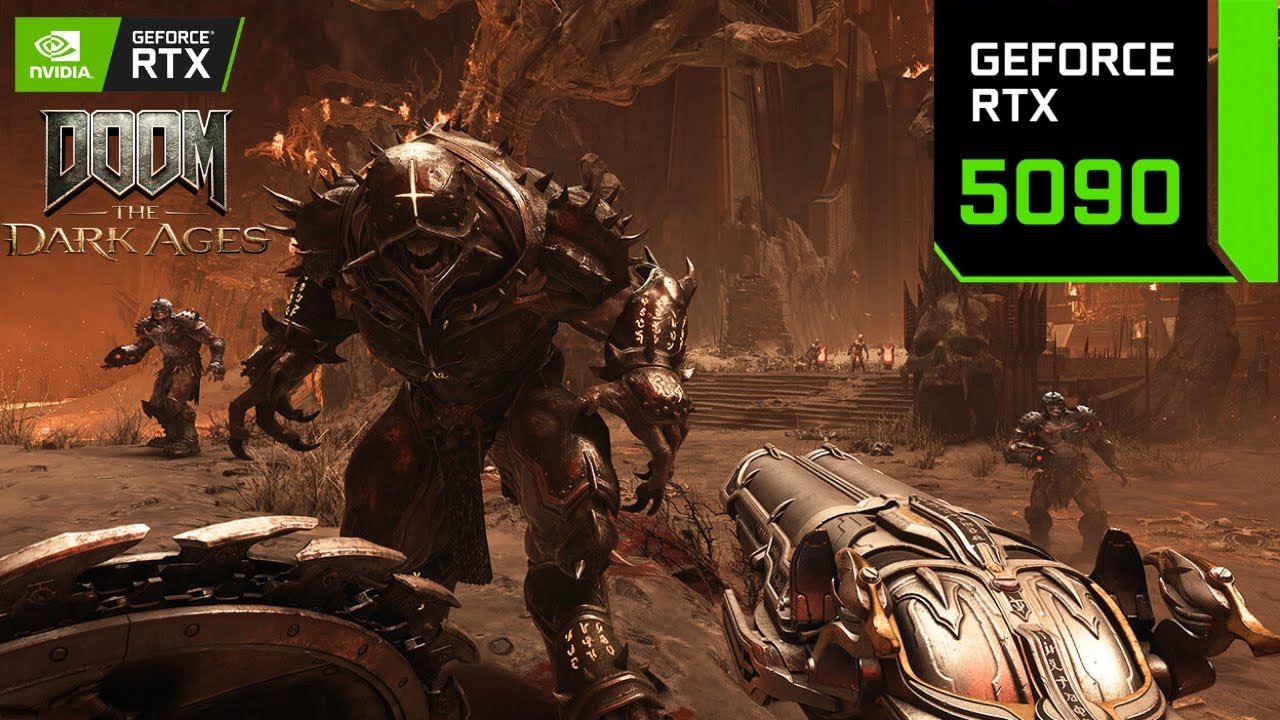
Introduction – Balancing Visual Fidelity and FPS
In Doom: The Dark Age, lighting, shadows, and hellish effects define the game’s immersive atmosphere. However, these effects are GPU-intensive, and running them at ultra settings can reduce FPS, introduce stuttering, or cause inconsistent 1% lows. For competitive and fluid gameplay, striking a balance between visual fidelity and smooth frame delivery is essential, particularly when using high-end GPUs like the RTX 5090.
The RTX 5090 offers significant advantages, including massive CUDA cores, high VRAM bandwidth, and AI-powered upscaling, making it capable of handling ultra-level lighting and post-processing while maintaining high FPS. Proper optimization allows players to enjoy the hellish visual details without sacrificing responsiveness or input accuracy, which is critical in run‑and‑gun combat scenarios.
Why Visual Effects Impact Performance
- Shadows & Lighting: High-resolution shadows and dynamic lighting require significant GPU computation.
- Particle & Hellish Effects: Dense flames, debris, and smoke can saturate VRAM, lowering FPS.
- Ray Tracing: Enhances reflections, ambient occlusion, and volumetric lighting but increases GPU load.
Even the RTX 5090 benefits from thoughtful tuning; high frame rates at 4K Ultra require strategic adjustments.
RTX 5090 Advantages
| Feature | Benefit for High-Detail Effects |
|---|---|
| CUDA Cores | Handles complex lighting and particle simulations |
| VRAM | Supports high-res textures and dense hellish effects |
| DLSS 4 | AI upscaling maintains visuals while boosting FPS |
| Frame Generation | Inserts AI frames for smooth motion and reduced stutter |
These features allow visual fidelity and smooth gameplay to coexist, but optimizing settings ensures that FPS remains high and stable, particularly in chaotic combat sequences.
FPS Importance for Competitive Gameplay
- High FPS reduces input latency, ensuring that movement and shooting feel responsive.
- Maintaining stable 1% lows prevents stutter during intense action.
- Smooth frame delivery ensures accurate targeting, crucial for run‑and‑gun scenarios.
The goal is fluid, responsive gameplay without sacrificing Doom’s signature hellish visual atmosphere.
Preparing Your System for Maximum Performance
Before adjusting in-game visuals, lighting, and shadows, it’s critical to prepare your system to ensure the RTX 5090 delivers stable FPS and smooth frame times. Proper preparation minimizes bottlenecks, prevents stuttering, and provides a reliable baseline for later optimizations like DLSS 4, Frame Generation, and overclocking.
1. Update Drivers and Game Patches
- Always install the latest NVIDIA Game Ready Drivers for optimal GPU performance.
- Keep Doom: The Dark Age patches updated, as developers often optimize lighting, shadows, and particle rendering in each patch.
- Consider performing a clean driver install using DDU (Display Driver Uninstaller) to remove outdated remnants that may cause conflicts.
Updated drivers maximize GPU efficiency, ensuring smooth execution of hellish visual effects.
2. Free Up CPU and GPU Resources
Run‑and‑gun games demand both GPU power for visuals and CPU resources for AI, physics, and frame timing. Steps to free resources:
- Close background apps such as browsers, Discord, or streaming software.
- Disable unnecessary startup programs to reduce CPU contention.
- Ensure high-performance power plans are selected in Windows settings.
Pointer: Reducing background load helps maintain 1% lows, preventing sudden frame drops.
3. Benchmark Baseline FPS
Establishing a baseline allows you to measure improvements from in-game and control panel adjustments:
- Record average FPS, 1% lows, and GPU temperature using tools like MSI Afterburner.
- Test scenes with all lighting, shadow, and hellish effects enabled to identify GPU-intensive areas.
- Compare results after each optimization to quantify performance gains.
| Metric | Recommended Tool | Purpose |
|---|---|---|
| Average FPS | MSI Afterburner / RTSS | Monitor frame rate consistency |
| 1% Lows | HWInfo64 / RivaTuner | Detect stuttering or lag spikes |
| GPU Load | MSI Afterburner | Identify bottlenecks in complex effects |
| Temperature | HWInfo64 / GPU-Z | Ensure safe thermal headroom |
4. Key Pointers for System Preparation
- Stable baseline: Always benchmark before tweaking visuals.
- Thermal awareness: Ensure case airflow is sufficient to prevent throttling.
- Driver hygiene: Clean installs reduce the risk of FPS drops or artifacts.
- CPU-GPU balance: Freeing system resources ensures lighting and shadows render smoothly without frame stutter.
Proper system preparation lays the foundation for optimal in-game settings, DLSS 4, Frame Generation, and safe overclocking, ensuring the RTX 5090 handles Doom: The Dark Age’s hellish visuals at high FPS.
In-Game Settings for Optimized Lighting & Shadows
In Doom: The Dark Age, the game’s hellish atmosphere relies on lighting, shadows, and particle effects. While RTX 5090 can handle ultra settings, careful in-game adjustments ensure maximum FPS without sacrificing visual fidelity. This section breaks down the most critical settings for smooth frame times and responsive gameplay.
1. Shadows and Lighting
Shadows and lighting are the most GPU-intensive effects. Optimizing them prevents frame drops in dense combat areas:
- Shadow Quality: Use High instead of Ultra for minimal FPS impact.
- Shadow Distance: Reduce slightly; close-range shadows are more critical for gameplay awareness.
- Volumetric Lighting: Adjust to Medium to balance atmospheric effects and frame rate.
Pointer: Subtle reductions in shadow and volumetric quality often preserve visual immersion while boosting FPS.
2. Particle and Hellish Effect Density
Particle effects, such as flames, smoke, and hellfire, can saturate VRAM:
- Particle Density: Set to High or Medium depending on resolution (4K may require Medium).
- Explosion Effects: Lower if FPS dips during boss fights or chaotic sequences.
- Blood/Particle Trails: Reduce minimally; these often have minor visual impact but can improve frame-time consistency.
Adjustments here maintain 1% lows during fast-paced combat sequences.
3. Post-Processing Tweaks
Post-processing effects impact both visual quality and FPS:
- Bloom: Keep Medium for fiery and hellish glow effects without excessive GPU load.
- Reflections: Set to High rather than Ultra; the difference is subtle but FPS gains are noticeable.
- Anti-Aliasing: Use TAA or DLSS 4 upscaling to smooth edges while maintaining high FPS.
4. Ray Tracing Adjustments
Ray Tracing enhances realism but can heavily reduce FPS:
| Setting | Recommendation | Impact |
|---|---|---|
| Ray-Traced Shadows | Medium | Preserves detail, improves FPS |
| Ray-Traced Reflections | High | Visual quality with moderate GPU load |
| Ambient Occlusion | Medium | Maintains depth perception without large frame drop |
Pointer: Combine Ray Tracing Medium/High with DLSS 4 Performance or Balanced mode to keep FPS high.
5. Key Recommendations
- Prioritize FPS and 1% lows for run‑and‑gun responsiveness.
- Maintain hellish atmosphere by minimally adjusting volumetric lighting, particles, and post-processing.
- Benchmark after each change to track FPS impact.
- Pair in-game settings with Control Panel tweaks and DLSS 4/Frame Generation for optimal performance.
Following these adjustments allows RTX 5090 users to experience smooth, stutter-free gameplay while keeping Doom: The Dark Age’s iconic lighting and hellish visuals intact.
NVIDIA Control Panel Tweaks
Even with optimized in-game settings, the NVIDIA Control Panel provides essential options to fine-tune GPU behavior and maximize FPS in Doom: The Dark Age. Leveraging these settings can enhance frame-time consistency, reduce latency, and prevent GPU bottlenecks, especially when running hellish lighting, shadows, and particle effects.
1. Power Management Mode
- Set to “Prefer Maximum Performance” to ensure the GPU maintains peak clocks under load.
- Prevents downclocking during intense combat, which can cause frame drops.
- Works in tandem with in-game DLSS 4 and Frame Generation for stable FPS.
Note: Using maximum performance slightly increases power draw, but the RTX 5090’s efficiency handles this well.
2. Low-Latency Mode and Threaded Optimization
- Low-Latency Mode: Set to “Ultra” to reduce input lag in run‑and‑gun scenarios.
- Threaded Optimization: Enable to allow multi-threaded CPU processing for physics, AI, and game logic.
- These settings improve 1% lows and responsiveness during chaotic combat sequences.
3. Vertical Sync and Ray Tracing Settings
- V-Sync: Disable unless using a 60Hz or 120Hz monitor; high-refresh monitors benefit more from frame pacing via DLSS 4.
- Ray Tracing: Control panel settings can prioritize performance over quality, ensuring smooth shadows, reflections, and volumetric lighting.
- GPU Scheduling (Hardware-Accelerated): Enable to optimize frame delivery and reduce latency.
4. Quick Reference Table – Recommended Control Panel Settings
| Setting | Recommendation | Purpose |
|---|---|---|
| Power Management Mode | Prefer Maximum Performance | Maintain consistent GPU clocks |
| Low Latency Mode | Ultra | Reduce input lag in competitive scenarios |
| Threaded Optimization | On | Enhance CPU/GPU multitasking efficiency |
| V-Sync | Off (unless needed) | Prevent unnecessary frame capping |
| Hardware-Accelerated GPU Scheduling | On | Improve frame pacing and responsiveness |
| Ray Tracing Performance | Medium/High | Balance visuals with FPS |
5. Key Pointers
- Always apply changes globally or per-game profile for Doom: The Dark Age.
- Monitor FPS and 1% lows after adjustments using MSI Afterburner or RTSS.
- Combine control panel tweaks with DLSS 4, Frame Generation, and in-game settings for maximum FPS and visual fidelity.
- Adjust power and thermal limits cautiously if overclocking is planned.
Proper NVIDIA Control Panel tuning ensures the RTX 5090 delivers smooth, responsive gameplay with full hellish visual effects, giving players a competitive edge in high-intensity run‑and‑gun action.
DLSS 4 & Frame Generation Optimization
DLSS 4 and Frame Generation are pivotal tools for RTX 5090 users aiming to maximize FPS and smoothness in Doom: The Dark Age without sacrificing visual quality. These AI-driven technologies allow the GPU to upscale frames and interpolate motion, effectively increasing perceived FPS while maintaining the game’s signature hellish visuals.
1. Understanding DLSS 4 Modes
DLSS 4 provides three primary modes:
- Performance: Prioritizes FPS over image fidelity; ideal for 4K or high-refresh competitive gameplay.
- Balanced: Maintains a middle ground between FPS and visual clarity; great for AAA scenes with heavy lighting and shadows.
- Quality: Focuses on image fidelity; FPS may drop slightly in dense particle or ray-traced scenes.
Choosing the right mode depends on monitor resolution, refresh rate, and your tolerance for minor visual differences.
2. Enabling Multi-Frame Generation
Frame Generation inserts AI-generated frames between real frames for fluid motion, reducing stutter in high-intensity combat.
- Step 1: Enable DLSS 4 in-game.
- Step 2: Activate Frame Generation from the graphics menu.
- Step 3: Select Balanced or Performance mode for competitive shooters to maximize responsiveness.
Tip: Frame Generation works best when paired with low-latency control panel settings to prevent frame pacing issues.
3. Monitoring Performance Impact
Tracking FPS, 1% lows, and GPU load ensures DLSS 4 and Frame Generation are configured safely:
| Metric | Recommended Tool | Purpose |
|---|---|---|
| Average FPS | MSI Afterburner | Measure overall frame rate increase |
| 1% Lows | HWInfo64 | Detect stuttering or dropped frames |
| GPU Load | GPU-Z / Afterburner | Ensure GPU isn’t oversaturated |
| Temperature | HWInfo64 | Maintain thermal headroom during AI upscaling |
Regular monitoring prevents thermal throttling and maintains consistent frame delivery.
4. Key Pointers
- Combine DLSS 4 Performance with Frame Generation for maximum FPS gains on high-refresh monitors.
- Adjust modes dynamically depending on in-game intensity: Performance for chaotic battles, Balanced for cinematic sequences.
- Monitor 1% lows as aggressively as average FPS to avoid stuttering.
- Pair DLSS 4 with optimized shadows, lighting, and post-processing settings for best results.
Proper DLSS 4 and Frame Generation optimization allows RTX 5090 players to enjoy smooth, stutter-free gameplay with ultra-detailed hellish effects, keeping competitive performance high without sacrificing immersion.
Safe Overclocking for RTX 5090
Overclocking the RTX 5090 is a powerful way to boost FPS and maintain smoother frame times in Doom: The Dark Age, especially during scenes with dense lighting, shadows, and hellish particle effects. However, improper overclocking can lead to artifacting, thermal throttling, or instability. A structured, step-by-step approach ensures maximum performance without compromising hardware longevity.
1. Core and Memory Clock Basics
Understanding GPU clocks is crucial for safe overclocking:
- Core Clock: Increases GPU processing speed, directly boosting FPS.
- Memory Clock: Enhances VRAM bandwidth, improving rendering of high-resolution textures and particle effects.
- Power Limit: Setting a safe power limit prevents unstable spikes.
- Thermal Headroom: Maintain core <80°C and hotspot <95°C during stress tests.
Even with RTX 5090’s efficiency, aggressive overclocking without monitoring can degrade performance rather than improve it.
2. Stepwise Overclocking Procedure
- Establish Baseline: Record FPS, 1% lows, and GPU temperature.
- Incremental Core Clock: Increase +25–50 MHz and test stability with benchmarks (3DMark, Heaven, or in-game stress tests).
- Memory Clock Adjustment: Increase +50–100 MHz gradually, monitoring VRAM usage.
- Power Limit and Voltage: Set power limit to 105–110%, avoid excessive voltage increases.
- Extended Stress Test: Run 30–60 minutes of gameplay or synthetic benchmarks to confirm stability.
3. Fan Curve and Thermal Optimization
Proper cooling allows higher clocks without overheating:
- Aggressive Fan Profile: Increase RPM as temperature approaches 70°C.
- Silent Idle: Maintain low RPM when GPU load is light to reduce noise.
- Monitoring: MSI Afterburner or HWInfo64 track GPU temperature, load, and fan speed.
4. Quick Reference Table – Safe RTX 5090 OC Values
| Parameter | Recommended Increment | Notes |
|---|---|---|
| Core Clock | +25–50 MHz | Test for stability after each increment |
| Memory Clock | +50–100 MHz | Avoid overheating VRAM |
| Power Limit | 105–110% | Prevent voltage spikes |
| Temperature | Core <80°C / Hotspot <95°C | Maintain thermal headroom |
| Fan Curve | Aggressive ramp-up | Prevent throttling while keeping noise moderate |
5. Key Recommendations
- Always benchmark before and after overclocking to quantify gains.
- Monitor 1% lows as closely as average FPS; unstable overclocking affects worst-case frame rates.
- Combine safe overclocking with DLSS 4 and Frame Generation for peak FPS without visual compromise.
- Avoid excessive voltage to maintain GPU longevity, prioritizing smooth, stable gameplay over minor FPS gains.
Safely applied, RTX 5090 overclocking unlocks extra FPS, improved frame-time consistency, and smoother hellish effects, ensuring a competitive edge in high-intensity run-and-gun combat.
Troubleshooting FPS Drops & Stutter
Even with optimized settings, DLSS 4, Frame Generation, and safe overclocking, FPS drops and stuttering can occur in Doom: The Dark Age. These issues are typically caused by GPU/CPU bottlenecks, thermal throttling, driver conflicts, or background processes. Understanding and systematically addressing these factors ensures consistent frame delivery and smooth gameplay, particularly during intense run‑and‑gun sequences.
1. Identifying Bottlenecks
FPS instability often stems from either GPU or CPU limitations:
- GPU Bottleneck:
- Symptoms: GPU load ~95–100%, sudden frame dips, thermal spikes.
- Cause: High lighting, shadows, Ray Tracing, and particle effects at 4K or ultra settings.
- CPU Bottleneck:
- Symptoms: GPU has headroom, but average FPS remains low; stuttering during AI-heavy sequences.
- Cause: Insufficient cores/threads for game physics or AI processing.
Monitoring Tools: MSI Afterburner, HWInfo64, and RTSS provide real-time insight into GPU/CPU load, FPS, and 1% lows.
2. Thermal and Power Management
Even the RTX 5090 can throttle under high temperatures:
| Symptom | Likely Cause | Solution |
|---|---|---|
| Sudden FPS drops | Core >80°C / Hotspot >95°C | Adjust fan curve, improve airflow |
| Micro-stutter | Inconsistent GPU clocks | Enable “Prefer Maximum Performance” in NVIDIA Control Panel |
| Low 1% lows | VRAM saturated | Reduce texture/particle settings, enable DLSS 4 Performance |
Maintaining thermal headroom prevents throttling, artifacting, and erratic frame times.
3. Software and Driver Conflicts
- Update to the latest NVIDIA Game Ready Drivers.
- Use DDU (Display Driver Uninstaller) for clean driver installation if issues persist.
- Close background applications, especially resource-heavy programs (Discord overlays, streaming software).
- Ensure Windows and game patches are fully updated.
4. Resetting to Stable Settings
If FPS drops persist after adjustments:
- Roll back overclocking to baseline stable clocks.
- Reset in-game lighting, shadow, and post-processing settings to recommended profiles.
- Re-test FPS and 1% lows in benchmark or intensive game scenes.
5. Key Recommendations
- Prioritize 1% lows and frame-time consistency over raw FPS.
- Use systematic troubleshooting, addressing one variable at a time.
- Combine thermal management, control panel tweaks, and in-game optimizations for comprehensive fixes.
- Track performance with real-time monitoring to prevent repeat issues.
Following these steps ensures the RTX 5090 delivers smooth, stutter-free hellish visuals with high FPS, essential for competitive run‑and‑gun gameplay.
Pro Tips for Competitive Run‑and‑Gun Combat
Mastering Doom: The Dark Age on the RTX 5090 requires more than just optimal settings—it demands strategic tweaks and workflow habits that maximize FPS, minimize latency, and maintain visual fidelity. In fast-paced run‑and‑gun scenarios, split-second responsiveness can be the difference between victory and defeat.
1. High-Refresh Monitor Optimization
Competitive shooters benefit from monitors with high refresh rates (144Hz, 240Hz, or higher):
- FPS vs Refresh Rate: Ensure FPS approaches or slightly exceeds the monitor’s refresh rate for fluid gameplay.
- Frame Pacing: Enable DLSS 4 + Frame Generation to reduce micro-stutter at high FPS.
- V-Sync: Keep disabled on high-refresh monitors to avoid added input lag.
Pointer: A high FPS/refresh rate combination ensures smoother tracking and aiming, critical in run‑and‑gun combat.
2. Minimizing Input Lag
- Low-Latency Mode (NVIDIA Control Panel): Set to “Ultra” for immediate response to input.
- NVIDIA Reflex: If supported, enable to reduce system latency further.
- Fast Response Settings: Avoid overly aggressive post-processing, which can slightly delay frame rendering.
Reducing input lag improves reaction times and shooting precision in high-intensity engagements.
3. Combining Overclocking, DLSS 4, and Visual Tweaks
Maximize FPS while maintaining visual quality by using synergistic adjustments:
| Optimization | Benefit | Recommendation |
|---|---|---|
| Core/Memory Overclock | Extra FPS | +25–50 MHz core, +50–100 MHz memory; monitor temps |
| DLSS 4 + Frame Generation | Smooth frames | Performance or Balanced mode for competitive scenarios |
| In-Game Lighting & Shadows | Preserve visuals | Medium-High shadows, Volumetric lighting Medium |
| Control Panel Tweaks | Low latency & stable clocks | Prefer Maximum Performance, Threaded Optimization On |
Layering these optimizations ensures responsive, smooth, and visually impressive gameplay.
4. Scene-Specific Adjustments
- Boss Fights/Chaotic Areas: Reduce particle and explosion effects slightly to maintain stable 1% lows.
- Open/Exploration Areas: Increase shadow and volumetric quality for immersion.
- Adaptive Settings: Use DLSS 4 Performance in hectic areas and Balanced in cinematic sequences.
5. Key Recommendations
- Monitor 1% lows, not just average FPS, to maintain stutter-free gameplay.
- Balance FPS, latency, and visual fidelity depending on the competitive scenario.
- Combine hardware tweaks, software settings, and in-game adjustments for optimal performance envelope.
Following these pro tips, RTX 5090 players can achieve maximum FPS, fluid motion, and competitive advantage, all while enjoying Doom: The Dark Age’s signature hellish visuals.
The RTX 5090 performs best with a combination of High/Medium shadows, volumetric lighting Medium, and DLSS 4 Performance or Balanced mode. Ray tracing can be set to Medium/High to preserve visual fidelity without sacrificing FPS, while particle effects and post-processing tweaks help maintain smooth frame times.
DLSS 4 is enabled directly in the in-game graphics menu under AI Upscaling or DLSS options. Choose between Performance, Balanced, or Quality modes depending on resolution and FPS goals, and pair with Frame Generation for fluid motion and minimal stutter during intense run-and-gun combat.
Yes, the RTX 5090 can run Ray Tracing at 4K, but performance depends on settings. Use Medium/High Ray Tracing, DLSS 4 Performance, and optimized in-game shadows to maintain high FPS, while monitoring 1% lows to prevent stutter during particle-heavy or hellish visual sequences.
Safe overclocking typically yields 5–15% FPS improvement depending on core/memory adjustments and scene complexity. Incremental tuning with proper fan curves and thermal monitoring ensures higher average FPS and better 1% lows without overheating or introducing instability.
Stuttering usually results from CPU/GPU bottlenecks, thermal throttling, driver conflicts, or background apps. Address this by monitoring loads, updating drivers, closing unnecessary programs, and optimizing both in-game settings and NVIDIA Control Panel options.
DLSS 4 offers AI-based upscaling that boosts FPS while preserving visuals, often outperforming simple reductions in shadow or lighting quality. Pairing DLSS 4 with moderate in-game tweaks usually delivers higher FPS and smoother frame-time consistency than turning off effects entirely.
Maintain GPU core <80°C and hotspot <95°C, use aggressive fan curves, ensure good case airflow, and monitor temperatures via MSI Afterburner. Proper thermal management allows overclocking and heavy visual effects to run without frame drops or instability.
Yes, Frame Generation inserts AI-generated frames to reduce stutter and smooth motion. Combined with DLSS 4 Performance mode, it ensures consistent frame delivery, especially in fast-paced combat, improving responsiveness on high-refresh monitors.
Absolutely. Set Power Management Mode to “Prefer Maximum Performance”, enable Low-Latency Mode Ultra, and turn on Threaded Optimization. These tweaks stabilize GPU clocks, reduce input lag, and complement in-game DLSS and visual settings for smoother gameplay.
Incrementally increase core +25–50 MHz and memory +50–100 MHz, monitor FPS, 1% lows, and GPU temperature, and stress-test each adjustment. Avoid excessive voltage and ensure proper fan curve management to maintain stable, safe performance without risking hardware damage.

What¦s Happening i’m new to this, I stumbled upon this I’ve discovered It absolutely helpful and it has helped me out loads. I’m hoping to contribute & aid different customers like its aided me. Great job.