
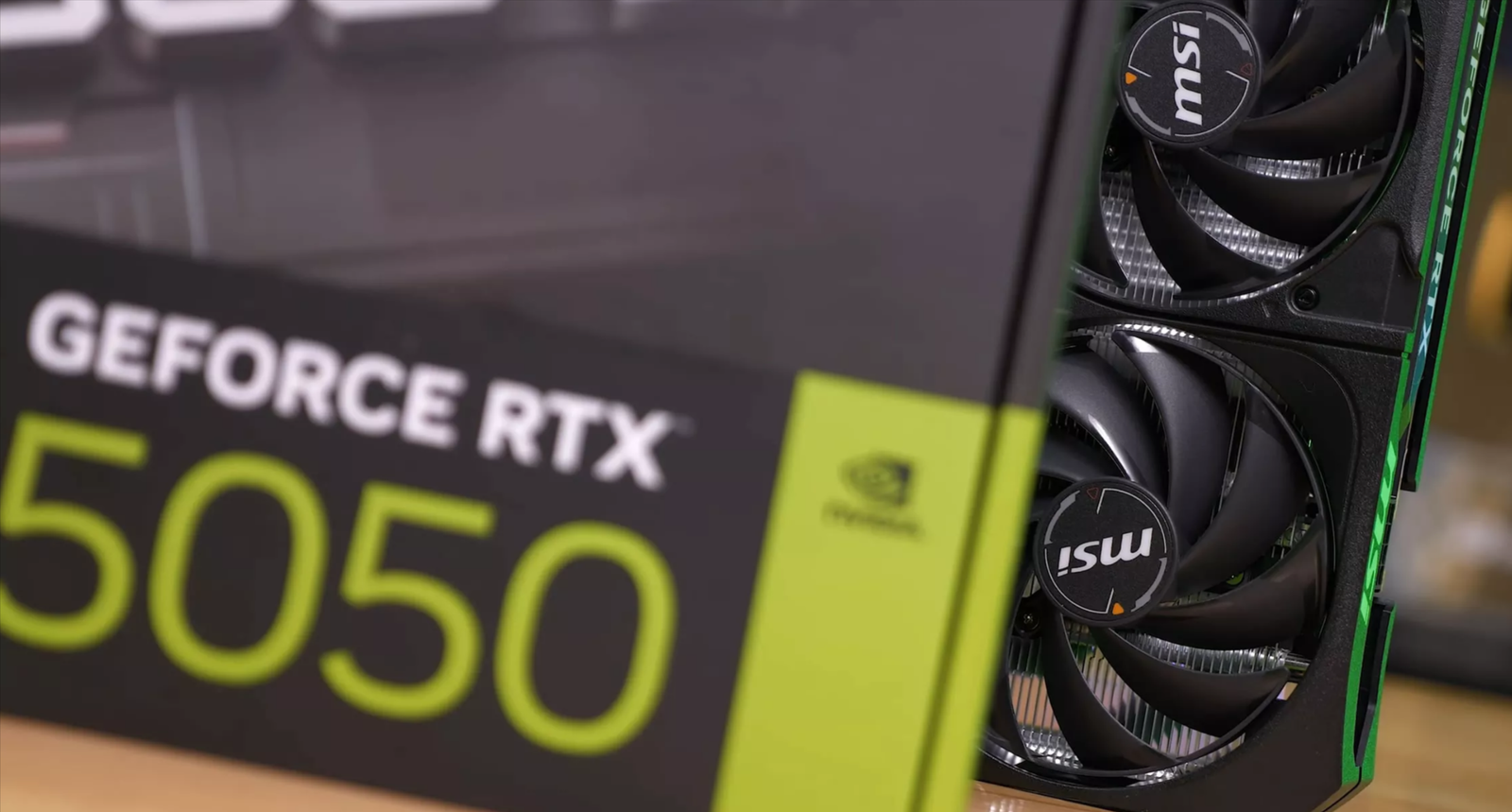
Awareness: Understanding Your GPU
Why the RTX 5050 Is Perfect for 1080p Gaming
The RTX 5050 is a midrange GPU designed to hit the sweet spot for UK gamers who want smooth 1080p performance without overspending. With DLSS 4 support, it can upscale games intelligently, giving a major FPS boost in demanding AAA titles, while ray tracing capabilities let you enjoy advanced lighting effects in games like Cyberpunk 2077 or Starfield without sacrificing too much performance. For esports titles, the RTX 5050 easily pushes high frame rates, making 144 Hz and 165 Hz monitors feel fluid and responsive. Overall, it balances affordability, performance, and future-proofing for budget-conscious UK gamers.
Common Beginner Mistakes
Many newcomers to PC gaming leave FPS on the table by running ultra settings in heavy AAA games without enabling DLSS 4 or FSR 3, leading to low frame rates and stuttering. Others skip driver updates or neglect Windows power settings, which can cap GPU potential. Thermal management is often ignored, causing throttling in extended sessions. Understanding these pitfalls helps beginners get the most out of their RTX 5050 before diving into advanced tweaks.
Consideration: Step-by-Step 1080p Optimisation
Update & Configure Drivers
Keeping your RTX 5050 drivers up-to-date is the first step toward smooth 1080p gaming. Install the latest NVIDIA Game Ready drivers via GeForce Experience or NVIDIA’s official website, which ensures compatibility with new titles and DLSS 4 improvements. Enable automatic optimisation in GeForce Experience to let the software select recommended settings for each game. On Windows, switch the Power Plan to High Performance to prevent CPU throttling, which can impact FPS even on midrange GPUs. These simple updates often give an immediate boost in both frame rate and stability.
Enable DLSS 4 or FSR 3
DLSS 4 and FSR 3 are your primary tools for balancing high visuals with smooth FPS. In-game, look for the DLSS or FSR toggle and choose between Quality (better visuals, moderate FPS boost) or Performance (maximum FPS, slight softening). On the RTX 5050, DLSS 4 can increase FPS by 50–70% in demanding AAA titles at 1080p, making games like Cyberpunk 2077 and Starfield playable at high settings. For games that support ray tracing, DLSS 4 helps maintain smooth frame pacing even when enabling medium-level RT features.
In-Game Graphics Tweaks for Beginners
Even with DLSS 4, some in-game adjustments can improve 1080p performance:
- Keep resolution at native 1080p for clarity.
- Set textures and shadows to high or medium depending on VRAM use.
- Ray tracing can be set to medium or off to maintain 100+ FPS in AAA games.
- Enable V-Sync or Adaptive Sync if screen tearing occurs.
- Cap FPS slightly above your monitor refresh rate for consistent performance without stutter.
Power, Temperature & Monitoring
Optimising power and thermals ensures the RTX 5050 can perform consistently during long sessions. In NVIDIA Control Panel, set Power Management Mode to Maximum Performance. Keep GPU temperatures under 75°C for longevity. Beginners can use simple monitoring tools like MSI Afterburner or GeForce Experience overlays to track FPS, VRAM usage, and temperature without complex setups. Proper airflow and monitoring prevent thermal throttling, ensuring the card maintains stable 1080p performance.
Decision: Beginner-Friendly Optimisation Profiles
Sample Profiles for 1080p Gaming
To make life easier for beginners, here are recommended RTX 5050 optimisation profiles based on your gaming type. These combine DLSS 4 / FSR 3 modes, ray tracing settings, and expected FPS so you can start playing without guesswork.
| Game Type | DLSS / FSR | Ray Tracing | Expected FPS (RTX 5050) | Notes |
|---|---|---|---|---|
| Esports / Competitive | DLSS 4 Performance | Off | 200+ | Prioritises max FPS and low input lag for fast games like Valorant, CS2, Fortnite. |
| AAA Titles | DLSS 4 Quality | Medium | 100–140 | Balanced visuals and smooth gameplay for titles like Cyberpunk 2077, Starfield, Assassin’s Creed. |
| Ray-Tracing Showcase | DLSS 4 Balanced | High | 60–90 | Perfect for games with heavy RT effects to enjoy cinematic lighting without stutter. |
These profiles provide a plug-and-play starting point, letting beginners experience stable 1080p FPS while exploring more advanced tweaks later.
Additional Tips for Beginners
Even with optimised profiles, small adjustments can improve your experience:
- Close unnecessary background apps to free system resources.
- Keep GPU drivers up-to-date for compatibility and performance improvements.
- Minor overclocking with MSI Afterburner can give an extra +50–+100 MHz safely.
- If FPS is still lower than expected, check for CPU or RAM bottlenecks and consider upgrades.
By following these beginner-friendly profiles, UK gamers can enjoy smooth, high-FPS 1080p gaming on the RTX 5050 without diving into complex optimisation.
FAQs & Troubleshooting
If you cannot see the DLSS 4 option, ensure your RTX 5050 drivers are up-to-date through GeForce Experience or NVIDIA’s website. Also, check that your game is patched to the latest version, as DLSS 4 support may require a recent update.
Low FPS or stuttering can happen if your system is thermally throttling, background apps are consuming resources, or in-game resolution scaling is too high. Use MSI Afterburner or the GeForce Experience overlay to monitor GPU load and temperature. Adjust DLSS/FSR modes or lower ultra-heavy settings to stabilise FPS.
Ray tracing at ultra can drop FPS significantly. Try medium RT settings or enable DLSS 4 Performance mode to regain smoother gameplay while maintaining lighting and shadows.
DLSS 4 works on supported titles. Popular 1080p/1440p AAA games like Cyberpunk 2077, Starfield, Alan Wake 2, Call of Duty Warzone 2 support it. For unsupported games, fallback to FSR 3 or standard upscaling.
