
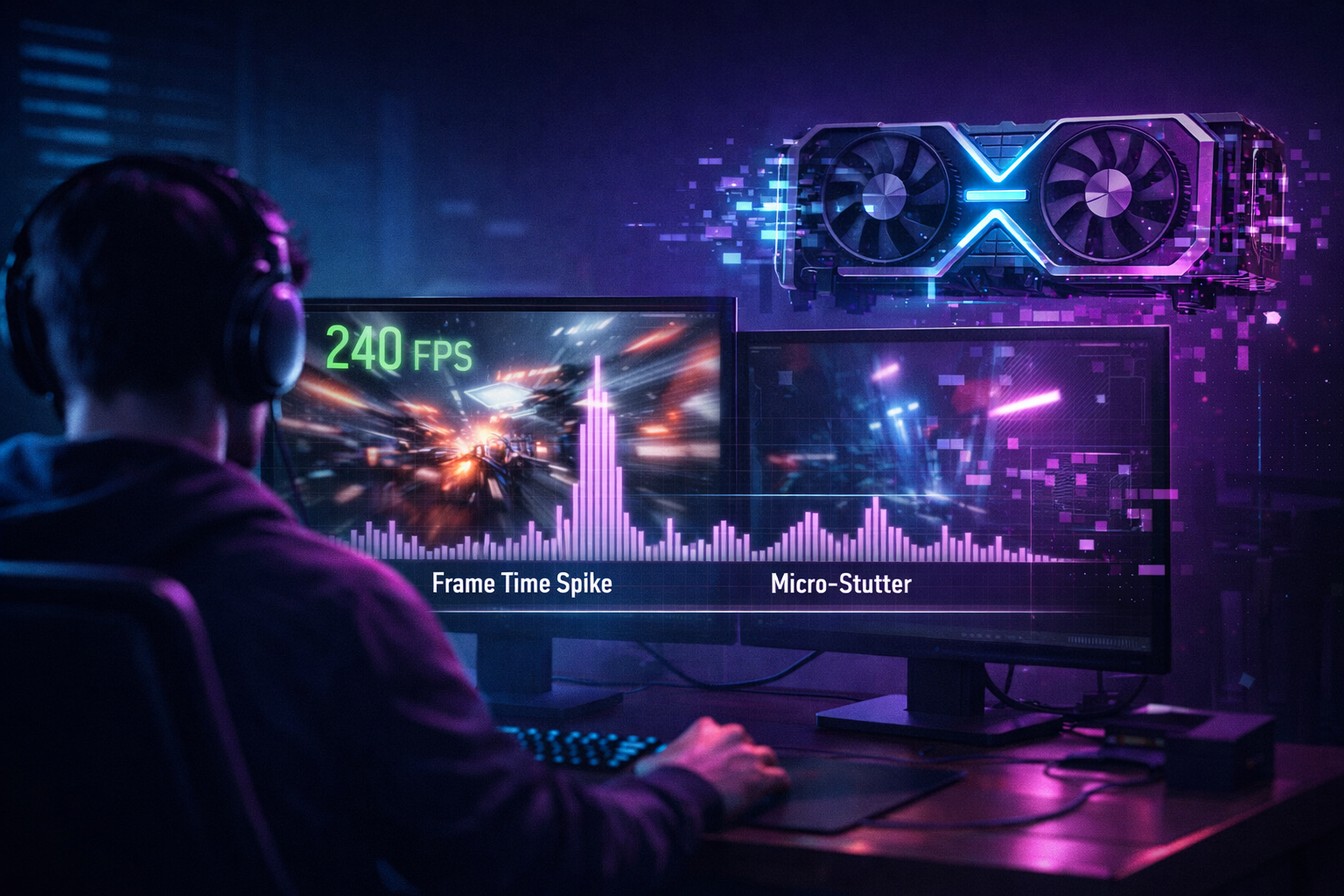
If you’ve ever loaded into a game, seen 120+ FPS on your counter, but still felt hitching, micro-stutter or mushy input, you’ve already learned this the hard way:
high average FPS ≠ genuinely smooth gameplay.
This is especially true at 4K on powerful cards like the RTX 5090 and future RTX 50-series GPUs. The numbers might look impressive, but your eyes and hands are telling you something else.
In this guide, we’ll break down why smoothness is more than a single FPS number, how frametimes and 1% lows really work, and what you can change on your system to make games feel as good as they look.
Average FPS vs Frametime: What Your Eyes Actually Feel
Most overlays show average FPS: 60, 90, 144, 200. That’s useful, but it hides the truth.
FPS is just the headline
- Average FPS = how many frames you render per second on average.
- It doesn’t show you spikes, dips or inconsistent pacing.
Frametime is the real “smoothness” metric
- Frametime = how long it takes to render each frame (in milliseconds).
- 60 FPS = ~16.7 ms per frame, 120 FPS = ~8.3 ms per frame.
- If one frame suddenly takes 40 ms while the rest are ~8 ms, you feel a jolt, even though the FPS counter still says “120”.
That random freeze when you turn a corner, the tiny hitch when an explosion goes off, the sticky feeling when you pan your camera?
That’s not “low FPS”. That’s frametime spikes.
Why 1% Lows Matter More Than Flexing 200 FPS
When you see performance graphs, you’ll often notice 1% lows and 0.1% lows. These matter more than people think.
- Average FPS: vanity number – looks good in a screenshot.
- 1% lows: the average of your worst 1% of frames.
- 0.1% lows: the very worst.
Example at 4K on an RTX 5090:
- Run A: 140 FPS average, 1% low = 40 FPS
- Run B: 110 FPS average, 1% low = 80 FPS
Run A wins on paper, but it will feel choppy during heavy scenes.
Run B looks “slower” on a chart, but will feel far smoother and more consistent.
If you’re on a 120–144 Hz 4K panel, your goal isn’t “as many frames as possible”. It’s:
- Keep fps close to your refresh, and
- Keep 1% lows within ~20–30% of your average.
That’s when a game feels locked-in, with no jarring drops when you hit a busy city hub or big set piece.
How Your RTX 50-Series Build Can Stutter at 4K Even With “High FPS”
So why does this happen on a monster card like the RTX 5090?
CPU bottlenecks at high refresh
At 4K 60 FPS, the GPU usually does most of the work.
At 4K 120–144 FPS, your CPU becomes critical:
- Lots of AI, physics and draw calls in open worlds
- Big city hubs and multiplayer lobbies
- High FOV, huge crowds, dense foliage
If your GPU sits at 60–70% usage while one CPU core is pegged at 95–100%, your RTX card is literally waiting for the CPU. That shows up as irregular frametimes and stutter, even when the FPS counter looks fine.
Storage and streaming
Modern AAA games stream textures, geometry and audio constantly. If your game is on:
- A slow SATA SSD or, worse, a mechanical HDD
- A nearly full NVMe drive with no free space
…you’ll see brief stalls when streaming new areas, especially at 4K with high-res assets.
For best results:
- Put your heaviest titles on a fast NVMe SSD
- Keep plenty of free space (not 95–99% full)
Background tasks and overlays
Even on a flagship RTX card, little background tasks can ruin frametimes:
- Browser tabs playing video
- RGB bloatware polling hardware every second
- Third-party overlays, screen recorders, “optimiser” tools
Each one might only steal a few milliseconds, but hit at the wrong moment and you get a frametime spike you really feel.
Display, VRR and Why You Should Cap FPS on a 4K Panel
On a 4K 120/144 Hz monitor or TV, display configuration is just as important as GPU power.
Use native 4K and the max refresh rate
In Windows:
- Set resolution to 3840 × 2160
- Set refresh rate to 120 or 144 Hz in Advanced display settings
Running the desktop at 1440p or 60 Hz and then forcing 4K in-game can lead to weird scaling, extra processing and perceived stutter.
Turn on VRR (G-Sync / FreeSync)
With an RTX 50-series GPU:
- Enable G-Sync / G-Sync Compatible in NVIDIA Control Panel
- Or, on TVs, use VRR in Game Mode
VRR lets your screen change its refresh rate to match the GPU, reducing tearing and judder when FPS isn’t perfectly locked.
Cap your FPS just below refresh
This is where smoothness really clicks:
- On 120 Hz, cap at 117–118 FPS
- On 144 Hz, cap at 140–141 FPS
Use an in-game limiter or RTSS. Combined with VRR, this:
- Keeps frametimes stable
- Stops the GPU from spiking to silly frame rates
- Avoids bouncing off the exact refresh ceiling, which can cause micro-stutter
You may lose a bit of headline FPS, but you gain far better 1% lows and a silky feel.
Game Settings That Improve Smoothness More Than Raw FPS
On an RTX 5090 or future 50-series card, you don’t need to gut visuals to improve smoothness. You just need to cut the right things.
Prioritise these when chasing consistent 4K gameplay:
Turn down the real frametime killers
- Shadows: Ultra → High or Medium
- Reflections / Screen-Space Reflections: drop one notch
- Volumetrics (fog, god-rays, heavy clouds): reduce slightly
- Crowds / Foliage Density: lower in city hubs or forests
These settings hit GPU and CPU hard and are a top cause of spikes in busy scenes.
Keep the things that actually make 4K look good
- Textures: High / Ultra (your VRAM can handle it)
- Geometry / draw distance: High
- Core lighting quality: Medium–High depending on the title
At 4K, texture detail and basic geometry do more for perceived image quality than ultra-insane shadows or maxed RT.
Use DLSS / reconstruction as a stability tool
If you’re hovering just under your target FPS at 4K:
- Enable DLSS / FSR / XeSS in Quality mode
- Add a bit of in-game sharpening if needed
This slightly reduces internal render resolution but keeps the 4K “look” and makes frametimes much smoother.
Input Lag: Why Latency Feels Bad Even at 120+ FPS
You can have high FPS and high input lag at the same time. To tighten things up:
- In NVIDIA Control Panel:
- Low Latency Mode → On (or Ultra in GPU-bound games)
- In supported games:
- Turn on NVIDIA Reflex (preferably On + Boost in competitive titles)
- On TVs:
- Enable Game Mode, disable motion smoothing and extra post-processing
Together, these cut queueing and processing, so your mouse and controller feel more “wired” to the screen.
How This Fits Your RTX 5090 Optimisation Hub
This article works best as a support piece in your hub structure:
- Hub / Pillar:
- “RTX 5090 Optimisation Guide: How to Get True 4K Ultra Without Stutter or Input Lag”
- Support Article (this one):
- “Why High FPS Isn’t Always Smooth: The Real Reason Your Games Still Stutter on RTX 50-Series GPUs”
Suggested internal links for rtx50series.co.uk
- In this article, link text like “true 4K ultra without stutter or input lag” back to your main RTX 5090 Optimisation Guide.
- In the main guide, add a line such as:
- “If your FPS looks high but the game still feels choppy, read our deep-dive on why high average FPS doesn’t always mean smooth gameplay.”
This creates a semantic cluster around RTX 5090 optimisation, 4K smoothness, frametimes, and input lag, which search engines and AI overviews can easily understand and surface together.

One thought on “Why High FPS Isn’t Always Smooth: The Real Reason Your Games Still Stutter on RTX 50-Series GPUs”