
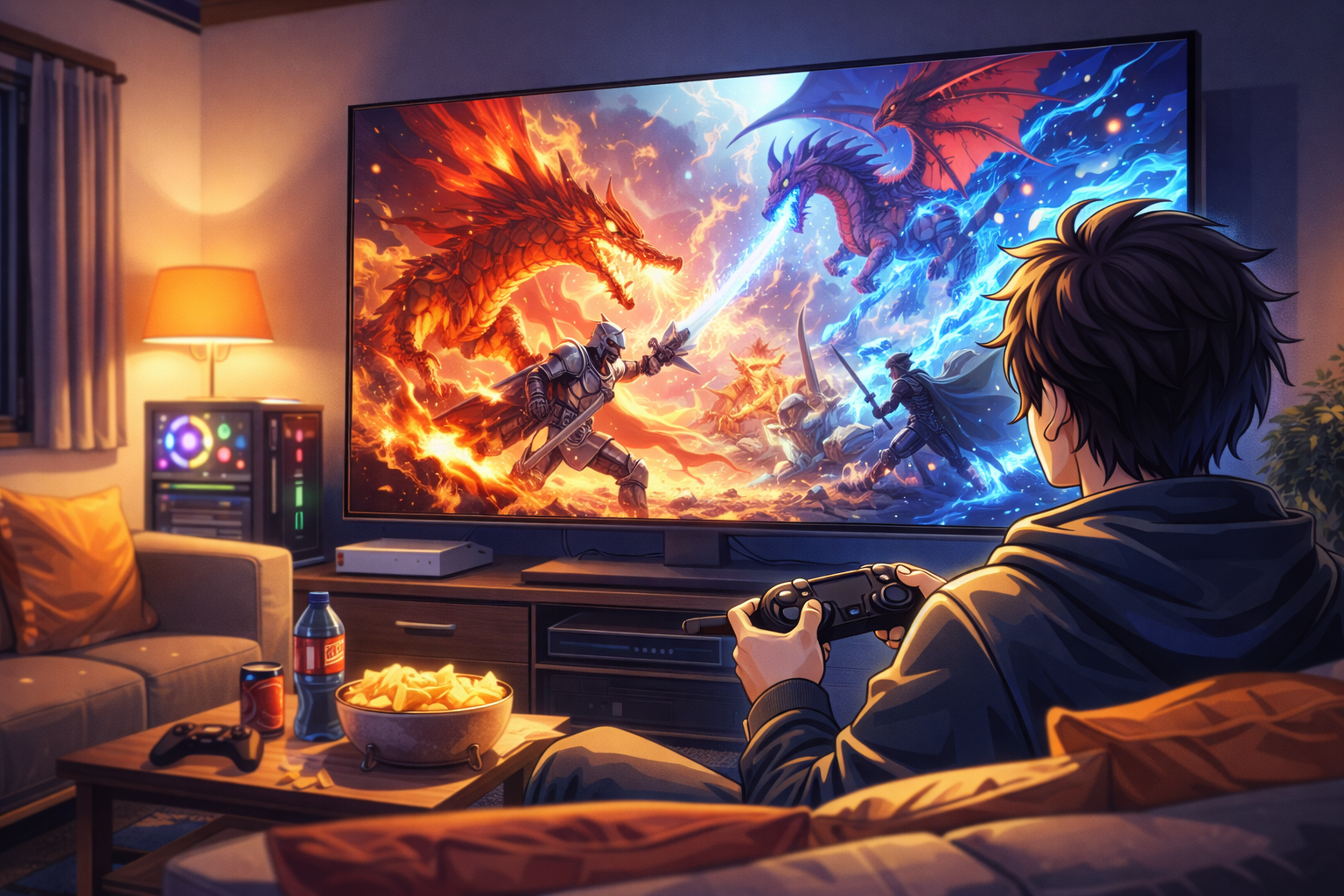
Hooking your RTX 5090 up to a 4K TV is tempting:
- Massive screen
- Great HDR
- Ideal for couch co-op and cinematic single-player
But out of the box, most TVs are tuned for films, not PC gaming. That means:
- Extra input lag
- Motion smoothing and post-processing
- Wrong HDMI mode on the port you’re using
- Blurry text because of chroma subsampling
This guide shows you how to turn a modern 4K TV into a serious gaming display for an RTX 5090 / RTX 50-series PC, and where the trade-offs are versus a dedicated 4K monitor.
1. 4K TV vs 4K Gaming Monitor: What Actually Changes?
1.1 The big advantages of a 4K TV
A good gaming-ready TV gives you:
- Huge screen sizes (55–77″ common) – brilliant for story games, racing and split-screen
- Excellent HDR punch and contrast, especially with OLED or high-end Mini-LED sets
- Often multiple HDMI 2.1 ports, so a PC, consoles and streaming boxes can all be connected at once
With an RTX 5090, that big 4K canvas is perfect for:
open-world RPGs, racing sims, third-person action games and local multiplayer in the living room.
1.2 The typical disadvantages vs a 4K monitor
Where TVs lag behind good monitors:
- Input lag – modern gaming TVs can get under ~10 ms in Game Mode, but a good 4K monitor is still generally quicker
- Pixel density – at a desk distance, 55″ 4K is less sharp than a 27–32″ 4K monitor
- Text clarity – if chroma isn’t 4:4:4 or the TV isn’t in PC mode, small UI/text can look smeared
- Risk of burn-in on OLED if you leave static HUDs up for many hours a day (less of a concern with varied gaming and good protection features)
If you mainly play competitive shooters with keyboard and mouse, a fast 27–32″ 4K or 1440p monitor is usually better. But for mixed use and cinematic games, a 4K TV can be fantastic – if you configure it correctly.
2. Choosing the Right 4K TV for RTX 5090 Gaming
If you’re buying (or checking) a 4K TV specifically for RTX 50-series gaming, there are a few non-negotiables.
2.1 HDMI 2.1 ports with 4K 120 Hz
Look for:
- At least one HDMI 2.1 port that supports 4K 120 Hz
- Ideally two to four HDMI 2.1 ports if you also run consoles
HDMI 2.1’s extra bandwidth (up to 48 Gbps vs 18 Gbps for HDMI 2.0) is what lets you run 4K at 120 Hz with HDR and VRR.
Your RTX 5090 will expose those modes automatically once the port and cable are correct.
2.2 VRR, ALLM and low input lag
For a “monitor-like” feel, you want a TV that advertises:
- VRR (Variable Refresh Rate) – often branded as FreeSync, G-Sync Compatible, HDMI VRR
- ALLM (Auto Low Latency Mode) / Game Mode – automatically switches to a low-lag preset when a console/PC sends the right signal
- Low input lag numbers in independent testing (under ~15 ms at 4K 120 Hz is good; the best gaming TVs get close to 10 ms or less)
Many 2024–2026 gaming TVs from LG, Samsung, Sony, TCL etc. are explicitly marketed with 4K 120, VRR, ALLM and low input lag as key features.
2.3 Panel tech: OLED vs Mini-LED vs standard LCD
For RTX 5090 gaming:
- OLED / QD-OLED
- Pros: near-instant pixel response, perfect blacks, great HDR contrast
- Cons: lower peak brightness than the very brightest LCDs; theoretical burn-in risk with very static UI elements
- Mini-LED LCD
- Pros: very high brightness, good for bright rooms, less risk of burn-in
- Cons: blooming/halo around bright objects, slower pixel response than OLED
If you play late-night single-player and value image quality, a gaming-ready OLED is hard to beat. For bright living rooms, a strong Mini-LED gaming TV is a solid alternative.
3. Physical Setup: Distance, Seating and Cables
3.1 Viewing distance for a 55–65″ 4K screen
As a loose guide:
- 55″ 4K: ~1.2–2.0 m is a sweet spot
- 65″ 4K: ~1.5–2.5 m works well
Closer gives you more “monitor-like” detail; further away is more cinema-like. With an RTX 5090 driving native or reconstructed 4K, you’ll get plenty of sharpness even at typical sofa distances.
3.2 Use an Ultra High Speed HDMI 2.1 cable
For 4K 120 Hz + VRR + HDR you should:
- Use a certified Ultra High Speed HDMI cable
- Keep the run as short as is practical (long cheap cables are trouble)
NVIDIA and TV manufacturers explicitly note that the wrong cable can limit you to lower resolutions/refresh or cause flicker/dropouts.
Plug from RTX 5090 HDMI → the TV’s HDMI 2.1 gaming port directly (no receivers/switches while you’re setting up).
4. PC Side: Windows and NVIDIA Settings for a 4K TV
4.1 Set Windows to 3840×2160 and 120 Hz
In Windows 11:
- Right-click desktop → Display settings
- Set Display resolution to 3840 × 2160 (Recommended)
- Click Advanced display and set Refresh rate to 120 Hz (or higher if supported)
Check that Active signal resolution also reads 3840×2160.
4.2 NVIDIA Control Panel: resolution, refresh, colour
Open NVIDIA Control Panel → Change resolution:
- Select your TV
- Resolution: 3840 × 2160
- Refresh rate: 120 Hz
- Output colour format: usually RGB (Full) or YCbCr 4:4:4 for best clarity with a PC
- Output colour depth: 10-bit for HDR if bandwidth allows, otherwise 8-bit is fine
If text looks slightly blurry on the desktop, double-check that:
- TV is in PC mode / Game mode / 4:4:4 chroma mode
- NVIDIA is set to RGB or 4:4:4, not 4:2:0 or 4:2:2
Modern advice is clear: incorrect chroma subsampling is a common cause of blurry PC text on TVs.
4.3 Enable G-Sync Compatible (VRR)
Still in NVIDIA Control Panel:
- Go to Set up G-Sync
- Tick Enable G-Sync, G-Sync Compatible, select your TV and enable for full-screen
Many HDMI 2.1 TVs with VRR support are now G-Sync Compatible with modern GeForce GPUs, using HDMI Forum VRR.
5. TV Side: Game Mode, VRR and Killing Extra Processing
This is where most people go wrong: the TV itself.
5.1 Enable Game Mode / ALLM
In the TV settings:
- Switch the HDMI port your PC uses to Game Mode / Game Optimiser
- On some brands you need to enable Enhanced / 4K 120 / HDMI 2.1 format for that port to accept 4K 120 Hz
Game Mode:
- Bypasses most heavy processing
- Dramatically reduces input lag
- Often unlocks 4K 120 Hz + VRR on that port
5.2 Turn on VRR / FreeSync / G-Sync Compatible
In the TV’s gaming or general menu, enable:
- VRR, FreeSync, or G-Sync Compatible (wording varies by brand)
Most recent gaming TVs from major brands now support HDMI 2.1 VRR and expose it as FreeSync or G-Sync Compatible when paired with GeForce hardware.
5.3 Disable motion smoothing and “cinema” filters
Turn off for the PC input:
- Motion smoothing / interpolation (TruMotion, MotionFlow, Auto Motion Plus, etc.)
- Noise reduction / MPEG noise reduction
- Over-aggressive dynamic contrast and similar bells-and-whistles
These are great for films, but for RTX 5090 gaming they:
- Add input lag
- Can conflict with VRR
- Make motion look “fake” at 120 Hz
Once Game Mode and VRR are on and these filters are off, your 4K TV starts behaving much more like a proper high-refresh gaming display.
6. In-Game Settings: Tuning for the Sofa
With the signal chain sorted, you can tune games slightly differently than you would on a desk monitor.
6.1 FOV and camera
On a big TV further away:
- You can often run a slightly lower FOV than on a monitor without losing situational awareness
- This reduces distortion and can subtly help performance (less scene to render per frame)
For competitive play you may still want a high FOV, but for cinematic games a moderate FOV often feels more natural on a TV.
6.2 UI scaling
Because you’re sitting further back:
- Increase UI / HUD scale so text and indicators are readable at a glance
- In games with tiny fonts, look for “HUD scale” or “Safe area” options to bring UI elements closer to centre
6.3 Frame-rate targets for 4K TV gaming
On a 4K 120 Hz TV with an RTX 5090:
- Cinematic single-player:
- Aim for 60–90 FPS, cap accordingly and enjoy higher settings/RT
- High-refresh play:
- Aim for 100–120 FPS, drop some heavy settings (shadows, RT) and use DLSS Quality
Whichever you choose:
- Keep VRR on
- Set an FPS cap a few frames below refresh (e.g. 117–118 FPS on 120 Hz) for smooth frametimes and lower noise/power.
7. HDR and Colour on a 4K TV with RTX 5090
One of the big wins of gaming on a TV is HDR done properly.
7.1 Enable HDR sensibly
On the TV:
- Make sure HDR is enabled for the HDMI input (often automatic when HDR signal detected)
On Windows:
- You can either leave HDR off on the desktop and enable it only in games that support it, or leave it on if your TV handles SDR→HDR mapping well.
Then in each HDR-capable game:
- Turn HDR on in the game settings
- Use the in-game HDR calibration sliders to avoid blown-out highlights or crushed blacks
7.2 Calibrate once for PC use
Finally:
- Check the TV’s colour temperature preset – “Warm” or “Cinema” is usually closest to accurate
- Avoid overly saturated “Vivid” modes for PC gaming; they can look fun but blow out detail
Because the RTX 5090 happily pushes 4K HDR at high frame rates over HDMI 2.1, you can lean into HDR more than you might on a typical monitor.
8. When a 4K TV is the Better Choice – and When It Isn’t
8.1 A 4K TV is ideal if…
- You play lots of single-player cinematics, racing, sports, local co-op
- You want a living-room RTX 5090 rig shared with a console
- You value HDR wow factor and screen size over absolute lowest latency
- You sit a sensible distance away (so pixel density isn’t an issue)
8.2 A dedicated 4K monitor is better if…
- You mainly play competitive shooters / esports with mouse & keyboard
- You sit at a desk and want crisp text and UI for long PC sessions
- You need very low latency and high refresh (144–240 Hz) at closer distances
- You do productivity/creative work where pixel density matters all day
There’s nothing wrong with using both: a 4K monitor on your desk and a 4K TV on HDMI 2.1 for “sofa mode”.
9. Quick Checklist: Turning a 4K TV into a Gaming Display
Use this as a fast sanity check for new RTX 5090 builds on TVs:
TV & hardware
- ✅ 4K TV with HDMI 2.1, 4K 120 Hz, VRR, ALLM / Game Mode
- ✅ RTX 50-series GPU connected via Ultra High Speed HDMI 2.1 cable
- ✅ PC plugged into the TV’s HDMI 2.1 / gaming port
Windows & NVIDIA
- ✅ Windows resolution: 3840×2160
- ✅ Refresh rate: 120 Hz in Windows and NVIDIA Control Panel
- ✅ Colour format: RGB / 4:4:4, not 4:2:0
- ✅ G-Sync / G-Sync Compatible enabled for that display
TV settings
- ✅ Game Mode / ALLM enabled on that HDMI input
- ✅ VRR / FreeSync / G-Sync Compatible enabled
- ✅ Motion smoothing / interpolation turned off
- ✅ No heavy noise reduction or “super resolution” filters on the PC input
In-game
- ✅ Resolution: 3840×2160
- ✅ FPS capped a few frames under refresh (e.g. 117 FPS on 120 Hz)
- ✅ DLSS / reconstruction tuned to hold target FPS
- ✅ HUD and text scaled for sofa distance
Once all of that is ticked, you’re no longer “just gaming on a TV” – you’re using a proper 4K gaming display, it just happens to be huge.

One thought on “Gaming on a 4K TV Instead of a Dedicated Monitor (with RTX 5090)”