
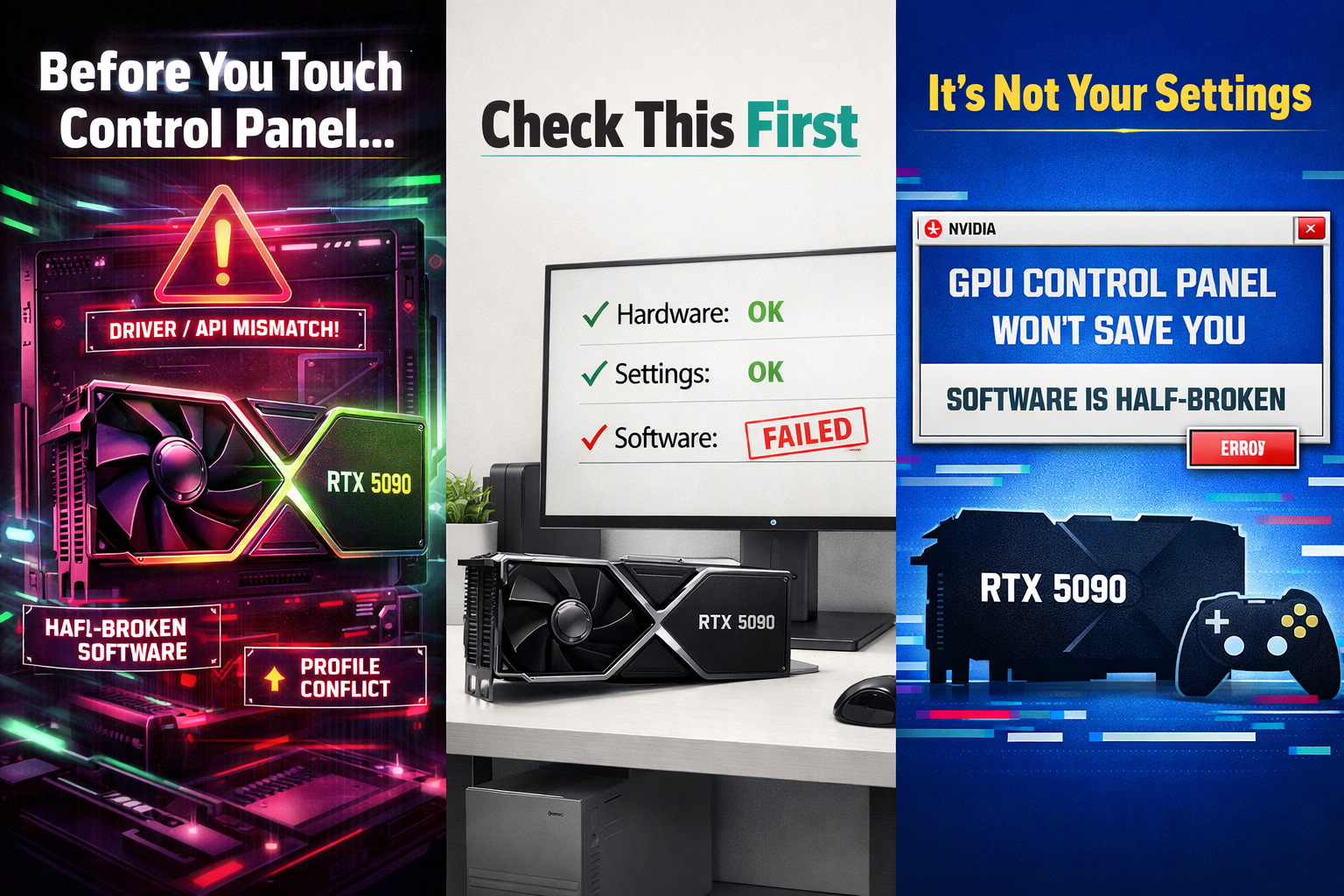
Most people start RTX optimisation in the wrong place.
They jump straight into NVIDIA Control Panel, flick G-Sync on, set “Prefer maximum performance”, maybe copy some YouTuber’s “ultimate” settings – and then wonder why their RTX 5090 still throws up:
- Random black screens
- Stutter in otherwise easy games
- VRR flicker
- Weird behaviour after alt-tabbing
In a lot of cases, the problem isn’t your sliders. It’s that the software stack talking to your GPU is already messy: half-installed drivers, leftover files from old cards, failed updates and ancient firmware.
This article is the prerequisite step in your optimisation hub on rtx50series.co.uk:
clean, stable software first – NVIDIA Control Panel tweaks second.
1. Why Driver Health Matters So Much on an RTX 5090
Modern RTX 50-series cards lean heavily on the driver for:
- DLSS 4.x, Frame Generation, latency optimisations and VRR behaviour
- Game-specific fixes (especially for new AAA launches)
- Stability with Windows 11 and recent Windows 10 builds
NVIDIA’s recent Game Ready releases for RTX 50-series have shipped with large bug-fix lists, including fixes for black screens, crashes in big titles, and issues combining DLSS with G-Sync on Windows 11.
If you’re running:
- An old driver from your last GPU
- A half-failed update
- Or a mish-mash of GeForce Experience, old Control Panel configs and registry junk
…no amount of careful tuning in NVIDIA Control Panel will fully fix the underlying instability. You’ll be firefighting symptoms instead of curing the disease.
So the first job is simple:
Get to one, clean, current, correct driver for your RTX 5090 – and nothing else.
2. Pick the Right Driver Channel: Game Ready vs Studio
For an RTX 5090 in a gaming-first rig, your default should almost always be:
- GeForce Game Ready Driver
Game Ready drivers are built and tuned around new game launches, day-one patches and rapid bug-fix cycles for popular titles. They’re what NVIDIA uses to push optimisations and stability fixes for new RTX 50-series games and features.
You might want Studio drivers instead if:
- You mainly use the machine for video editing, 3D, VFX or CAD
- You value slower, more conservative update cadence with an emphasis on long-term stability
- Gaming is secondary, not primary
Studio and Game Ready share the same core driver, but Studio builds are validated longer on creative apps; Game Ready builds chase the latest games and fixes more aggressively.
For most UK RTX 5090 owners building a 4K rig, the sensible baseline is:
- Game Ready driver, current stable version
- Only swap to Studio if you hit repeatable game-agnostic stability issues and care more about creative tools than day-one gaming patches.
Also worth noting if you’re still on Windows 10: NVIDIA has confirmed Game Ready support will continue until October 2026, so you’re not immediately forced onto Windows 11 – but you should still keep both OS and drivers current.
3. The Easy Fix: NVIDIA’s Built-In “Clean Installation”
If things mostly work but feel “off” – some stutter, a few crashes after upgrading to 5090 – start with NVIDIA’s own clean install option before you break out the heavy artillery.
3.1 Download the correct driver
From NVIDIA’s site or the new NVIDIA app:
- Select your exact RTX 50-series model and OS
- Download the latest Game Ready (or Studio) package
3.2 Use the Custom → Clean installation path
When you run the installer:
- Accept the licence
- Choose Custom (Advanced) instead of Express
- Make sure Graphics Driver is selected (and GeForce Experience if you actually want it)
- Tick “Perform a clean installation”
- Proceed with the install and reboot when prompted
This resets:
- Driver components
- Many NVIDIA Control Panel settings
- Old application profiles that might conflict with your new card
For a lot of RTX 5090 builds, this alone clears up:
- Strange VRR behaviour
- Inconsistent detection of 4K 120 Hz modes
- Stutter that appeared right after a GPU swap
If that doesn’t fix it – or your driver stack is properly cursed – then it’s time for the nuclear option.
4. The Nuclear Option: Fully Clean Drivers with DDU
When should you go “full DDU”?
- You swapped AMD → NVIDIA or very old NVIDIA → RTX 5090
- Drivers regularly crash, black-screen or BSOD
- You’ve had several failed installs or partial rollbacks
- Games stutter or crash in the same way across multiple titles
Display Driver Uninstaller (DDU) is the standard tool for fully purging GPU drivers: it removes leftover files, services, registry entries and other debris that normal uninstallers miss.
High-level, safe workflow:
- Download the new NVIDIA driver first
- Grab the correct RTX 50-series Game Ready package and keep it ready on your desktop.
- Get DDU from the official Wagnardsoft / trusted mirror
- Check NVIDIA’s own forums and reputable guides; DDU is updated frequently.
- Disconnect the internet
- Prevent Windows Update silently installing a generic GPU driver mid-process – something even NVIDIA’s own forum guides warn against.
- Boot into Safe Mode
- This stops most GPU services and overlays, making cleanup cleaner and safer.
- Run DDU and select NVIDIA GPU
- Use the recommended option such as “Clean and Restart” – let it fully remove old NVIDIA components, then reboot.
- Back in normal Windows, install the new driver
- Run the freshly downloaded NVIDIA installer
- Use Custom → Clean installation again for good measure
Now you’re on:
One fresh, clean RTX 5090 driver with no leftovers from previous cards or broken installs.
Do this once when you first install the 5090 (especially if you switched from AMD), and again only if you run into serious driver-stack weirdness.
5. Optional: Slimmer, Less Bloated Drivers (NVCleanstall / NVCleanInstall)
If you’re confident and want a lean driver with fewer background services, tools like NVCleanstall / NV CleanInstall let you:
- Strip out extras you don’t use (telemetry, ShadowPlay, Shield streaming, etc.)
- Build a custom driver installer based on official Game Ready / Studio packages
Used sensibly, this can:
- Reduce background overhead
- Clear out clutter you’ll never touch
But it’s strictly optional. For most gamers, NVIDIA’s normal clean installation is enough – and being over-aggressive with stripping features can break things you do want later (like the new unified NVIDIA app features).
6. Don’t Forget the Layers Underneath: Firmware and OS
Even with a clean driver, there are two more layers that can quietly cause chaos: GPU firmware (vBIOS) and your operating system.
6.1 GPU firmware (vBIOS) – only when there’s a specific bug
NVIDIA and board partners occasionally ship firmware tools to fix very specific issues:
- Blank screen until Windows loads
- Failure to initialise correctly on certain UEFI boards
- Rare boot or resume bugs
NVIDIA’s own GPU UEFI Firmware Update Tool and more recent v2.0 releases are explicitly designed to fix compatibility with some UEFI BIOS implementations and have been updated for RTX 50-series cards.
The golden rule:
Only flash firmware if the release notes clearly describe a problem you’re actually seeing.
A bad or interrupted vBIOS flash can brick a card; don’t treat it like a routine tweak.
6.2 Keep Windows itself current (without going beta-mad)
For UK RTX 5090 builds, most people will be on:
- Windows 11
- Or Windows 10 with extended NVIDIA Game Ready support through October 2026
Either way:
- Install stable cumulative updates (not every Insider build)
- Make sure .NET and Visual C++ redistributables are up to date
- Don’t sit on year-old Windows builds – many driver issues are only fully fixed when OS and GPU driver are both reasonably current
Recent NVIDIA Game Ready releases specifically mention fixes for crashes on Windows 11 24H2 and RTX 50-series cards; those only work properly if your OS is actually on that branch.
7. The New NVIDIA App and Control Panel: Why Driver Cleanliness Matters Even More
NVIDIA is in the middle of merging GeForce Experience and Control Panel features into a new unified app, which already exposes settings around DLSS 4.5, per-game tuning and some Control Panel functionality.
On an RTX 5090/50-series system this means:
- More features are driver-dependent (DLSS 4.5, new Frame Generation modes, VRR behaviour, latency overlays)
- The line between “driver” and “utility app” is thinner
If your underlying driver stack is a mess, the new app can:
- Fail to show options
- Crash when applying profiles
- Misreport supported features on your card
Another reason why clean, current drivers first – NVIDIA app & Control Panel tweaks second is the right order.
8. Quick Sanity Checklist Before You Touch Any Sliders
Before you start copying “pro” Control Panel profiles off Reddit, make sure you can tick these off:
- Correct driver branch:
- Game Ready for gaming-first, Studio only if you know you need it.
- Current version:
- Recent Game Ready / Studio driver with RTX 50-series fixes and support for the latest games and DLSS 4.x features.
- Clean install done at least once:
- Used Custom → clean installation in the official installer.
- Used DDU if you swapped GPU brands or had serious driver issues.
- No zombie drivers left:
- Device Manager shows one active NVIDIA GPU
- No leftover AMD/NVIDIA display adapters lurking.
- Firmware & OS sanity:
- No known vBIOS issues relevant to your card and board (blank boots, etc.).
- Windows 10/11 reasonably up to date – not multiple years behind.
If any of those are “no”, fix them before you chase Control Panel magic. Once all of them are “yes”, every other optimisation you do – from G-Sync setup to per-game profiles – becomes more predictable and more repeatable.

One thought on “Before You Touch NVIDIA Control Panel: Make Sure the Software Talking to Your RTX 5090 Isn’t Half-Broken”