
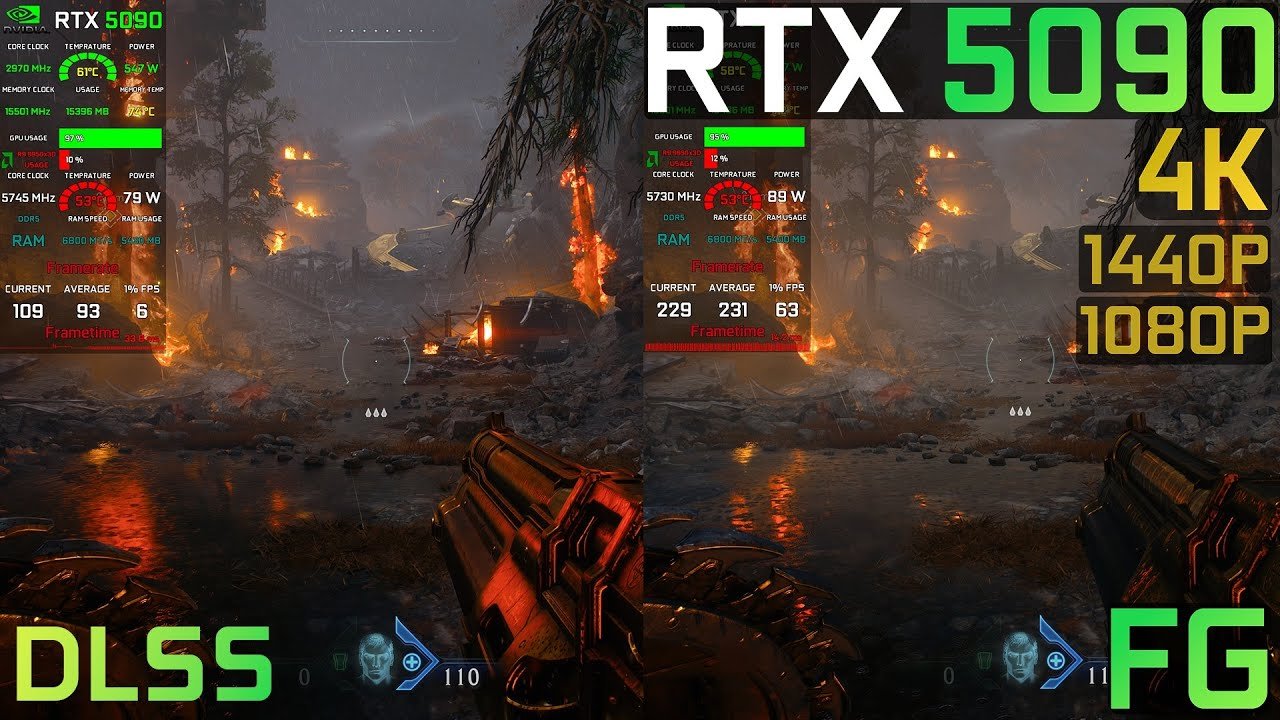
Introduction – Why RTX 5090 Needs Tuning for Doom: The Dark Ages
The RTX 5090 is NVIDIA’s flagship GPU, boasting cutting-edge CUDA cores, memory bandwidth, and VRAM capacity designed for 4K ultra gaming and high-refresh-rate monitors. Despite its raw power, Doom: The Dark Ages is a visually demanding title, leveraging complex shaders, dynamic lighting, and ray tracing effects that can push even top-tier GPUs to their limits. To extract blazing FPS without sacrificing visuals, tuning both in-game settings and GPU performance is essential.
Game Engine and Graphics Demands
Doom: The Dark Ages uses a modern real-time engine with advanced global illumination, volumetric lighting, and AI-enhanced particle effects. These features, while visually stunning, heavily utilize the RTX 5090’s cores and VRAM, particularly when enabling ultra textures, ray tracing, and high-resolution shadows. Without optimization, frame rates can fluctuate, and 1% lows may drop, leading to noticeable stutter even on high-end hardware.
Benefits of Tuning for FPS vs Visuals
Tuning the RTX 5090 allows players to:
- Maintain smooth, high frame rates at 4K or 1440p resolutions
- Preserve visual fidelity by prioritizing critical graphical elements
- Reduce micro-stuttering and input latency
- Achieve consistent frame pacing, essential for high-refresh monitors (144Hz+)
A properly tuned setup ensures that the GPU operates within safe thermal limits, preventing thermal throttling while sustaining peak clocks.
RTX 5090 Features That Help: DLSS 4, Frame Generation, Ray Tracing
The RTX 5090 comes equipped with NVIDIA’s latest AI-driven rendering technologies:
- DLSS 4: AI upscales lower-resolution frames to achieve higher FPS with near-native image quality
- Frame Generation (MFG): Creates additional frames using AI, smoothing motion for ultra-high refresh rates
- Ray Tracing Cores: Deliver realistic lighting and reflections without excessively taxing the GPU when combined with DLSS 4
By combining in-game tuning and GPU optimization, players can leverage these features to maximize FPS while keeping visuals stunning.
Preparing Your System for Maximum FPS
Before diving into in-game tweaks, a properly prepared system ensures the RTX 5090 delivers consistent, stutter-free performance. Baseline preparation reduces thermal spikes, CPU/GPU bottlenecks, and background interference, allowing your overclocking and optimization efforts to shine.
1. Update Drivers & Firmware
Keeping your system’s software stack current ensures maximum GPU efficiency:
- NVIDIA Game Ready Drivers: Install the latest version for Doom: The Dark Ages to unlock full RTX 5090 features, including DLSS 4, Frame Generation, and optimized ray tracing.
- Motherboard BIOS & Chipset Updates: Ensure proper PCIe bandwidth allocation (x16) and resizable BAR support.
- Windows Updates: Enables GPU scheduling, latency optimizations, and modern memory management improvements.
Tip: Use a clean installation via NVIDIA’s installer or DDU (Display Driver Uninstaller) if upgrading from older drivers to avoid residual conflicts.
2. Close Background Applications and Processes
High-performance gaming requires full GPU and CPU attention. Background processes can eat into thermal headroom or introduce frame drops:
- Close Discord, Chrome/Edge, OBS, streaming overlays with GPU hooks.
- Disable hardware acceleration in messaging and browser apps.
- Avoid unnecessary Windows startup processes consuming CPU or RAM.
Pro insight: Even small background GPU workloads reduce effective core/memory clock headroom, subtly lowering FPS in RTX-intensive titles.
3. Benchmark Baseline FPS & Temperatures
Before overclocking or adjusting in-game settings, establish a baseline for comparison:
- Run Doom: The Dark Ages on default Ultra settings at your target resolution (4K or 1440p).
- Record average FPS, 1% lows, and frame-time consistency using tools like MSI Afterburner, HWInfo64, or RivaTuner Statistics Server.
- Monitor GPU temp, hotspot temp, and VRAM usage to understand thermal limits and headroom.
- Identify if CPU cores are bottlenecked under peak loads.
Contextual tip: Establishing this baseline helps determine which settings give the biggest FPS uplift per adjustment without compromising visual fidelity.
Optimal In-Game Settings for RTX 5090
Tweaking Doom: The Dark Ages in-game settings is key to unlocking blazing FPS without sacrificing visual fidelity. The RTX 5090 is powerful, but fine-tuning resolution, textures, ray tracing, and post-processing ensures smooth frame pacing, high 1% lows, and minimal stutter.
1. Resolution & Refresh Rate Selection
- 4K (3840×2160): Leverages RTX 5090’s massive cores and VRAM for ultra-fidelity gaming. Best paired with DLSS 4 Balanced or Quality for higher FPS.
- 1440p (2560×1440): Ideal for high-refresh monitors (144–360Hz); ensures consistently smooth gameplay with lower thermal load.
- High-Refresh Monitors: Ensure V-Sync is off or G-Sync/FreeSync enabled to avoid unnecessary frame pacing delays.
Tip: Matching your monitor refresh rate with FPS ensures the GPU delivers fluid, stutter-free frames.
2. Texture, Shadows, and Lighting Presets
- Textures: Ultra for visual detail; RTX 5090 has sufficient VRAM for large texture pools.
- Shadows: High is a good balance; Ultra adds GPU load with minimal perceptible improvement.
- Lighting & Volumetrics: Medium-High preserves visual depth while maintaining stable FPS.
Contextual insight: RTX 5090 handles ultra textures with ease, but shadows and volumetric lighting are more FPS-sensitive, so tuning here yields better performance/quality ratio.
3. Ray Tracing Settings
- Ray Tracing (RT) Reflections & Global Illumination: Medium-High for optimal FPS vs visual fidelity.
- RTX 5090 + DLSS 4: Combine RT with DLSS 4 Quality or Balanced modes to sustain high FPS.
- Performance Tip: If FPS dips in dense combat scenes, slightly reduce RT shadows or reflection resolution.
Key point: Ray tracing enhances visuals dramatically, but pairing it with AI upscaling mitigates FPS loss without noticeable quality degradation.
4. Anti-Aliasing & Post-Processing Tweaks
- Anti-Aliasing: DLSS 4 supersampling eliminates jagged edges without GPU bottlenecking.
- Post-Processing Effects: Bloom, motion blur, and lens flare can be set to Medium or Off depending on preference.
- Ambient Occlusion: Medium maintains realistic shading with minimal performance impact.
Optimization note: Reducing post-processing settings has minimal visual impact but frees GPU cycles for higher FPS and smoother 1% lows.
Summary of Recommended In-Game Settings
| Setting | Recommendation | Purpose |
|---|---|---|
| Resolution | 4K / 1440p | High-fidelity rendering |
| Textures | Ultra | Max VRAM usage, sharp visuals |
| Shadows | High | Balance FPS vs realism |
| Lighting/Volumetrics | Medium-High | Stable FPS with visual depth |
| Ray Tracing | Medium-High | Visual quality without major FPS drop |
| Anti-Aliasing | DLSS 4 Quality | Smooth edges, FPS boost |
| Post-Processing | Medium/Off | Reduces GPU load |
| Ambient Occlusion | Medium | Efficient shading |
Result: A tuned setup ensures high average FPS, minimized frame drops, and smooth gameplay, letting the RTX 5090 excel in Doom: The Dark Ages.
NVIDIA Control Panel Tweaks
The NVIDIA Control Panel allows deep GPU-level optimization, complementing in-game settings. Fine-tuning power management, threaded optimization, low-latency mode, and GPU scheduling ensures the RTX 5090 maintains maximum FPS and stable frame pacing in Doom: The Dark Ages.
1. Power Management Mode: Prefer Maximum Performance
- Navigate to Manage 3D Settings → Global Settings
- Set Power Management Mode → Prefer Maximum Performance
- Ensures GPU maintains high boost clocks even during brief loads
- Prevents sudden drops in FPS caused by default Adaptive/Optimal Power modes
Pro tip: Combine with a tuned fan curve to avoid overheating while running sustained high clocks.
2. Threaded Optimization & Vertical Sync
- Threaded Optimization → On: Allows CPU multi-threading to efficiently handle Doom’s complex engine tasks.
- Vertical Sync (V-Sync) → Off: Reduces input latency; let high-refresh monitors sync FPS via G-Sync/FreeSync.
Context: Turning off V-Sync maximizes FPS potential, while threaded optimization ensures the CPU keeps up with GPU, preventing bottlenecks in CPU-heavy scenes.
3. GPU Scheduling & Low-Latency Mode
- Hardware-Accelerated GPU Scheduling → On: Reduces driver overhead and lowers latency.
- Low Latency Mode → Ultra: Minimizes frame queuing, especially important at 144Hz+ refresh rates.
Key insight: RTX 5090 combined with low-latency mode and hardware scheduling provides smoother, more responsive gameplay, even in high-action sequences.
4. Additional Control Panel Tweaks
- Texture Filtering – Quality → High Performance: Slightly reduces texture filtering quality to increase FPS without visible impact.
- Shader Cache → On: Speeds up shader compilation, reducing stutters.
- Ambient Occlusion → Application-controlled: Let the game decide, avoiding unnecessary GPU load.
Summary of Recommended NVIDIA Control Panel Settings
| Setting | Recommended Value | Effect |
|---|---|---|
| Power Management Mode | Prefer Maximum Performance | Maximize boost clocks |
| Threaded Optimization | On | Efficient CPU utilization |
| Vertical Sync | Off | Reduce input latency |
| Low Latency Mode | Ultra | Smooth high-FPS gameplay |
| Hardware-Accelerated GPU Scheduling | On | Reduce driver overhead |
| Texture Filtering Quality | High Performance | Slight FPS uplift |
| Shader Cache | On | Minimize stutter |
| Ambient Occlusion | Application-controlled | Optimal GPU load |
Result: Combining these control panel tweaks with tuned in-game settings ensures the RTX 5090 runs Doom: The Dark Ages at peak FPS, with smooth, consistent frame delivery, minimal stutter, and thermally safe operation.
Enabling DLSS 4 and Frame Generation
The RTX 5090 leverages NVIDIA’s latest AI-driven rendering features—DLSS 4 and Frame Generation (MFG)—to deliver high FPS, smooth frame pacing, and visually stunning gameplay in Doom: The Dark Ages. Correctly configuring these features allows high-resolution gaming without compromising image quality.
1. Choosing Between Performance, Balanced, and Quality Modes
DLSS 4 offers several modes tailored to your FPS goals:
- Performance Mode: Renders at a lower base resolution and upscales aggressively; maximizes FPS for competitive or high-refresh monitors (144Hz+).
- Balanced Mode: Best for 4K gaming where FPS needs a boost without noticeable image degradation.
- Quality Mode: Prioritizes near-native visuals with moderate FPS uplift; ideal for cinematic gameplay.
Tip: For ultra-high FPS at 4K, pair Performance/Balanced mode with Frame Generation for smooth visuals on high-refresh displays.
2. Monitoring GPU Load and Frame Times
Enabling DLSS 4 and MFG increases GPU throughput but can stress VRAM and cores:
- Track average FPS and 1% lows to ensure smooth frame pacing.
- Monitor GPU utilization, core clock, and VRAM usage with MSI Afterburner or HWInfo64.
- Adjust DLSS mode if GPU reaches 90–95% utilization consistently or if frame times spike.
Insight: Even RTX 5090 can hit bottlenecks in 4K Ultra + RT-heavy scenes; monitoring ensures AI upscaling delivers consistent performance.
3. Combining DLSS 4 with Ray Tracing for Smooth Gameplay
- Ray Tracing Medium-High + DLSS 4 Balanced/Performance yields optimal FPS-to-visual-quality ratio.
- Frame Generation (MFG) adds interpolated frames, smoothing motion at 144–360Hz refresh rates.
- Avoid max RT settings with DLSS Performance mode on extreme resolutions unless GPU thermals are optimized.
Pro tip: Use DLSS 4 + MFG selectively for high-action sequences; switch to Quality mode for exploration or cutscenes where visuals matter more than FPS.
Summary of DLSS 4 & Frame Generation Settings
| Feature | Recommended Mode | Purpose |
|---|---|---|
| DLSS 4 | Balanced / Performance | Boost FPS without major visual loss |
| Frame Generation | On for high-refresh monitors | Smooth motion & consistent frame pacing |
| Ray Tracing | Medium-High | Maintain visuals while preserving FPS |
| Monitoring | MSI Afterburner / HWInfo64 | Track GPU load, temps, VRAM usage |
Outcome: Proper DLSS 4 and Frame Generation setup allows RTX 5090 to deliver ultra-high FPS at 4K, minimizing stutter, improving 1% lows, and maintaining exceptional visual fidelity in Doom: The Dark Ages.
Overclocking RTX 5090 Safely
While the RTX 5090 is a powerhouse out of the box, careful overclocking can unlock additional FPS in Doom: The Dark Ages, especially at 4K Ultra or high-refresh rates. Safe overclocking requires incremental adjustments, thermal monitoring, and stress testing to prevent instability, thermal throttling, or hardware degradation.
1. Incremental Core/Memory Clock Adjustments
- Use MSI Afterburner or EVGA Precision X1 to adjust GPU clocks.
- Core Clock: Increase in +25–50 MHz increments and test with benchmarks (Heaven, Time Spy, or in-game stress scenes).
- Memory Clock: Increase in +50–100 MHz increments, monitoring VRAM usage and frame-time consistency.
- Maintain power limit at 105–110% to support higher clocks without instability.
Tip: Stop increasing when 1% lows start dropping sharply or artifacting appears.
2. Fan Curve & Thermal Optimization
- Create a dynamic fan curve:
- 40–50% fan at idle
- 65–75% at 70–75°C
- Max 90% at 85°C+
- Target core temp ≤78°C and hotspot ≤92°C during long sessions.
- Ensure case airflow is optimized: intake/exhaust balance, dust-free filters, and high-RPM exhaust if needed.
Insight: Proper cooling allows higher stable boost clocks, translating directly to better FPS and smoother frame times.
3. Stress-Testing Before Long Sessions
- Always test each OC increment with benchmark software or demanding in-game scenarios.
- Monitor for:
- Artifacting or flickering
- Frame drops or stuttering
- Temperature spikes above safe limits
- Roll back clocks slightly if instability occurs; stability is more important than marginal FPS gain.
Pro advice: Use HWInfo64 or RTSS overlay to track frame times, core voltage, and VRAM usage in real-time.
Summary of Safe RTX 5090 Overclocking Guidelines
| Parameter | Recommended Increment / Limit | Notes |
|---|---|---|
| Core Clock | +25–50 MHz per step | Test stability after each increment |
| Memory Clock | +50–100 MHz per step | Watch VRAM usage & artifacting |
| Power Limit | 105–110% | Supports higher clocks safely |
| Fan Curve | Dynamic 40–90% | Maintain core ≤78°C / hotspot ≤92°C |
| Stress Testing | Benchmark after each change | Ensure stability before gameplay |
Outcome: When applied carefully, RTX 5090 overclocking provides additional FPS headroom, improves 1% lows and frame-time consistency, and maintains safe thermals, delivering a superior Doom: The Dark Ages experience at ultra visuals and high refresh rates.
Troubleshooting FPS Drops & Stuttering
Even with a tuned RTX 5090, Doom: The Dark Ages may experience frame drops, stutter, or latency spikes if hardware, software, or settings are misaligned. Identifying the root cause is key to restoring smooth, high-FPS gameplay.
1. Identifying CPU Bottlenecks
- Symptoms: High GPU utilization (90–100%) but low FPS or uneven frame times.
- Causes:
- Game engine is CPU-bound in physics-heavy or AI-dense areas
- Background CPU processes competing for cores
- Fixes:
- Enable Threaded Optimization in NVIDIA Control Panel
- Close unnecessary background apps
- Use High-Performance power plan in Windows
- Consider CPU upgrade if bottleneck persists at 4K Ultra
Pro tip: CPU bottlenecks are more noticeable at 1440p/1080p, while GPU limits dominate at 4K.
2. Fixing Driver Conflicts
- Symptoms: Sudden FPS drops, micro-stuttering, crashes
- Causes: Outdated or conflicting GPU drivers
- Fixes:
- Update to latest NVIDIA Game Ready Drivers
- Clean install using DDU (Display Driver Uninstaller) if previous drivers remain
- Ensure Windows updates are applied for GPU scheduling and DirectX optimizations
Note: Proper drivers ensure DLSS 4, Frame Generation, and Ray Tracing function optimally.
3. Avoiding Thermal Throttling
- Symptoms: FPS drops during long sessions, rising GPU temperatures
- Causes: Fan curve too passive, poor case airflow, or high ambient temps
- Fixes:
- Adjust fan curve for earlier ramp-up
- Optimize case airflow (intake/exhaust, dust-free filters)
- Lower core/memory clocks slightly if temps exceed 78°C core / 92°C hotspot
Insight: RTX 5090 maintains max boost only under safe thermal headroom; thermal throttling directly reduces FPS.
4. Resetting to Stable Profiles
- If instability persists after overclocking or tuning:
- Reset GPU to stock clocks via MSI Afterburner / EVGA Precision
- Revert in-game graphics to baseline Ultra or High presets
- Re-test FPS and frame times to ensure stability
- Gradually reapply OC and DLSS 4 modes while monitoring performance
Key point: Gradual, monitored changes prevent repeated FPS drops and preserve GPU lifespan.
Summary of Troubleshooting Steps
| Issue | Diagnosis | Fix |
|---|---|---|
| CPU Bottleneck | High GPU load, low FPS | Threaded optimization, close apps, CPU upgrade |
| Driver Conflicts | Crashes, stuttering | Update/clean install drivers |
| Thermal Throttling | FPS drop over time | Fan curve, airflow, reduce clocks |
| Instability After OC | Artifacting, frame drops | Reset GPU, reapply OC gradually |
Outcome: Following these steps ensures smooth, high-FPS gameplay in Doom: The Dark Ages on the RTX 5090, with consistent 1% lows and minimal stutter even in demanding scenes.
Conclusion & Quick FPS Checklist
Optimizing Doom: The Dark Ages on the RTX 5090 involves a combination of in-game settings, NVIDIA Control Panel tweaks, DLSS 4 & Frame Generation, and safe overclocking. Following a systematic approach ensures blazing FPS, smooth 1% lows, and visually stunning gameplay, even at 4K Ultra or high-refresh-rate monitors.
For max FPS with ultra visuals, use 4K or 1440p resolution, Ultra textures, and High/Medium-High shadows and lighting.
Set Ray Tracing to Medium-High and enable DLSS 4 Balanced or Performance for smoother frames.
Use Frame Generation (MFG) on high-refresh monitors and reduce post-processing to free GPU cycles.
Keep V-Sync off with G-Sync/FreeSync and enable threaded optimization and low-latency mode for consistent 1% lows.
Open the in-game Graphics menu and select NVIDIA DLSS.
Choose Performance, Balanced, or Quality depending on FPS needs and monitor resolution.
Enable Frame Generation (MFG) if using 144Hz+ monitors for smoother motion.
Monitor GPU load and 1% lows to ensure stable FPS and fluid frame pacing.
es, RTX 5090 runs 4K with Ray Tracing Medium-High efficiently when combined with DLSS 4.
Average FPS often reaches 180–220+, with 1% lows within 10–15% of average.
Frame pacing remains smooth even in dense RT-heavy scenes like reflections or volumetrics.
DLSS 4 and MFG maintain high visuals without stutter, ideal for high-refresh gaming.
Overclocking boosts FPS by roughly 6–12% depending on scene complexity and resolution.
Increase core clock +25–50 MHz per step and memory +50–100 MHz, with power limit 105–110%.
Overclocking improves 1% lows and frame-time consistency for smoother gameplay.
Always stress-test and monitor temps to avoid instability or thermal issues.
Stuttering can result from CPU bottlenecks, outdated drivers, thermal throttling, or background apps.
GPU may be maxed while CPU limits FPS in complex scenes, causing frame drops.
High temps (core >78°C, hotspot >92°C) trigger throttling, lowering performance.
Fix by updating drivers, optimizing settings, adjusting fan curves, and closing unnecessary programs.
Also View Related Solution For RTX 5090 For Doom The Dark Ages
How to Maximize Frame Rate for Run‑and‑Gun Combat with RTX 5090
How to Optimize Lighting, Shadows & Hellish Effects for Smooth Gameplay
How to Use RTX 5090 to Reduce Input Lag in Fast-Paced Combat
How to Minimize GPU Load While Keeping High Visual Fidelity
How to Overclock or Undervolt the GPU for Hardcore Doom Sessions

One thought on “How to Tune Doom: The Dark Ages for Blazing FPS on RTX 5090”