
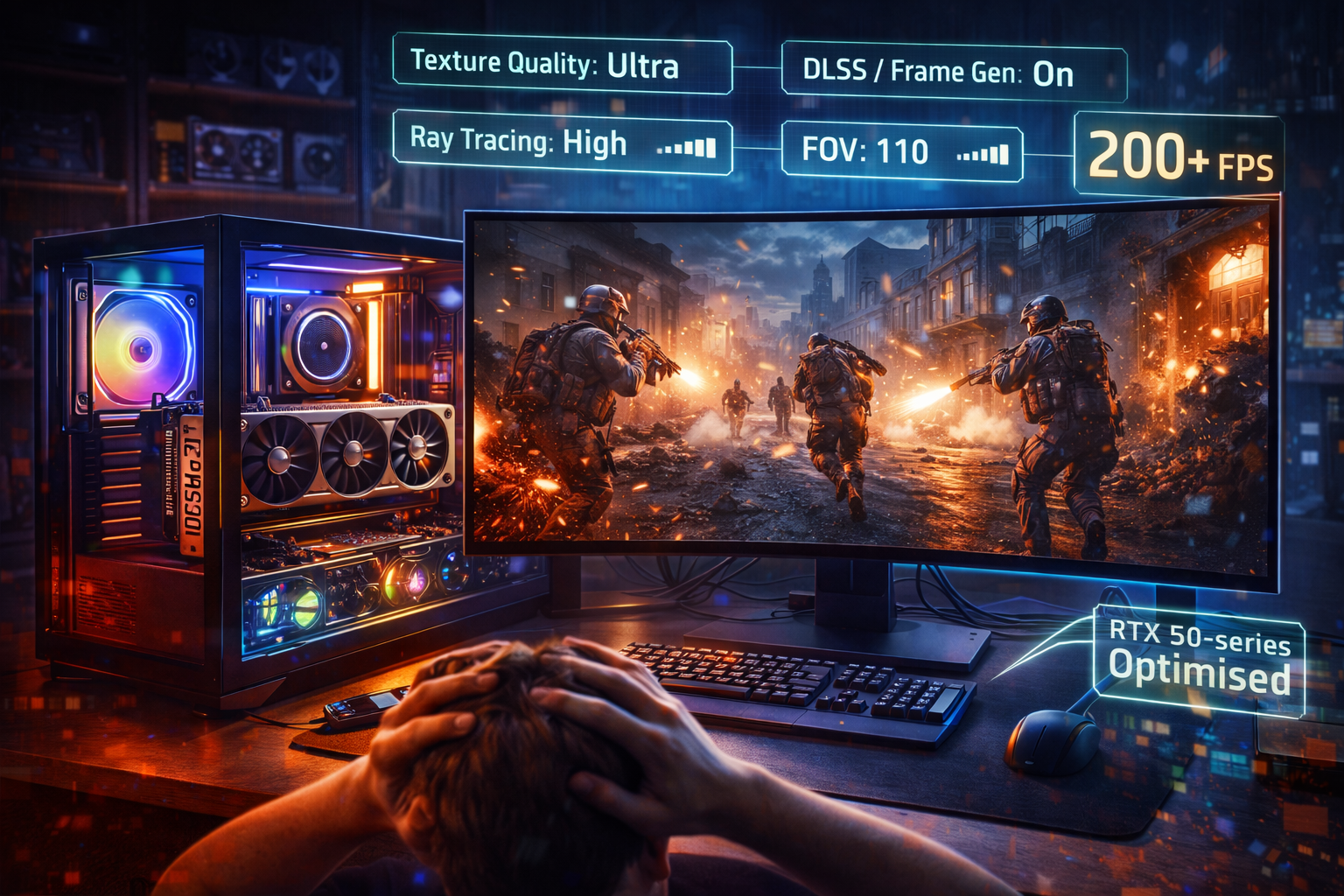
What Makes the RTX 50 Series Different for Modern Warfare 3 Graphics Settings?
When you’re chasing the best graphics settings for Call of Duty Modern Warfare 3 on RTX 50 series, the key difference versus older cards is how much more you can lean on AI features without instantly hitting a wall. RTX 50 GPUs are built on NVIDIA’s Blackwell architecture with 5th-gen Tensor cores, 4th-gen RT cores and GDDR7 memory, designed from the ground up around DLSS 4 and heavy neural rendering rather than just brute-force raster power.
Why Blackwell + DLSS 4/4.5 matter specifically for MW3
Modern Warfare 3 already scales extremely well with DLSS 3: NVIDIA’s own data and third-party testing show up to around 1.6–1.8× higher frame rates at 1440p and 4K when you enable DLSS with Frame Generation compared to native rendering at max settings.That was on RTX 40-series hardware; RTX 50 steps this up by pairing the same engine with far stronger AI hardware and newer DLSS models.
At CES 2025 and 2026, NVIDIA introduced DLSS 4 and DLSS 4.5, adding Multi Frame Generation that can create up to three (and now, in 4.5, even more) extra AI frames per rendered frame, and a new transformer-based Super Resolution model with higher image quality. Multi Frame Generation is hardware-locked to RTX 50 cards, and DLSS 4.5’s more demanding models run best on their upgraded Tensor cores and FP8 support.
In practice for MW3, that means:
- You can default to higher-quality DLSS modes (Quality / higher internal resolution) at 1440p and 4K while still hitting high refresh targets.
- You’ve got far more headroom to use Frame Generation in campaign and Zombies to push 120–240+ FPS without dropping other settings as hard.
- Future DLSS updates (4.x/4.5) that land in MW3 will be tuned with RTX 50 in mind, so you’re less likely to see the “DLSS is too heavy on older GPUs” problem that’s already showing up on RTX 20/30 cards.
Extra VRAM and bandwidth = less compromise at high resolution
The top of the stack, like the RTX 5090, ships with 32GB of GDDR7 and massive memory bandwidth, giving you a lot more room for high-resolution textures and ray-traced effects without VRAM spikes. Even an RTX 4090 can hold 120+ FPS at native 4K max settings in MW3’s benchmark; RTX 50-series cards build on that with ~20–30% higher raw performance and the DLSS 4 uplift on top.
So instead of choosing between “ultra and judder” or “low and ugly”, RTX 50 users can realistically aim for:
- 4K with High/Ultra textures and sensible shadows/volumetrics on a 5090-class card.
- 1440p high-refresh competitive presets on 5080 / 5070 Ti with DLSS Quality or Balanced.
- 1080p and entry-level 1440p on 5070 / 5060 with DLSS as a fine-tuning tool rather than a life support machine.
The rest of this guide assumes you’re taking advantage of that extra AI and memory headroom, so we’ll start from a smart baseline and then dial in per-GPU, per-resolution presets.
What Are the Core Modern Warfare 3 Graphics Settings You Should Tweak on RTX 50?
Before you worry about RTX 5090 vs 5070 presets, you want a universal MW3 baseline that works on any RTX 50–series card. These core settings control input latency, clarity, and the overall “feel” of the game much more than tiny texture tweaks – so set these first, then layer resolution-specific presets on top.
Which Display Settings Should You Set First in MW3 on RTX 50?
Start in the Display tab and lock in these essentials:
- Display Mode:
- Fullscreen Exclusive
- Best for latency and helps your RTX 50 stay properly “in focus” without OS interference.
- Resolution:
- Set to your monitor’s native:
- 1920×1080 (1080p)
- 2560×1440 (1440p)
- 3840×2160 (4K)
- Don’t scale here – let DLSS handle scaling later.
- Set to your monitor’s native:
- Refresh Rate:
- Match your monitor’s maximum (e.g. 144Hz, 165Hz, 240Hz, 360Hz).
- Double-check Windows is also set to that refresh.
- V-Sync:
- Off for competitive play.
- If you have G-Sync/FreeSync, leave V-Sync off and let your adaptive sync handle tearing.
- Frame Limiters:
- Optional, but useful if:
- Your FPS massively exceeds refresh (to reduce power and heat).
- You want ultra-consistent frametimes (cap slightly below refresh, e.g. 138 on 144Hz).
- Optional, but useful if:
- Field of View:
- Around 100–110 is a good sweet spot for awareness vs target size.
- Higher FOV = more info but smaller enemy silhouettes; don’t go so wide that players become tiny smudges.
- Brightness / Gamma:
- Use the in-game calibration.
- Aim for:
- Shadows dark but not crushed.
- Enemies clearly visible against common background tones.
Tip: Once you’ve set display options, jump into a private match and swing the camera around quickly. If you see tearing or input feels laggy, double-check Fullscreen Exclusive, V-Sync and refresh rate before changing anything else.
How Should You Use DLSS 4 and Frame Generation in MW3 on RTX 50?
On RTX 50, DLSS 4 is your main “performance dial” – and you should use it before you start hacking away at visual quality.
Upscaling (DLSS Super Resolution):
- At 1440p and 4K (all RTX 50 cards):
- Start with DLSS Quality.
- If you’re chasing very high FPS (e.g. 240Hz in smaller maps):
- Drop to Balanced at 1440p.
- At 4K, try Performance only if you really need the extra frames.
- At 1080p (especially RTX 5070/5060):
- If your FPS is already way above your refresh:
- You can leave DLSS Off or use Quality purely to smooth edges.
- If you’re struggling to hold frame times in big lobbies:
- DLSS Quality is a nice safety net with minimal visual loss.
- If your FPS is already way above your refresh:
Frame Generation (DLSS 4 / 4.5 Multi Frame Generation):
- Campaign & Zombies:
- Safest place to turn Frame Generation On.
- Latency is less critical, and you can enjoy very high FPS with high settings.
- Multiplayer / Ranked:
- More personal preference:
- Some players love the extra smoothness.
- Others dislike the feel of interpolated frames.
- If you test it:
- Enable Frame Generation and NVIDIA Reflex / Low Latency Mode.
- Play a few matches to see if tracking and flicks still feel natural.
- More personal preference:
Dynamic Resolution:
- Generally set Off if you’re using DLSS.
- Only consider it if:
- You’ve turned DLSS off for some reason, and
- You want the game to auto-scale resolution to hold a minimum FPS.
Tip: Always start with DLSS Quality at your target resolution. Only step down to Balanced or Performance if your FPS still isn’t where you want it after you’ve tuned the heavier quality settings.
Which Quality Settings Give the Best FPS Gains With Minimal Visual Loss in MW3?
These are the main image quality toggles that matter for RTX 50 users, and how to set them for a strong balance between clarity and performance.
Image clarity & textures
- Texture Resolution:
- 1080p: High
- 1440p & 4K: High, or Ultra on RTX 5090-class cards if VRAM usage looks comfortable.
- Texture Filter Anisotropic:
- Normal or High – small performance impact, nice sharpness on ground and wall textures.
- On-Demand Texture Streaming:
- On if you have a good, stable internet connection and want the best textures.
- Off if you ever see stutters or have limited bandwidth.
Clarity vs clutter
- Depth of Field:
- Off in multiplayer – you want everything in focus.
- Optional in campaign/Zombies for a cinematic look.
- World Motion Blur: Off
- Weapon Motion Blur: Off
- Film Grain: 0
- Camera / Weapon Shake, Bloom, Lens Flare:
- Turn down or off for maximum visibility and less distraction.
Performance-heavy detail options
These are your main FPS levers; RTX 50 can handle a lot, but you should still be smart here:
- Detail Quality:
- Normal or Low – little competitive benefit going higher.
- Particle Resolution:
- Normal or Low – higher values cost FPS in heavy fights.
- Shader Quality:
- Medium is a good performance/quality sweet spot.
- Bullet Impacts & Sprays:
- On – useful feedback and relatively low cost.
Lighting, shadows and volumetrics
These have some of the biggest FPS impact:
- Shadow Quality:
- Low for competitive play.
- Medium if you want nicer visuals in campaign with some headroom to spare.
- Screen Space Shadows:
- Low or Off to claw back frames.
- Ambient Occlusion:
- GTAO for a bit of depth, or Off if you’re going ultra-competitive.
- Screen Space Reflections:
- Normal or Low – higher settings cost more than they’re worth in MP.
- Static Reflection Quality:
- Low
- Volumetric Quality (smoke, fog, light rays):
- Low for max FPS and visibility in multiplayer.
- Normal if your GPU has plenty of headroom and you want a nicer look in PvE.
- Weather/Water Quality:
- Low/Normal unless you’re chasing a cinematic experience.
Warning: If you see VRAM usage constantly hovering near the top of the in-game bar at 4K with Ultra textures and max streaming, drop texture quality or streaming settings a notch. Even on RTX 50 GPUs, running too close to the VRAM limit can cause stuttering in longer sessions.
With these core settings locked in, you’ve got a solid, low-latency baseline that already favours FPS and visibility. Next, you can layer specific recommendations on top for each RTX 50 tier – 4K “MW3 5090” presets, 1440p builds for 5080/5070 Ti, and tuned 1080p/entry-1440p profiles for 5070/5060.
What Are the Best Modern Warfare 3 Settings for RTX 5090 at 4K?
On an RTX 5090–class card, your goal in Modern Warfare 3 isn’t “can I run 4K?” – it’s how far you can push image quality while still keeping very high, stable FPS. You’ve got enough power for sharp 4K, high textures and strong ray-marched effects, but you still don’t want VRAM spikes, blurry DLSS modes, or heavy volumetrics dragging down 1% lows.
Below is a practical way to split things into two presets:
- 4K Campaign / Zombies “Cinematic”
- 4K Multiplayer “Competitive”
So you can swap between them depending on what you’re playing.
How Should You Configure MW3 4K Campaign and Zombies on RTX 5090?
For campaign and Zombies, you want MW3 to look as good as it can without making FPS or frametimes ugly. The idea is “high-end PC showcase” rather than esports sweat.
Core 4K settings (campaign/Zombies)
- Resolution: 3840×2160 (native 4K)
- DLSS mode:
- DLSS Quality as default – looks very close to native with a big FPS boost.
- If you’re far above your refresh rate already, you can try DLAA (DLSS anti-aliasing at native res) for maximum clarity.
- Frame Generation:
- On for campaign and Zombies. Latency matters less here, and you get a huge FPS uplift.
- V-Sync: Off (let G-Sync/FreeSync handle tearing if you have it).
Recommended quality sliders
- Textures: High or Ultra (a 5090-tier card should have the VRAM for this; if you ever see hitching after long sessions, drop Ultra to High).
- Texture Filter Anisotropic: High
- On-Demand Texture Streaming: On if your connection is stable; Off if it ever causes stutter.
- Depth of Field: On (for a cinematic look).
- Motion Blur (World & Weapon): Off – keeps the image clean while still looking great.
- Film Grain: 0–10 (very light, if you like the aesthetic, otherwise off).
- Shadow Quality: Medium (good visual upgrade over Low, still reasonable performance).
- Screen Space Shadows: Normal
- Ambient Occlusion: Enabled (GTAO or similar) for more depth.
- Screen Space Reflections: Normal or High, depending on how much you value reflections vs FPS.
- Static Reflection Quality: Normal
- Volumetric Quality: Normal (drop to Low if you see frame dips in heavy weather/fog scenes).
- Weather/Water Quality: Normal or High, your preference.
Tip: Keep a quick eye on the in-game VRAM bar at 4K Ultra textures + streaming. If it’s permanently near the maximum, step textures down to High or reduce streaming quality for smoother long sessions.
For this preset, you’re aiming more for consistent smoothness (e.g. sitting comfortably above 100–120 FPS with very stable frametimes) than for absolutely maxing out the frame counter.
What Are the Best Competitive 4K Multiplayer Settings on RTX 5090?
4K competitive multiplayer is where you trade some eye candy for clarity and response. You still get a gorgeous game thanks to the resolution and strong textures, but the priority becomes visibility and “feel” at high refresh rates.
Core 4K MP settings
- Resolution: 3840×2160
- DLSS mode:
- Start with DLSS Balanced to give the GPU more headroom.
- Drop to Performance if you’re pushing very high refresh (e.g. 200–240+ Hz) and maps are still heavy.
- Frame Generation:
- Optional; test it. Many competitive players prefer Off to minimise latency.
- If you enable it, pair with low-latency options and make sure it still feels natural in gunfights.
- Field of View: around 100–110, depending on taste and visibility.
Visual clarity & competitive priorities
- Textures: High (you keep crisp surfaces without much performance hit on a 5090).
- Texture Filter Anisotropic: Normal or High.
- Depth of Field: Off
- Motion Blur (World & Weapon): Off
- Film Grain: 0
- Bloom / Lens Flare / Strong Post-Processing: As low as possible – minimise visual clutter.
Big FPS levers for MP
- Shadow Quality: Low
- Screen Space Shadows: Low or Off
- Ambient Occlusion: Off (or the lightest option, if you prefer some depth).
- Screen Space Reflections: Low
- Static Reflection Quality: Low
- Volumetric Quality: Low – less fog and haze makes enemies easier to see and frees up FPS.
- Weather/Water Quality: Low/Normal; you don’t need fancy water in ranked.
Here’s a simple comparison of how your two 4K presets might look:
| Preset Name | Mode | DLSS Mode | Frame Gen | Textures | Shadows | Volumetrics | Goal |
|---|---|---|---|---|---|---|---|
| 4K_Cinematic_5090 | Campaign / Zombies | Quality/DLAA | On | High/Ultra | Medium | Normal | Max visuals, smooth >100 FPS |
| 4K_Comp_5090 | Multiplayer / Ranked | Balanced | Off (test On) | High | Low | Low | High refresh, clear visibility |
On a 5090-class GPU, these settings give you a clear split: one preset to show off the card in single-player content, and one that turns that power into sharp, responsive 4K multiplayer with minimal distractions and very strong frame pacing.
What Are the Best Modern Warfare 3 Settings for RTX 5080 and RTX 5070 Ti at 1440p?
RTX 5080 and RTX 5070 Ti sit in the sweet spot for MW3 1440p settings – they’re built for high-refresh 1440p without needing the same compromises as mid-range cards. The aim here is simple: sharp image quality, very high FPS, and excellent visibility in multiplayer, with an “all-round” option that lets the game shine in campaign and Zombies too.
How Should You Set Up MW3 at 1440p High Refresh on RTX 5080/5070 Ti?
Start with your 1440p monitor’s native resolution and highest refresh rate, then build around that.
Core 1440p display and upscaling
- Resolution: 2560×1440
- Refresh Rate: Set to your monitor maximum (144/165/240Hz).
- DLSS mode:
- Quality for most players – great mix of sharpness and performance.
- Balanced if you’re chasing 200–240 FPS in smaller, competitive playlists.
- Frame Generation:
- Optional – ideal for campaign/Zombies, more personal preference in multiplayer.
- V-Sync: Off (use G-Sync/FreeSync if available).
Recommended baseline quality for RTX 5080 / 5070 Ti at 1440p
- Textures: High
- Texture Filter Anisotropic: Normal or High
- On-Demand Texture Streaming: On if you have a good connection; Off if you ever see stutters.
- Depth of Field: Off in MP, optional in campaign/Zombies
- World Motion Blur: Off
- Weapon Motion Blur: Off
- Film Grain: 0
- Bloom / Lens Flare / Flashes: As low as you’re comfortable with for visibility.
- Shadow Quality: Low (Medium if you’ve tested and still hold your FPS target).
- Screen Space Shadows: Low or Off
- Ambient Occlusion: GTAO or similar, or Off for maximum clarity and performance.
- Screen Space Reflections: Low/Normal
- Static Reflection Quality: Low
- Volumetric Quality:
- Low for maximum FPS and visibility in MP.
- Normal if you want nicer atmosphere in campaign/Zombies.
- Weather/Water Quality: Low/Normal.
At these settings, a 5080/5070 Ti should comfortably handle 1440p competitive modes with very strong averages and 1% lows, especially with DLSS Quality or Balanced active.
How Can You Create Two Presets: “Ranked 1440p” and “All-Round 1440p” on RTX 50?
It’s worth having two MW3 optimised settings sets on an RTX 5080 or 5070 Ti:
- One tuned for pure sweat (Ranked / competitive).
- One tuned as an all-round preset that looks nicer in casual MP, campaign and Zombies.
“Ranked 1440p” – best MW3 settings for FPS and visibility
This preset is all about reaction time, clear silhouettes and stable frametimes.
Core choices:
- Resolution: 2560×1440
- DLSS: Balanced
- Frame Generation: Off (test On if you like, but most will prefer Off for minimum latency).
Quality:
- Textures: High
- Texture Filter: Normal or High
- Depth of Field: Off
- World/Weapon Motion Blur: Off
- Film Grain: 0
- Bloom / Lens Flare: Off or as low as possible
- Shadow Quality: Low
- Screen Space Shadows: Off / Low
- Ambient Occlusion: Off
- Screen Space Reflections: Low
- Volumetrics: Low
- Weather/Water: Low/Normal
This is your “ranked” or competitive playlist preset – MW3 best graphics settings RTX 5080/5070 Ti for pushing 180–240 FPS where the map allows, with very clear visibility.
“All-Round 1440p” – quality preset for mixed play
This preset leans more into image quality while staying very smooth at 1440p.
Core choices:
- Resolution: 2560×1440
- DLSS: Quality
- Frame Generation:
- On for campaign/Zombies.
- Optional for casual MP, depending on feel.
Quality:
- Textures: High
- Texture Filter: High
- Depth of Field: On (if you like the look)
- World Motion Blur: Off
- Weapon Motion Blur: Off
- Film Grain: 0–10 (light)
- Shadow Quality: Medium
- Screen Space Shadows: Low/Normal
- Ambient Occlusion: GTAO or similar enabled
- Screen Space Reflections: Normal
- Volumetrics: Normal
- Weather/Water: Normal/High if FPS headroom allows
Here’s a quick comparison snapshot:
| Preset Name | Mode Focus | DLSS Mode | Frame Gen | Shadows | Volumetrics | Target Feel |
|---|---|---|---|---|---|---|
| 1440p_Ranked_RTX50 | Ranked / Competitive MP | Balanced | Off | Low | Low | Max FPS, clear visibility, low lag |
| 1440p_AllRound_RTX50 | Casual MP / Campaign / PvE | Quality | On (PvE) | Medium | Normal | High quality, still very smooth |
With these two presets saved, swapping between “sweaty” and “cinematic” MW3 on an RTX 5080 or 5070 Ti becomes as simple as changing one in-game preset – you get best MW3 settings for FPS and visibility when you need them, and a prettier experience when you don’t.
How Should You Balance Visibility, FPS and Image Quality in MW3 on RTX 50?
On an RTX 50 card, you’ve got enough power to make Modern Warfare 3 look great and run fast – but competitive lobbies and campaign/Zombies don’t have the same priorities. The trick is knowing which settings help you see enemies more clearly, and which ones are just eye candy you can dial back when you want pure performance.
Which Settings Improve Enemy Visibility the Most in Modern Warfare 3?
If your focus is winning gunfights, visibility beats flashy graphics every time. These are the settings that matter most for spotting and tracking enemies quickly:
Turn these off or minimise them for clarity
- World Motion Blur: Off
- Weapon Motion Blur: Off
- Depth of Field: Off in multiplayer (you want distant players to stay sharp).
- Film Grain: 0
- Lens Flare / Light Shafts: Low or Off
- Bloom: Low or Off
- Camera / Weapon Shake: Lowest available
All of these add “cinematic” softness or visual noise that can hide small targets or make motion harder to read in the middle of a fight.
Tweak these for better target visibility
- Sharpness / FidelityFX / in-game sharpening:
- Set around 50–60% as a starting point.
- Too low = soft, smeared image.
- Too high = over-sharpened, shimmering edges that can be distracting.
- Field of View (FOV):
- Around 100–110 is a strong sweet spot for most players.
- Higher FOV:
- Pros: Better awareness, easier to see flanks and close pushes.
- Cons: Enemies look smaller, which can hurt long-range tracking.
- If enemies look like tiny dots, bring FOV down a notch.
- Colour settings / filters:
- Slightly higher contrast and saturation can help enemies stand out from the environment.
- Avoid extreme filters that tint everything the same colour; they can hide certain skins or camo patterns.
Keep “useful” visual feedback on
- Bullet Impacts & Sprays: On – gives low-cost feedback on where your shots land.
- Hit Markers & Damage Feedback: On – helps you track trades in messy fights.
Tip: Build one “visibility-first” preset where you aggressively strip out blur, grain, bloom and depth of field. Use this as your baseline for ranked and sweaty multiplayer; you can always make a separate, prettier preset for campaign and Zombies.
How Do You Choose Between Maximum FPS and Maximum Graphics on RTX 50?
Even with an RTX 50 GPU, you still need to decide whether a given preset is aimed at winning or looking pretty. The good news is you can easily run both styles as separate profiles.
For ranked / competitive multiplayer
Prioritise responsiveness and consistency:
- FPS focus:
- Use DLSS Balanced or Performance at 1440p/4K if needed to hit your refresh target.
- Keep Frame Generation Off if you’re sensitive to latency.
- Quality sliders:
- Shadows: Low
- Volumetrics: Low
- Ambient Occlusion: Off or minimal
- Screen Space Reflections: Low
- Weather/Water: Low/Normal
- Goal:
- High average FPS.
- Strong 1% and 0.1% lows.
- Minimal visual clutter so enemies pop clearly.
For campaign and Zombies / casual play
Here, it’s fine to trade some raw FPS for a more cinematic look:
- FPS / smoothness target:
- Aim to sit comfortably above 60–100 FPS depending on your monitor, rather than maxing the counter.
- Turn Frame Generation On to push higher FPS while keeping higher-quality settings.
- Quality sliders:
- DLSS: Quality or even DLAA if you’re well above your refresh rate.
- Shadows: Medium
- Ambient Occlusion: On (GTAO-style)
- Reflections: Normal
- Volumetrics: Normal (drop to Low only if certain missions feel heavy).
- Depth of Field: On if you like the cinematic feel.
- Goal:
- Rich lighting, clean image, high-enough FPS to feel smooth, not necessarily esports levels.
A simple way to think about it:
- Competitive preset:
- “Can I see enemies clearly and keep frametimes rock-solid at my refresh rate?”
- Cinematic preset:
- “Does the game look great and stay smooth, even if I’m not pushing 240 FPS?”
Warning: Don’t just max everything because you own an RTX 50 card. If you notice VRAM usage constantly near the limit, or your 1% lows stutter even though the average FPS looks high, step textures, reflections and volumetrics down a notch. Smooth, consistent performance will always feel better than a spiky, unstable “Ultra everything” preset.
How Should You Benchmark and Fine-Tune MW3 Graphics Settings on RTX 50 GPUs?
Once you’ve set up your presets, you need a simple, repeatable way to make sure they actually deliver the performance and visibility you want. A bit of structured testing goes a long way towards locking in the best graphics settings for Call of Duty Modern Warfare 3 on RTX 50 series without spending all night in menus.
What Is a Simple Method to Test MW3 Performance on RTX 50?
Use the same “route” and tools every time so changes are easy to compare.
1. Pick a repeatable test scenario
- Campaign:
- Choose a mission with a mix of open areas, combat and effects.
- Start from the same checkpoint each time and follow the same path for 2–3 minutes.
- Multiplayer:
- Create a private match on a medium-sized map you know well.
- Run the same route around the map with a similar amount of shooting and movement.
- Zombies / PvE:
- Use the same objective or round, ideally with a bit of chaos (explosions, many enemies).
2. Use a performance overlay
Turn on an overlay (in-game or external) that shows:
- Average FPS
- 1% low and 0.1% low FPS
- GPU usage and temperature
- CPU usage (per core if possible)
- VRAM usage
3. Test each preset in turn
For each preset (e.g. 4K Comp, 4K Cinematic, 1440p Ranked):
- Run your route once to “warm up” the cache.
- Then run it 2–3 times, logging your FPS and lows.
- Note where FPS drops happen:
- Explosions? Busy streets? Smoke/fog?
Tip: Make a small spreadsheet or notes doc for your presets. Jot down settings, resolution, DLSS mode, and the FPS/1% low results. It makes it much easier to tell which tweaks actually helped.
How Many Test Runs Do You Need Before Finalising Your MW3 Settings?
You don’t need lab-grade testing, but you do want results that aren’t just one lucky or unlucky run.
Good rule of thumb:
- Per preset:
- 2–3 benchmark runs in your chosen scenario.
- Take the average of the results, ignore obvious outliers (e.g. you alt-tabbed by mistake).
- Per game mode:
- At least a few real matches:
- Ranked / sweaty MP for competitive presets.
- Longer PvE sessions for campaign/Zombies presets.
- At least a few real matches:
What you’re looking for:
- Are 1% lows comfortably high enough for your monitor refresh?
- Do frametimes feel stable (no regular micro-stutters)?
- Does the game feel responsive – ADS, tracking, flicks all behave as expected?
If a preset looks good on paper but feels odd in real matches, favour your hands-on impression over the raw FPS number.
What Common Issues Should You Watch for When Testing MW3 on RTX 50?
During testing, keep an eye out for these problem signs:
1. VRAM spikes and long-session stutter
- At 4K with Ultra textures and aggressive streaming, VRAM can creep towards its limit over time.
- Symptoms:
- Stuttering after you’ve been playing a while.
- Hitching when entering new areas or maps.
- Fixes:
- Drop textures from Ultra to High.
- Reduce texture streaming quality or disable on-demand streaming.
2. CPU bottlenecks at very high FPS
- At 1080p and high-refresh (240Hz+), the CPU can become the limit even on RTX 50.
- Signs:
- GPU usage well below 90% while FPS refuses to increase.
- Lowering graphics settings barely affects FPS.
- Fixes:
- Don’t obsess over pushing FPS further; focus on stable frametimes.
- Cap FPS slightly below what the CPU can reliably deliver.
3. Stuttering and hitching unrelated to pure GPU load
- Can be caused by:
- Background apps (browsers, launchers, overlays).
- On-demand texture streaming with unstable connection.
- Recording/streaming software using too much CPU or disk.
- Fixes:
- Close unnecessary background apps.
- Tidy up overlays and recording settings.
- Adjust or disable texture streaming if it’s clearly causing spikes.
Warning: If you see crashes or severe stutter only after changing graphics settings, don’t keep piling on more tweaks. Roll back to your last known stable preset, confirm everything feels smooth again, and then reintroduce changes one at a time to see which setting was the culprit.
With a simple, repeatable test route and a bit of logging, you can quickly fine-tune each preset so your RTX 50 card delivers smooth, consistent performance and the exact balance of visibility and image quality you’re aiming for.
What Nvidia App / Control Panel Settings Are Best for MW3 on RTX 50?
Once your in-game options are sorted, it’s worth spending two minutes in the Nvidia app / Control Panel to make sure your RTX 50 card is actually allowed to stretch its legs. Think of these driver settings as the “frame pacing and power” layer that sits underneath all your best graphics settings for Call of Duty Modern Warfare 3 on RTX 50 series presets.
How Should You Set Up the Nvidia App / Control Panel for MW3 on RTX 50?
Whether you’re using the newer Nvidia app or the classic Control Panel, the logic is the same:
- Create or edit a per-game profile for Modern Warfare 3.
- Let MW3 control image quality options where possible.
- Use the driver to enforce power, latency and sync behaviour.
Look for the game in your list (or add cod.exe / mw3.exe if needed), then use these values as a starting point.
Power and performance
- Power Management Mode:
- Prefer maximum performance
- Stops the GPU downclocking aggressively mid-match and keeps clocks consistent.
- Preferred Refresh Rate (if shown):
- Highest available
- Ensures MW3 runs at your monitor’s max refresh when in fullscreen.
- Max Frame Rate (optional):
- Off if you’re using in-game limiter.
- Or set a cap slightly below your monitor refresh (e.g. 138 for 144Hz) for smoother frametimes and lower power use.
What Low-Latency and Sync Settings Work Best for MW3?
This is where responsiveness is made or broken, especially if you’re using DLSS Frame Generation.
Low Latency Mode
- If Frame Generation is OFF in MW3 multiplayer:
- Set Low Latency Mode: On (or Ultra if you’re not fighting CPU limits).
- Combine with in-game Nvidia Reflex (if available) set to On or On + Boost.
- If Frame Generation is ON:
- Keep Low Latency Mode: On (not Ultra) or leave it at Application-controlled if Nvidia’s app suggests this for DLSS 4.
- Make sure Reflex is enabled in-game to claw back as much latency as possible.
G-Sync / FreeSync
- If your monitor supports it:
- Enable G-Sync (or Adaptive-Sync) for fullscreen in the Nvidia app/Control Panel.
- Keep V-Sync Off in-game and in the driver profile (unless you’re following a specific G-Sync + V-Sync cap guide).
This combo gives you smooth, tear-free gameplay without massive input lag, especially useful at variable FPS.
Which Image and Texture Options Should You Use in the Driver?
In general, let MW3 handle most image quality decisions and only nudge the driver towards performance.
Texture and filtering options
- Texture Filtering – Quality:
- Set to Performance or High performance.
- The in-game anisotropic settings will still work, but the driver won’t add unnecessary sharpening or overhead.
- Texture Filtering – Trilinear Optimisation:
- On
- Anisotropic Filtering:
- Application-controlled – you’re already setting this in MW3.
Anti-aliasing and scaling
- Anti-aliasing – Mode:
- Application-controlled
- Anti-aliasing – FXAA:
- Off – rely on MW3’s AA / DLSS instead.
- Image Scaling / Nvidia Image Sharpening:
- Leave Off if you’re using DLSS 4, DLAA or the in-game sharpening slider.
- Only enable driver-level scaling/sharpening if you have DLSS and all in-game options disabled and want a simple global sharpen.
Tip: As a rule, if MW3 already has a toggle for something (AA, anisotropic filtering, sharpening), let the game control it and keep the driver on “application-controlled” for that feature.
Should You Change Any Advanced Global Settings for MW3 on RTX 50?
You generally don’t need to touch global settings beyond sensible defaults, but a few are worth checking:
- Threaded Optimisation:
- Auto – let the driver manage this per game.
- Triple Buffering:
- Off if V-Sync is off.
- Only relevant if you decide to force V-Sync via the driver (most competitive players won’t).
- Shader Cache Size:
- Default is usually fine; MW3 handles its own cache.
- If you have a very small system drive, make sure it isn’t being choked.
Once these driver-side tweaks are in place, your presets are backed by a stable, low-latency foundation. Combine Nvidia’s “Prefer maximum performance”, sensible low-latency settings and application-controlled image options with your in-game MW3 presets, and your RTX 50 card is set up to deliver exactly what those graphics menus promise – high, stable FPS with the visibility and image quality you actually care about.
