
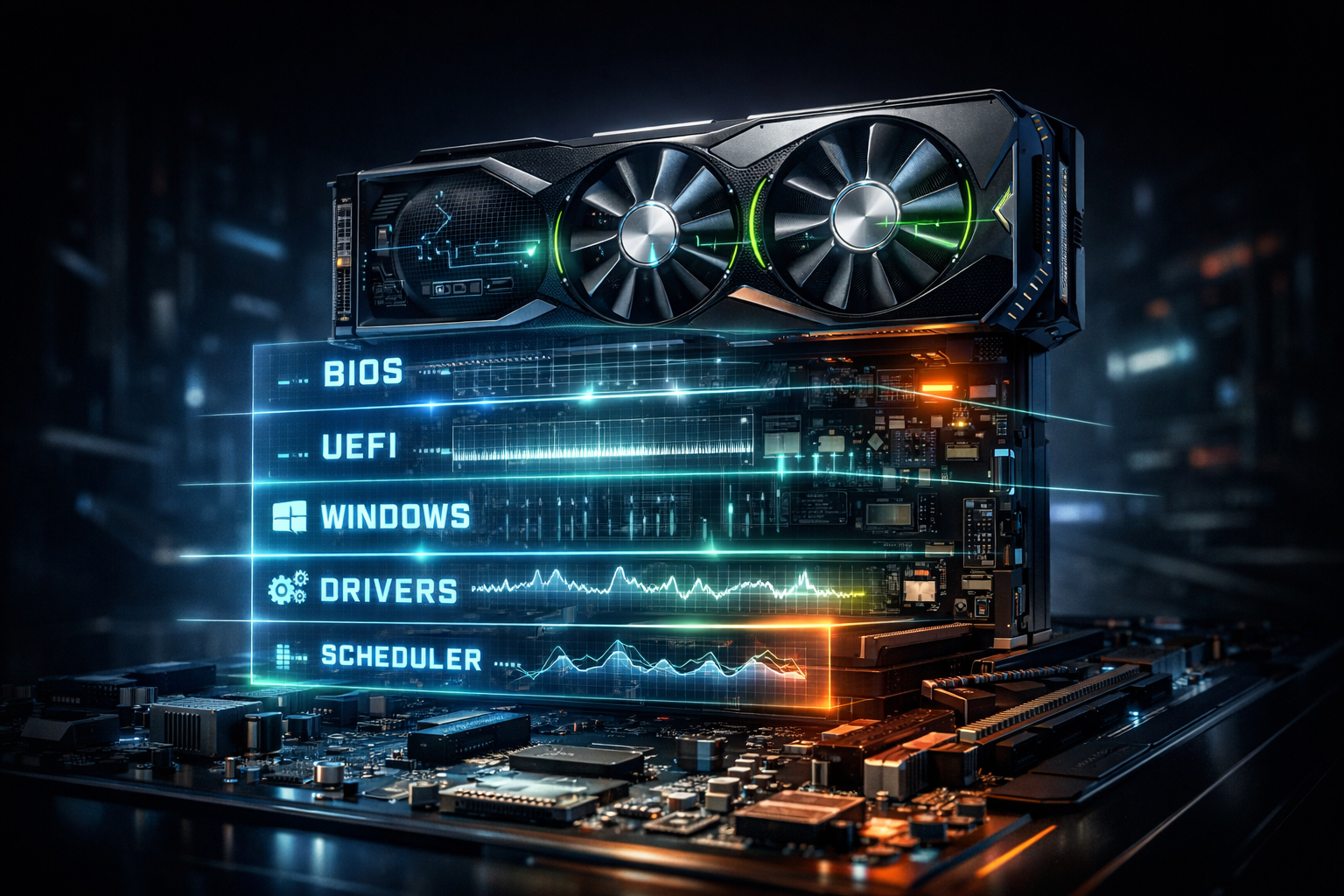
For an RTX 5090 or other RTX 50-series card, BIOS and Windows settings are the hidden foundation of smooth 4K gaming. In the BIOS, you should: update to a stable version, enable Above 4G Decoding and Resizable BAR, turn on XMP/EXPO so RAM runs at its rated speed, and avoid unstable auto-overclocks.
In Windows 11, you should: keep the system fully updated, use Game Mode, consider Hardware-Accelerated GPU Scheduling, set a performance-friendly power plan, keep drivers current, and reduce background apps.
Together, these changes help your RTX 5090 deliver better frametimes, higher 1% lows and lower input latency at 4K, not just a big average FPS number.
Most people think of 4K Ultra performance as a question of GPU and maybe CPU. But for a flagship card like the RTX 5090, your BIOS and Windows configuration can quietly make or break your experience:
- Stutters that appear only in certain games
- Random hitches when you should be GPU-bound
- Lower 1% lows than benchmarks suggest
- Input lag that doesn’t match your FPS counter
These often come back to UEFI/BIOS options and Windows 11 defaults that were never tuned for a high-end RTX 50-series gaming PC.
This article is your BIOS + Windows pillar in the RTX 5090 optimisation hub on rtx50series.co.uk – the bit that makes all the other tweaks actually pay off.
1. Why BIOS and Windows Matter So Much for RTX 50-Series Cards
At 4K, your RTX 5090 is doing most of the heavy lifting – but it still depends on:
- The motherboard firmware to expose PCIe features correctly
- The memory subsystem (RAM speed, timings, channels)
- The Windows scheduler and graphics stack
Modern features like Above 4G Decoding + Resizable BAR let the CPU access larger chunks of GPU VRAM, improving performance in many games when enabled.
XMP/EXPO profiles ensure your DDR4/DDR5 memory runs at its advertised speed instead of a slow JEDEC fallback, which can noticeably improve system responsiveness and frame pacing.
On the Windows side, Microsoft is actively pushing Windows 11 as a gaming-first platform, with changes to background workload management, power/scheduling and the graphics stack specifically to improve gaming performance.
If you ignore all that and just install the card, you’re leaving free performance and smoothness on the table.
2. Essential BIOS Setup for RTX 5090 and RTX 50-Series
Goal: Give the GPU a clean, modern platform: correct PCIe settings, full VRAM access and fast, stable RAM.
2.1 Update to a stable UEFI/BIOS
Before you touch options:
- Check your motherboard vendor’s support page for a recent, stable BIOS
- Look for notes mentioning “Resizable BAR”, “Above 4G Decoding”, “memory stability”, “new GPU support” – these often matter directly for RTX cards
- Flash only via the recommended method (EZ Flash, M-Flash, Q-Flash, etc.)
You don’t need every beta, but running a very old BIOS on a brand-new RTX card is asking for quirky issues.
2.2 Enable Above 4G Decoding and Resizable BAR
For RTX 50-series performance, this is non-negotiable if your platform supports it:
- In UEFI, look under:
- PCIe / PCI Subsystem Settings
- System Agent / Advanced / IO
- Enable Above 4G Decoding
- Enable Resizable BAR (Re-Size BAR) or set to Auto
Above 4G Decoding opens up a larger PCIe address space for high-memory devices, and Resizable BAR lets the CPU access larger chunks of GPU VRAM at once, which can improve FPS and frametime consistency in supported titles.
Even gains of only a few percent are worth it when you’re chasing 4K stability and higher 1% lows.
2.3 Turn on XMP/EXPO so RAM runs at full speed
Out of the box, RAM defaults to safe speeds. To get the performance you paid for:
- In BIOS, locate XMP (Intel) or EXPO (AMD)
- Enable the profile that matches your RAM kit
- Confirm in BIOS or Windows tools that it’s running at the rated MHz and timings
XMP/EXPO:
- Increases memory bandwidth
- Reduces CPU stalls waiting on RAM
- Can smooth frame pacing in games, especially open-world and CPU-heavy ones
Do remember this is technically overclocking; if you see instability, you may need to drop one step or tweak voltages – but on quality kits and boards it’s generally stable.
2.4 Ensure you’re in pure UEFI mode (no legacy baggage)
Check:
- CSM (Compatibility Support Module) → Disabled (where possible)
- Boot mode → UEFI only
This keeps the boot path and device initialisation clean and ensures modern features like Resizable BAR work properly on an RTX 5090.
3. CPU and Power-Related BIOS Tweaks (Without Breaking Stability)
Rule of thumb: Stable and cool beats a flashy but wobbly overclock.
3.1 Avoid unstable auto-overclocks
Many gaming boards ship with:
- “Game Boost”, “AI Overclock”, “Multicore Enhancement” turned on by default
These can:
- Push voltages and clocks aggressively
- Look fine in short benchmarks but cause crashes, micro-stutters or VRR glitches in long gaming sessions
For a premium RTX 50-series build aimed at consistent 4K, you’re often better off with:
- Stock or mild tuned settings
- Good cooling and a stable all-core turbo behaviour
If you do overclock, stress-test properly before blaming the GPU for odd behaviour.
3.2 Check CPU power limits and thermal behaviour
Ensure:
- CPU power limits (PL1/PL2 or equivalent) are set to sane values that your cooler can handle
- Temperatures under gaming load stay within your CPU’s comfort zone
CPU throttling will show up as uneven frametimes and choppy 1% lows, which feels just like a GPU problem when you’re in a busy 4K scene.
4. Windows 11 Foundation for RTX 5090 Gaming
Now the firmware is sorted, you want Windows to get out of the way and let your RTX 5090 breathe.
4.1 Keep Windows, chipset and GPU drivers up to date
For a high-end gaming PC in the UK:
- Install latest Windows 11 updates
- Install current chipset drivers for your platform
- Install the latest NVIDIA Game Ready Driver for RTX 50-series
Game-focused updates to Windows 11 target background workloads, power and scheduling, graphics stack improvements and driver behaviour, all of which matter for RTX-class cards.
4.2 Use Game Mode (yes, it actually helps now)
In Windows 11 Settings → Gaming → Game Mode:
- Turn Game Mode ON
Modern Game Mode:
- Prioritises game processes
- Reduces disruption from Windows Update and some background tasks
It’s not magic, but it’s designed specifically to help keep frametimes calmer during play.
4.3 Consider Hardware-Accelerated GPU Scheduling (HAGS)
In Settings → System → Display → Graphics → Default graphics settings:
- Toggle Hardware-Accelerated GPU Scheduling ON
- Reboot and test your usual titles
HAGS moves some GPU scheduling work off the CPU onto the GPU itself, which can reduce latency and smooth performance on supported hardware and drivers, though results vary by system and game.
If you see new stutters or weirdness, don’t hesitate to turn it back off – treat it as a per-system experiment.
4.4 Use a performance-friendly power plan
In Control Panel → Power Options (or Windows 11 Settings):
- Use Balanced (modern Windows uses core parking sensibly), or
- A vendor High Performance / AMD Ryzen High Performance / Intel equivalent when gaming
Avoid aggressive power-saving plans – they can cause the CPU and GPU to ramp clocks up and down mid-session, which you feel as frametime wobble more than a big FPS drop.
5. Windows Graphics & Latency Features for RTX 50-Series
5.1 Per-game GPU preferences
In Settings → System → Display → Graphics you can:
- Select a specific game executable
- Set it to High performance so it always uses the RTX 5090 and not an iGPU
This is mostly a laptop/dual-GPU issue, but it’s worth checking if you ever see a game mysteriously ignoring the RTX card.
5.2 NVIDIA Low Latency Mode and Reflex
In NVIDIA Control Panel → Manage 3D settings:
- Set Low Latency Mode → On globally, then use Ultra for specific GPU-bound games where you want the snappiest input.
Then, in supported titles:
- Enable NVIDIA Reflex, preferably On + Boost for competitive shooters
Reflex coordinates CPU–GPU work to minimise queueing and can reduce system latency significantly without forcing you to wreck visual quality.
Combined with high refresh 4K and a sensible FPS cap, this makes your RTX 5090 feel immediate rather than just “fast on paper”.
6. Cleaning Up Background Noise in Windows
Even perfect firmware and drivers can’t save performance if Windows is full of noise.
6.1 Tame startup and background apps
Use Task Manager → Startup and Settings → Apps:
- Disable non-essential startup apps
- Uninstall shovelware and trial tools you never use
While gaming:
- Close browser tabs playing video
- Exit heavy RGB suites and hardware dashboards if they hammer the CPU
- Avoid running multiple overlays and capture tools unless you need them
Each small process can steal a few ms at the wrong time and create frametime spikes you feel as micro-stutter – particularly at 4K, high refresh where timing is tight.
6.2 Antivirus & security
You should absolutely run security software, but:
- Exclude your main game library folders from real-time scanning
- Avoid full system scans while you play
Windows Defender is generally fine for gaming if configured sensibly, but any AV hammering your NVMe mid-session will wreck 1% lows.
7. A Practical BIOS + Windows Checklist for RTX 5090 Owners
Use this on rtx50series.co.uk as a simple “do this once per build” cheat sheet.
BIOS / UEFI
- ✅ Update to a recent, stable BIOS
- ✅ Enable Above 4G Decoding
- ✅ Enable Resizable BAR (or set to Auto)
- ✅ Turn on XMP/EXPO and confirm rated RAM speed
- ✅ Use UEFI only, disable CSM if possible
- ✅ Avoid unstable “magic” auto-overclocks; prioritise stability
Windows 11
- ✅ Install latest Windows updates and chipset drivers
- ✅ Install current NVIDIA Game Ready Driver for RTX 50-series
- ✅ Turn Game Mode ON
- ✅ Test Hardware-Accelerated GPU Scheduling (keep if it helps)
- ✅ Use a Balanced / High Performance power plan when gaming
- ✅ Set key games to High performance GPU under Graphics settings
- ✅ Configure NVIDIA Low Latency Mode and Reflex where appropriate
- ✅ Strip non-essential startup apps and overlays
- ✅ Keep AV from scanning your game folders mid-session
Do this once and suddenly your other optimisation work (NVIDIA Control Panel tweaks, in-game settings, 4K display setup) starts behaving predictably.

One thought on “BIOS and Windows: The Invisible Foundation of Smooth 4K RTX 5090 Gaming”