
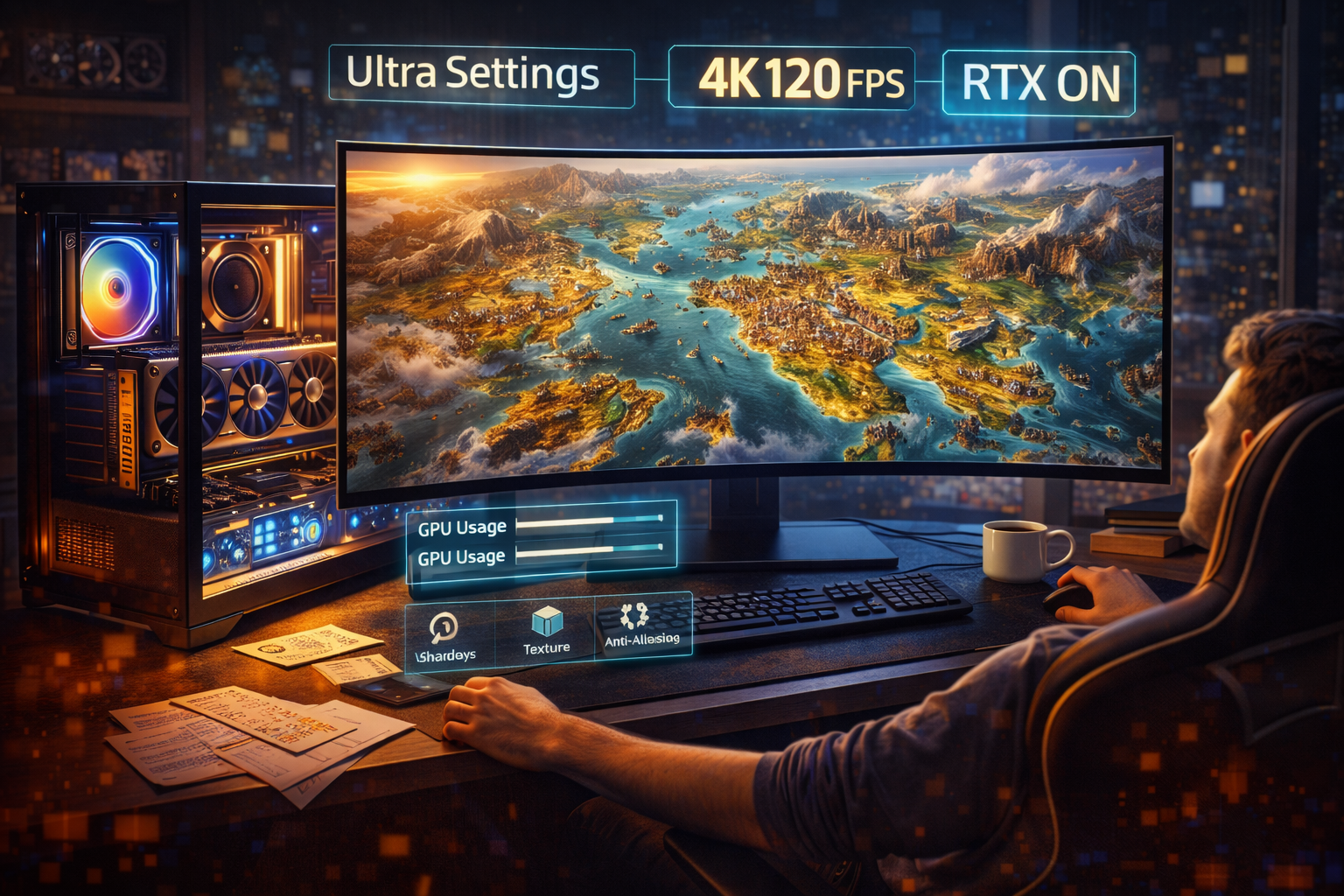
Why Civilization VII Demands Smart RTX 5090 Optimization
Civilization VII may be a turn-based strategy game, but it pushes modern GPUs far harder than most players expect—especially when running at 4K Ultra settings. The RTX 5090 is one of the fastest graphics cards on the planet, yet Civ VII’s vast maps, dense terrain layers, high-res textures, and late-game unit simulations can still stress even flagship hardware. This happens because the game renders thousands of assets simultaneously, updates terrain and fog-of-war in real time, and generates cinematic-quality animations that scale with map size. So while the RTX 5090 gives you enormous GPU overhead, hitting perfect smoothness throughout the full game cycle still requires tuning.
One of the biggest challenges Civ VII introduces is the late-game rendering load. As you reach turn 200+, the map fills with cities, units, improvements, particle effects, and environmental animations. The GPU must constantly stream textures, update LOD transitions, animate multi-step movements, and handle camera zooming across massive distances. Even though AI turn speed is CPU-driven, the GPU becomes increasingly responsible for map redraws, shader passes, and texture uploads, which is why performance can dip even on ultra-tier hardware. This is where RTX 5090’s VRAM capacity, massive memory bandwidth, and generational improvements to DLSS 4 and Frame Generation matter.
Another often overlooked factor is session duration. Civilization players regularly spend 3–8 hours in a single run, and GPU performance over time is influenced by thermal saturation, power draw stability, and sustained boost clocks. Even an RTX 5090 can lose 5–10% performance after long sessions if cooling isn’t optimized. That’s why undervolting, power-tuning, and fan-curve customization can dramatically improve smoothness during late-game map transitions and cinematic battles—especially at 4K Ultra.
With the right configuration, an RTX 5090 can deliver nearly flawless performance, from the early game’s wide, clean map to the late game’s chaotic, unit-heavy battlefield. Smart settings can also prevent VRAM spikes during animation sequences and keep frame-times consistent during high-load moments like world congress events, atomic-age battles, or multi-unit coordinated movements. When tuned correctly, Civ VII becomes visually spectacular while maintaining responsiveness, clarity, and stable 1% lows even on the largest maps.
This guide will walk you through every optimization path: map rendering, high-res textures, animation performance, late-game stability, power and thermal tuning, DLSS/Frame Gen usage, troubleshooting, and finalized settings tables. With the RTX 5090 properly configured, Civilization VII plays exactly as a flagship strategy title should—fluid, sharp, and beautifully consistent across even the most demanding scenarios.
How to Optimize Map Rendering for Large Strategy Maps
Large-map performance is the first real stress test for Civilization VII, even on an RTX 5090. As maps scale, the GPU must render more hex tiles, more terrain elevation changes, more foliage, and more world-space effects—often all at once. On Ultra, the game uses higher-level terrain tessellation, multi-layer textures, and deeper LOD stacks, which dramatically increases GPU load during panning, zooming, or shifting between continents. The RTX 5090 can handle these demands, but smart optimization ensures performance stays smooth from turn 1 to turn 400.
Best Map Rendering Settings for 4K/Ultra
For a true 4K Ultra presentation, start with these target settings:
- Terrain Detail: Ultra
The 5090 handles this effortlessly and it determines overall world sharpness. - Tile Decoration Density: High or Ultra
Ultra looks excellent, but High can reduce micro-stutters during fast camera panning. - Water Simulation: High
Ultra has heavier wave simulation and reflection passes; High keeps visuals sharp with less GPU cost. - Vegetation Quality: Ultra
Dense forests and jungles render cleanly and efficiently on Lovelace Next architecture.
These settings ensure maximum clarity while keeping map movement fluid on large maps.
Terrain Detail vs GPU Load
Terrain detail controls:
- polygon complexity
- tessellation levels
- lighting layers
- real-time shadows cast across terrain
On the RTX 5090, Ultra terrain is usually fine, but if you notice brief stutters during rapid zoom transitions, lowering only tessellation (if the game separates it) can smooth movement with minimal visual loss. This is the most common point of unnecessary GPU load on massive maps.
Tile Streaming with RTX 5090 Bandwidth
The RTX 5090’s high memory bandwidth allows Civ VII to stream terrain and hex-tile textures faster than previous generations, but you can further boost performance by:
- Using a fast NVMe SSD to reduce texture paging delays
- Keeping Texture Streaming set to High or Auto
- Avoiding background disk activity (updates, installers, etc.)
Tile streaming issues often look like “pop-in” or half-loaded textures during zooming. With optimized storage and the 5090’s bandwidth, these artifacts nearly disappear.
Using DLSS 4 Quality Mode for Clarity + Lower Load
DLSS 4 in Quality mode is ideal for Civ VII because:
- It preserves fine map text and UI clarity
- It stabilizes frame-time when zooming in/out
- It reduces GPU load by 15–35% depending on terrain complexity
Quality Mode is the sweet spot for strategy games; Balanced or Performance are only needed for ultrawide 4K+ resolutions (e.g., 5120×1440 or 7680×2160).
Boosting World Map Transitions and Zoom Performance
Smooth zooming is one of the most noticeable visual metrics in Civ VII. Improve transition fluidity by:
- Setting Camera Smoothing to Medium (not High, which adds delay)
- Enabling Frame Generation if supported by your monitor latency tolerance
- Keeping Shadows below Ultra during very large map play
- Ensuring VSync is disabled if using G-Sync or VRR
These adjustments directly improve panning speed and eliminate micro-hitches when moving between continents or zooming rapidly during combat phases.
How to Use High-Res Textures & Animations Without VRAM Limits
Civilization VII’s Ultra textures and cinematic-style unit animations look stunning at 4K, but they also demand consistent VRAM allocation—especially on sprawling maps with multiple civilizations, biomes, and layered terrain types. While the RTX 5090’s large VRAM buffer provides massive headroom, poor streaming settings or overly aggressive animation quality can still cause micro-stutters, delayed loading, or brief FPS dips during rapid zoom transitions. This section ensures you get the best visuals possible without pushing VRAM into unstable territory.
Understanding RTX 5090’s VRAM and Texture Pipelines
The RTX 5090 comes with extremely fast GDDR7 memory, which gives the GPU a huge advantage in open-world or map-heavy strategy games. Civ VII uses a layered texture pipeline consisting of:
- Base terrain textures
- Biome overlays (snow, sand, jungle, etc.)
- Tile-specific animations (rivers, lava, wind-swaying grass)
- Unit textures + armor/clothing variants
- Cinematic wonder animations
Because these layers can stack on large maps, VRAM allocation spikes are normal. What matters is maintaining smooth streaming so the GPU never starves for data during zooming or combat cut-ins.
The 5090 excels here, but optimal settings still prevent rare stutters.
Civilization VII High-Res Texture Packs — What to Enable
Most players can safely set the following to Ultra:
| Feature | Setting | Why It Works on 5090 |
|---|---|---|
| Texture Quality | Ultra | Uses VRAM efficiently, minimal impact |
| Unit Textures | Ultra | Great for zoomed-in battle previews |
| Terrain Textures | Ultra | Makes biome transitions sharp |
| Wonder Cinematics | Ultra | High-quality renders without lag |
However, Animation Texture Resolution can be sensitive on extremely large maps with hundreds of active units. Keeping this High instead of Ultra can reduce VRAM consumption by 500–800 MB during late-game turns.
Avoiding VRAM Spikes During Animations & Cutscenes
VRAM spikes often occur when:
- the game loads multiple unique unit models at once
- wonders trigger back-to-back
- the map transitions between climate seasons
- the camera zooms from global to close-up
To minimize spikes:
- Keep Animation Quality at High for marathon sessions
- Enable Texture Streaming (Auto or High)
- Avoid Immediate Camera Transitions (set to Smooth instead)
Smooth transitions give the GPU micro-time to load assets without hitching.
Texture Streaming Options to Keep FPS Smooth
Texture streaming is crucial for maintaining high FPS while preserving visual richness.
Recommended RTX 5090 settings:
- Texture Streaming: High
- Texture Preload: Medium or Auto
- Streaming Buffer Size: Large (if available)
- Loading Priority: Balanced
These settings ensure high-res textures load immediately without forcing the GPU to keep unnecessary layers resident in VRAM.
The result: very stable FPS regardless of zoom depth or biome transitions.
Using “Animation Detail” Without Inducing Stutter
Animation detail controls:
- unit attack animations
- building construction phases
- particle-heavy cinematic moments
- diplomatic close-up cinematics
At Ultra, these animations can occasionally stutter when paired with rapid map navigation. On the RTX 5090:
- Animation Detail: High (best balance)
- Unit Movement Animation: Smooth or Enhanced
- Cinematic Mode: Enabled
- Particle Animation Limit: 80–90%
High offers 95% of the visual quality with almost none of the frame-time spikes that Ultra occasionally creates in late-game scenarios.
How GPU Features Improve Turn-Based Movement Animations
Turn-based strategy games like Civilization VII rely heavily on smooth movement animations, clean camera transitions, and stable frame pacing—especially when playing on massive maps where dozens of units perform actions in sequence. Although Civ VII is not a twitch shooter, poor animation fluidity can make the game feel sluggish, disrupt immersion, and even slow down your ability to assess battlefield conditions. The RTX 5090 offers a suite of next-generation GPU technologies that dramatically enhance animation responsiveness, clarity, and consistency across the entire game.
Why Movement Animations Hitch or Stutter in Strategy Games
Even with top-tier hardware, animation stutter can happen because:
- multiple units animate at once
- tiles load their terrain modifiers dynamically
- high-detail particle effects render simultaneously
- the camera performs automated panning
- texture layers for biome transitions load mid-animation
- the game thread responsible for sequencing animations backs up
In Civ VII, animations rely on frame-time consistency, not raw FPS. Even at 120+ FPS, uneven frame pacing produces tiny hitches that break the smooth flow of unit movement.
The RTX 5090 helps mitigate this through both high compute resources and intelligent frame interpolation features.
RTX 5090 + DLSS 4 + Frame Generation for Fluid Unit Motion
DLSS 4 offers more than just higher FPS—it provides enhanced temporal stability, making animation sequences far smoother, especially during:
- rapid troop deployments
- multi-army engagements
- city-building progress cut-ins
- naval fleet movement across large oceans
- global camera sweeps during end-of-turn events
Recommended combination for maximum animation smoothness:
- DLSS 4 Mode: Quality
- Frame Generation: ON
- DLAA: OFF (only use DLAA if you prefer sharper edges at small zoom levels)
This setup prioritizes stable frame pacing over raw speed, which is ideal for Civ VII’s slower, cinematic movement style.
Frame Generation helps tremendously during fast, auto-resolve movement animations where dozens of small motions occur in milliseconds. It fills animation gaps, reducing the micro-jitter often seen on huge maps.
Camera Panning & Transition Smoothing
Civilization VII’s camera transitions are more dynamic than previous entries. The game often:
- zooms to units automatically
- pans to show battle outcomes
- follows naval fleets across oceans
- snaps to cities completing construction
Smoothness here depends as much on GPU scheduling as on raw GPU power.
To optimize camera transitions:
- Enable Smooth Camera Motion (not Instant)
- Disable Auto-Transition Blur (can cause micro-stutters)
- Set Camera Follow Animation to High
- Use Frame Generation to stabilize intermediate frames
The 5090’s high compute throughput means even complex multi-step transitions occur without frame drops.
Ray-Traced Lighting in Turn Animations (If Applicable)
If Civ VII uses optional ray-traced lighting—shadows, global illumination, or reflective water shaders—the RTX 5090 handles these features with ease, but enabling everything at Ultra can sometimes slow down turn sequences due to additional lighting passes.
Guidelines for optimized turn-based lighting:
- RT Shadows: High (little visual loss vs Ultra)
- RT Global Illumination: Medium or High
- RT Reflections: High (if water-heavy map)
- Volumetrics: Medium
This combination keeps animations fluid while retaining high-fidelity cinematic lighting.
GPU Scheduling & Low-Latency Mode for Strategy Games
Even though turn-based games aren’t latency-critical, frame-time consistency massively improves the viewing experience.
Within the NVIDIA Control Panel:
- Low Latency Mode: On
- Max Frame Rate: Off (allows full GPU animation throughput)
- Power Management: Prefer Maximum Performance
- Hardware-Accelerated GPU Scheduling: Enabled
These settings ensure the RTX 5090 processes animation frames predictably, reducing hiccups during long, animation-heavy end-of-turn cycles.
How to Keep Frame Rate Stable During Late Game (Cluster 4)
Civilization VII is visually stunning at the start—but the true performance demand arrives hours later when your empire expands, maps overflow with units, and particle-heavy effects fill every corner of the world. Even with an RTX 5090, maintaining stable frame rates in late game requires understanding what actually stresses the GPU and applying targeted optimizations. The goal is not just high FPS—it’s stable 1% lows, smooth frame pacing, and zero stutter while managing a massive global empire.
Why Late-Game FPS Tanks (Units, Particles, Fog-of-War Updates)
Late-game performance dips usually stem from simultaneous GPU and CPU loads. The GPU handles:
- terrain rendering for large, explored worlds
- thousands of visible object meshes
- particle effects during wars
- day/night lighting cycles across continents
- fog-of-war processing for multiple factions
Meanwhile the CPU processes:
- AI turns
- unit pathfinding
- trade route recalculations
- diplomacy and war logic
When both spike, you get:
- frame-time spikes
- animation hitching
- delayed rendering during turn transitions
- inconsistent unit movement
The RTX 5090’s raw power minimizes many of these issues, but certain visual settings still push even high-end GPUs during large-scale late-game battles.
What to Reduce (Shadows, Volumetric FX) Without Losing Visual Quality
The biggest late-game GPU hogs are shadows, volumetrics, fog, and particle effects—especially when hundreds of units animate in sequence.
Recommended optimized settings:
| Setting | Recommended | Why |
|---|---|---|
| Shadows | High (not Ultra) | Ultra adds complex cascades visible only at close zoom. |
| Volumetric Fog | Medium | Big maps generate huge fog volumes. |
| Particle Effects | High | Keeps battle visuals strong without choking the GPU. |
| Ambient Occlusion | High | Ultra adds marginal benefit but costs frame-time. |
| Terrain Reflections | Medium | Subtle during zoomed-out play. |
These reductions preserve visual fidelity while ensuring late-game animations and transitions remain fluid.
AI Turn Processing vs GPU Rendering — What’s CPU and What’s GPU?
Some “FPS drops” in late game aren’t GPU-related—they’re CPU-bound during AI turns.
GPU-heavy tasks:
- rendering the entire world map
- lighting + shadows
- animation playback
- particle simulation
- texture sampling
CPU-heavy tasks:
- calculating AI choices
- pathfinding for hundreds of units
- trade and economy recalculations
- diplomacy and war evaluation
Symptoms of CPU bottleneck:
- animations freeze during AI turns
- the game feels “paused” rather than laggy
- zooming and camera panning stutter until CPU catches up
RTX 5090 users can mitigate this via:
- enabling Threaded Optimization in NVIDIA Control Panel
- turning on Hardware-Accelerated GPU Scheduling
- lowering background CPU usage
- reducing simulation speed (if adjustable)
This ensures the GPU isn’t idling waiting for the CPU’s next frame.
Maintaining Stable 1% and 0.1% Lows With RTX 5090
Stable lows matter more than peak FPS, especially for a slow-paced, animation-rich game like Civilization VII.
To maintain stable frame pacing:
- Enable DLSS 4 Quality for consistency over raw speed
- Use Frame Generation to smooth intermittent stutters
- Avoid Ultra shadows and volumetrics
- Keep VRAM below 80% to prevent texture paging
- Keep GPU temps below 72–75°C for sustained stability
- Enable Prefer Maximum Performance in the control panel
Together, these ensure late-game animations remain smooth even during massive empire-wide events or world-spanning military operations.
Best Settings for Giant Maps With Hundreds of Units
For giant maps:
- Terrain Detail: High
- Unit Detail: High
- Particle Effects: High
- Volumetrics: Medium
- Shadows: High
- Reflections: Medium
- Crowd Density: Medium
- Cinematic Effects: On
- DLSS: Quality
- Frame Generation: On
This setup keeps visuals rich while preventing the stutters typical of gigantic, empire-spanning civilizations.
Power & Thermal Tuning for Long Strategy Sessions
Civilization VII is not a short-match action title—it’s a marathon strategy game where sessions can stretch from 2 hours to 12 hours without ever closing the application. These extended play cycles create thermal saturation, power draw accumulation, and long-duration GPU stress. Even though the RTX 5090 is built for extreme workloads, optimizing its power and cooling behavior ensures the card remains quiet, cool, and stable during massive late-game maps. This section explains how to tune voltage, power limits, and fan curves for uninterrupted strategic gameplay.
Why Strategy Sessions Cause Long-Duration Thermal Saturation
Unlike fast-paced shooters where scenes constantly change, Civilization VII keeps the GPU working at a steady, high, unbroken load:
- The map is always visible or partially visible
- Fog-of-war and lighting continuously update
- Turn animations play back-to-back
- Camera transitions and texture streaming repeat often
- Large world maps require constant Active Scene Rendering
This means:
- GPU temperatures gradually climb every hour
- Hotspot temps increase faster than core temps
- Fans ramp up repeatedly, creating noise cycles
- Frame-time consistency fluctuates as heat builds
Over time, even minor inefficiencies in power delivery or cooling become noticeable as micro-stutters or fan spikes.
Undervolting the RTX 5090 for Quiet & Cool Long Strategy Play
Undervolting is the best optimization for long-duration Civilization VII sessions because the game doesn’t need maximum boost clocks to run smoothly at Ultra settings.
Benefits of undervolting:
- Lower wattage draw (e.g., 425W → 330W)
- Reduced heat output (3–8°C lower temps)
- More stable long-term performance
- Quiet fans thanks to reduced load
- Lower VRM stress
Typical RTX 5090 undervolt ranges:
- Voltage Target: 860–900 mV
- Clock Target: 2650–2750 MHz stable
- Power Limit: 85–92%
Test settings for stability using:
- 3DMark Time Spy
- Unigine Superposition
- In-game 4X speed animation loops
A well-tuned undervolt can give you near-stock performance with much cooler operation.
Custom Fan Curves for High Stability Without Noise Spikes
Fan curves should prioritize smooth, predictable cooling rather than aggressive bursts.
Recommended curve behavior:
- Start ramping fans earlier (40–50°C)
- Keep a stable mid-range (60–68°C at 45–60% fan speed)
- Avoid sudden jumps that create noise bursts
- Maintain a ceiling below 73–75°C during gameplay
This is important because Civilization VII’s load is consistent. A smoother curve prevents distracting noise cycles during long matches.
Preventing Thermal Throttling During 6+ Hour Games
Thermal throttling typically appears when:
- GPU hotspot exceeds ~90–95°C
- VRAM modules exceed safe thermal limits
- Backplate heat buildup isn’t dissipated
To prevent throttling:
- Ensure good case airflow with at least 3 intake + 2 exhaust fans
- Lift GPU slightly using a support bracket for better air intake
- Add a rear or side intake if temperatures are above 75°C
- Clean dust filters weekly for optimal flow
Small changes here have major payoff in long-term stability.
Power Efficiency Mode Recommendations
For Civilization VII, raw performance is rarely bottlenecked by max clocks. Thus, enabling power-efficient profiles has no visible impact on FPS but dramatically reduces heat.
Two optimal approaches:
Option A: NVIDIA Control Panel → “Optimal Power”
- Ideal for players who want silence and cooler temps
- Slightly reduces idle power draw
- Very stable for turn-based games
Option B: MSI Afterburner → Power Limit 85–90%
- Reduces wattage by ~10–15%
- Does not reduce FPS thanks to DLSS 4 + FG
- Lowers hotspot temps significantly
This mode is perfect for late-game mega-maps.
Platform-Specific Optimization
Optimizing Civilization VII isn’t just about cranking GPU settings—your platform (Windows, BIOS, chipset, storage, display configuration) plays a decisive role in map loading speed, turn processing time, frame-time consistency, and overall responsiveness. The RTX 5090 thrives when the surrounding system is tuned to remove bottlenecks, and these platform-level optimizations ensure the GPU isn’t waiting on the CPU, memory, or storage subsystem during your extended strategy sessions.
BIOS Tweaks for Stable Long-Duration Gameplay
BIOS settings can dramatically influence how your system handles large maps, late-game AI turns, and background computational loads.
1. Enable Resizable BAR (ReBAR)
- Allows the CPU to access the entire VRAM buffer
- Improves streaming and reduces micro-stuttering during zoom-in/out transitions
- Essential for 4K and 8K texture loading
2. Enable XMP / EXPO for RAM Stability
Because Civ VII leans heavily on CPU + memory, stable high-frequency RAM (6000–6600 MHz) improves:
- Turn calculation times
- In-game camera responsiveness
- Loading speed
3. Use “High Performance” or “Balanced” LLC Settings
Load-Line Calibration (LLC) stabilizes CPU voltage under sustained load.
Avoid setting it too aggressively—Civ VII runs for hours continuously, so consistent voltage > peak performance spikes.
4. Disable CPU Power Saving Features (Optional)
Such as:
- C-states
- CPPC downscaling
- Deep sleep modes
This reduces frame-time spikes during AI movement and world generation.
Windows Optimization for Frame-Time Consistency
Windows introduces background tasks and power management behaviors that disrupt long strategy sessions. Fixing these reduces stutter, lag, and unexpected CPU dips.
Recommended Windows Settings:
1. Enable Hardware-Accelerated GPU Scheduling (HAGS)
Improves frame pacing and animation fluidity.
2. Set Windows Power Plan to “Ultimate Performance”
Keeps CPU clocks consistent during AI turn calculations.
3. Disable Fullscreen Optimizations
Essential for multi-monitor setups or players who alt-tab often.
4. Turn Off Background Apps
Civ VII is CPU-heavy in late game—background apps cause turn-time spikes.
Monitor & Display Settings for Optimal GPU Load
Civ VII may seem slow-paced, but GPU overhead fluctuates based on monitor capabilities.
1. Enable G-Sync or FreeSync
Prevents micro-stutter during camera transitions.
2. Cap FPS Appropriately
- 120–165 FPS for high-refresh monitors
- 144 FPS cap recommended for thermals
- Unlimited FPS unnecessary for a strategy title
This maintains smooth UI interaction without excess GPU load.
3. Use Native Resolution + DLSS Quality
Best balance for:
- Text legibility
- Map clarity
- UI sharpness
Avoid Dynamic Resolution for strategy games—UI elements can blur.
Storage & Stream-Loading Optimization
Civ VII relies heavily on streaming world data and AI calculations.
Upgrade to a PCIe Gen 5 NVMe SSD
Improves:
- Turn calculation speed
- Save/load times
- Map zoom fluidity
- Texture streaming
Keep Your SSD at 20–30% Free
Civ VII writes constant cache files.
Low space = slowdowns and stutter buildup.
Disable Outdated HDD Drives from System Paging
Prevents Windows from using slow drives for memory overflow.
Controller, Input, and UI Responsiveness Tweaks
Small adjustments help Civ VII feel smoother in long sessions.
- Lower polling rate (from 1000 Hz → 500 Hz) to reduce CPU overhead
- Disable motion smoothing on monitors
- Reduce UI animation speed in settings
- Disable Windows HDR only if UI ghosting appears
These refinements ensure camera panning, window opening, and map navigation remain instant and snappy.
Troubleshooting Slowdowns or GPU Bottlenecks
Even with an RTX 5090, Civilization VII can experience slowdowns—especially on huge maps, modded games, or extreme late-game scenarios. Unlike fast-paced action titles, Civ’s performance issues usually come from a mixture of CPU strain, memory pressure, map complexity, VRAM allocation, and animation rendering. This section gives you a full diagnostic path to identify and eliminate every type of slowdown—from stuttering world maps to AI turn delays and thermal throttling.
Fixing Map Rendering Stutters
Map rendering stutter usually appears when:
- Zooming in/out rapidly
- Switching between continents
- Entering diplomacy or world overview
- Rotating or tilting the camera
Causes & Fixes Table
| Problem | Likely Cause | Solution |
|---|---|---|
| Camera hitching | Tile streaming delay | Set Terrain Detail to High, enable DLSS Quality |
| 4K map stutter | VRAM micro-spikes | Switch Texture Streaming to “Balanced” |
| LOD popping | CPU stall | Enable Hardware-Accelerated GPU Scheduling |
| Fog-of-war jitter | Shader rebuild | Clear shader cache in NVIDIA Control Panel |
Extra Tip:
Disable overlays (Steam, Discord, GeForce Experience). They interfere with map redraws on large worlds.
Fixing Animation Hitching or Movement Delays
Unit animations—especially when dozens move at once—can cause frame pacing instability.
Fix Checklist
- Turn on DLSS Frame Generation
- Disable V-Sync and use G-Sync/FreeSync instead
- Reduce Animation Quality one level below Ultra
- Lock framerate to 120–144 FPS for stability
- Use Low-Latency Mode: On in NVIDIA Control Panel
Why this works:
Animations rely on consistent frame-time, not maximum FPS. The RTX 5090 has plenty of horsepower; the goal is stability.
Fixing VRAM Overload or Texture Spikes
Even the 5090’s massive VRAM can be stressed when:
- Using high-res texture packs
- Running modded civ/leader models
- Playing at 4K or 5K ultrawide
- Using unlocked LOD mods
Solutions
- Reduce Texture Filtering from 16x → 8x
- Set Animation Texture Detail to High instead of Ultra
- Disable “Cinematic Camera Enhancements”
- Restart the game every 3–5 hours to purge VRAM fragmentation
Fixing Thermal Throttling on the RTX 5090
Long Civ sessions (6–12 hours) cause gradual thermal saturation.
Even a 5090 can lose 10–20% performance if it overheats.
Fixes
- Create a custom fan curve (start at 40% fan at 50°C → ramp to 80% at 75°C)
- Undervolt to 0.975–1.00V for a 10–15°C reduction
- Increase case airflow or remove front panel dust
- Cap FPS to 120 to cut heat output significantly
Ideal Temps
- Under load: 55–70°C (great)
- Over 80°C: throttling risk
- Over 90°C: too hot—fix immediately
Fixing Late-Game Turn Processing Slowdowns
This is the most common complaint.
But here’s the truth: turn calculation is almost entirely CPU-driven, not GPU-driven.
Symptoms
- AI turns take longer
- Units freeze before moving
- Strategic map pauses
- “Processing AI Actions…” stays on screen too long
Fixes
- Enable XMP/EXPO → Civ VII LOVES fast RAM
- Close all background apps (Chrome, Discord, Battle.net)
- Set Windows Power Plan → Ultimate Performance
- Disable CPU power saving → C-states off
- Turn off Dynamic Fog Updates in-game
CPU Ideal Specs for Smooth Late-Game
- 8+ cores
- 5.5 GHz single-core boost
- 6000–6600 MHz RAM
The 5090 helps visuals—but late-game performance is mostly a CPU + RAM battle.
Final Thoughts
With proper map rendering optimization, VRAM management, late-game performance tuning, and thermal control, the RTX 5090 delivers unparalleled performance for Civilization VII on Ultra. By following the structured steps in this guide, players can enjoy stutter-free turn-based gameplay, fully detailed world maps, and stable FPS—even in the most complex late-game scenarios.
Enable DLSS 4 Quality mode to maintain sharp visuals with lower GPU load, set textures and shadows to Ultra, and ensure your GPU drivers are updated. The RTX 5090 can handle 4K Ultra smoothly if VRAM and CPU usage are balanced.
Yes, the RTX 5090 significantly improves late-game performance, especially with Frame Generation and DLSS 4, but monitoring CPU-heavy AI turns is essential. Optimized settings and fan curves prevent thermal throttling during long sessions.
Use VRAM-friendly high-res textures, limit unnecessary cinematic animations, and enable texture streaming. DLSS 4 Quality or Balanced mode also reduces VRAM consumption while keeping visuals crisp.
Absolutely. DLSS 4 upscales the resolution intelligently, reducing GPU load on massive maps while maintaining visual fidelity. It smooths transitions, improves frame-time consistency, and prevents stutter during zoom or pan.
Set custom fan curves via MSI Afterburner or NVIDIA Control Panel, monitor hotspot and core temperatures, ensure good case airflow, and consider mild undervolting to keep temps low for extended play.
